
Want to control your Windows 11 computer using only your voice? Voice Access is a tool that does exactly that. You can open apps, navigate your computer, and complete tasks just by speaking. No keyboard or mouse needed.
When you first turn on Voice Access, Windows asks you to download language files. This helps the program understand what you’re saying.
At first, only US English was available. Now you can choose from several English versions:
- English – US
- English – UK
- English – India
- English – New Zealand
- English – Canada
- English – Australia
Windows checks your computer’s main language and suggests options. But if you want to add a different language, follow these simple steps.
How to Install a New Language for Voice Access
- Turn on Voice Access. You can learn how to do this here: Turn on Voice Access in Windows 11.
- Look for the toolbar. Once Voice Access is running, a small toolbar appears at the top of your screen.
- Click the Settings icon. It looks like a gear on this toolbar.
- Find the Language section. Click on it to open the language options.
- Look for “Available for Download”. You will see a list of languages you can add.
- Choose your language. Click on the language you want to install.
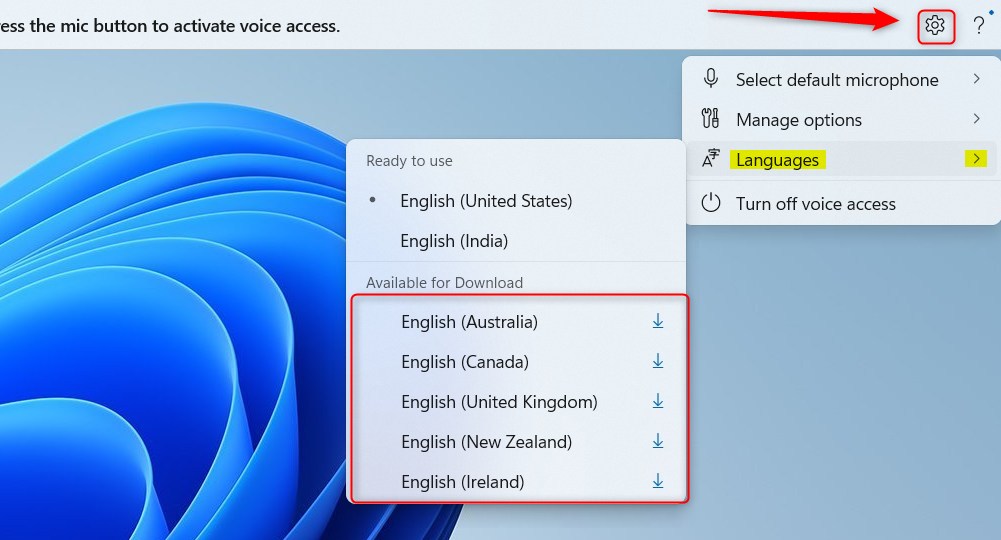
- Click Download. A pop-up appears at the top of your screen with a Download button. Click it and wait a few minutes for the language pack to install.

- Start using the new language. Once downloaded, the language is ready to use with Voice Access right away.
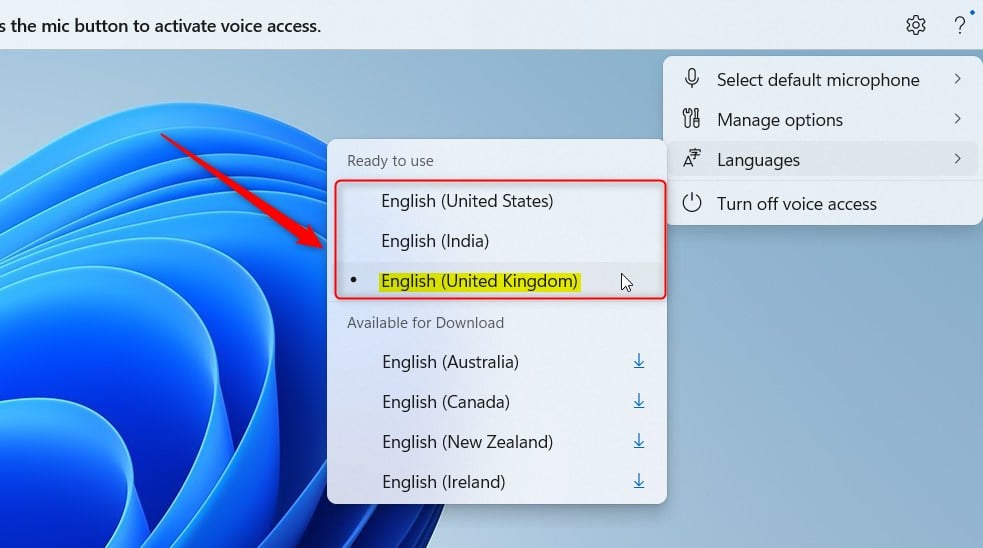
- Switch languages anytime. Go back to Voice Access Settings > Languages whenever you want to change.
That’s it! Now you can speak to your PC in the English dialect you prefer.
Need More Help?
For official information from Microsoft, check their guide here: Microsoft Voice Access Setup
Summary
- Voice Access lets you control your Windows 11 PC with your voice.
- It started with only US English, but now supports other English dialects.
- To add a new language, turn on Voice Access, open Settings, and download the language pack.
- After downloading, you can use the new language right away.
- You can change languages anytime from the Voice Access Settings.

Leave a Reply