How to Improve Recall Snapshots Filtering on Windows 11

This guide will show you how to turn on or off the “Help improve Recall Snapshots filtering” feature in Windows 11. Don’t worry—it’s easy to do!
What Is Recall & Snapshots?
Recall & Snapshots is a cool AI feature in Windows 11. It works like a camera that takes quick pictures (snapshots) of what’s on your screen. Later, you can search these snapshots to find something you saw before on your PC.
To use this, you need to let Windows save these snapshots. Think of it like letting your computer remember what you did, so you can look back whenever you want.
What Can You Do with Recall?
- Pause the snapshots anytime (learn how here).
- Choose which apps or websites you want to exclude from being saved (apps) and (websites).
- Delete all snapshots whenever you want (steps here).
All snapshots are kept private and safe on your PC. They are encrypted, which means your information is locked and protected with Device Encryption or BitLocker, both turned on by default in Windows 11.
What Does “Help Improve Recall Snapshots Filtering” Mean?
This option lets you share a list of apps and websites you choose to block from Recall with Microsoft—but don’t worry, it’s anonymous. This helps Microsoft make Recall better for everyone.
How to Turn On or Off “Help Improve Recall Snapshots Filtering”
Follow these simple steps:
- Open the Windows Settings app. Tip: You can click the Start menu and choose Settings, or just press
Windows key + Ion your keyboard. - In Settings, click Privacy & security on the left menu.
- On the right, find and click the Recall & snapshots option.
- Turn on the Save snapshots feature if it’s not already on.
- Click the Help improve Recall snapshots filtering option to open it.
- Toggle the switch to On to enable sharing or Off to disable it.
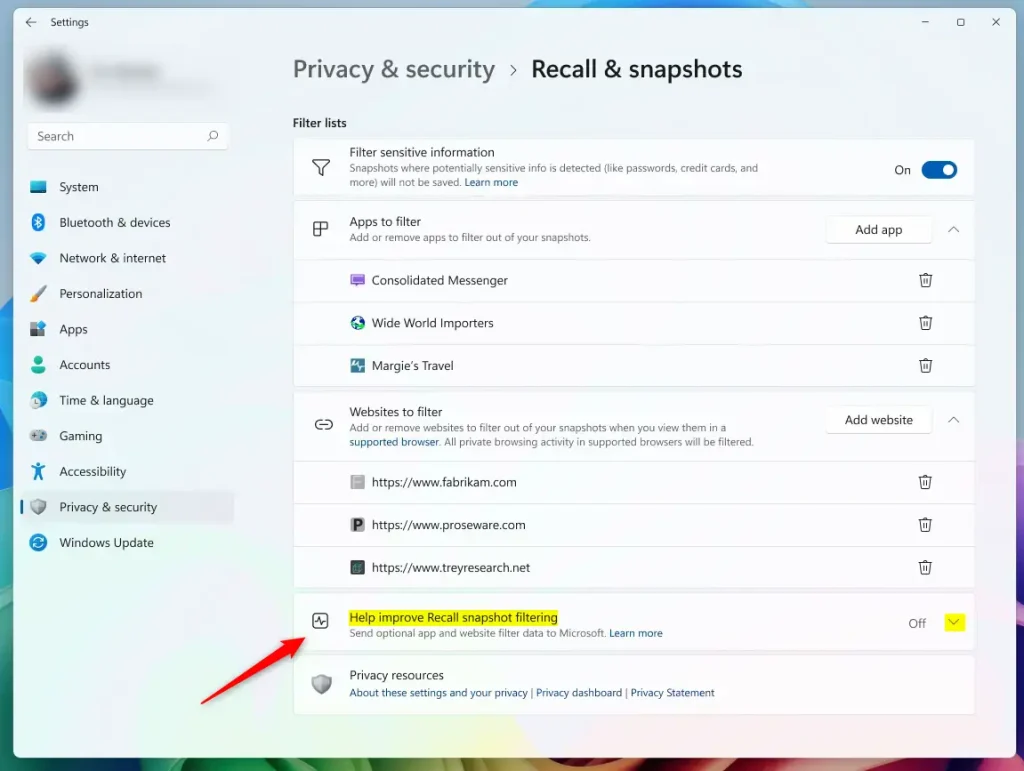
When done, just close the Settings app.
Extra: How to Turn This Feature On or Off Using the Windows Registry
If you’re comfortable with advanced settings, you can also change this using the Windows Registry. Here’s how:
- [Admin] Open the Registry Editor (search for “regedit” in the Start menu).
- Go to this folder path:
Computer\HKEY_CURRENT_USER\Software\Microsoft\Windows\CurrentVersion\A9SnapshotCapture - Right-click on SnapshotCapture, select New > DWORD (32-bit) Value.
- Name the new DWORD
IsFilteringTelemetryEnabled. - Double-click this DWORD and set its value to:
1to turn ON the feature.
0to turn OFF the feature.
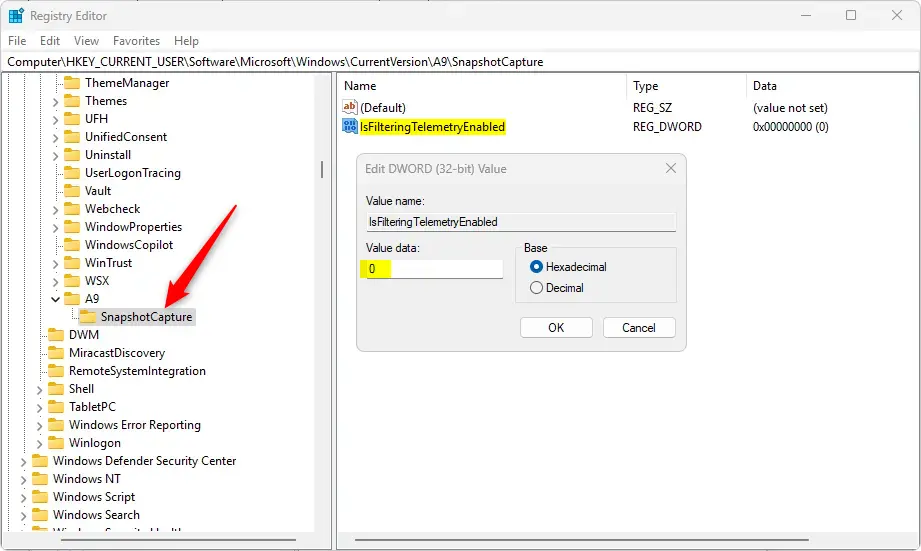
Be careful when using the Registry Editor, and make sure to back up your registry before making changes.
Summary
- Turning on or off the “Help improve Recall snapshots filtering” option is easy from the Windows Settings.
- You can help Microsoft improve Recall by sharing your excluded apps and sites anonymously.
- Your data stays private and safe because snapshots are encrypted and only stored on your device.
- Check your settings regularly to control your snapshot preferences.
- Use the links in this guide if you want more detailed help.
Reference
Learn more from Microsoft Support.
Frequently Asked Questions
What Is Recall & Snapshots?
What Can You Do with Recall?
What Does "Help Improve Recall Snapshots Filtering" Mean?
Was this guide helpful?
No comments yet — be the first to share your thoughts!