

This guide will show you how to turn on or off the “Respect power settings when indexing” option in Windows 11.
Windows has a feature called indexing. It looks at the files, emails, and other content on your computer to help you find things faster when you search.
There are two ways Windows can index your files:
If you use Classic indexing, you can choose which folders or drives to include.
One useful setting is “Respect power settings when indexing”. When this is turned on, Windows will pause indexing when your PC is in battery saver mode or other power-saving modes. This helps save your battery life.
How to Turn On or Off “Respect power settings when indexing” in Windows 11
Follow these simple steps to enable or disable this setting:
- Open the Settings app.
You can do this by clicking the Start menu and then selecting Settings, or by pressing Windows key + I on your keyboard.

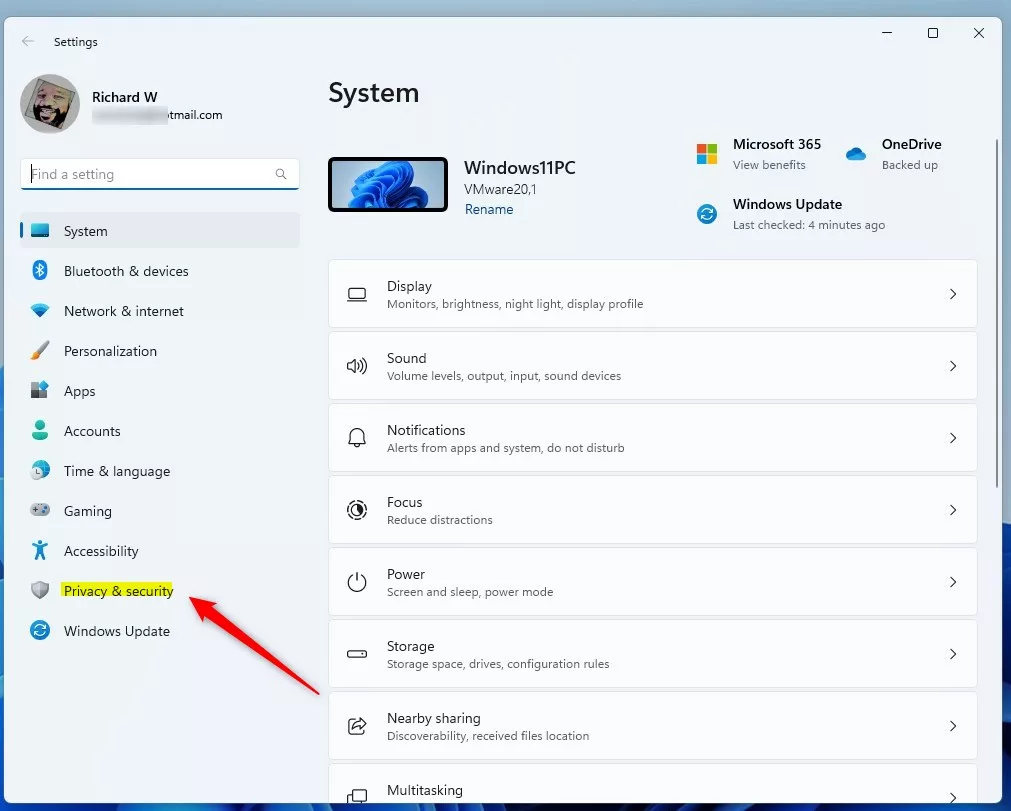
- In the Settings window, click on Privacy & security on the left menu.
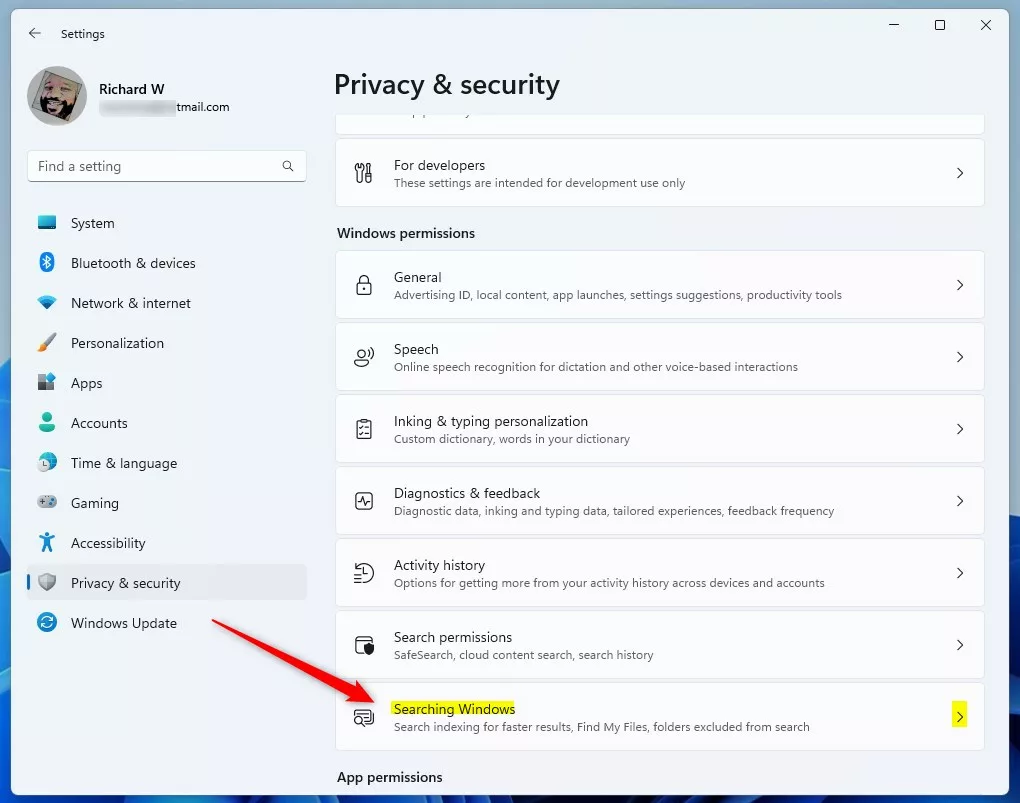
- On the right side, find and click Searching Windows.
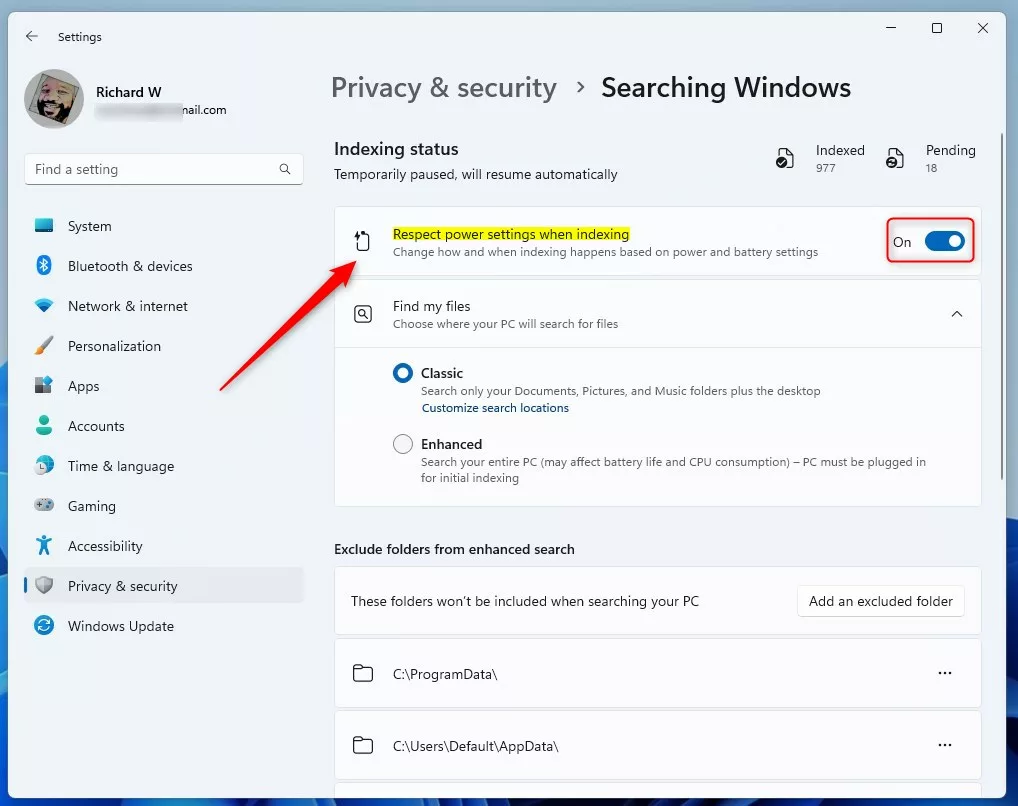
- Under Indexing status, find the Respect power settings when indexing option.
- Toggle the switch On to enable it or Off to disable it.
When you’re done, you can close the Settings app.
How to Change This Setting Using the Windows Registry Editor (Advanced)
If you like, you can also change this setting using the Windows Registry Editor. This is a more advanced option, so be careful and follow the steps exactly.
- Open the Registry Editor.
You can learn how to open it here: Open Registry in Windows 11. - In the Registry Editor, go to this folder path:
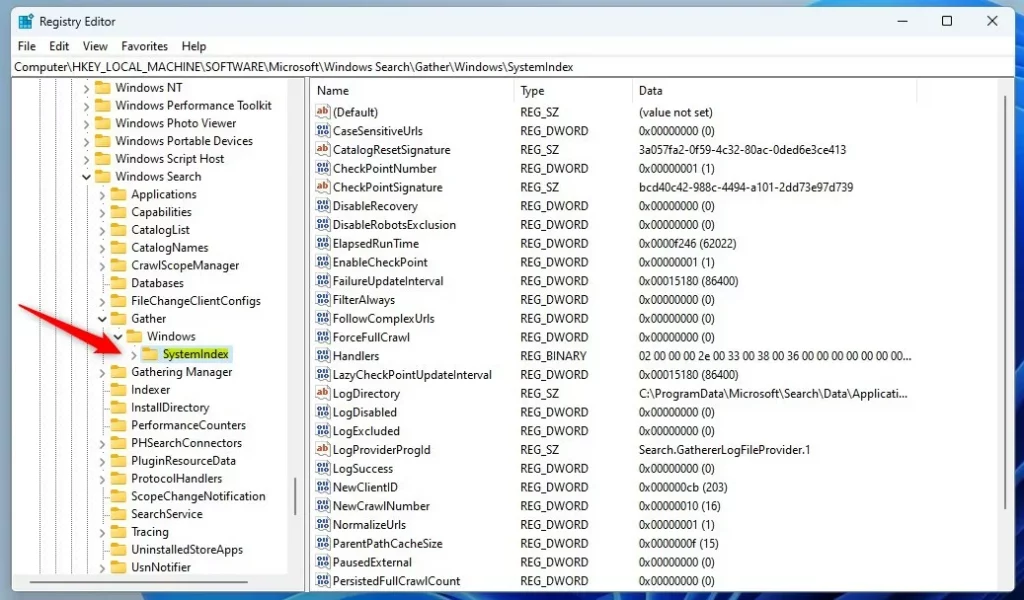
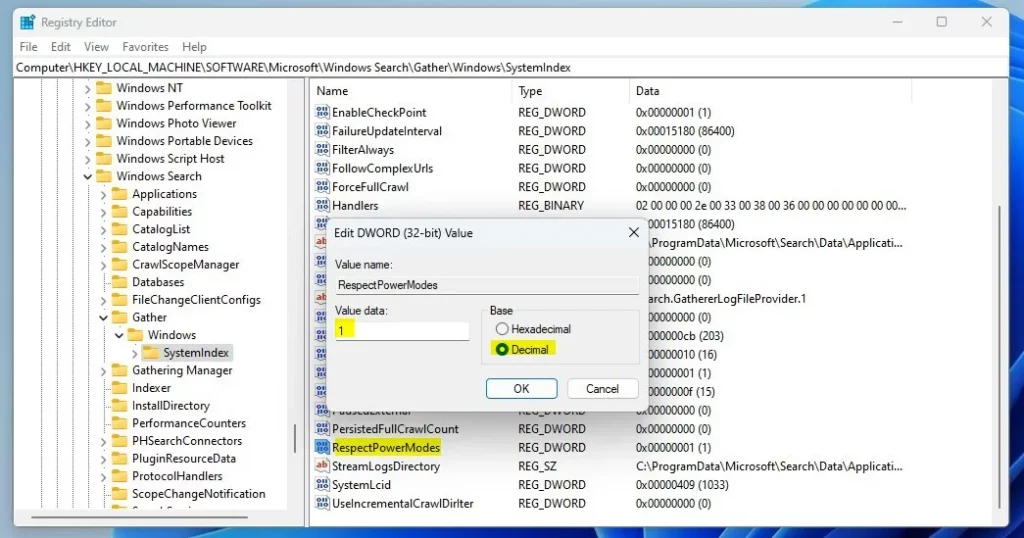
HKEY_LOCAL_MACHINE\SOFTWARE\Microsoft\Windows Search\Gather\Windows\SystemIndex
- If you don’t see the SystemIndex folder, right-click on the Windows folder, select New > Key, and name it SystemIndex.
- Click on the SystemIndex folder.
- On the right side, right-click on an empty space and pick New > DWORD (32-bit) Value.
- Name this new value RespectPowerModes.
- Double-click RespectPowerModes and set the value to:
- 1 to turn ON respecting power settings.
- 0 to turn OFF respecting power settings.
- Click OK and close the Registry Editor.
- Restart your computer to apply the changes.
Summary
- Turning on Respect power settings when indexing helps save battery by pausing indexing during power-saving modes.
- You can easily switch this setting on or off in the Windows Settings app.
- If you’re comfortable with advanced settings, you can also change it through the Registry Editor.
- Pick the option that suits your needs to help your PC save power while still keeping search fast.
If you have any questions or want to share your experience, feel free to leave a comment below!



Leave a Reply