Windows 11 recall and snapshot featured image

Enable Recall & Snapshots in Windows 11: A How-To Guide

This article explains how to enable or disable the new ” Recall & snapshots” feature in Windows 11.

Recall & Snapshots is an AI feature in Windows 11 that functions like a photographic memory by saving snapshots of your screen. You can then use the Recall feature to quickly search your snapshots and find things you’ve seen on your PC.

A snapshot is taken every 5 seconds and stored only if it has changed since the last snapshot.

When you first start using Windows, saving snapshots is turned on. You can always turn them off at any time by going to SettingsPrivacy & security > Recall & snapshots on your PC.

Your PC needs the following minimum system requirements for Recall:

  • Copilot+ PC
  • 16 GB RAM
  • 8 logical processors
  • 256 GB storage capacity
    • To enable Recall, you’ll need at least 50 GB of storage space free
    • Saving screenshots automatically pauses once the device has less than 25 GB of storage space

Turn on or off Recall & snapshots in Windows 11

As mentioned above, users with AI PCs can turn on or off Windows 11’s new “Recall & snapshots” feature.

Here’s how to do it.

First, open the Windows Settings app.

You can do that by clicking on the Start menu and selecting Settings. Or press the keyboard shortcut (Windows key + I) to launch the Settings app.

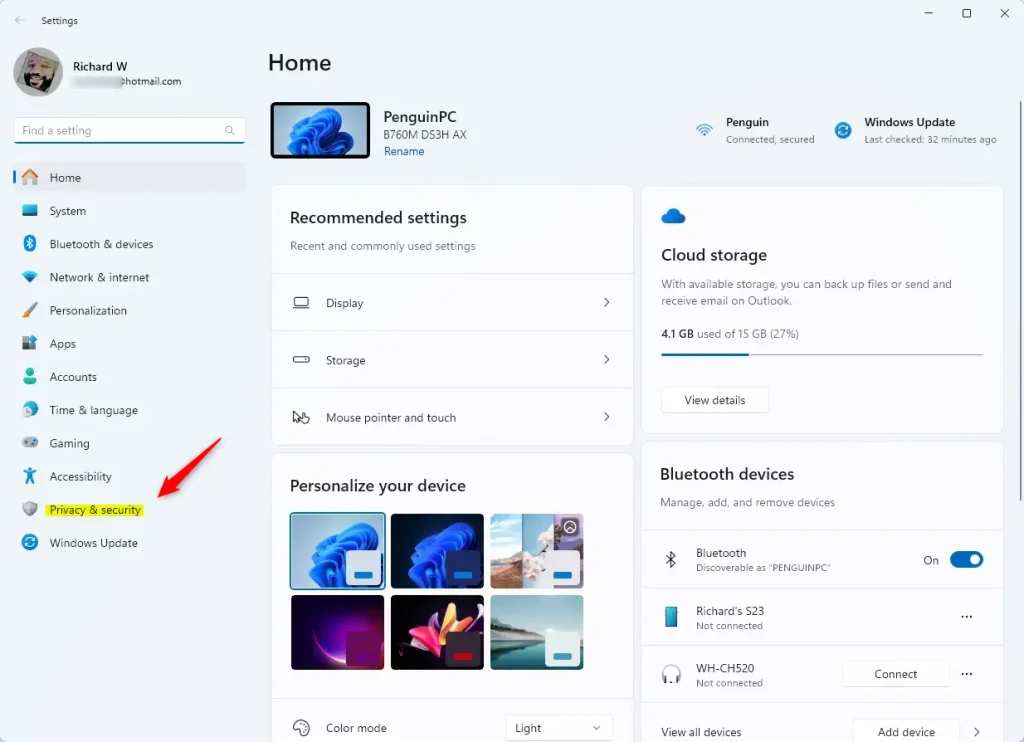
When the Setting app opens, click the Privacy & security button on the left.
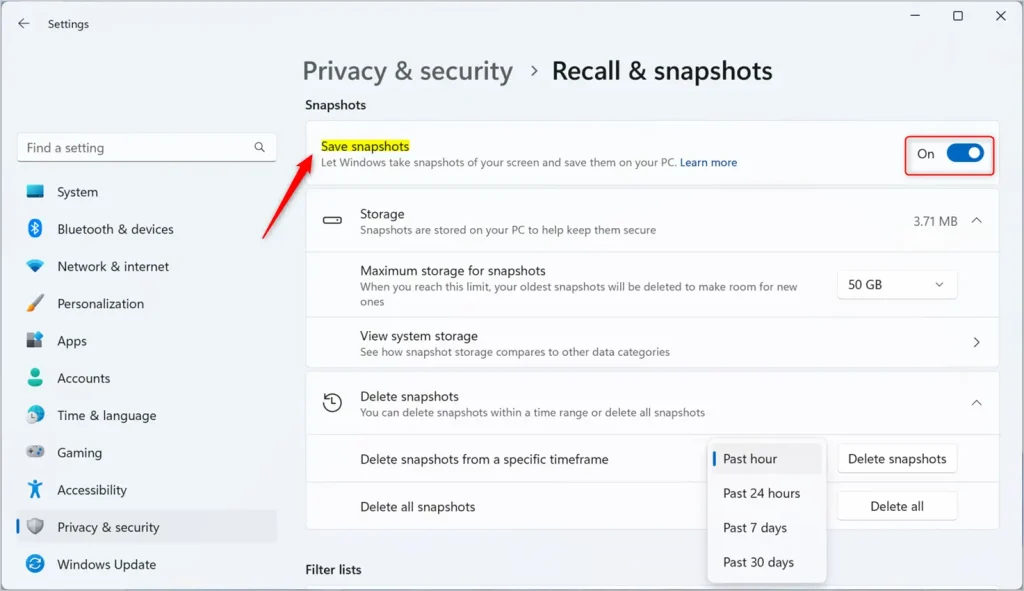
On the right, click the Recall & snapshots page to open its settings. Then, select the “Save snapshots” tile and toggle the switch button to the On or Off position to enable or disable the new snapshots feature.
Close the Settings app when you are done.

Turn on or off Recall and snapshots using the local group policy editor

Another way to turn on or off Recall & snapshots is to use the local group policy editor in Windows.

Here’s how to do that.

First, open the Local Group Policy Editor (gpedit.msc). (Search for “Edit group policy”) on the Start menu.

Then, navigate the folders below:

User Configuration -> Administrative Templates -> Windows Components -> Windows AI

In the Windows AI details pane on the right, locate and double-click the “Turn off Saving Snapshots for Windows” settings.

On the “Turn off Saving Snapshots for Windows” window, set the option to Not ConfigureEnabled, or Disabled.

  • Not Configured (default) – Same as Disabled.
  • Enabled – Windows will not save snapshots and use users won’t be able to search for or browse through their historical device activity using Recall.
  • Disabled – Windows will save snapshots, and use users will be able to search for or browse through their historical device activity using Recall.

Click OK to save your changes.

You may have to reboot your device to apply the settings.

That should do it!

Reference:

Microsoft

Conclusion:

  • Enabling or disabling the Recall & Snapshots feature in Windows 11 is straightforward. You can do it through the Windows Settings app or the Local Group Policy Editor.
  • The feature, functioning as a photographic memory by capturing screen snapshots, provides users with convenient recall and search capabilities.
  • AI PC users must ensure their system meets minimum Recall and snapshot functionality requirements, including a Copilot+ PC, 16 GB RAM, 8 logical processors, and 256 GB storage capacity.
  • Additionally, managing storage space is crucial, as screenshot saving automatically pauses when the device has less than 25 GB of space.
  • This guide also demonstrated how to alter the saving snapshot settings to suit individual preferences and needs, offering a comprehensive understanding of the feature’s functionality and customization options.
Categories:

Tags:

19 responses to “Enable Recall & Snapshots in Windows 11: A How-To Guide”

  1. […] Recall & Snapshots is an AI feature in Windows 11 that functions like a photographic memory by saving snapshots of your screen. You can then use the Recall feature to quickly search your snapshots and find things you’ve seen on your PC. […]

  2. […] Recall & Snapshots is an AI feature in Windows 11 that functions like a photographic memory by saving snapshots of your screen. You can then use the Recall feature to quickly search your snapshots and find things you’ve seen on your PC. […]

  3. […] Recall & Snapshots is an AI feature in Windows 11 that functions like a photographic memory by saving snapshots of your screen. You can then use the Recall feature to quickly search your snapshots and find things you’ve seen on your PC. […]

  4. […] Recall & Snapshots is an AI feature in Windows 11 that functions like a photographic memory by saving snapshots of your screen. You can then use the Recall feature to quickly search your snapshots and find things you’ve seen on your PC. […]

  5. […] Recall & Snapshots is an AI feature in Windows 11 that functions like a photographic memory by saving snapshots of your screen. You can then use the Recall feature to quickly search your snapshots and find things you’ve seen on your PC. […]

  6. […] Recall & Snapshots is an AI feature in Windows 11 that functions like a photographic memory by saving snapshots of your screen. You can then use the Recall feature to quickly search your snapshots and find things you’ve seen on your PC. […]

  7. […] Microsoft announced this spring, you need a Copilot+ PC to use Cocreator. You must also update the Microsoft Paint app to the latest version available in […]

  8. […] Recall & Snapshots is an AI feature in Windows 11 that functions like a photographic memory by saving snapshots of your screen. You can then use the Recall feature to quickly search your snapshots and find things you’ve seen on your PC. […]

  9. […] Recall & Snapshots is an AI feature in Windows 11 that functions like a photographic memory by saving snapshots of your screen. You can then use the Recall feature to quickly search your snapshots and find things you’ve seen on your PC. […]

  10. […] Recall & Snapshots is an AI feature in Windows 11 that functions like a photographic memory by saving snapshots of your screen. You can then use the Recall feature to quickly search your snapshots and find things you’ve seen on your PC. […]

  11. […] article explains how to enable or disable the Recall feature in Windows […]

  12. […] Recall & Snapshots is an AI feature in Windows 11 that functions like a photographic memory by saving snapshots of your screen. You can then use the Recall feature to quickly search your snapshots and find things you’ve seen on your PC. […]

  13. […] Recall & Snapshots is a smart tool in Windows 11 that works like a camera memory. It saves snapshots (pictures) of your screen so you can quickly search and find things you’ve seen on your PC. […]

  14. […] 11 versions (build 26120.2415 and later) and is mainly available on special Windows devices called Copilot+ PCs (powered by Snapdragon […]

  15. […] Recall & Snapshots is a cool AI feature in Windows 11. It works like a camera that takes quick pictures (snapshots) of what’s on your screen. Later, you can search these snapshots to find something you saw before on your PC. […]

  16. […] Recall & Snapshots saves copies of your screen securely on your PC. You can control how much space it uses and even delete old snapshots if needed. […]

  17. […] you use Windows 11, you might have heard about Recall & Snapshots. This is a handy feature that works like a memory for your PC. It takes small […]

  18. […] What are Recall Snapshots? Recall Snapshots are like photos your computer takes of what’s on your screen at different times. Windows saves these snapshots so you can search for things you’ve seen or worked on before. You can learn more about this feature here: Recall & Snapshots explained. […]

  19. […] Recall & Snapshots is a handy feature in Windows 11. It works like a photo album for your computer, saving pictures (snapshots) of what’s on your screen. Later, you can search through these snapshots to find things you’ve seen before. […]

Leave a Reply to How to Delete Recall Snapshots in Windows 11 – Geek Rewind Cancel reply

Your email address will not be published. Required fields are marked *

Exit mobile version