How to Allow or Stop a User from Changing Their Password in Windows 11

This guide shows you how to control whether someone can change their password on your Windows 11 PC. These steps work for both local accounts (accounts that are only stored on your PC) and Microsoft accounts (accounts that use your email with Microsoft).
Note: Even if you stop a Microsoft account user from changing their password on the PC, they can still change it online at the Microsoft password page.
You can only stop standard users (normal user accounts) from changing their passwords, not administrator users. If you want to do this for an administrator account, you can temporarily change the account to a standard user, block the password change, then switch it back to administrator.
⚠️ Admin Required: Make sure you are signed in as an administrator to do these steps.
To prevent a user from changing their password, use the “User cannot change password” checkbox in the user’s Properties via lusrmgr.msc (Pro/Enterprise/Education) or the `net user /PasswordChg:No` command in Windows Terminal (Admin). To allow changes, uncheck the box or use `PasswordChg:Yes`.
Method 1Use Local Users and Groups (For 🪟 Windows 11 Pro, Enterprise, or Education)
You can stop or allow a user to change their password in Windows 11 using the Local Users and Groups tool if you have the Pro, Enterprise, or Education version.
- Press Windows key + R to open the Run box, type
lusrmgr.msc, and press Enter. - Click on the Users folder on the left side.
- Find the user account you want to change in the middle list. Right-click it and select Properties, or just double-click the user name.
- In the General tab, check the box that says User cannot change password to stop the user from changing their password. Uncheck it to allow password changes again.
- Click OK to save.
Note: If you try to block password changes for an administrator account, you will see an error message.
Method 2Use Command Prompt or Windows Terminal
Using the Command Prompt or Windows Terminal is a quick way to let a user change their password or prevent them from doing so in Windows 11, even on the Home edition.
Type the command below depending on what you want, and press Enter:
To allow the user to change their password (default):
net user "<username>" /PasswordChg:Yes
To stop the user from changing their password:
net user "<username>" /PasswordChg:No
Replace <username> with the actual user name. For example, to stop user “genericuser” from changing their password, type:
net user "genericuser" /PasswordChg:No
If you try this on an administrator account, you will get an error message.
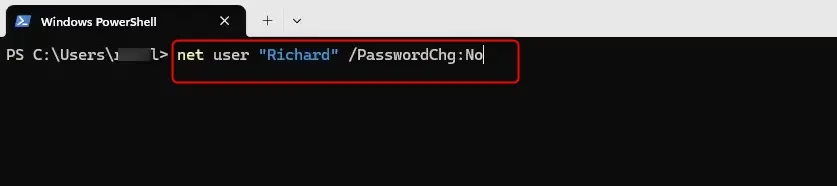
When finished, you can close the terminal window.
Summary
- Why do this? Control who can change their password on Windows 11 to help keep your PC secure.
- What happens? Users you block will not be able to change their passwords. This works only for standard users, not administrators.
- Use Local Users and Groups if you have Windows 11 Pro or above, or use commands in Windows Terminal to make the changes.
- Always be signed in as an administrator to change these settings.
- Check your user accounts regularly to keep your PC secure.
Controlling who can change their password in Windows 11 helps keep your PC secure by ensuring only authorized users can alter their login details.
Was this guide helpful?

About the Author
Richard
Tech Writer, IT Professional
Richard, a writer for Geek Rewind, is a tech enthusiast who loves breaking down complex IT topics into simple, easy-to-understand ideas. With years of hands-on experience in system administration and enterprise IT operations, he’s developed a knack for offering practical tips and solutions. Richard aims to make technology more accessible and actionable. He's deeply committed to the Geek Rewind community, always ready to answer questions and engage in discussions.


No comments yet — be the first to share your thoughts!