How to Reset Recall Feature in Windows 11

You reset the Recall feature in Windows 11 by deleting its stored snapshots and returning its settings to their defaults.
Recall is a new feature for Copilot+ PCs that creates a searchable history of your PC activity by capturing screenshots of your screen.
These PCs, often equipped with Snapdragon processors, use Recall to help you find past information quickly.
Resetting Recall erases all your recorded history, effectively giving you a clean slate to start capturing new activity.
Reset Recall by opening Settings, navigating to Privacy & Security, then Recall & Snapshots, clicking Advanced settings, and selecting Reset Recall. Confirm the action to delete all stored snapshots and restore default settings.
How to Reset Recall in 🪟 Windows 11
Resetting the Recall feature in Windows 11 is a straightforward process that can help clear out old data or fix any problems you might be experiencing. If you need to reset Recall, you’ll find the options you need within the Windows Settings app.
- Open Windows Settings: Click the Start menu (the Windows icon at the bottom left), then click Settings. Or press Windows key + I on your keyboard to open Settings directly.
- Go to Privacy & Security: In the Settings window, look at the menu on the left side and click Privacy & security.
- Select Recall & Snapshots: On the right side, find and click on the Recall & snapshots section.
- Open Advanced Settings: Inside the Recall & snapshots page, click on Advanced settings to see more options.
- Click Reset Recall: Find and click the Reset Recall button.
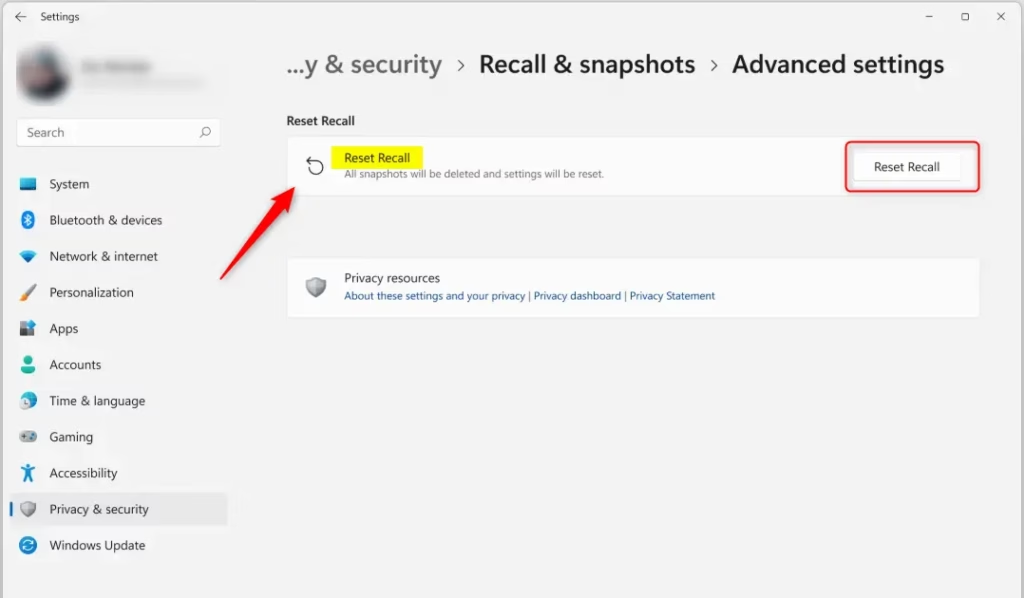
- Confirm the Reset: A prompt will appear asking if you want to reset. Click Reset to finish.
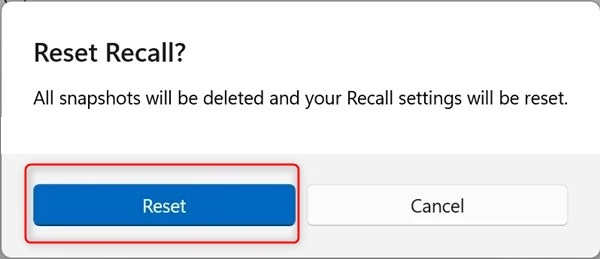
Your Recall feature will be reset. You can then close the Settings app.
Summary
- Open Settings: Use Start menu or press ⊞ Win+I.
- Go to Privacy & Security: Find Recall & snapshots settings.
- Reset Recall: Click Advanced settings then Reset Recall.
- Confirm: Click Reset when asked.
- Manage Snapshots: After reset, you can start using Recall fresh or pause it anytime.
To reset Recall on Windows 11, start by opening the Settings app, either through the Start menu or by pressing Windows key + I. Then, navigate to Privacy & Security, find the Recall & snapshots settings, and select Advanced settings to click the Reset Recall button. Confirm your choice, and Recall will reset, allowing you to start fresh.
Is Microsoft recall on 🪟 Windows 11 by default?
Microsoft Recall isn’t on by default in Windows 11; it’s a feature you choose to turn on for each new user. If you don’t opt in when setting up a new user account, Recall and its snapshot saving will remain off.
Was this guide helpful?

About the Author
Richard
Tech Writer, IT Professional
Richard, a writer for Geek Rewind, is a tech enthusiast who loves breaking down complex IT topics into simple, easy-to-understand ideas. With years of hands-on experience in system administration and enterprise IT operations, he’s developed a knack for offering practical tips and solutions. Richard aims to make technology more accessible and actionable. He's deeply committed to the Geek Rewind community, always ready to answer questions and engage in discussions.

No comments yet — be the first to share your thoughts!