Enable Dark Mode in Ubuntu Linux: A Step-by-Step Guide


Dark mode in Ubuntu turns the bright window backgrounds, menus and panels into dark gray and black. It is easier on the eyes in a dim room. Ubuntu 22.04 LTS and newer include a dark style in the system settings, so you don’t need to download a theme or install anything.
The change takes a few clicks in Settings. On Ubuntu 24.04 and newer you can also pick an accent color to match. The steps below use the default GNOME desktop that Ubuntu ships. If you run a flavor such as Kubuntu or Xubuntu, the menus will look different.
Open Settings from the System menu in the top-right corner, click Appearance, then select the Dark thumbnail under Style to turn on dark mode in Ubuntu Linux. On Ubuntu 22.04 LTS, choose Dark under Window colors instead. The change applies immediately, with no restart or theme download needed. To switch back, select Default (or Light on 22.04).
Turn on or off Dark Mode in Ubuntu Linux
In short, you open Settings, go to Appearance and choose the dark option. The change applies straight away to the top bar, system menus and every app that follows the system theme. You don’t need to log out or restart.
The steps below go through it one at a time.
Ubuntu keeps most of its system controls in one place. The System Settings panel covers everything from user accounts to software updates, and the display and theme options live there too. You can open it in two ways.
Option A: Press the Super key (the Win on most keyboards) to open the Activities overview. Type the name of the panel and click its icon in the results.
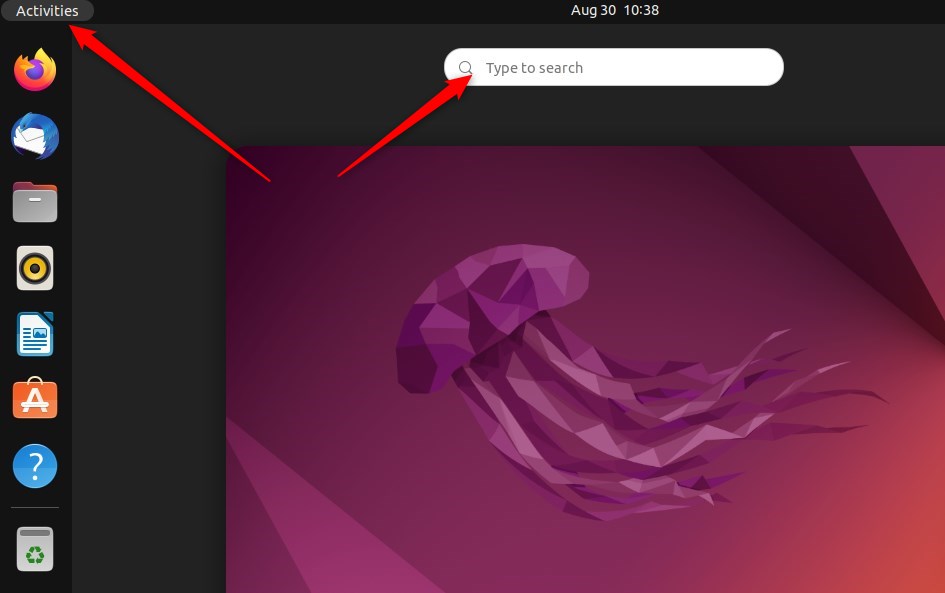
Option B: Use the top bar, as the next steps show.
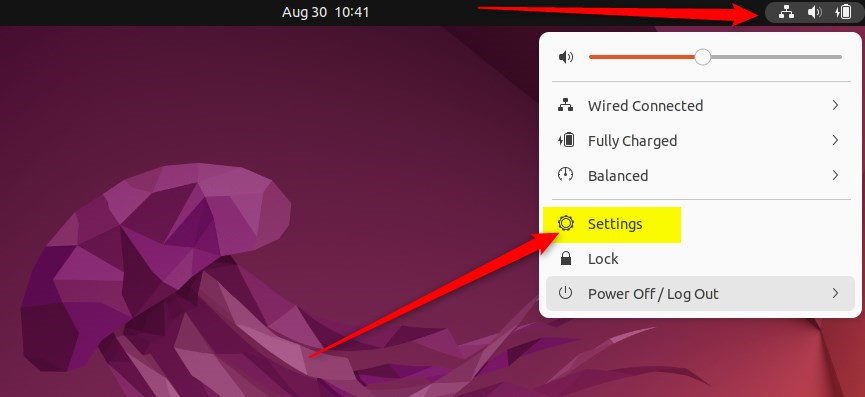
- Click the System menu in the top-right corner of the top bar. It is the group of small icons for network, sound and power. A panel drops down.
- Select Settings in that panel, as highlighted below. The Settings window opens.
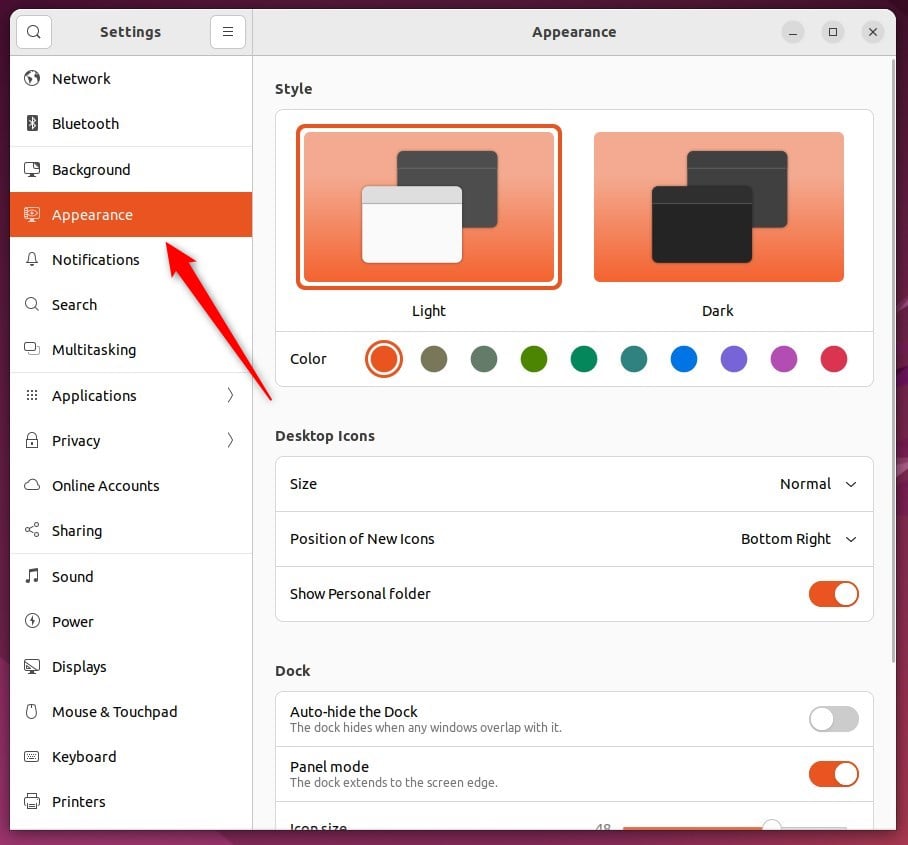
- Click Appearance in the left sidebar of the Settings window. On some versions this is a tile instead of a sidebar entry. Either way, the Appearance panel opens on the right.
- In Settings Appearance, find the Style section. It shows two preview thumbnails, one light and one dark.
- Click the Dark thumbnail. A check mark appears on it to show it is selected.
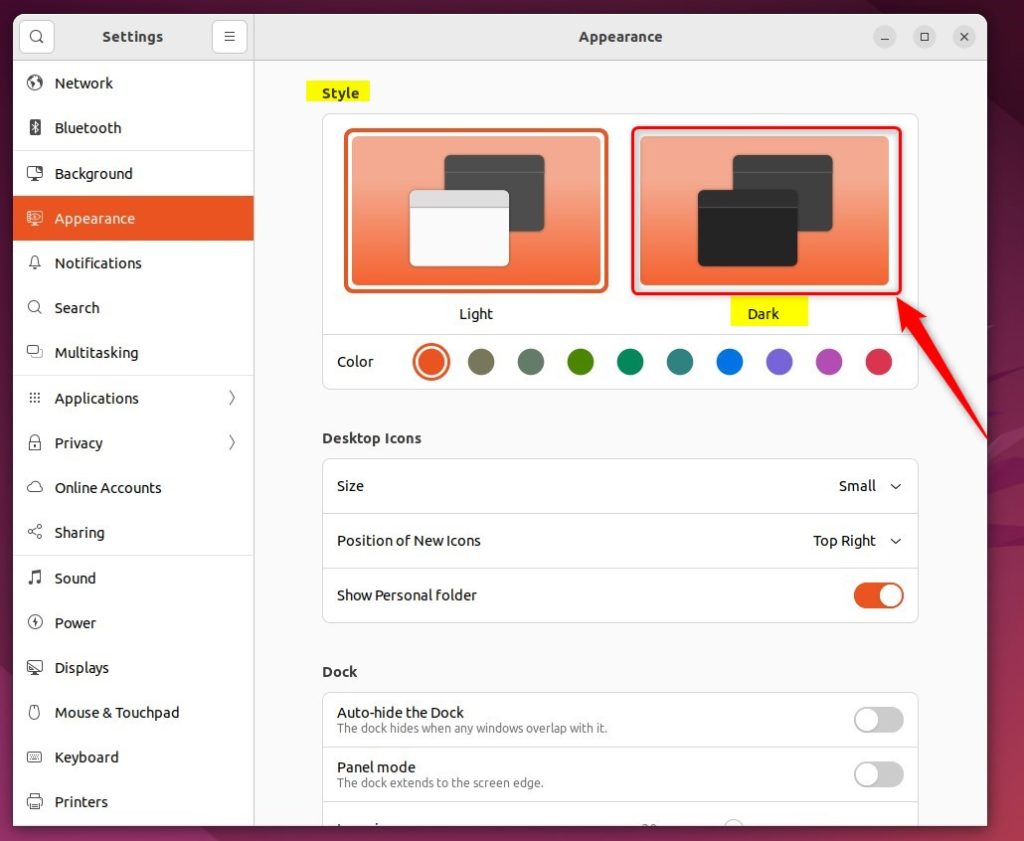
The Settings window, the top bar and the system menus switch to the dark theme at once. Apps that follow the system theme, such as Files, Terminal and Text Editor, change with them. If an app was already open, it usually updates right away. If it doesn’t, close it and open it again.
To undo the change, go back to Settings Appearance and select the light option again. It is labeled Default on 24.04 and newer, or Light on 22.04.
Ubuntu 24.04 and newer also show a row of colored circles under the style options. This is the accent color, which tints buttons, switches and selected items. Click one to choose it, or leave the default as it is. On Ubuntu 22.04 there is no accent color picker, so you will not see this row. The accent color works with both the light and the dark style. Pick one that stays readable against the wallpaper and the window borders.
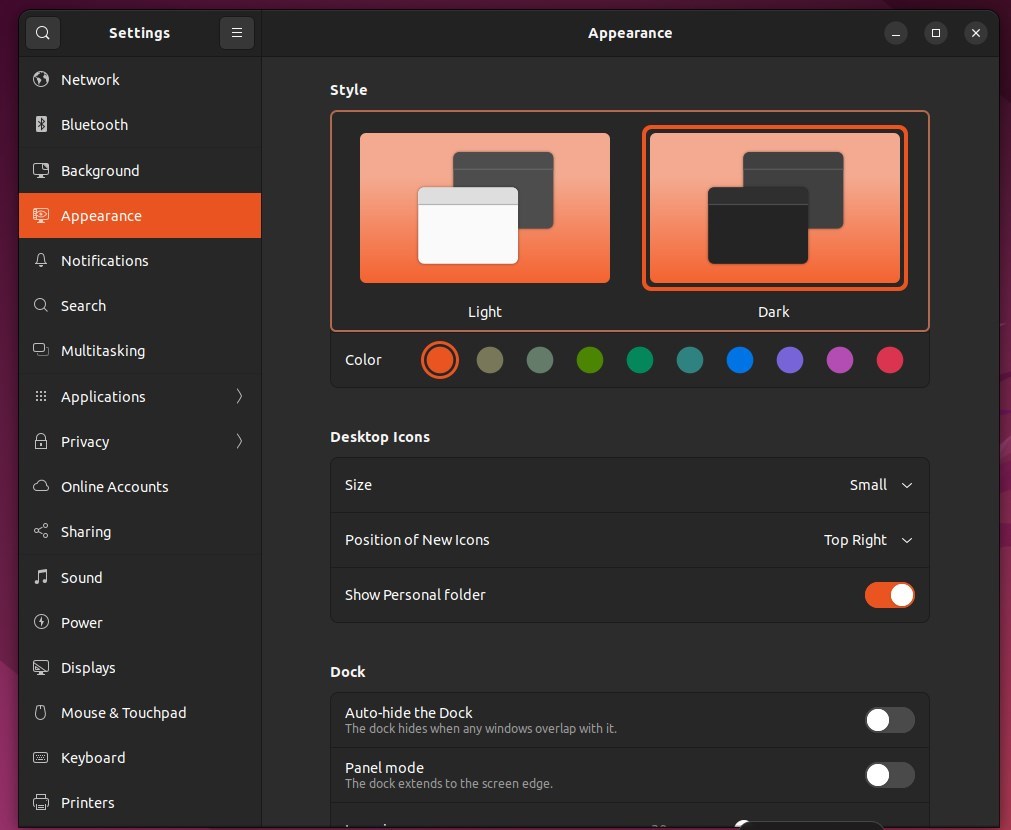
That completes the process. Not every app follows the system setting. Some Snap or Flatpak apps, browsers and apps built on other toolkits keep their own look. Firefox and Chrome, for example, have their own theme options in their settings. Change those separately if a window stays bright.
Dark mode reduces eye strain in low light, and it can extend battery life on laptops and tablets. The battery gain depends on the screen. It is noticeable on OLED panels, where dark pixels use less power. On a standard LCD it makes little difference. The benefits are:
- Enabling dark mode in Ubuntu Linux reduces eye strain and improves battery life for laptops and tablets.
- The dark mode is designed with colors that work well in low-lit environments, providing a comfortable viewing experience.
- Following the steps outlined in this article, users can easily toggle between light and dark mode in Ubuntu Linux, as per their preference.
Have a question about this guide?
Answered by AI from this guide. Good questions may be added to this page — please don't include personal details.
Did this guide fix your problem?

About the Author
Richard
Tech Writer, IT Professional
Richard is a writer at Geek Rewind who turns complex IT tasks into clear, step-by-step guides. He draws on years of hands-on experience in system administration and enterprise IT operations, focusing on Windows, Linux and WordPress: the problems people actually run into, and the fixes that work. His server and WordPress guides come from systems he runs himself. Richard builds and maintains the platform behind Geek Rewind, from its Ubuntu servers and Nginx configuration to its custom WordPress plugins. Many new tutorials start with readers' questions, and he's always glad to answer them in the comments.
No comments yet — be the first to share your thoughts!