Enable Remote Desktop on Ubuntu Linux


Remote Desktop on Ubuntu Linux lets you control your computer from another room or give a friend access when something breaks. This built-in feature, available in Ubuntu 22.04 LTS and newer versions, shows you another computer screen and lets you use its mouse and keyboard just like you sit right in front of it.
Sharing your screen only takes a few clicks in the settings app. You just turn on screen sharing, set a password, and connect from any device on your local network.
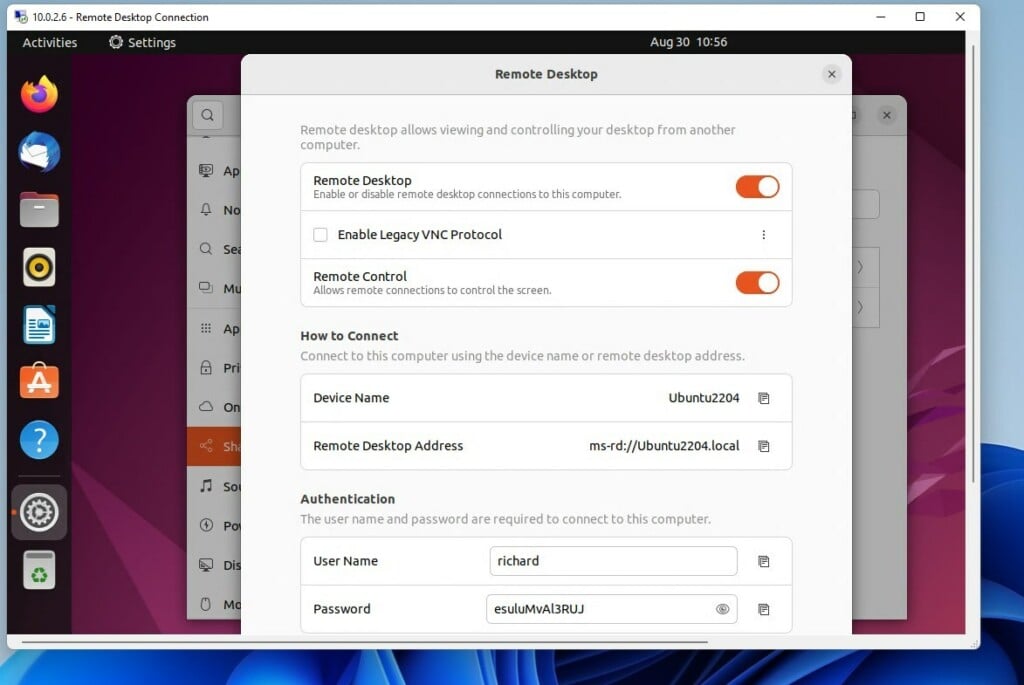
Open Settings , click Sharing, and turn on the main Sharing switch. Then, enable Remote Desktop and Remote Control within the Remote Desktop sub-menu to allow others to view and control your screen.
How to turn on or off remote assistance in GNOME
Managing remote assistance in Ubuntu’s GNOME desktop takes only a few clicks. First, open the Activities overview and search for Settings, or click the System menu in the top-right corner and select Settings. Then, in the left sidebar, click on Sharing to find the main Sharing switch.
1. Open the Activities overview and search for Settings.

2. Alternatively, click the System menu in the top-right corner of your screen and select Settings.

3. In the left sidebar, click on Sharing.
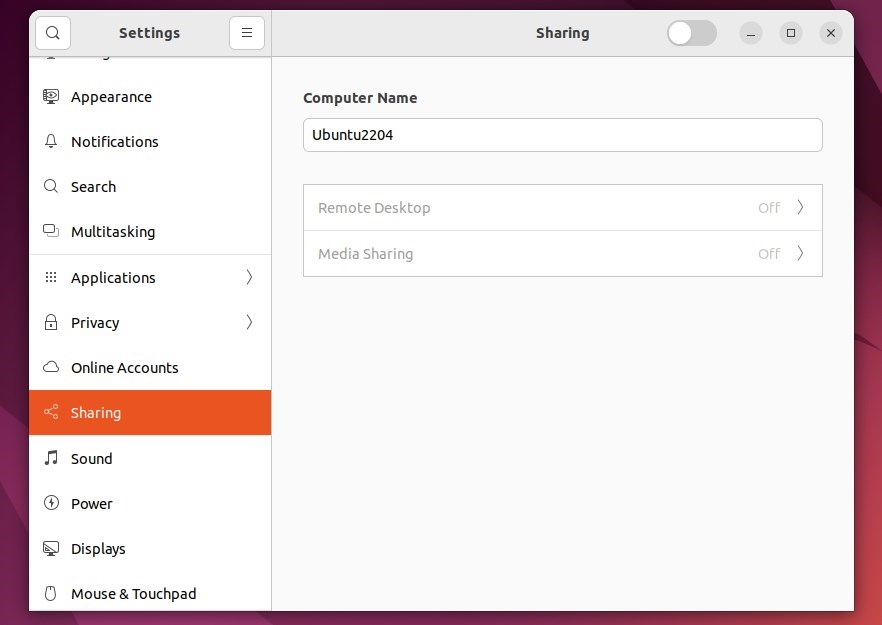
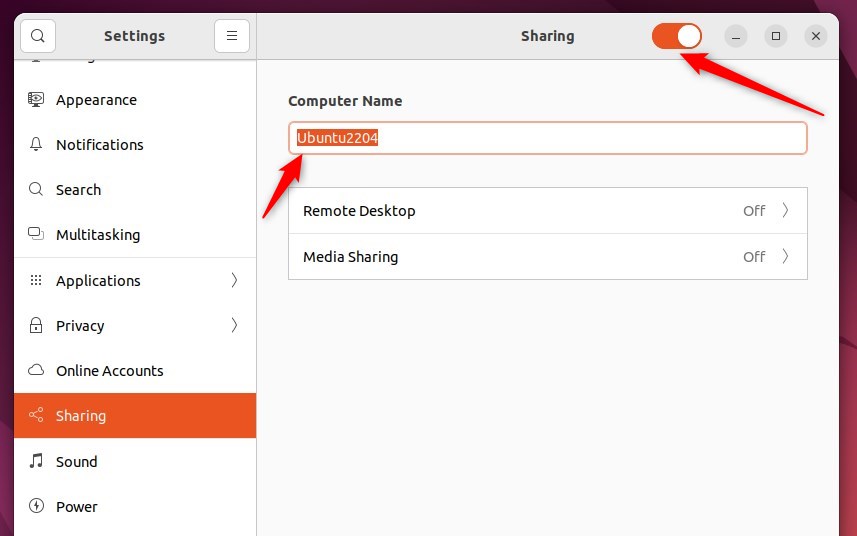
4. If the main Sharing switch at the top is off, click it to turn it on. You can also change your computer's name right here.
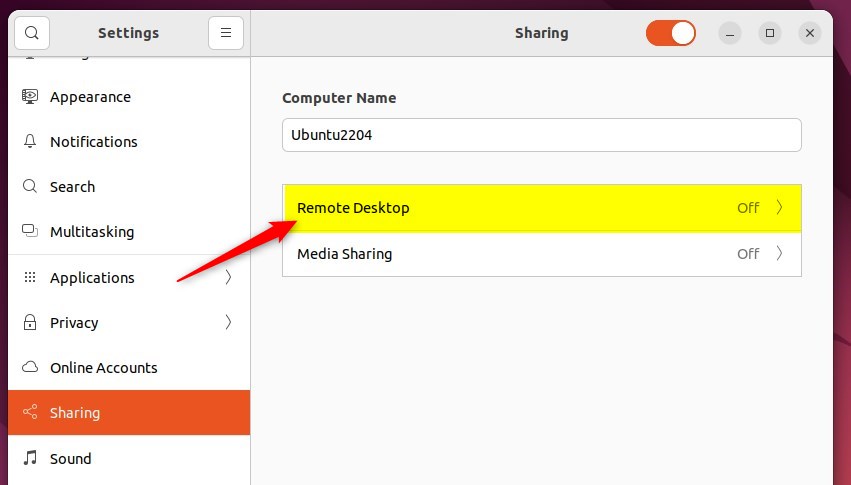
5. Click the Remote Desktop sub-menu.
6. To let others see your screen, set the Remote Desktop switch to on.
7. To let others click and move your mouse, set the Remote Control switch to on.
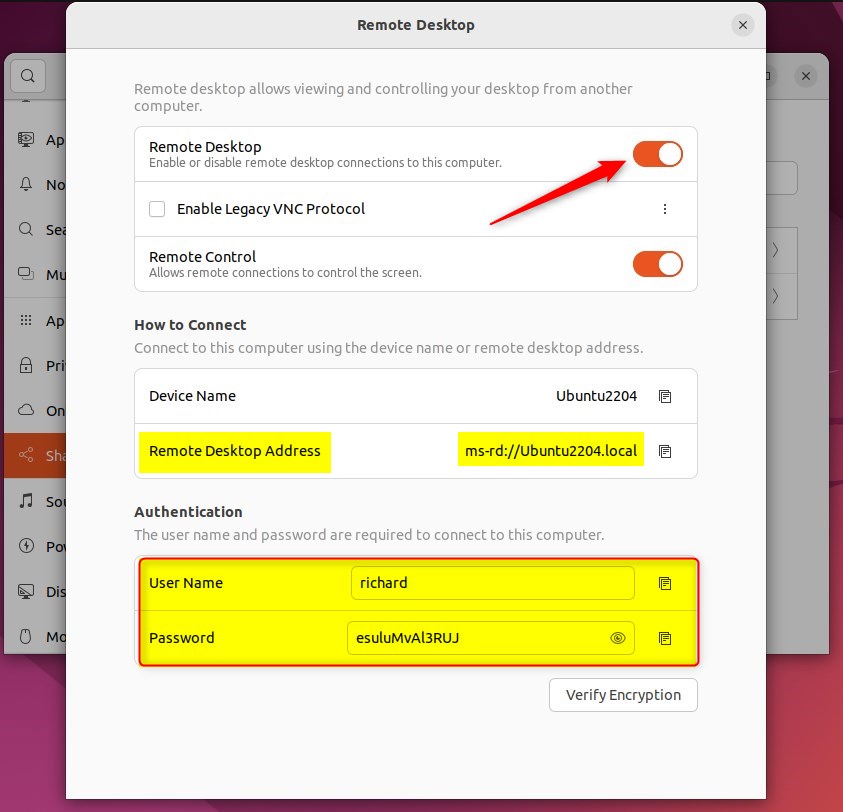
Authentication
Authentication is how you prove your identity when connecting remotely. This typically involves using a username and password.
For a secure connection, always use a VPN or SSH tunnel. Exposing your RDP port directly to the internet is a significant security risk.
SECURITY WARNING: Never expose your RDP port directly to the internet. Doing so makes your computer vulnerable to attacks. Always use a VPN or an SSH tunnel to create a secure connection before connecting to your Ubuntu machine.How to connect to Ubuntu Desktop via Remote Desktop Connections
To connect to your Ubuntu Desktop from a Windows computer, open the Remote Desktop app on Windows and enter your Ubuntu machine's IP address. Ensure your Windows client supports modern RDP methods, as older clients might have issues, especially if your Ubuntu session uses Wayland instead of X.
Verify that your Windows client supports modern RDP authentication methods. Older software often struggles to connect if your Ubuntu session runs Wayland (the modern default display server) rather than a traditional X11 session. Compatibility issues happen less often with traditional X11 sessions (the legacy display server architecture).
Enter the username and password you set in the Ubuntu Remote Desktop menu to log in.
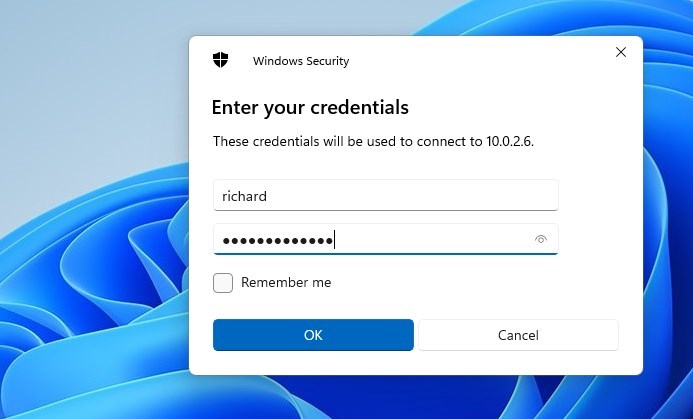
Once you enter the correct details, you'll be connected to your Ubuntu desktop.
Conclusion
Using the GNOME settings, you can turn remote access on or off. For security, always remember to use a VPN and make sure your Windows client is up to date for modern authentication.
Was this guide helpful?

About the Author
Richard
Tech Writer, IT Professional
Richard, a writer for Geek Rewind, is a tech enthusiast who loves breaking down complex IT topics into simple, easy-to-understand ideas. With years of hands-on experience in system administration and enterprise IT operations, he’s developed a knack for offering practical tips and solutions. Richard aims to make technology more accessible and actionable. He's deeply committed to the Geek Rewind community, always ready to answer questions and engage in discussions.



No comments yet — be the first to share your thoughts!