
The Copilot button in Microsoft Edge is a new toolbar icon that acts as a smart assistant, helping you understand web pages and draft content directly in your browser. If you find the Copilot icon taking up space on your toolbar or simply don’t use its features, you can easily hide or show it.
This feature gives you control over your browser’s appearance. By default, the Copilot button might be visible on the right side of the address bar, especially in recent versions of Edge.
The Copilot button on the Microsoft Edge toolbar helps personalize your browsing experience. This guide explains the simple steps to manage Copilot button visibility on your toolbar.
To show or hide the Copilot button in Microsoft Edge, go to Settings > Appearance and toggle the “Show Copilot button” option. Turn the switch on to display it and off to hide it.
How to Show or hide the Copilot Button
You can show or hide the Copilot button on your Microsoft Edge toolbar. If you want to hide the Copilot button, these steps remove the Copilot button from view. If you want to see the Copilot button again, the same steps let you bring the Copilot button back to your Edge toolbar.
- Open Microsoft Edge. First, start your Edge browser. Click the blue and green Edge icon on your computer screen or taskbar.
- Go to Edge Settings. Look for three dots stacked on top of each other (
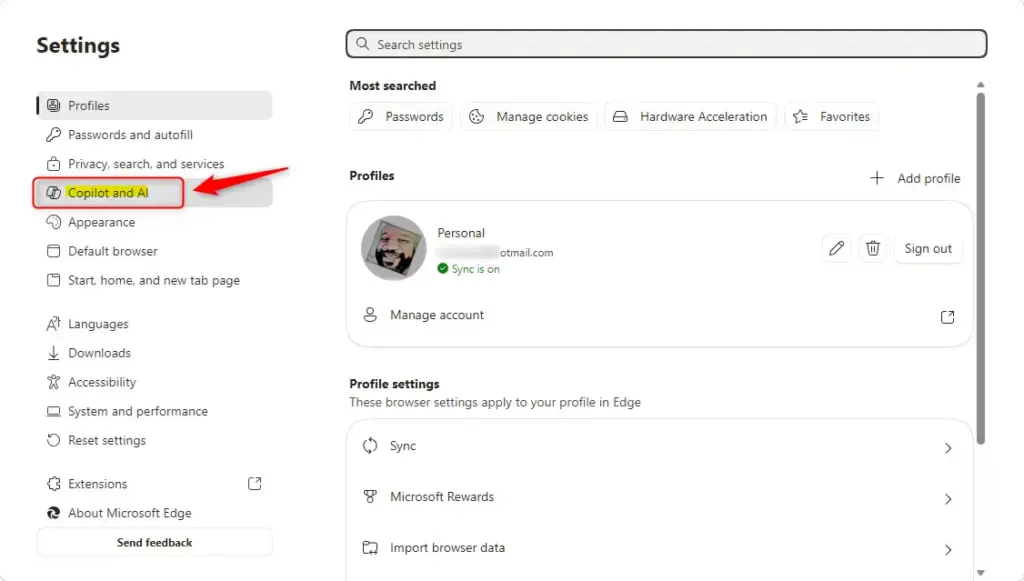
...) in the top-right corner of the browser. This is the “Settings and more” menu. Click it. Then, choose Settings from the list.💡TipYou can also typeedge://settings/aiedge://settings/into the address bar and press Enter. This takes you to the same place. - Find Copilot and AI Settings. In the Settings tab, look at the menu on the left side.
- Locate the Copilot Toggle. In the Copilot and AI settings, under Copilot in Edge, you should see an option called Show Copilot button in toolbar. There will be a switch next to it.📝Good to KnowThe Copilot Toggle is found in Microsoft Edge's Copilot and AI settings. Within the "Copilot in Edge" section, users see a "Show Copilot button in toolbar" switch. If the Copilot Toggle option is missing, users must confirm their Microsoft Edge browser uses version 114 or later. New features may appear gradually or need a browser update to work.
- Turn the Toggle On . Click the switch next to “Show Copilot button in toolbar.” This will turn it on. The switch will change color, usually to blue or green, to show it’s active.
The "Show Copilot button in toolbar" switch controls the Copilot icon's visibility. Flipping this switch to the "on" position makes the Copilot icon appear on the Microsoft Edge toolbar. The switch changes color, typically to blue or green, to signal its active state. The Copilot icon, often a blue 'C', then shows on the toolbar, usually next to the profile icon and the "Settings and more" button.

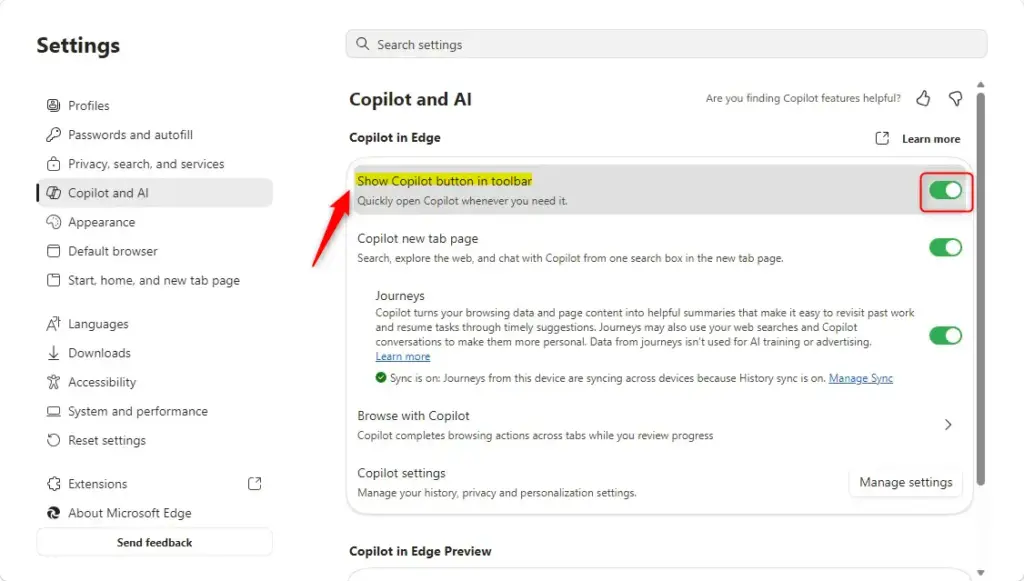
The Copilot button now appears on the toolbar. Users can click this button to open the Copilot window. Inside the Copilot window, users can ask questions or get help.
Reference:
https://learn.microsoft.com/en-us/legal/microsoft-edge/privacy#copilot-in-microsoft-edge
Summary
To show or hide the Copilot button in Microsoft Edge, go to the browser’s settings and look for the Appearance tab.
How do I hide the Copilot tab?
In your app (for example, Word), select the app menu, and then go to Preferences > Authoring and Proofing Tools > Copilot. Clear the Enable Copilot checkbox.
Was this guide helpful?

About the Author
Richard
Tech Writer, IT Professional
Richard, a writer for Geek Rewind, is a tech enthusiast who loves breaking down complex IT topics into simple, easy-to-understand ideas. With years of hands-on experience in system administration and enterprise IT operations, he’s developed a knack for offering practical tips and solutions. Richard aims to make technology more accessible and actionable. He's deeply committed to the Geek Rewind community, always ready to answer questions and engage in discussions.


No comments yet — be the first to share your thoughts!