
This article explains enabling or disabling Copilot Model training on Windows 11.
Copilot in Windows is a generative AI assistance that allows users to interact with the chatbot using natural language to change system settings and work across multiple applications.
With Copilot installed, you can enable or disable it, open Copilot when Windows starts, Pin or Unpin the Copilot side panel, Resize the Copilot side panel, delete chat history in Copilot, create a desktop shortcut, modify Copilot key, and more.
By default, “Model training” is turned on in Copilot unless you are in the European Economic Area (EEA), the UK, and certain other countries. It uses your conversations with Copilot to help train and improve AI.
The steps below walk you through turning on or off the “Model training” feature in Copilot on Windows.
Turn Copilot “Model training” on or off
As mentioned, users can turn Copilot “Model training” on or off in Windows so that it doesn’t use your conversation to train the AI.
Here’s how to do it.
First, open Copilot at copilot.microsoft.com or the Copilot app on Windows.
Then, sign in to Copilot if you haven’t already done so.
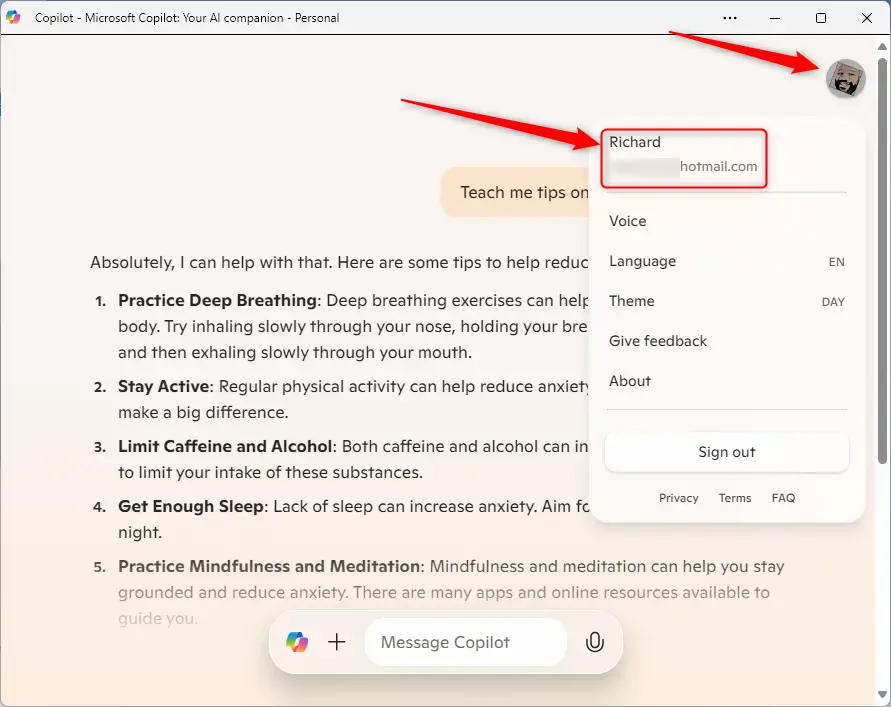
Once signed in, click the Settings (profile picture) button at the top right corner and select your Name (email) on the menu.
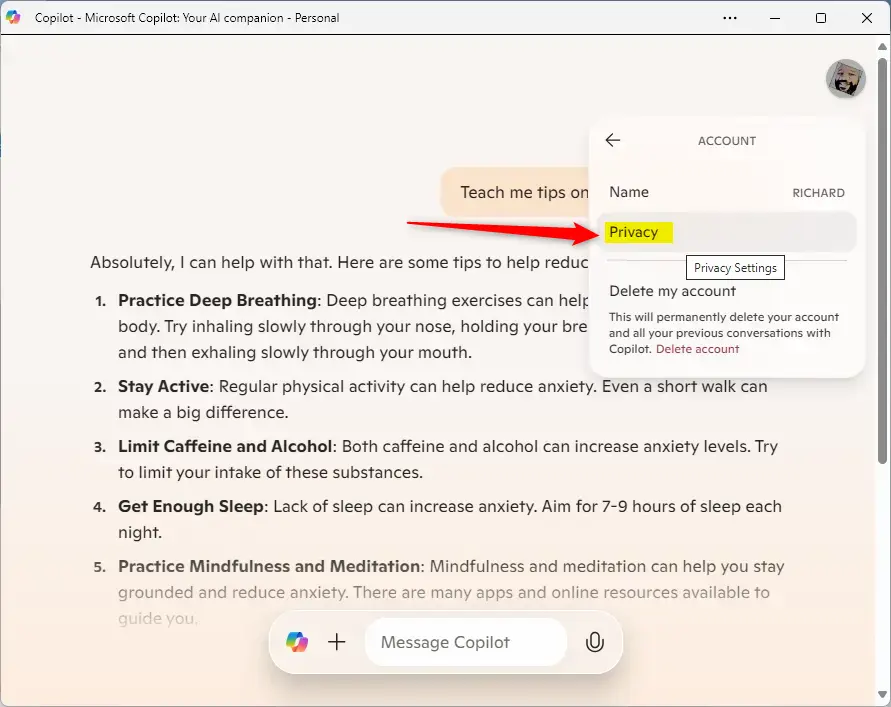
Next, select “Privacy” on your profile menu.
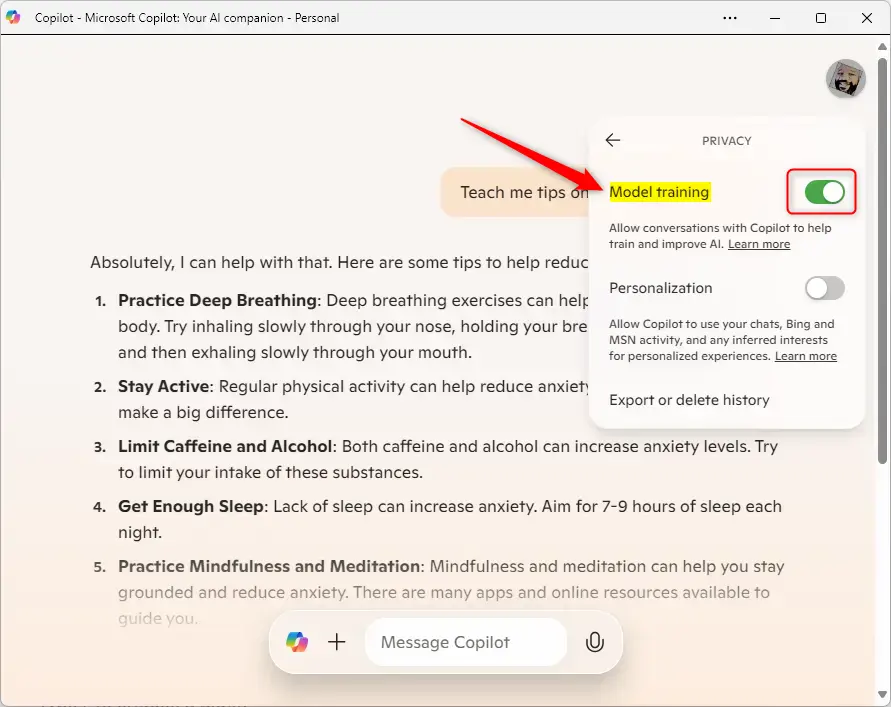
Finally, toggle the “Model training” button to the On or Off position to enable or disable the feature.
That should do it!
Conclusion:
In summary, managing the Copilot “Model training” feature on Windows 11 is straightforward and allows users to maintain control over their data. Here are the key takeaways:
- Copilot enhances productivity by enabling natural language interaction to modify system settings and work across applications.
- Model training is enabled by default, except in specific regions like the EEA and UK, making it important for users to check their settings.
- Users can easily enable or disable the Model training feature through the Copilot app settings.
- The ability to modify these settings helps users opt for privacy while still enjoying Copilot’s benefits.
- Following the outlined steps ensures users can customize their experience according to their preferences.
By taking advantage of these features, you can tailor your Copilot experience to suit your needs better.


Leave a Reply