How to Enable or Disable Captions in Microsoft Teams

Live captions in Microsoft Teams display real-time text during meetings to help you follow conversations in noisy rooms or poor audio conditions. These built-in subtitles appear on your screen while a call runs and disappear automatically as soon as you hang up.
Captions only show what Teams can hear. Clear audio, a decent microphone, and one person speaking at a time all make the text more accurate. The sections below cover turning captions on for every meeting, changing the spoken language mid-call, and how admins control captions for a whole organization.
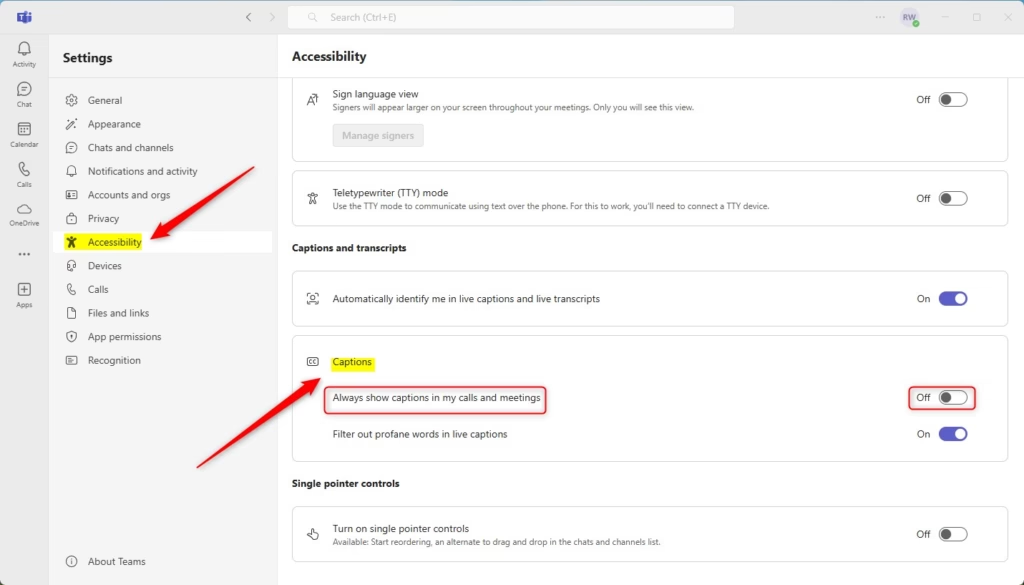
Enable live captions by going to Settings, then Accessibility, and toggling “Always show captions in my calls and meetings.” To disable them, simply toggle the same switch off.
How to Enable or Disable Captions in Teams
Microsoft Teams captions can be turned on or off for all future meetings by changing your app settings. To do this, open your settings, go to the accessibility menu, and switch live captions on so text always appears automatically when you join any call.
This is a per-user setting. It only changes what you see, and it does not affect what other participants see. The steps below use the desktop app on Windows 11. The labels in the web version can differ slightly.
1. Launch the Microsoft Teams app from your Start menu . Wait for the main Teams window to load and show your chats and calendar. If you are not signed in, sign in with your work or school account first.

2. Click the Settings and more (…) button near your profile picture. A drop-down menu opens with options such as Settings.

- Select Settings from the menu. The Settings window opens with a list of categories on the left.
- Click the Accessibility tab on the left. The caption options appear on the right.
- Under Captions, toggle the switch for Always show captions in my calls and meetings. The switch should now show as on. To turn captions off again, come back to the same place and toggle the switch off.
If you can’t find this option or it is greyed out, update Teams to the latest version first. If it still doesn’t appear, your organization may have restricted live captions through policy, and you will need to ask your IT administrator. You do not need to restart Windows, but if the change does not take effect, close and reopen Teams.
Meetings will now automatically display text at the bottom of the screen. Join a test call or your next meeting to check. Captions appear once someone starts speaking, so you won’t see text in a silent room.
Changing Spoken Language During a Meeting
Microsoft Teams captions can be set to a different spoken language right in the middle of a meeting. Open the meeting tools menu, go to language settings, and pick the language people are speaking so the text transcription stays accurate.
This matters because captions are generated for the language Teams expects to hear. If the meeting is in Spanish but Teams is listening for English, the text will be mostly nonsense. Fixing the setting takes a few seconds and doesn’t interrupt the call.
- During a meeting, click the More (…) button in the top toolbar. A menu of meeting options opens.
- Select Language and speech. A submenu with the language and caption options opens.
- Choose Spoken language and select the language being spoken. Pick the language the people in the meeting are actually speaking, not the language of your Teams interface.
Teams will now accurately transcribe the language being spoken. If the text is still wrong after a few sentences, double-check the selection. Also, captions can only follow one spoken language at a time, so a meeting that switches languages often will need the setting changed again.
Administrative and Policy Controls (Admin Only)
IT administrators manage Microsoft Teams caption settings for entire organizations through the Teams admin center or PowerShell. Admin settings take priority over personal ones, which is why a user may find the captions option missing or greyed out in their own Settings.
Disabling auto-captioning stops sensitive spoken information from being recorded and stored within meeting transcripts for all user accounts. Admins should note that live captions and meeting transcription are separate options in Teams meeting policies, so review both if the goal is to keep spoken content out of stored text. Policy changes can take some time to reach all users, so don't expect them to apply instantly.
See Also
Summary
Enabling Microsoft Teams captions makes discussions more accessible and understandable for every participant. Turn them on once in Accessibility settings, change the spoken language when a meeting needs it, and check with your IT administrator if an option is missing.
Have a question about this guide?
Answered by AI from this guide. Good questions may be added to this page — please don't include personal details.
Did this guide fix your problem?

About the Author
Richard
Tech Writer, IT Professional
Richard is a writer at Geek Rewind who turns complex IT tasks into clear, step-by-step guides. He draws on years of hands-on experience in system administration and enterprise IT operations, focusing on Windows, Linux and WordPress: the problems people actually run into, and the fixes that work. His server and WordPress guides come from systems he runs himself. Richard builds and maintains the platform behind Geek Rewind, from its Ubuntu servers and Nginx configuration to its custom WordPress plugins. Many new tutorials start with readers' questions, and he's always glad to answer them in the comments.
No comments yet — be the first to share your thoughts!