Filter Profane Words in Microsoft Teams Captions

Filtering profane words in Microsoft Teams captions replaces offensive language with asterisks during live calls. It helps keep meetings professional, and it works on your own screen while colleagues speak. Nobody else in the meeting sees a change.
The setting is available in Microsoft Teams version 1.5.75.0 and newer. Once you switch it on, Teams masks inappropriate words in your live meeting captions without any extra steps. If you are on an older build, update Teams first, or you may not see the option at all.
Enable the “Offensive language” setting in Microsoft Teams Accessibility settings. Navigate to Settings, then Accessibility, and toggle “Filter out profane words in live captions” to On. This masks inappropriate words with asterisks for your view.
Latest Update
The feature is now generally available, so you do not need a preview or test channel to get it. Any Teams build at 1.5.75.0 or later includes it. On Windows 11 the app normally updates itself in the background, so a full restart of Teams is often enough to pick up the latest version.
What happens when you enable the filter?
When you turn the filter on, the AI checks the meeting’s audio live. The transcribed text is then screened before it appears as a caption. Because this happens as people speak, the masking is applied to each caption line as it is produced.
How to toggle profanity filtering
You turn on the profanity filter in your Teams app settings. In short: open Teams, click the three dots near your profile picture, choose Settings, go to the Accessibility tab, and turn on the profanity switch. Curse words are then hidden with asterisks during live meetings. The full steps are below. The switch label can be worded slightly differently from one Teams build to the next, but it always sits in the captions options on the Accessibility tab.
- Launch the Microsoft Teams app from your Start menu or Taskbar. If you do not see it in either place, type “Teams” into the Start menu search box and open it from the results. You should see the main Teams window with your chats or calendar.

Microsoft Teams in Start menu 
Turn on or off automatically starting Microsoft Teams - Click the Settings and more (…) icon located near your profile picture. This is the three-dot icon at the top right of the Teams window. A drop-down menu should open.
- Select Settings from the drop-down menu. The Settings window or page opens, with a list of categories on the left side.

Microsoft Teams settings button for filtering captions - Navigate to the Accessibility tab on the left sidebar. The options for this tab, including the caption settings, appear on the right.
- Under the Captions section, locate Filter out profane words in live captions. If you cannot find it, check that Teams is at version 1.5.75.0 or newer. Also keep in mind that your organization’s admin controls whether live captions are available at all, so a missing or greyed-out option may be a policy matter.
- Toggle the switch to On to mask words, or Off to see all text. The change is saved right away, and you do not need to restart Teams. If captions are already running in a meeting and you still see unmasked words, turn captions off and on again in that meeting. To undo the change at any time, come back to this screen and set the switch to Off.
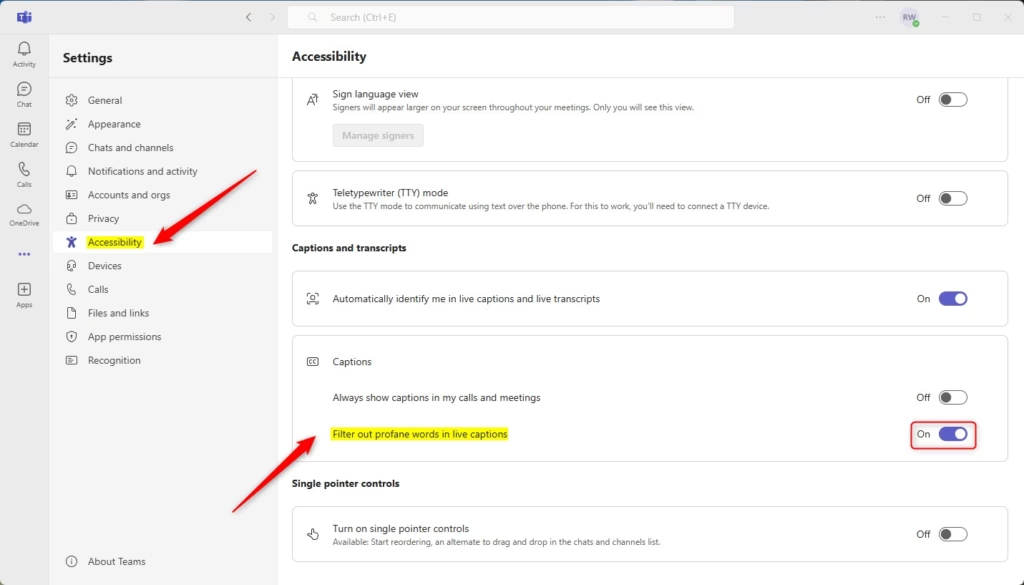
Filter out profane words in live caption with Teams
Changing it only affects your view of the captions. Other participants keep their own setting, so one person can see masked text while the person next to them sees every word. Turning the filter on for yourself does not change what is said in the meeting, and it does not change recordings or transcripts.
Latest Update
Note: This setting is user-specific. Changing it only affects your view of the captions. Meeting participants will need to set this themselves unless an administrator applies an organizational policy.
Supported platforms and limitations
The profanity filter in Teams works on Windows, Mac, and the web, but it is mainly for English and only affects live captions. It does not filter chat messages, meeting titles, or file names. If your meetings are mostly in another language, expect weaker results.
Latest Update
The profanity filter in Teams works on Windows, Mac, and the web, but it's mainly for English and only affects live captions. The filter is constantly being updated to better understand slang and regional variations, but may not catch all offensive terms.
Summary
Filtering profane words in Teams is a quick, low-effort way to make your meetings more professional and accessible for everyone. The setup takes under a minute, and you can reverse it just as fast from the same Accessibility tab.
User Scenarios and Benefits
Filtering profane words in Microsoft Teams live captions helps keep public calls and large meetings professional by replacing curse words with asterisks. It stops distractions and keeps everyone focused on the discussion. It works especially well for external client calls, schools, and workplaces with diverse groups. It is also useful if you share your screen while captions are showing, because the masked text is what the audience sees on your side.
Limitations and Accuracy
The Microsoft Teams profanity filter relies on artificial intelligence, so it is not completely accurate. It might miss some curse words or block normal words by mistake. Regional slang, acronyms, and fast speech make it hard for the filter to catch every instance of inappropriate language during a live meeting. Treat it as a helpful safety net, not a guarantee. For meetings where a slip would cause real problems, such as a client presentation, still set clear ground rules with the speakers.
Have a question about this guide?
Answered by AI from this guide. Good questions may be added to this page — please don't include personal details.
Did this guide fix your problem?

About the Author
Richard
Tech Writer, IT Professional
Richard is a writer at Geek Rewind who turns complex IT tasks into clear, step-by-step guides. He draws on years of hands-on experience in system administration and enterprise IT operations, focusing on Windows, Linux and WordPress: the problems people actually run into, and the fixes that work. His server and WordPress guides come from systems he runs himself. Richard builds and maintains the platform behind Geek Rewind, from its Ubuntu servers and Nginx configuration to its custom WordPress plugins. Many new tutorials start with readers' questions, and he's always glad to answer them in the comments.
No comments yet — be the first to share your thoughts!