How to Add or Remove Widgets on Windows 11 Taskbar

You add or remove widgets on your Windows 11 taskbar to control the quick access information feed. Widgets are interactive panels providing live updates like weather, news, and stocks directly on your PC.
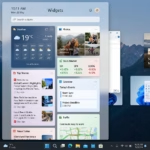
Windows 11 offers a dedicated Widgets board, accessible by clicking the taskbar icon or pressing ⊞ Win+W, giving you a streamlined view of your personalized content. Adding a widget, such as the weather forecast, puts real-time data just one click away.
To remove widgets from your Windows 11 taskbar, open Settings, go to Personalization, select Taskbar, and toggle Widgets to Off. You can also use the Registry Editor by navigating to 🗝️HKEY_CURRENT_USER\Software\Microsoft\Windows\CurrentVersion\Explorer\Advanced and setting TaskbarDa to 0.
Personalization and Board Management
The widgets board is your hub for information. You can customize it to show only what matters to you. To rearrange widgets, click and hold a widget, then drag it to your preferred spot. To resize a widget, click the three dots in the top right corner of the widget and select Small, Medium, or Large.
You can also customize your news feed. Click your profile icon in the board, then select Personalize your interests. This opens a browser window so you can pick the topics you like. Your feed updates to show more relevant news and fewer stories you do not care about.
Remove Widgets from 🪟 Windows 11 Taskbar
If you prefer a cleaner look, you can hide the icon. Here is how to turn off Windows 11 taskbar widgets.
Step 1Open the Settings App
Click the Start menu and select Settings. Or use the keyboard shortcut Windows key + I to open the Windows Settings app directly.
Step 2Go to Taskbar Settings
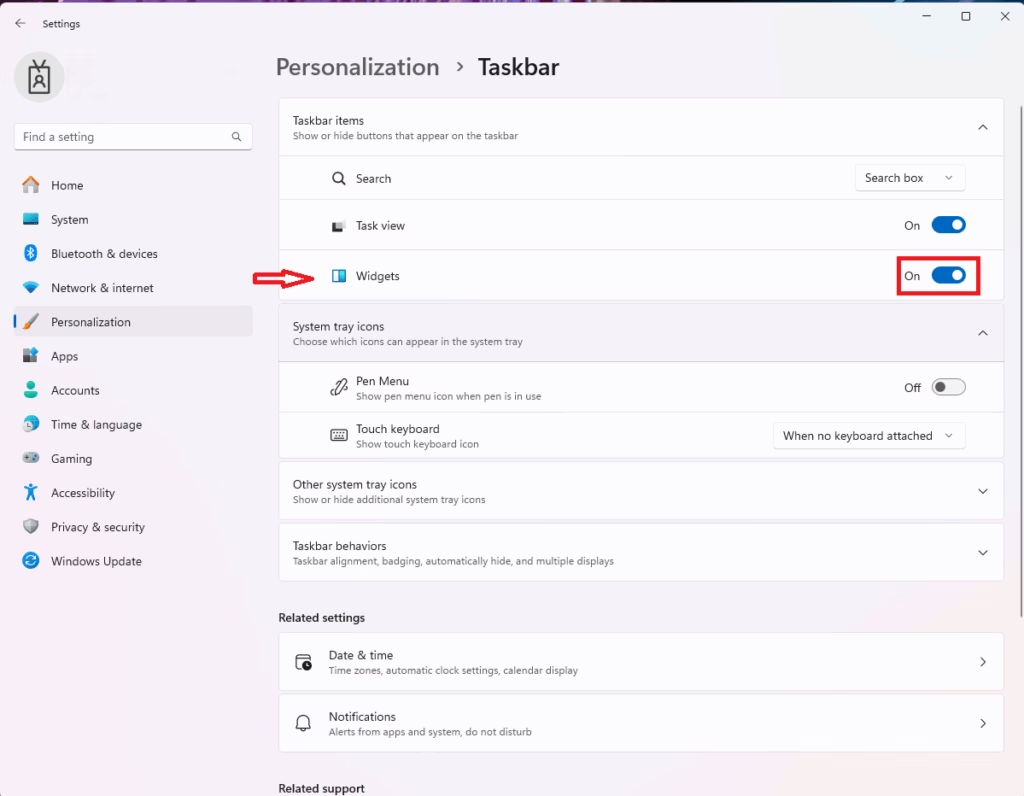
When Settings opens, click Personalization on the left side. Then select the Taskbar option on the right to expand it.
Step 3Turn Off Widgets
On the Taskbar page, look for Taskbar items. Click the Widgets toggle to the Off position.
Advanced Deployment Methods
If you’re an IT administrator or a power user, you can manage widgets across a network. You can use tools like the Group Policy Editor or PowerShell to disable the widgets board for everyone on a machine. You can also use the registry to set these options.
Troubleshooting: Widget Icon Missing
If the widget icon is missing, first check your Taskbar settings to ensure it is toggled on. If it is already on, try restarting the Windows Explorer process using the Task Manager. Right-click the Taskbar, select Task Manager, find Windows Explorer, and click Restart.
Turn Widgets On or Off Using the Registry
⚠️ Admin privileges required for this method
Advanced users can control widgets through the Windows 11 registry.
Why use the registry? It lets you set things up for the whole system.
What happens? You can force the widget state for all users.
Use Windows search to find regedit.
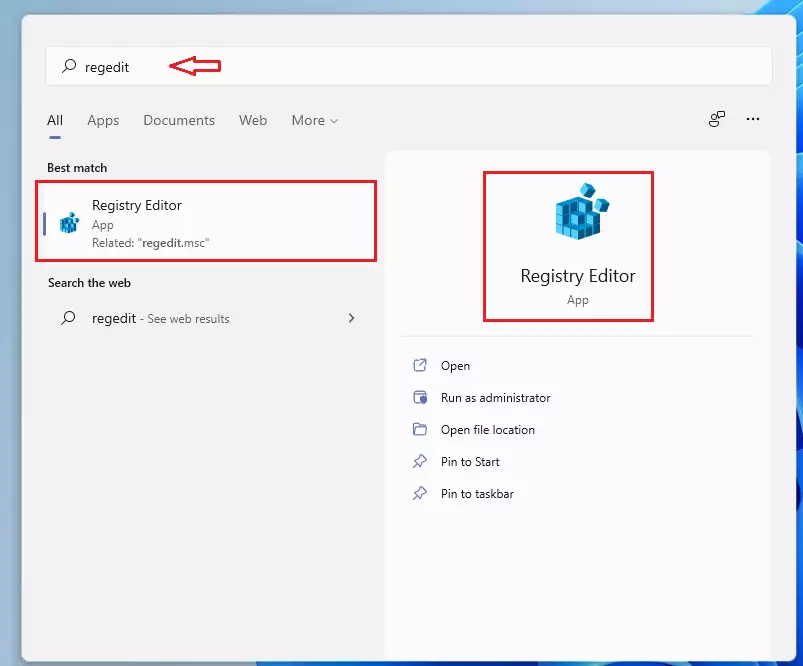
When the registry editor opens, navigate to this path:
HKEY_CURRENT_USER\Software\Microsoft\Windows\CurrentVersion\Explorer\Advanced
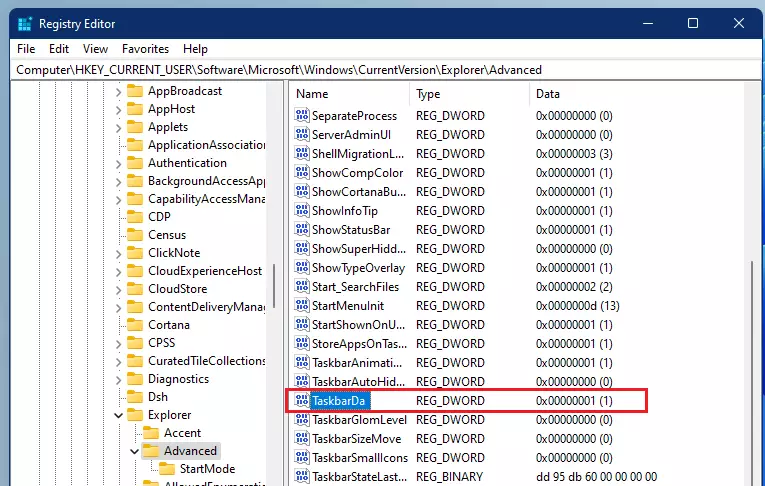
Find the entry named TaskbarDa. Double-click it to change the value data.
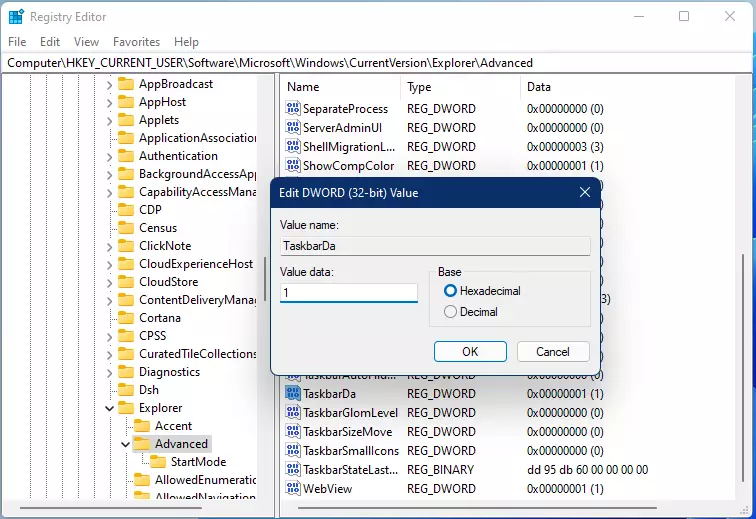
- 0 = Remove widgets
- 1 = Add widgets
That is it! Your changes take effect immediately.
Summary
Windows 11 taskbar widgets provide quick access to live updates. You can customize your feed, resize widgets, or remove them completely through Settings. For advanced control, use the registry or Group Policy. Use the ⊞ Win+W shortcut to manage your board efficiently and keep your workspace organized.
How do I rearrange widgets on the board?
To rearrange widgets, open the board using the ⊞ Win+W shortcut. Click and hold the top bar of any widget, then drag it to your desired location on the grid. Release the mouse button to drop it into place. This allows you to prioritize the information you view most often.
How do I resize a widget?
Open your widgets board by pressing ⊞ Win+W. Locate the widget you wish to change and click the three-dot menu icon in its top-right corner. Select the size option that fits your needs, such as Small, Medium, or Large. The widget will automatically snap to the new dimensions on your board.
Was this guide helpful?

About the Author
Richard
Tech Writer, IT Professional
Richard, a writer for Geek Rewind, is a tech enthusiast who loves breaking down complex IT topics into simple, easy-to-understand ideas. With years of hands-on experience in system administration and enterprise IT operations, he’s developed a knack for offering practical tips and solutions. Richard aims to make technology more accessible and actionable. He's deeply committed to the Geek Rewind community, always ready to answer questions and engage in discussions.

[…] Widgets board is a new feature that provides quick access to news, weather, sports, and other information. It can […]
[…] Windows 11 is centered on the screen and shows the Start menu, Search, Task View, Widgets, Teams Chat, File Explorer, Microsoft Edge, and Microsoft Store buttons by […]
[…] When you swipe from the right edge of your screen, it opens the Notification Center. If you do the same from the left side, it opens Windows Widgets. […]
[…] change it, open the Widgets by pressing the Windows key + W on the […]
[…] post shows students and new users steps to sign in or out of the Widgets board in Windows […]
[…] The Widgets board is a new feature that provides quick access to news, weather, sports, and other information. It can be accessed by clicking the Widgets icon in the taskbar or pressing the Windows key + W shortcut. The board appears as a slide-out panel on the left side of the screen and can be customized to show or hide specific feeds. […]
[…] The Taskbar in Windows 11 is centered on the screen and shows the Start menu, Search, Task View, Widgets, Teams Chat, File Explorer, Microsoft Edge, and Microsoft Store buttons by […]