How to Check WinSxS Folder Size in Windows 11


Checking the WinSxS folder size in Windows 11 lets you see how much disk space your system component store uses, which often grows past 10 gigabytes (GB) over time. This folder holds backup system files so you can install updates and turn on optional features without errors.
Standard Windows tools like File Explorer show an inaccurate size for this folder because they do not count hard links between system directories. Running a quick built-in command reveals the true storage space this folder takes up on your C: drive so you can free up room when needed.
Open Windows Terminal as administrator, select PowerShell or Command Prompt, and run the command dism /online /cleanup-image /analyzecomponentstore. This displays the actual size of the component store and recoverable space.
How to Check WinSxS Folder Size in 🪟 Windows 11
Checking your WinSxS folder size requires running a command prompt tool because File Explorer shows an inaccurate number. You can find the true footprint of this system folder by opening Windows Terminal and running a specific DISM (Deployment Image Servicing and Management, a built-in tool for servicing Windows images) command. This gives you an accurate report showing how much space the folder really takes up and how much you can clean up.
What will you see after running the command? The output provides an accurate report showing total disk usage and identifying which portions are safe to clear.
Warning: Do Not Delete the WinSxS Folder Manually
Deleting the WinSxS folder manually will corrupt your operating system and stop your computer from booting. Windows relies on the files inside this folder to function properly every day. Resist the urge to delete files or subfolders directly from File Explorer , and always use supported Windows management tools when you need to free up space on your hard drive.
Follow these steps to get an accurate report of your storage usage:
- Open Windows Terminal as administrator. (Note: This requires admin privileges).
- Select either Windows PowerShell or Command Prompt.
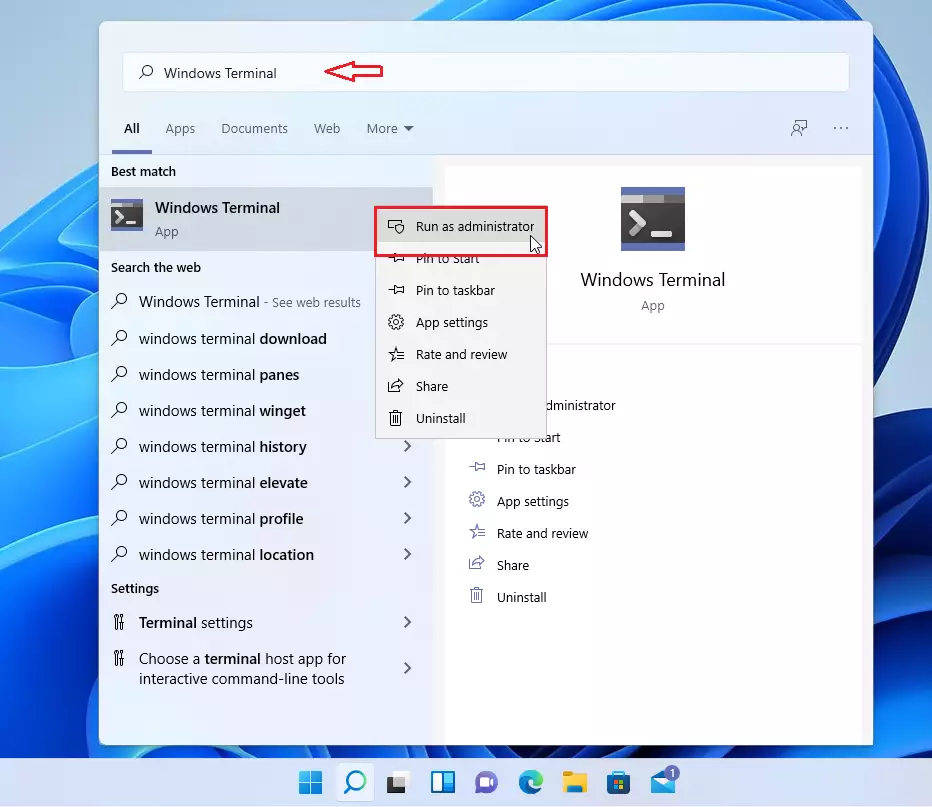
Once the window is open, type or copy the following command and press Enter:
dism /online /cleanup-image /analyzecomponentstore
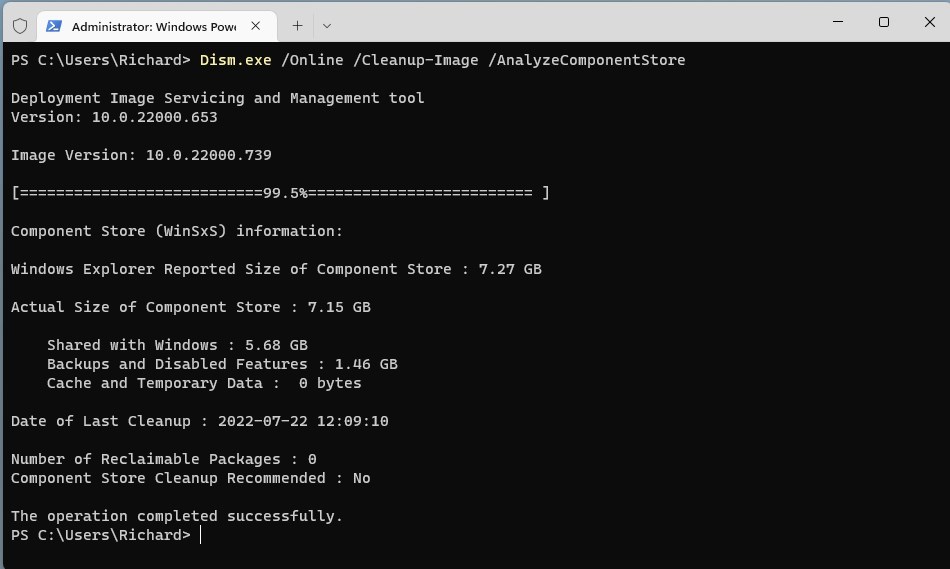
The tool takes a moment to scan the system. Once finished, it displays a detailed breakdown:
- Actual Size of Component Store: The real amount of space used, accounting for hard links.
- Backups and Disabled Features: Components kept for recovery or optional features.
- Cache and Temporary Data: Files used to speed up system updates.
- Component Store Cleanup Recommended: Tells you if you can safely shrink the folder size.
Safe Methods to Clean Up the Component Store
If the analysis reveals potential space savings, Windows includes built-in utilities to remove unneeded files safely. These methods have Microsoft's backing and preserve system stability.
1Using the StartComponentCleanup Command
1. Run the StartComponentCleanup Command This command tells Windows to remove older versions of system files that are no longer needed. Note: This requires admin privileges.
dism /online /cleanup-image /startcomponentcleanup
2Using the ResetBase Switch
Running DISM with the /ResetBase switch performs a deeper purge by stripping out all superseded component versions. Keep in mind that applying this switch prevents uninstalling any currently installed updates.
dism /online /cleanup-image /startcomponentcleanup /resetbase
3Using Task Scheduler
Windows 11 triggers maintenance tasks automatically during idle periods. Manual execution is also possible through Task Scheduler by navigating to Microsoft\Windows\Servicing\StartComponentCleanup and launching the job.
Summary
The WinSxS folder is vital for normal system operation, yet it grows over time. File Explorer cannot measure it accurately due to how Windows handles hard links. Running a DISM command reveals the true size and provides safe cleanup options.
Is it safe to clear the WinSxS folder?
Yes, but only if you use the official DISM commands provided by Microsoft. Never delete files manually in File Explorer. Using the /StartComponentCleanup command safely removes old, unneeded system files while keeping your computer stable and ensuring that future Windows updates and system recovery features continue to work perfectly.
How do I know if my WinSxS folder is too big?
You can determine if the folder is too large by running the DISM /AnalyzeComponentStore command. The output will explicitly state whether a cleanup is recommended. If your disk space is low and the report shows several gigabytes of reclaimable space, it is a good time to perform a cleanup.
Was this guide helpful?

About the Author
Richard
Tech Writer, IT Professional
Richard, a writer for Geek Rewind, is a tech enthusiast who loves breaking down complex IT topics into simple, easy-to-understand ideas. With years of hands-on experience in system administration and enterprise IT operations, he’s developed a knack for offering practical tips and solutions. Richard aims to make technology more accessible and actionable. He's deeply committed to the Geek Rewind community, always ready to answer questions and engage in discussions.


No comments yet — be the first to share your thoughts!