How to Transfer Files from Memory Card to Windows 11

Moving your data is a common task. Whether you are moving photos from a camera or migrating data to a new PC, knowing how to transfer files in Windows 11 is essential. This guide covers everything from memory cards to cloud syncing.
Why Transfer Files?
You transfer files to keep your data safe, free up space on devices, or move work between computers. When you are done, your files are stored in a new location, making them easier to access or back up.
How to Transfer Files from a Memory Card
A memory card is a portable way to store photos and documents. Windows 11 supports SD, mini SD, and micro SD cards. If your PC lacks a slot, use a usb-drive-to-windows-11-pc/" class="sal-link" rel="noopener" target="_blank" data-sal-id="22589">USB card reader.
Step 1: Insert Your Memory Card
Insert your card into the reader. If the computer does not see it, ensure the USB connection is secure.
Step 2: Choose What to Do
Windows 11 will show a notification. Click Open folder to view files.
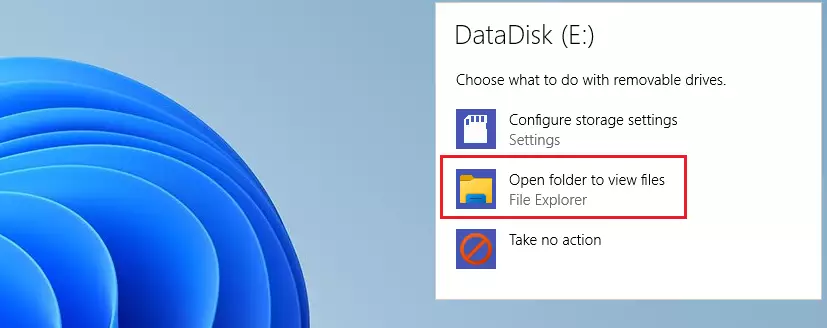
Step 3: Use File Explorer
If no prompt appears, open File Explorer. Click This PC on the left and look for your drive letter, such as E: or F:.
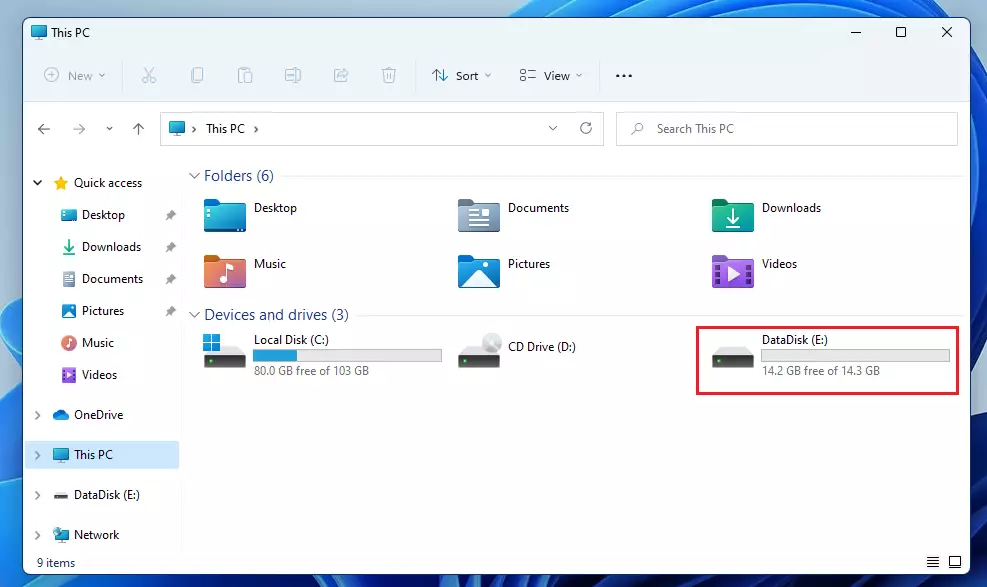
Step 4: Copy and Paste
Select your files. Press CTRL + C to copy. Navigate to your destination folder and press CTRL + V to paste.
CTRL + C to copy and CTRL + V to paste to save time compared to using the mouse menu.Transferring Files Between Two PCs
You can move files between computers using a network or a USB-C cable. For network transfers, ensure both PCs are on the same Wi-Fi. Right-click a folder, select Properties, then Sharing to allow access.
Using Cloud Syncing with OneDrive
OneDrive is built into Windows 11. Sign in with your Microsoft account. Drag files into the OneDrive folder, and they will sync to the cloud. This allows you to access them from any device.
Using External Hard Drives
For large amounts of data, an external hard drive is the fastest method. Simply plug the drive into a USB port. Drag and drop your files from your PC to the drive letter shown in File Explorer.
Administrative Tasks
Note: Some network sharing settings require admin privileges. You may need to enter your password if prompted when changing permissions in C:\Windows\System32 or network settings.
Summary
Transferring files in Windows 11 is easy. Use memory cards or external drives for physical transfers, or OneDrive for cloud syncing. Always use keyboard shortcuts like CTRL + C and CTRL + V to speed up your work. Keeping your files organized in folders ensures you can always find what you need.
Can I transfer files from Windows 10 to Windows 11?
Yes. You can use an external hard drive, OneDrive, or a network transfer to move files from a Windows 10 PC to a Windows 11 PC. Simply copy your files to the storage device on the old PC and paste them onto the new one.
What is the fastest way to transfer large files in Windows 11?
The fastest way to transfer large files is using a high-speed external SSD connected via a USB-C port. This bypasses internet speed limits and network congestion, allowing for direct data transfer at the maximum speed supported by your hardware ports.
Does Windows 11 have a built-in file transfer tool?
Windows 11 includes File History and OneDrive for backups and syncing. While there is no single “transfer wizard” for moving everything, these built-in tools make manual migration through File Explorer or cloud synchronization very simple and reliable for most users.
How do I transfer files without an internet connection?
You can transfer files offline using physical media like USB flash drives, external hard drives, or memory cards. Simply copy the files to the drive on the source computer, disconnect it, and plug it into the destination computer to paste the files.
Was this guide helpful?

About the Author
Richard
Tech Writer, IT Professional
Richard, a writer for Geek Rewind, is a tech enthusiast who loves breaking down complex IT topics into simple, easy-to-understand ideas. With years of hands-on experience in system administration and enterprise IT operations, he’s developed a knack for offering practical tips and solutions. Richard aims to make technology more accessible and actionable. He's deeply committed to the Geek Rewind community, always ready to answer questions and engage in discussions.




This does not work.