How to Find the Documents Folder in Windows 11

This guide helps you find and use the Documents folder in Windows 11.
Open File Explorer and click “Documents” under Quick Access. Alternatively, press Windows Key + R, type shell:Personal, and press Enter. You can also browse to 📁C:\Users\yourname\Documents.
How to Find the Documents Folder in 🪟 Windows 11
Finding your Documents folder in Windows 11 is something you can do once you know where to look. This guide explains how to locate, move, and fix your Documents folder if it goes missing.
What Is the Documents Folder?
The Documents folder in Windows 11 is where you store all your important files, like school papers, personal projects, and anything else you save on your computer.
Why use it? It keeps all your important files in one organized place. You won’t have to hunt all over your computer to find what you saved.
When you save a new file in a program, Windows typically places it in your Documents folder by default.
Method 1Use File Explorer
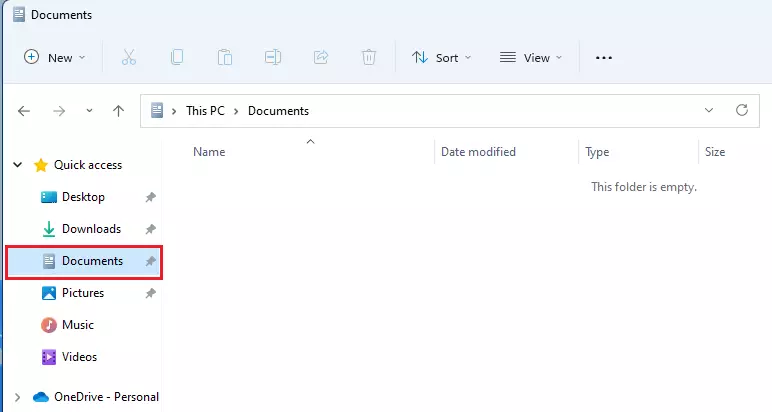
The best way to open the folder is using File Explorer. Look for the folder icon on your taskbar.
When File Explorer opens, check the left-hand menu. You’ll find “Documents” listed under Quick Access. Click on it to open.
Method 2The Shell Command Shortcut
You can quickly open your Documents folder in Windows 11 using a simple keyboard shortcut and a special command.
shell:Personal command to jump directly to your folder from anywhere in Windows, even if the folder has been moved to a different drive.Method 3Browse Your User Profile
You can also find the folder by clicking through your computer’s drives. In File Explorer, navigate through your computer’s drives. You’ll typically find it here: 📁C:\Users\yourname\Documents. Remember to replace “yourname” with your actual Windows account name.
OneDrive Integration and Missing Folders
Many users find their Documents folder missing after unlinking OneDrive. When OneDrive is active, it moves your Documents folder into the OneDrive directory. If you stop using OneDrive, the folder may appear to vanish because the system is looking for the old path.
How to Move Your Documents Folder
Moving your Documents folder to another drive in Windows 11 is a smart way to free up space on your main C: drive.
Advanced Troubleshooting: Registry Redirection
If your Documents folder path is incorrect or broken in Windows 11, you can fix it by making a small change in the system’s Registry editor.
Summary
The Documents folder is your main place to store files in Windows 11, and you can easily find it using a quick command or by looking in your user profile.
Can I delete the Documents folder in 🪟 Windows 11?
You should not delete the Documents folder in Windows 11 because it’s a vital system folder that many programs rely on to save your work.
Why is my Documents folder empty after a Windows update?
If your Documents folder appears empty after a Windows 11 update, it might be due to changes in file paths or hidden files, but there are simple ways to check.
Was this guide helpful?

About the Author
Richard
Tech Writer, IT Professional
Richard, a writer for Geek Rewind, is a tech enthusiast who loves breaking down complex IT topics into simple, easy-to-understand ideas. With years of hands-on experience in system administration and enterprise IT operations, he’s developed a knack for offering practical tips and solutions. Richard aims to make technology more accessible and actionable. He's deeply committed to the Geek Rewind community, always ready to answer questions and engage in discussions.


Very Helpful, Thanks.