How to Enable or Disable Bluetooth in Windows 11


Bluetooth in Windows 11 lets you connect wireless accessories such as mice, keyboards and headphones without cables. Turning it off saves laptop battery and stops unwanted device connections. The quickest toggle takes under 10 seconds. You can use Quick Settings or the Settings app.
To use Quick Settings:
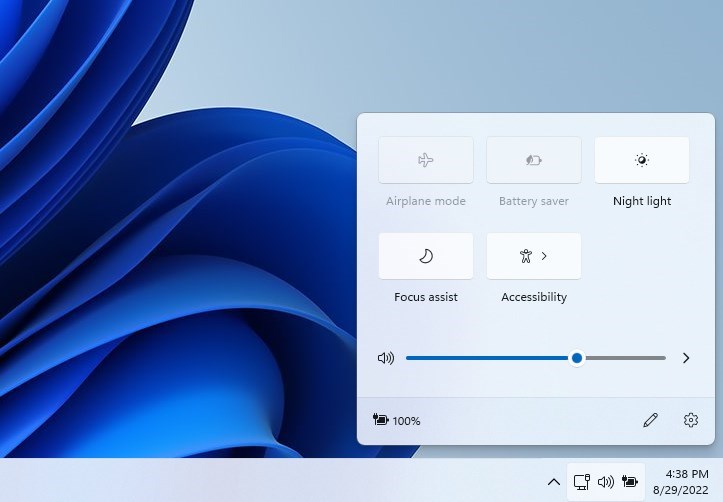
- Press Win+A. The Quick Settings panel opens near the clock.
- Click the Bluetooth tile. When it is highlighted, Bluetooth is on. When it is grey, Bluetooth is off.
- If you do not see the tile, click the Edit quick settings pencil icon, click Add, and choose Bluetooth . Then click Done.
To use the Settings app, which also shows your paired devices:
- Press Win+I to open Settings .
- Go to Bluetooth & devices.
- Switch the Bluetooth toggle at the top to On or Off. Your paired devices stay listed when it is off, and they reconnect when you turn it back on.
Press Win+A to open Quick Settings, then click the Bluetooth tile to turn it off. The tile appears highlighted when on and grey when off. Alternatively, press Win+I, go to Bluetooth & devices, and switch the Bluetooth toggle to Off.
What You Need to Know
Administrative privileges are required to change these hardware settings through the command and policy methods described below. Open the tools as an administrator, or they will fail.
If the Bluetooth toggle is missing or greyed out, check three things. The computer may have no Bluetooth adapter. The adapter may be disabled in Device Manager or missing its driver. Or a system policy may be blocking it, which the later sections cover. A change of this kind does not normally need a restart, but if the setting does not take effect, restart the computer.
References:
Learn more about the Connectivity Area in Policy CSP. This is the Microsoft documentation for the policy settings that control Bluetooth on managed devices.
How to Enable or Disable Bluetooth
Enable Bluetooth
You can turn off wireless connections from Command Prompt when you need to disable Bluetooth in Windows 11. A short command updates the system registry to switch off the radio hardware. This method works well if the Settings app is not responding, or if you want Bluetooth off across the whole computer.
Open Command Prompt as an administrator first. Search for it in the Start menu , right-click the result and choose Run as administrator. Without elevation the command will be refused.
reg add "HKEY_LOCAL_MACHINE\SOFTWARE\Microsoft\PolicyManager\default\Connectivity\AllowBluetooth" /v value /t REG_DWORD /d 2 /f
Disable Bluetooth
Local configurations cannot override this system rule. That means the toggle in Settings and Quick Settings will no longer bring Bluetooth back on its own.
If the toggle stays off after you run the command, that is expected. To undo the change, run the enabling command described below, then check Settings again. Sign out or restart if the toggle does not come back straight away.
reg add "HKEY_LOCAL_MACHINE\SOFTWARE\Microsoft\PolicyManager\default\Connectivity\AllowBluetooth" /v value /t REG_DWORD /d 0 /f
Summary
Enforcing a system-wide hardware policy takes a quick administrative tweak when local settings fail to restrict access. Adapters remain active by default on fresh installations, so you only need this if you want to change that. Applying the first command enables the transceiver. The second command shuts down radio frequencies completely.
They will not be able to switch Bluetooth on themselves until an administrator reverses it.
Frequently asked questions
How to see if Bluetooth is turned on 🪟 Windows 11?
Press Windows + A to open Quick Settings. If the Bluetooth tile is highlighted, Bluetooth is on. If it is grey, Bluetooth is off. You can also press Windows + I to open Settings and go to Bluetooth & devices. The toggle at the top shows On or Off.
How to get Bluetooth low energy on PC?
Bluetooth Low Energy, a power-saving mode used by fitness trackers and sensors, has no separate switch in Windows 11. It works through your Bluetooth adapter if the adapter supports it. Open Settings, go to Bluetooth & devices, and select Add device to find these accessories. If none appear, update the Bluetooth driver in Device Manager.
How to activate Bluetooth on 🪟 Windows 10?
Press Windows + A to open Action Center, then click the Bluetooth tile until it is highlighted. For the Settings route, press Windows + I, go to Devices, select Bluetooth & other devices, and switch the Bluetooth toggle to On. Paired devices reconnect once Bluetooth is on.
How to stop 🪟 Windows 11 from automatically connecting to Bluetooth devices?
Turn off Bluetooth in Quick Settings, or remove the device so Windows stops reconnecting to it. To remove it, open Settings, go to Bluetooth & devices, select the device, and click Remove device. You can pair it again later, but you will need to repeat the pairing steps.
Still have a question?
Answered by AI from this guide. Good questions may be added to this page — please don't include personal details.
Did this guide fix your problem?

About the Author
Richard
Tech Writer, IT Professional
Richard is a writer at Geek Rewind who turns complex IT tasks into clear, step-by-step guides. He draws on years of hands-on experience in system administration and enterprise IT operations, focusing on Windows, Linux and WordPress: the problems people actually run into, and the fixes that work. His server and WordPress guides come from systems he runs himself. Richard builds and maintains the platform behind Geek Rewind, from its Ubuntu servers and Nginx configuration to its custom WordPress plugins. Many new tutorials start with readers' questions, and he's always glad to answer them in the comments.
No comments yet — be the first to share your thoughts!