How to Change Workgroup on Windows 11

Navigate to System Properties via Settings > System > About > Advanced system settings. On the Computer Name tab, click Change, select Workgroup, enter your desired name, and click OK. Restart your computer to apply the changes.
What is a Workgroup?
A workgroup is a simple name that helps computers on your network find each other to share things like files and printers, and changing your workgroup on Windows 11 lets you group your devices under a custom name.
Windows computers default to the workgroup name WORKGROUP. You can change this if you want all your devices to belong to a different group.
Why would you do this? If you want your Windows 11 computer to share files and printers easily with other devices on your network, you might need to change its workgroup. What happens when done? Your computer will be able to find and connect to other computers in the same workgroup more easily.
Learn more about turning file and printer sharing on or off in Windows 11.
How to Change Your Workgroup Using Windows Settings
- Open Settings. Click the Start menu and select Settings, or press Windows key + I on your keyboard.
- In Settings, click on System on the left side.
- Scroll down on the right and click About.
- Under About, click Advanced system settings. You might see a popup asking for permission. %📂%FLAG_ADMIN%%
You can change your workgroup on Windows 11 easily using the Settings app by opening it and navigating through System, About, and Advanced system settings.
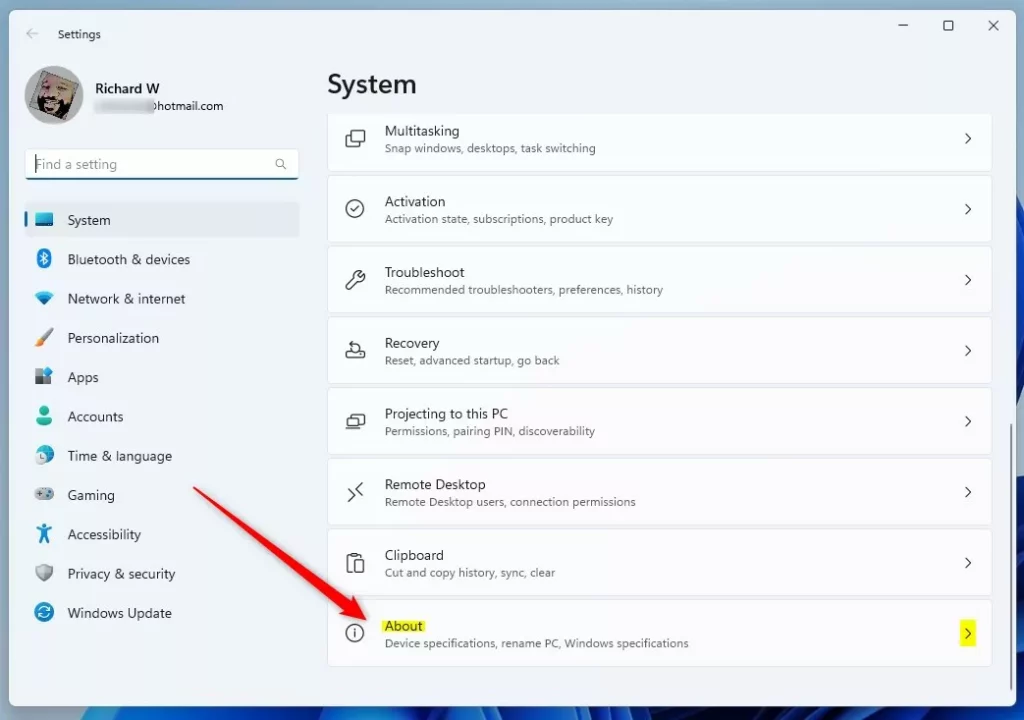
You can change your workgroup on Windows 11 easily using the Settings app by opening it and navigating through System, About, and Advanced system settings.
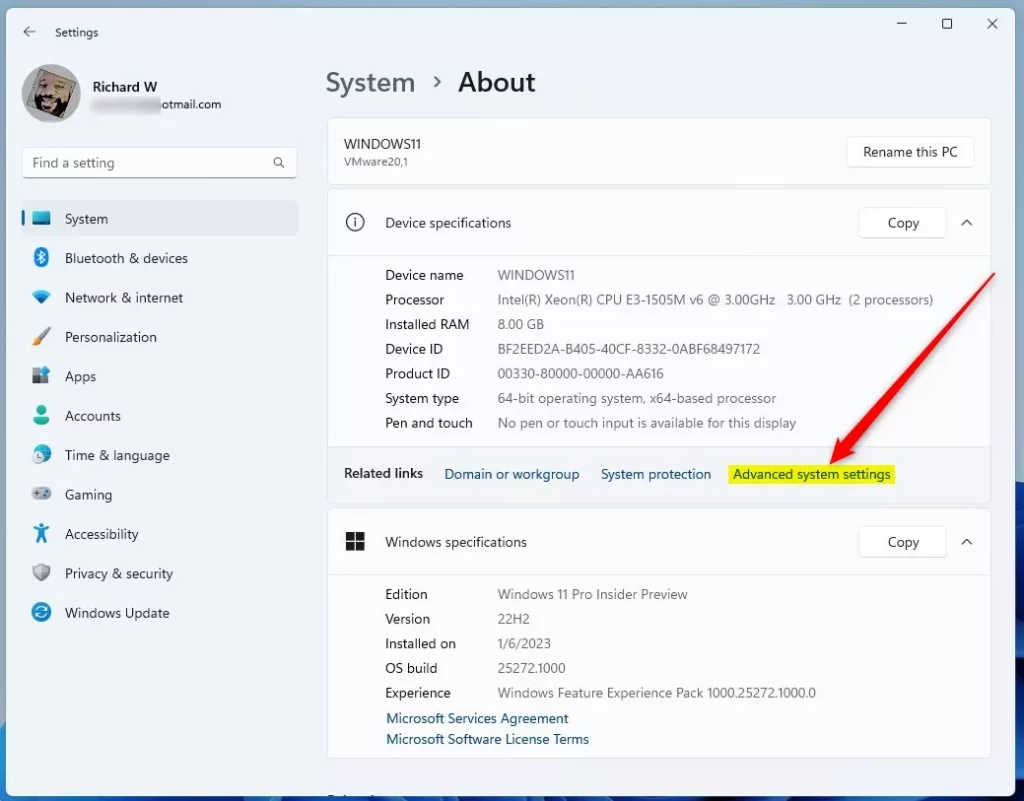
You can change your workgroup on Windows 11 easily using the Settings app by opening it and navigating through System, About, and Advanced system settings.
- In the System Properties window, click the Computer Name tab.
- Click the Change button.
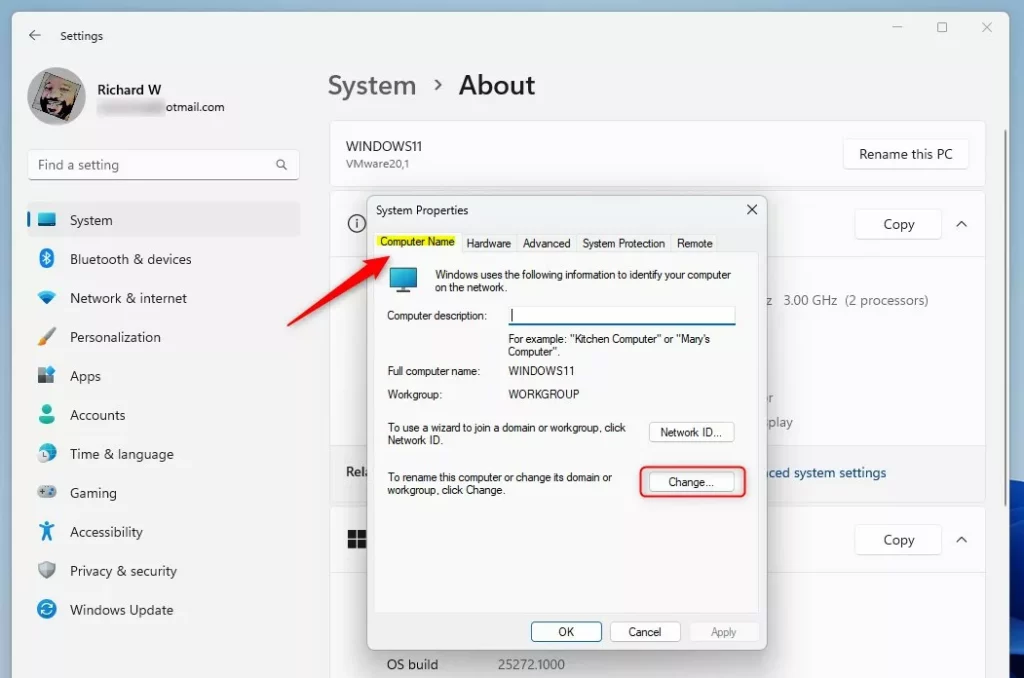
You can change your workgroup on Windows 11 easily using the Settings app by opening it and navigating through System, About, and Advanced system settings.
- In the new window, choose Workgroup and enter the name you want for your workgroup.
- Click OK when done.
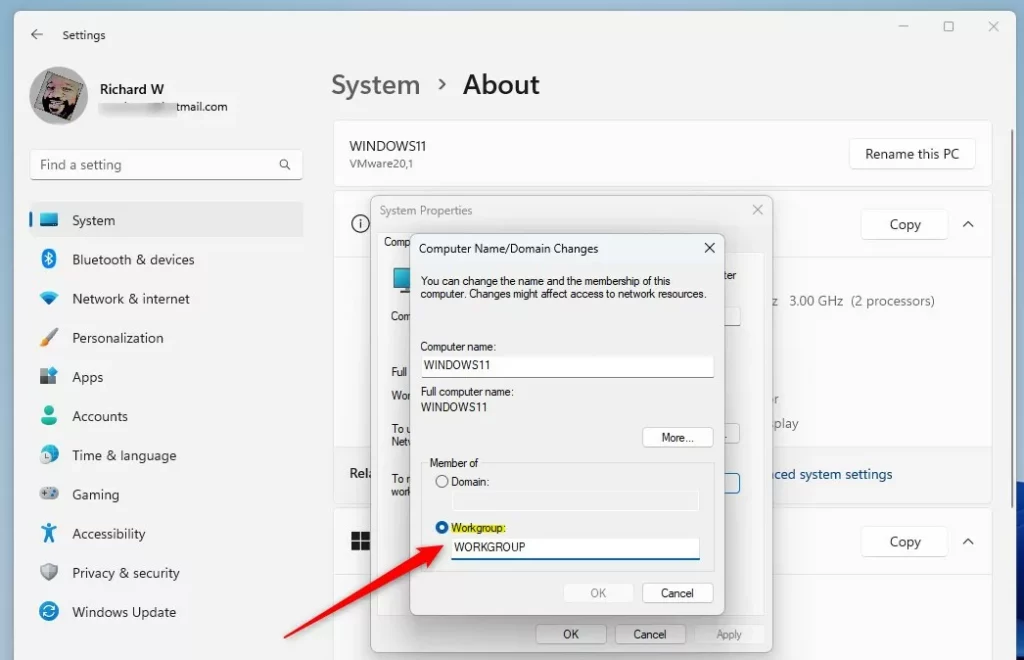
You can change your workgroup on Windows 11 easily using the Settings app by opening it and navigating through System, About, and Advanced system settings.
Important: Workgroup names cannot have spaces or special characters like these:
` ~ @ # $ % ^ & ( ) = + [ ] { } | ; : , ' " . < > / ?
- After clicking OK, restart your computer to apply the new workgroup name.
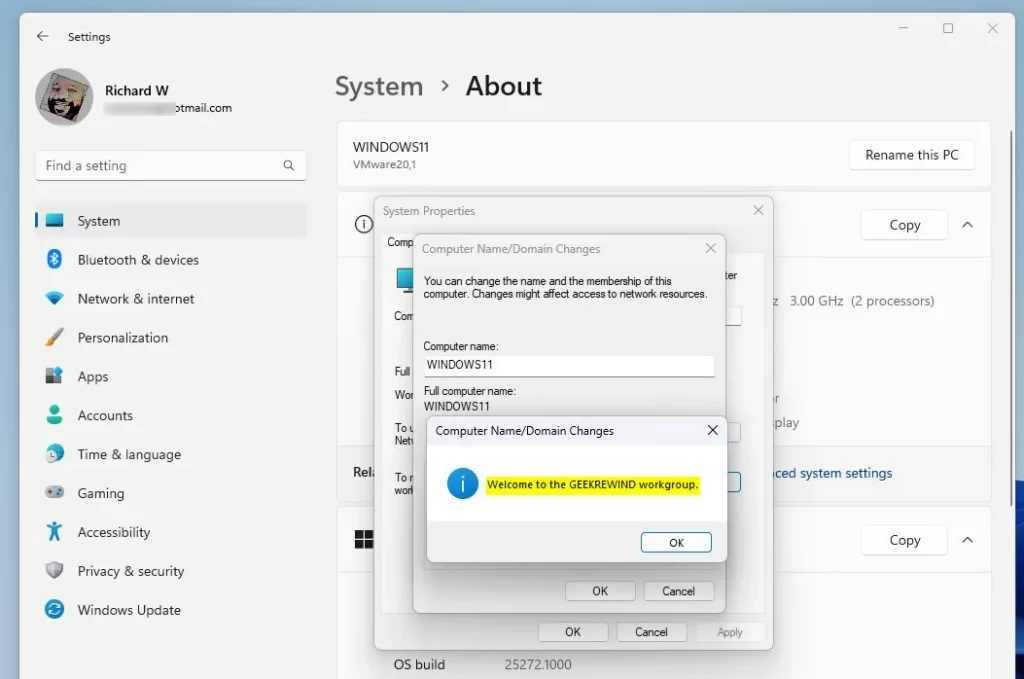
You can change your workgroup on Windows 11 easily using the Settings app by opening it and navigating through System, About, and Advanced system settings.
Change Workgroup Using Command Prompt
Changing your workgroup on Windows 11 using the Command Prompt is a quick method that requires opening it as an administrator and typing a specific command.
- Open Command Prompt. To do this, type “cmd” in the Start menu, right-click Command Prompt, and select Run as administrator. %📂%FLAG_ADMIN%%
- Type the following command, replacing YourWorkgroupName with your desired workgroup name:
wmic computersystem where name="%computername%" call joindomainorworkgroup name="YourWorkgroupName"Example to switch to a workgroup named GEEKREWIND:
wmic computersystem where name="%computername%" call joindomainorworkgroup name="GEEKREWIND"- Restart your PC to finish the change.
Change Workgroup Using Windows PowerShell
You can also use Windows PowerShell to make this change:
- Open PowerShell as an administrator. %📂%FLAG_ADMIN%%
- Type the command below, replacing YourWorkgroupName with the name you want:
Add-Computer -WorkGroupName "YourWorkgroupName"Example to change to GEEKREWIND workgroup:
Add-Computer -WorkGroupName "GEEKREWIND"- Restart your computer to apply the change.
Summary
- Changing your workgroup helps your Windows 11 PC share files and printers with other devices on your network.
- You can do it easily through Settings, Command Prompt, or PowerShell.
- Make sure your workgroup name has no spaces or special characters.
- Don’t forget to restart your computer after changing the workgroup.
Changing your workgroup on Windows 11 is a simple process that helps your PC share files and printers with other devices on your network, and you can do it using Settings, Command Prompt, or PowerShell.
How do I change the workgroup in 🪟 Windows 11?
To configure a workgroup in Windows 11: Go to Settings > System > About and select Rename this PC (advanced) to access Computer Name settings. Choose Workgroup and name it (e.g., “WORKGROUP”). By default, Windows uses the workgroup name “WORKGROUP” to simplify setup.
Does 🪟 Windows 11 still use workgroups?
A workgroup in Windows 11 helps connected devices find each other on your network. This is based on file and printer sharing, which enables the PCs in the workgroup to exchange Office documents, images, music, videos and so on at file level.
What replaced HomeGroup?
You can share pictures, music, videos, documents, and printers with other people in your HomeGroup. However, Microsoft has removed this feature from Windows 10 (version 1803). Now, HomeGroup is replaced by OnDrive and Share features after you install the update Windows 10. 3.
Was this guide helpful?

About the Author
Richard
Tech Writer, IT Professional
Richard, a writer for Geek Rewind, is a tech enthusiast who loves breaking down complex IT topics into simple, easy-to-understand ideas. With years of hands-on experience in system administration and enterprise IT operations, he’s developed a knack for offering practical tips and solutions. Richard aims to make technology more accessible and actionable. He's deeply committed to the Geek Rewind community, always ready to answer questions and engage in discussions.


No comments yet — be the first to share your thoughts!