How to Enable File Sharing Between Ubuntu and Windows 11

You can enable file sharing between Ubuntu and Windows 11 by setting up Samba on your Ubuntu machine.
Samba is an open-source implementation of the SMB/CIFS networking protocol, allowing you to access shared files and printers between Linux/Unix systems and Windows computers.
This process lets you seamlessly transfer files and access resources across both operating systems, eliminating the need for USB drives when working with projects spanning Ubuntu and Windows 11.
Once configured, your Windows 11 shared folders will appear directly in your Ubuntu file manager, and your Ubuntu shared folders will be accessible from your Windows 11 PC.
Enable file sharing by configuring Samba on Ubuntu and ensuring Network Discovery and File Sharing are active in Windows. Access Windows shares from Ubuntu via the File Manager using smb://servername/Share_name, and access Ubuntu shares from Windows by setting up Samba on Ubuntu.
Enable Network Discovery in 🪟 Windows 11
Windows needs to “announce” that it has files to share. If this is turned off, other computers cannot find it. First, turn on Network Discovery in Windows 11. Read more about this here: How to enable Network Discovery on Windows 11.
Turn on File Sharing in 🪟 Windows 11
You must allow Windows to share files on your private network.
- Click Network and Internet.
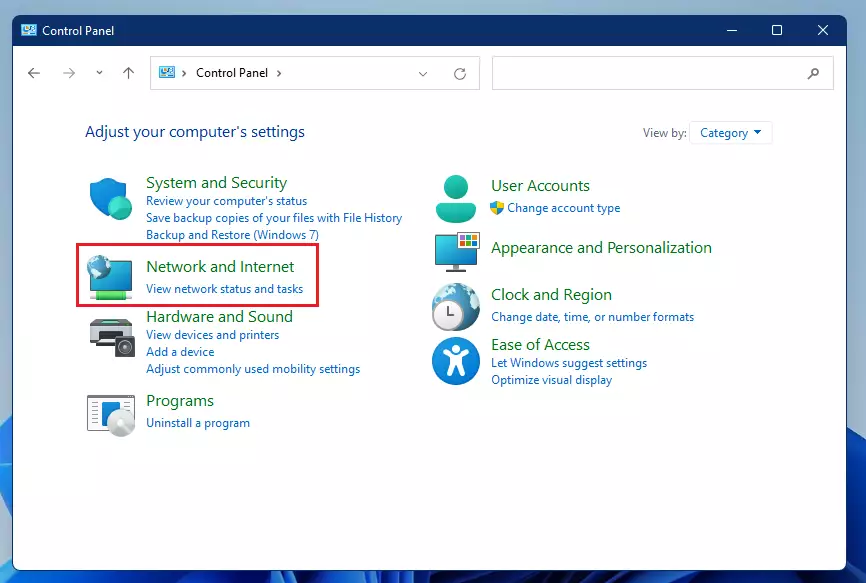
windows 11 control panel network and internet - Select Network and Sharing Center.
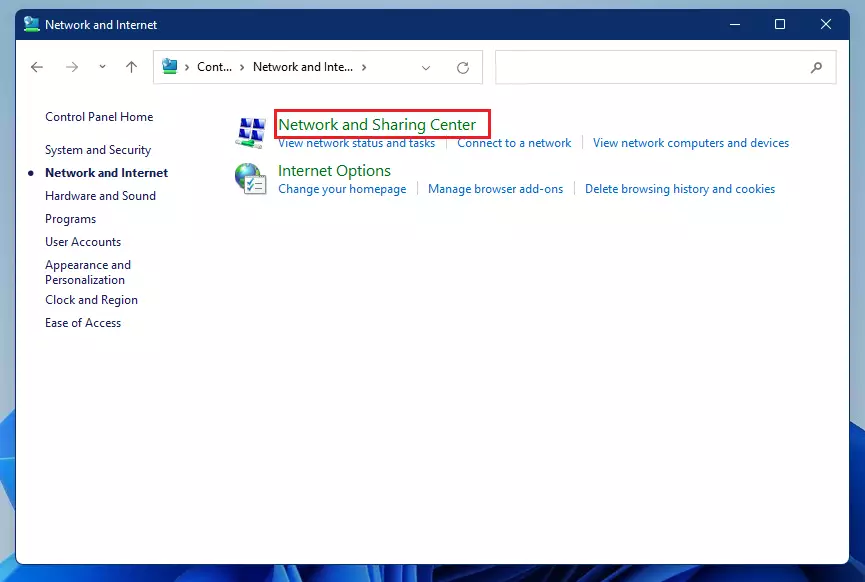
windows 11 network and sharing center - Click Change advanced sharing settings.
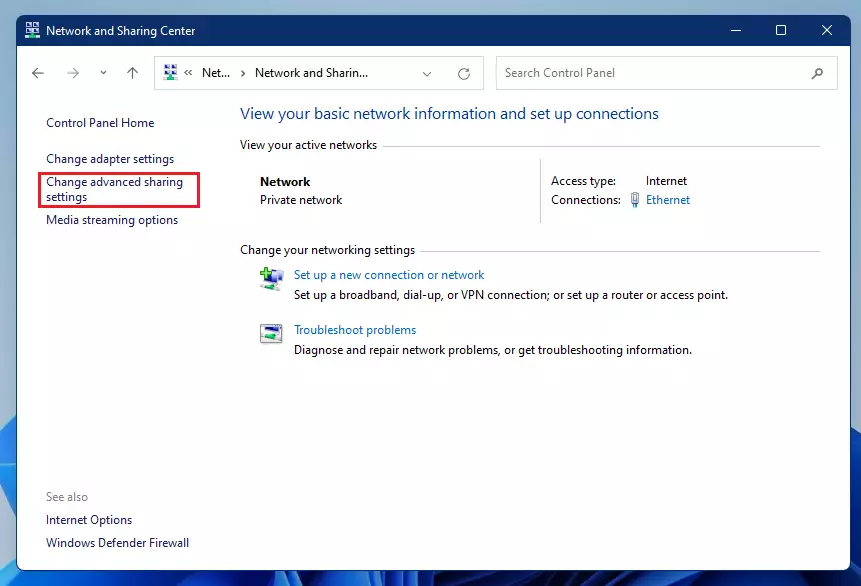
windows 11 change advanced sharing settings - Scroll down to All networks and ensure these settings are active so you can access your folders.
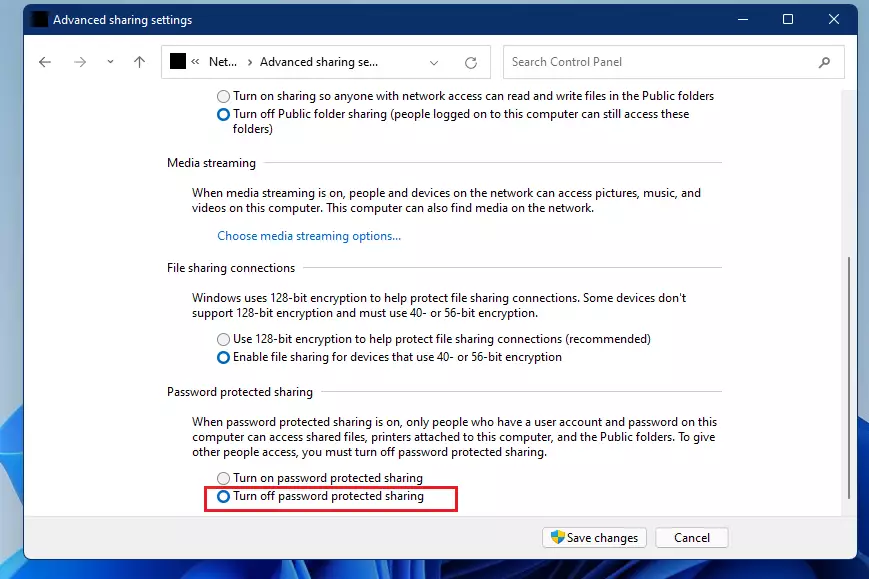
windows turn off password protected sharing
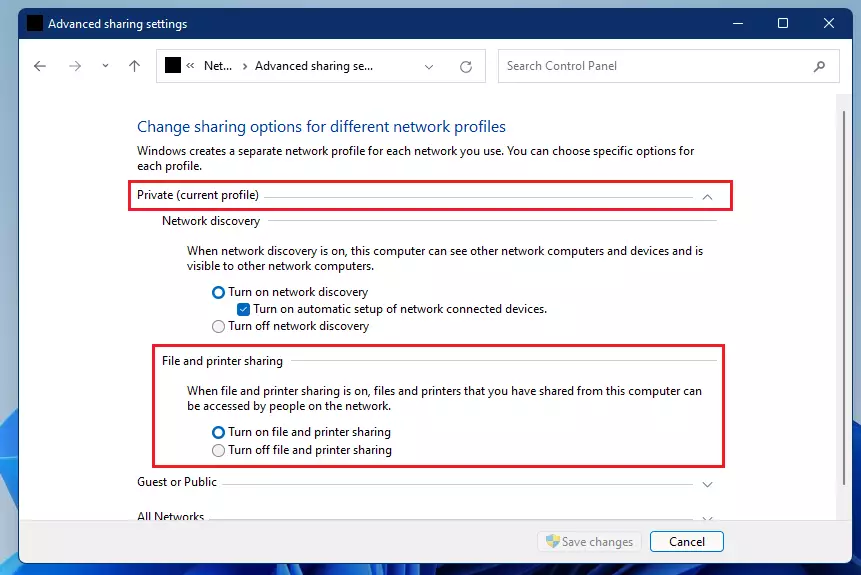
Note: You can also run these commands as an administrator in the Command Prompt to enable these settings quickly:
netsh advfirewall firewall set rule group="File and Printer Sharing" new enable=Yes
netsh advfirewall firewall set rule group="Network Discovery" new enable=Yes
Access Windows Shares from Ubuntu
Now that Windows is ready, let’s connect from Ubuntu.
- Open your File Manager.
- Click Other Locations in the left sidebar.
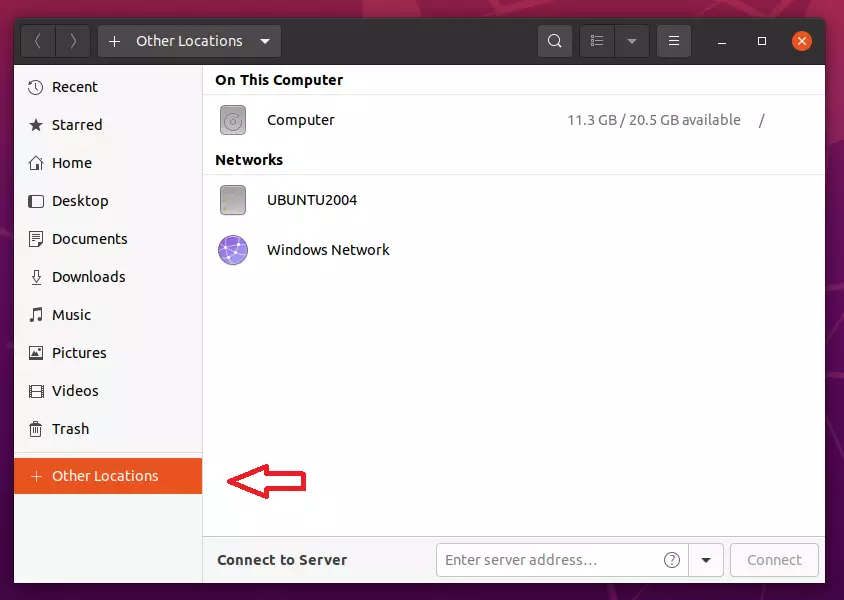
ubuntu and windows 11 file sharing - If you do not see your Windows computer, you may need to install the sharing tool by opening your terminal and running:
sudo apt update
sudo apt install samba
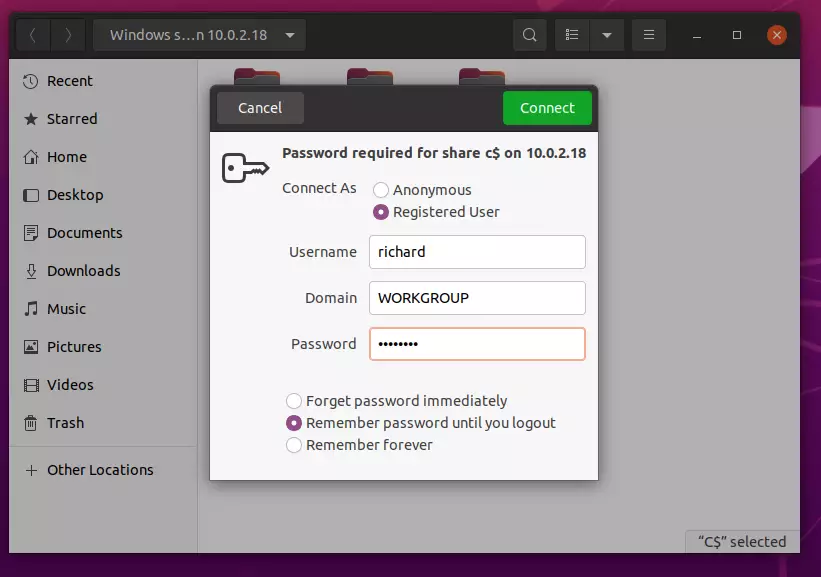
In the Connect to Server box at the bottom, type the address of your Windows computer like this:
smb://servername/Share_name
Or if you have a specific folder to open:
smb://10.0.2.18/users/Richard/Documents
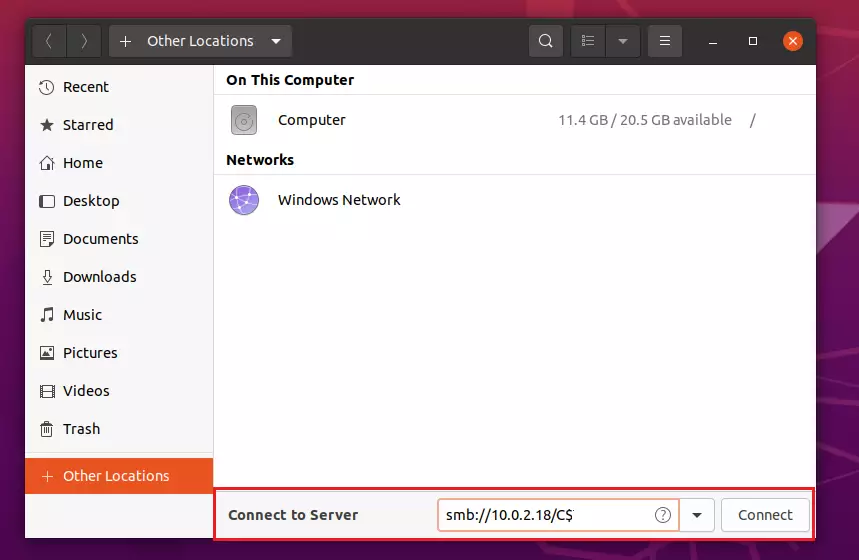
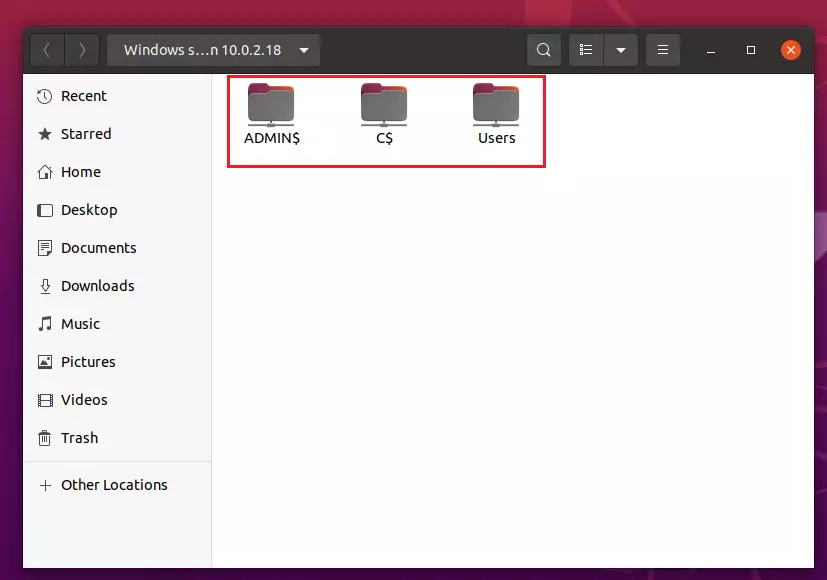
When prompted, enter your Windows username and password to gain access.
How to access Ubuntu files from Windows
To share a folder from Ubuntu, you need to set up a tool called Samba.
- Open the terminal and create a folder:
sudo mkdir /samba
- Set the permissions so others can use it:
sudo chgrp sambashare /samba
sudo chmod 2770 /samba
- Add your user account to the sharing list (replace yourusername with your actual Ubuntu name):
sudo smbpasswd -a yourusername
- Set a password for your Samba share:
sudo smbpasswd -a yourusername
sudo smbpasswd -e yourusername
- Add your account to the share group:
sudo usermod -a -G sambashare yourusername
- Open the configuration file:
sudo nano /etc/samba/smb.conf
- Add these lines to the bottom of the file and save it:
    path = /samba
    browseable = yes
    read only = no
    force create mode = 0660
    force directory mode = 2770
    valid users = @sambashare
- Restart the service to apply changes:
sudo systemctl restart smbd
sudo systemctl restart nmbd
Summary
- Connectivity: Ubuntu and Windows 11 use the SMB protocol to talk to each other.
- Visibility: You must enable Network Discovery in Windows so other devices can find it.
- Permissions: You need to set up specific share permissions and passwords to keep your files secure.
- Tools: Samba is the essential software used to bridge the gap between Ubuntu and Windows file systems.
Was this guide helpful?

About the Author
Richard
Tech Writer, IT Professional
Richard, a writer for Geek Rewind, is a tech enthusiast who loves breaking down complex IT topics into simple, easy-to-understand ideas. With years of hands-on experience in system administration and enterprise IT operations, he’s developed a knack for offering practical tips and solutions. Richard aims to make technology more accessible and actionable. He's deeply committed to the Geek Rewind community, always ready to answer questions and engage in discussions.


Thank you very much.
I have tried many tutorials to connect to Windows network share and by far this was the easiest.
Command prompt as administrator. Get this.
C:\Windows\System32>netsh advfirewall firewall set rule group=”File and Printer Sharing” new enable=Yesnetsh advfirewall firewall set rule group=”Network Discovery” new enable=Yes
‘group’ is not a valid argument for this command.