How to Change System Locale in Windows 11

You change the system locale in Windows 11 to ensure older, non-Unicode programs display text correctly.
The system locale is a setting that tells Windows which language-and-region-in-windows-11/" class="sal-link" rel="noopener" target="_blank" data-sal-id="40733">language and regional settings to use for programs that don’t support the Unicode standard. It acts as a translator for legacy applications that rely on older character sets, preventing issues like scrambled text or strange symbols.
This is particularly important for applications released before the widespread adoption of Unicode, as they might use specific regional character encodings. Applying this change ensures better compatibility for those applications.
Once you change the system locale in Windows 11, your PC will correctly read characters in these older programs. Remember, this setting affects all user accounts on your computer and requires a system restart to take effect.
Difference Between Display Language and System Locale
It is important to know that your display language and system locale are not the same. Your display language controls the menus, buttons, and text you see in Windows. The system locale controls how non-Unicode programs interpret text data. Changing one does not automatically change the other.
How to Change System Locale via Control Panel
You can adjust these settings through the main Windows menu. Follow these steps to get started:
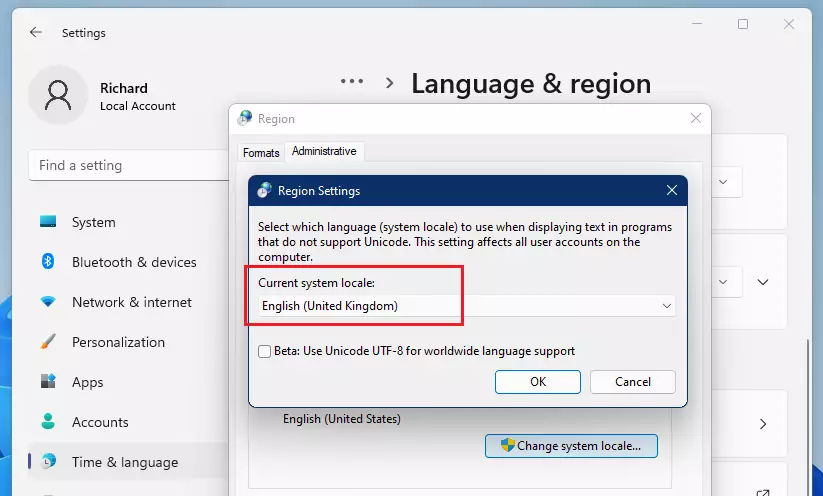
- Choose your preferred language from the list provided, then click OK.
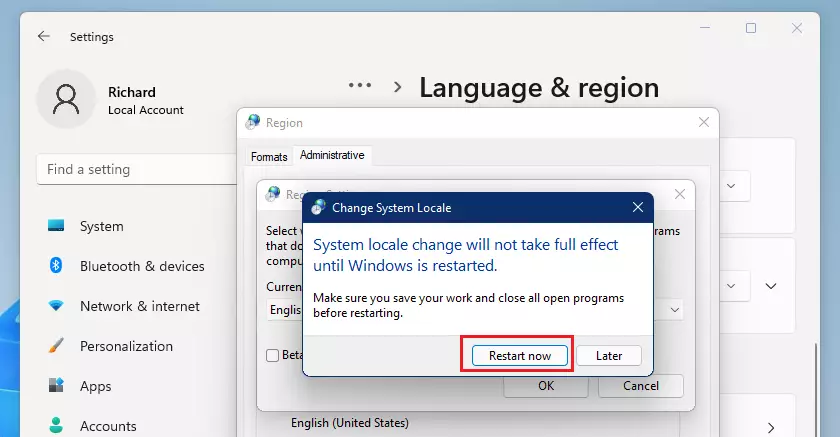
- Once you finish, you will be prompted to restart your computer. You must restart for the new settings to take effect.
- If you want to use the latest global language support, you can check the box for BETA: Use Unicode UTF-8 for worldwide language support.
- A new window will open. Under the Administrative tab, click the Change system locale button. Note: This step requires admin privileges.
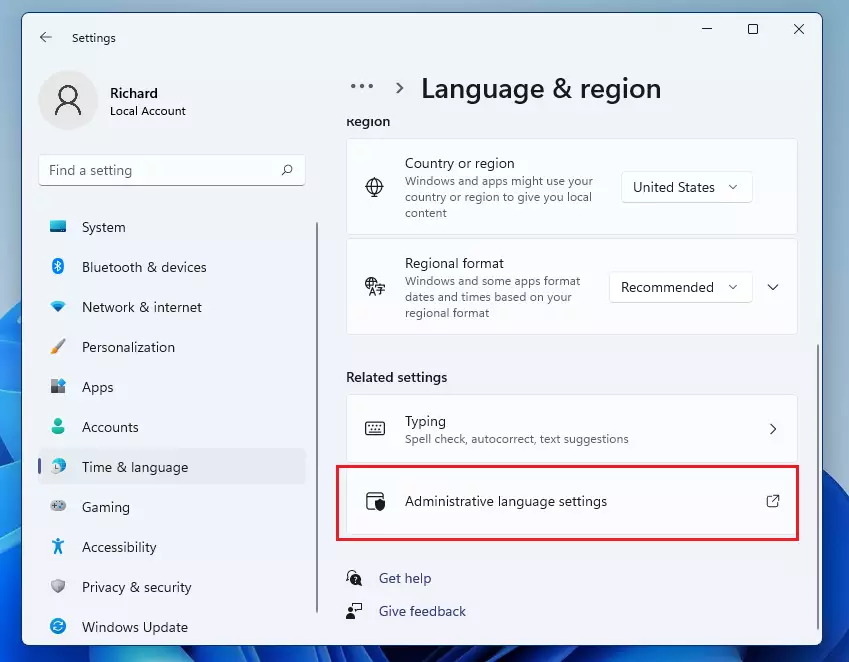
- Scroll down to the bottom of the page. Look for the Related settings section and click on Administrative language settings.
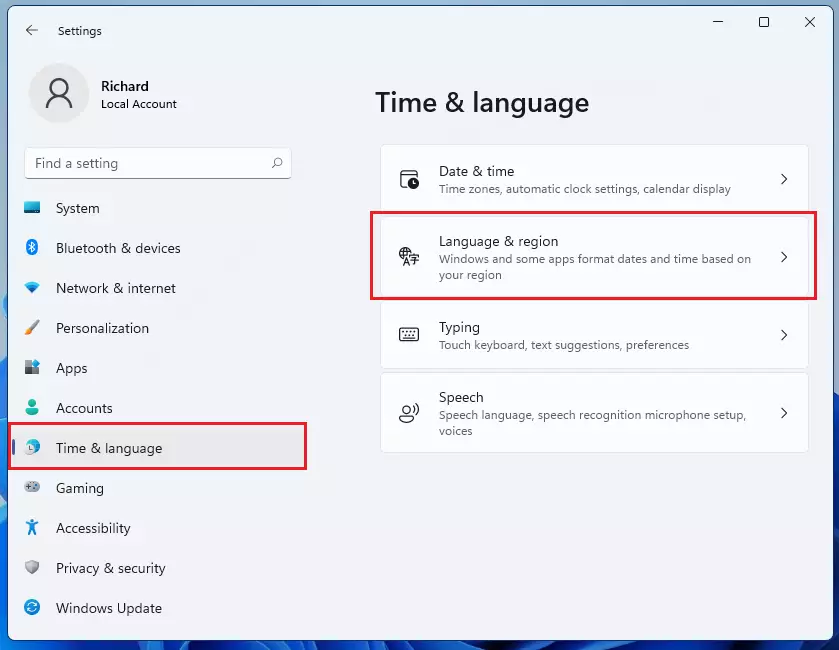
- In the Settings menu, click on Time & Language. Then, select Language & Region on the right side of your screen.
- Open your Settings by pressing the Windows key + I on your keyboard, or click Start and select the Settings gear icon.
Advanced Method: Using PowerShell
For power users, you can change the locale using PowerShell. Note: This step requires admin privileges.
Set-WinSystemLocale -SystemLocale en-US
Replace ‘en-US’ with your desired locale code. This command updates the administrative language settings instantly.
Troubleshooting Common Issues
If you change the locale to a language you cannot read, some system menus might become difficult to navigate. Always ensure you have a secondary way to access settings, such as using the search bar. If legacy apps still show scrambled text, ensure the non-Unicode programs setting matches the specific region the software was designed for.
Summary
Changing your System Locale helps your computer run older, non-Unicode software without text errors. By following these steps through your Administrative settings, you ensure that your computer can handle different character sets correctly. Remember that this change affects all users on your PC and requires a system restart to finish the process.
Will changing the system locale change my Windows display language?
No. Changing the system locale only affects how legacy, non-Unicode applications interpret character sets. It does not change the language of your Windows interface, menus, or system dialogs. You must adjust your display language settings separately under the Language & Region menu to change the interface text.
Why do some games or legacy apps require a specific system locale?
Older games and legacy software often use specific character encoding that is not compatible with modern Unicode standards. If the system locale does not match the encoding the app expects, text will appear as garbled symbols or question marks. Setting the correct locale ensures the app can read the text correctly.
Does changing the system locale require a system restart?
Yes. Changing the system locale modifies core administrative settings that affect how the entire operating system handles character data. Because these changes are deeply integrated into the system registry, a full restart is mandatory for the new settings to take effect across all applications and user profiles on your computer.
Was this guide helpful?

About the Author
Richard
Tech Writer, IT Professional
Richard, a writer for Geek Rewind, is a tech enthusiast who loves breaking down complex IT topics into simple, easy-to-understand ideas. With years of hands-on experience in system administration and enterprise IT operations, he’s developed a knack for offering practical tips and solutions. Richard aims to make technology more accessible and actionable. He's deeply committed to the Geek Rewind community, always ready to answer questions and engage in discussions.



Yes, that was what I tought first to do without that little tutorial. But it that not doing that. Also if I want to run a program with another UNICODE language, that do not mean that the whole system must be in the local UNICODE language. So..it is not completly correct and also do not work so simply.
But thanks..
And sorry for my bad english. I am a little bit stressed becouse my programs from other countries worked under windows 10 perfectly fine and in the upgrade report was nothing written about that there will be unicode system changes.
[…] you click Next, your current Windows 11 local account will switch to this Microsoft […]
[…] Regional format settings influence how dates, times, numbers, and currencies are displayed on your computer according to your locale. Windows supports a variety of languages, plus currency and date/time formats for the countries/regions that use those languages. […]
[…] Regional format settings influence how dates, times, numbers, and currencies are displayed on your computer according to your locale. […]
[…] Regional format settings control how your computer shows dates, times, numbers, and currency based on where you live. […]
[…] Regional format controls how Windows shows dates, times, numbers, and money based on your country or language. For example, some places use a comma (,) as a decimal point while others use a dot (.). […]