How to Change DPI Scaling in Windows 11

You change DPI scaling in Windows 11 to adjust the size of text, icons, and apps on your display, improving readability and usability.
DPI, or Dots Per Inch, determines the physical size of screen elements relative to their resolution. Windows 11 uses a default scaling of 100%, but you can increase it to make everything appear larger.
For instance, on a 4K monitor, default scaling can make interface elements look incredibly small, leading to blurry text or tiny icons that are difficult to interact with.
By adjusting DPI scaling, you ensure that your Windows 11 interface and applications appear sharp and comfortably sized for your specific screen and preferences.
Change DPI Scaling via Settings
The easiest way to adjust your screen size is through the Windows Settings app.
- Open the Settings app by pressing Windows key + I on your keyboard.
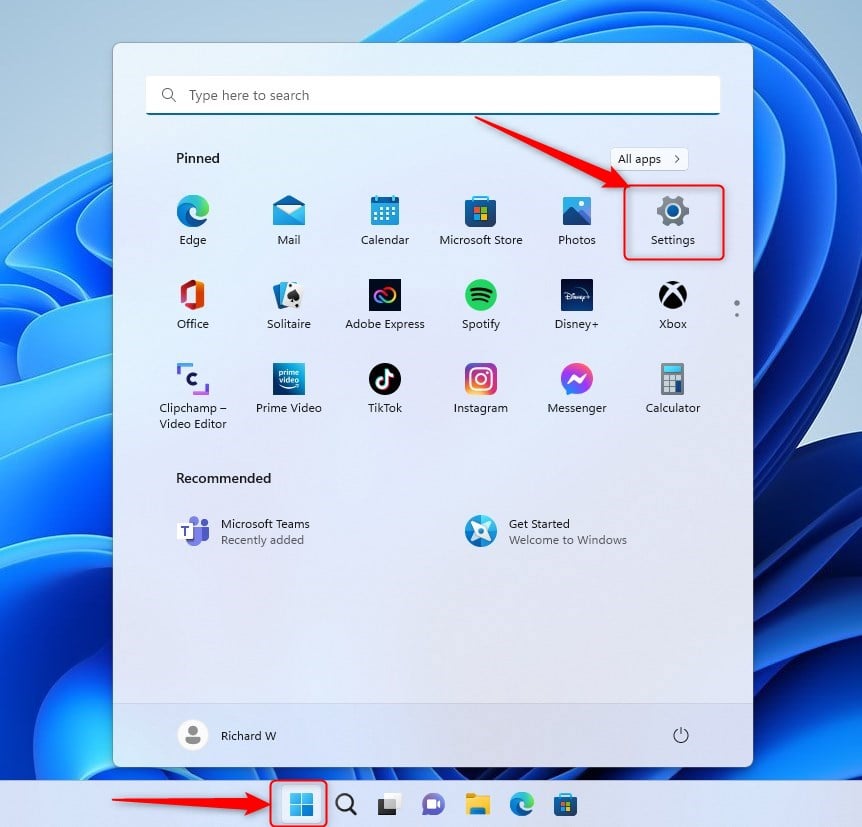
- Click on System in the left menu.
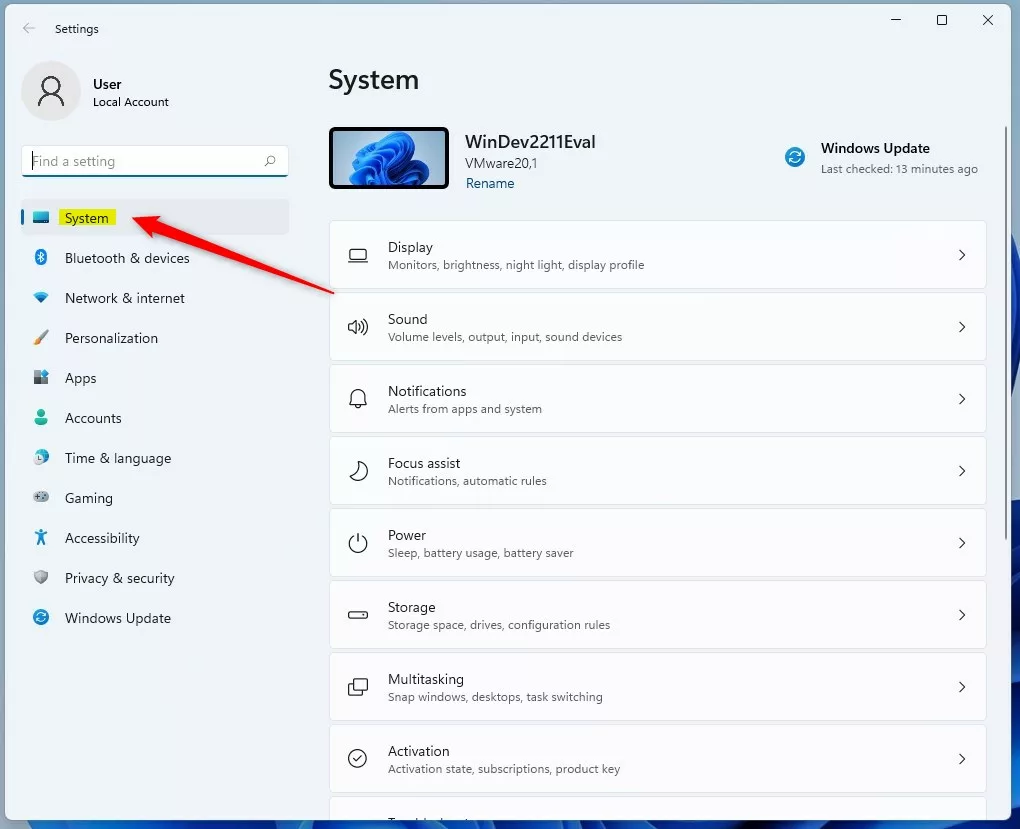
- Click on the Display tile.
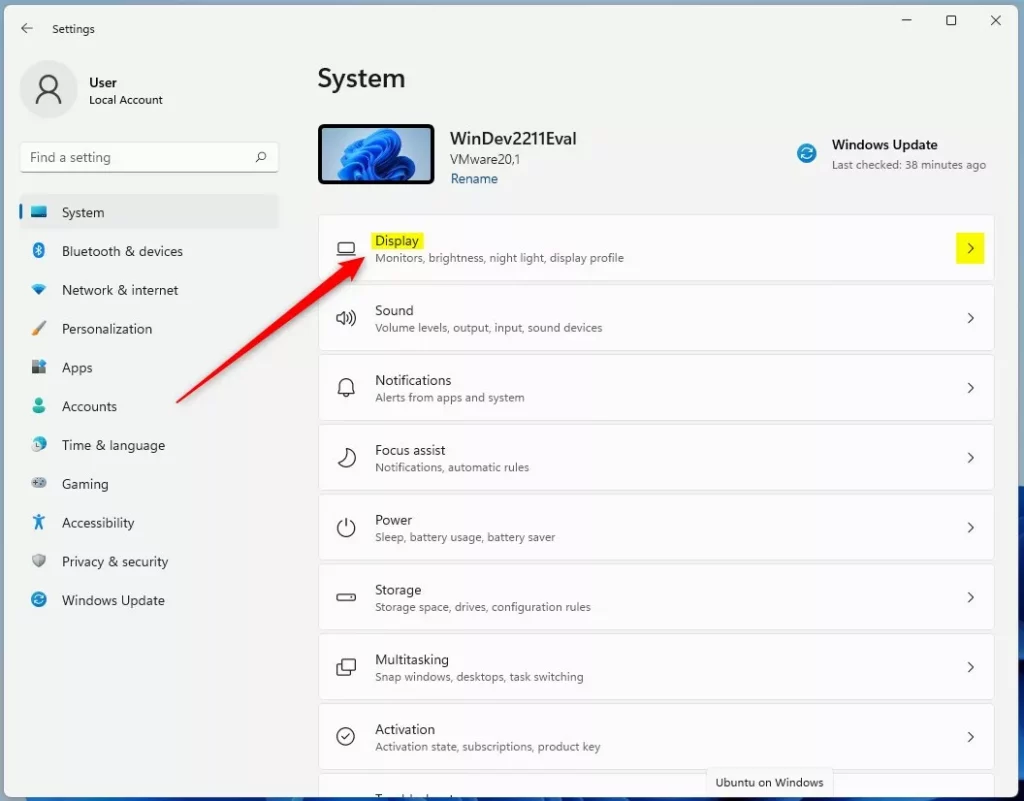
- If you have multiple monitors, select the one you want to change first.
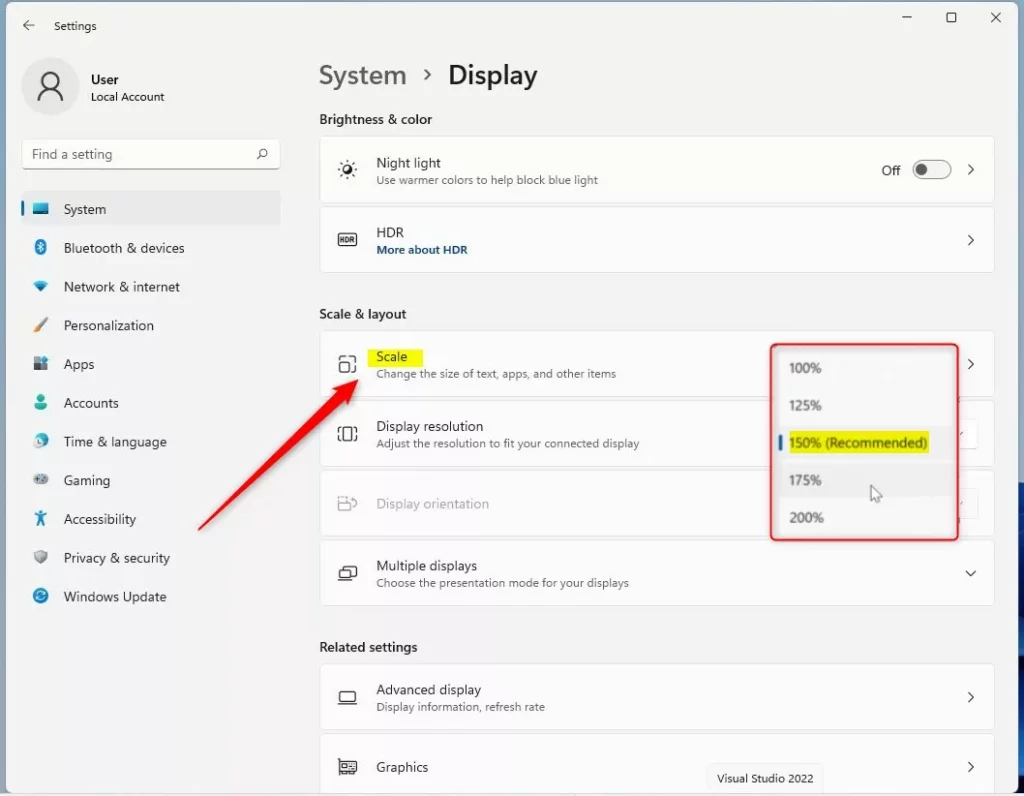
- Look for the Scale & layout section. Click the Scale box to choose a different percentage from the list.
Fixing Blurry Apps with DPI Awareness
Sometimes, changing the global scaling makes specific apps look blurry. This happens because some older apps are not “DPI aware.” Windows 11 has a built-in feature to help.
- Go to Settings > System > Display.
- Click on Scale.
- Toggle on Let Windows try to fix apps so they’re not blurry. This forces Windows to apply a scaling fix to apps that do not handle high DPI settings well.
Per-Application DPI Scaling Override
If one specific app is still blurry, you can change its settings individually.
- Right-click the app’s shortcut or executable file and select Properties.
- Go to the Compatibility tab.
- Click Change high DPI settings.
- Check the box Override high DPI scaling behavior.
- Select System (Enhanced) from the dropdown menu to let Windows handle the scaling for that specific app.
Change DPI Scaling via Registry Editor
Note: This step requires admin privileges. If you prefer to use the registry, follow these steps carefully.
- Open the Windows Registry Editor.
- Go to this path:
HKEY_CURRENT_USER\Control Panel\Desktop
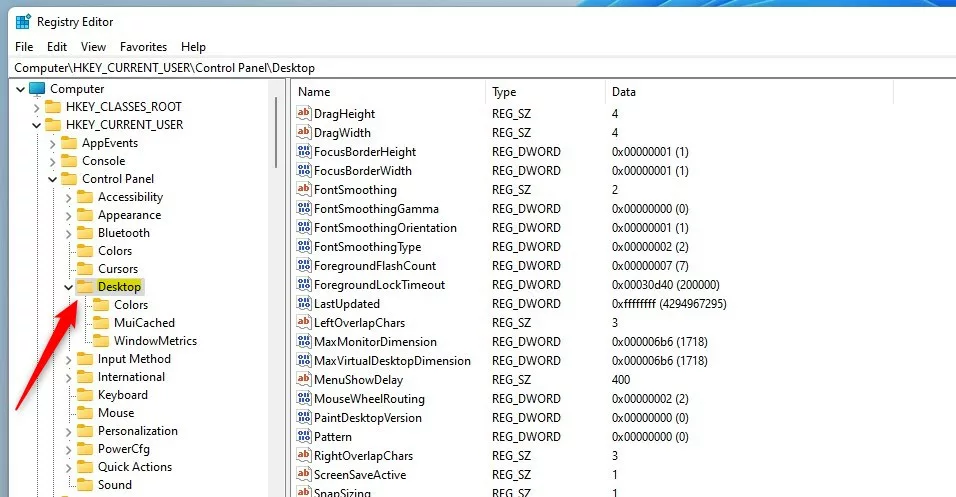
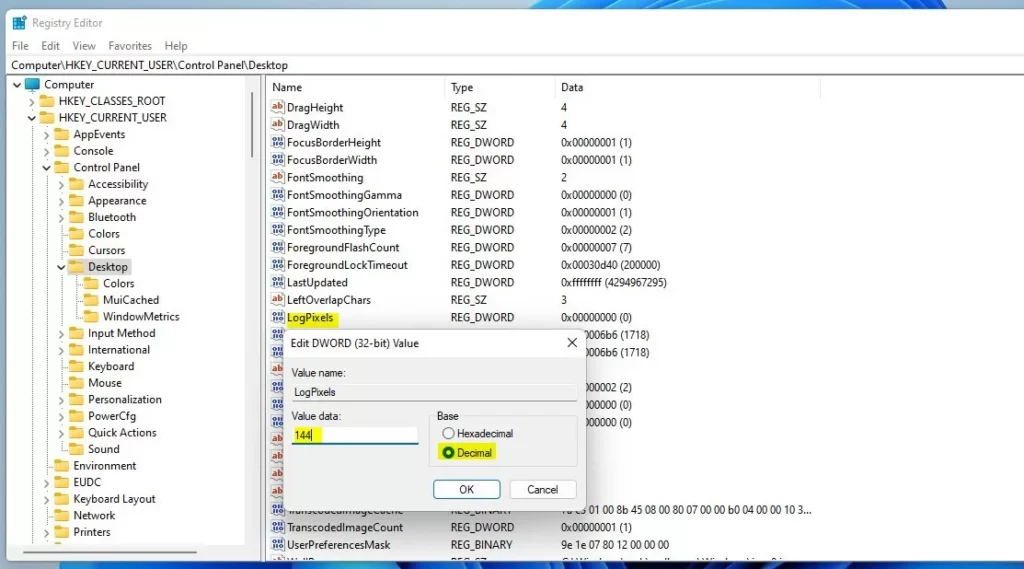
- Right-click in the empty space on the right side. Select New then DWORD (32-bit) Value. Name it
LogPixels. - Double-click
LogPixelsand enter a value: 100% is 96, 125% is 120, 150% is 144, 200% is 192.
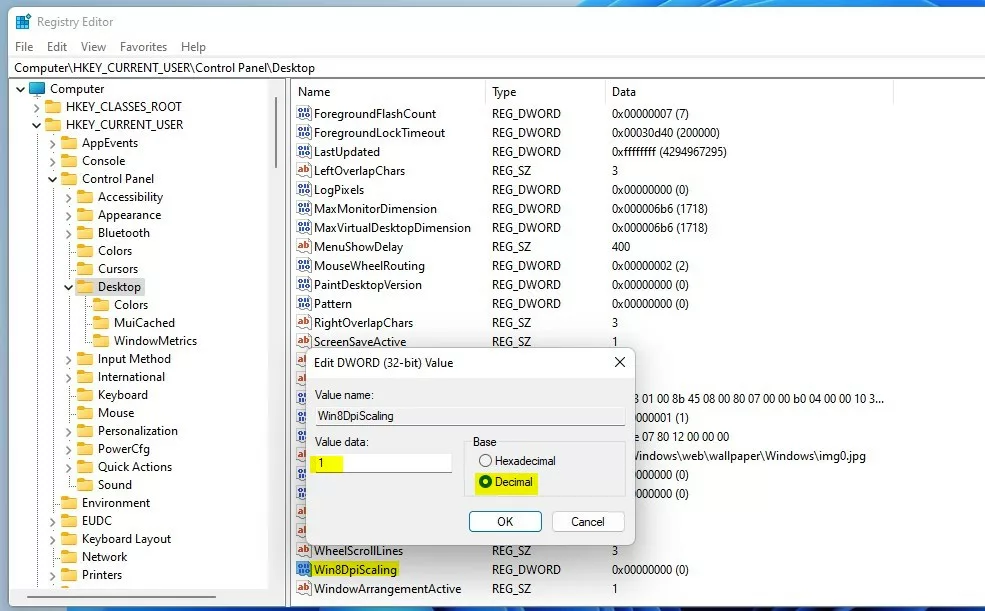
- Find the
Win8DpiScalingvalue. Set it to1if you use a scale higher than 96, or0for default.
Summary
Adjusting DPI scaling helps fix display issues where text or icons look too small or distorted. You can modify these settings through the Windows Settings app, use the Compatibility tab for specific apps, or use the Registry Editor for advanced control. Always restart your computer to ensure changes apply correctly.
Why do some apps look blurry after changing DPI scaling?
Apps become blurry when they are not designed to scale with high-resolution displays. Windows attempts to stretch these apps to fit your screen, which causes a loss in visual clarity. Using the Compatibility tab to override scaling behavior often resolves this issue for specific programs.
Can I set DPI scaling below 100% in 🪟 Windows 11?
No, Windows 11 does not officially support DPI scaling below 100%. Setting the scale below 100% can cause significant rendering issues, making text unreadable and icons too small to click. It is recommended to keep scaling at 100% or higher for system stability.
Was this guide helpful?

About the Author
Richard
Tech Writer, IT Professional
Richard, a writer for Geek Rewind, is a tech enthusiast who loves breaking down complex IT topics into simple, easy-to-understand ideas. With years of hands-on experience in system administration and enterprise IT operations, he’s developed a knack for offering practical tips and solutions. Richard aims to make technology more accessible and actionable. He's deeply committed to the Geek Rewind community, always ready to answer questions and engage in discussions.


No comments yet — be the first to share your thoughts!