How to Backup and Restore Microsoft Defender Firewall in Windows 11

Backing up and restoring Microsoft Defender Firewall (the built-in Windows tool that blocks unsafe network traffic) lets you save your custom security rules to a file so you never lose them. Exporting your settings takes a few clicks in Windows 11. It saves a lot of work when you reinstall the operating system, set up a new computer, or want a safety net before you change rules.
Open Windows Security, click Firewall & network protection, select Advanced settings, then click Export Policy in the Actions pane. Choose a location, name the file (like FirewallBackup.wfw), and click Save. Your firewall rules and settings are now backed up as a.wfw file.
Why Back Up Your Firewall Settings?
The backup holds your inbound and outbound rules and the settings for each network profile (Domain, Private and Public). If a bad change, a failed update or a reinstall wipes them out, you can restore them in a minute instead of rebuilding every rule by hand.
It is worth making a fresh backup before you add a batch of new rules, and again after you finish a setup you are happy with. Keep a copy somewhere other than the PC itself, such as a USB drive or cloud storage, so the file survives if the drive fails.
Method 1Using Windows Security App
The Windows Security app is the easiest way to reach the export option. You open the app, go into the advanced firewall console, and save your current rules to a file. The steps below work the same on Windows 11 Home and Pro. You need an administrator account, because the advanced console asks for permission before it opens.
- Click the Start button (Windows icon), then click Settings. You can also press the Win and I together to open it directly.

The Settings window should now be open, with a list of categories down the left side.
- Click Privacy & security on the left side, then click Windows Security.
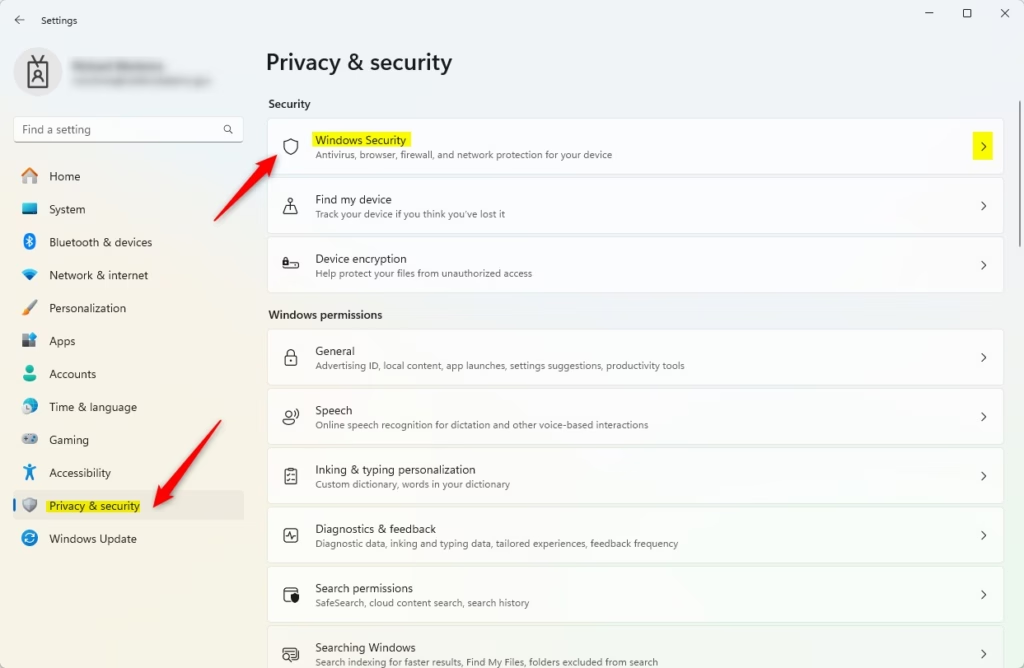
The Windows Security page should now show on the right, with a button to open the app and a list of protection areas.
- Click the Open Windows Security button.
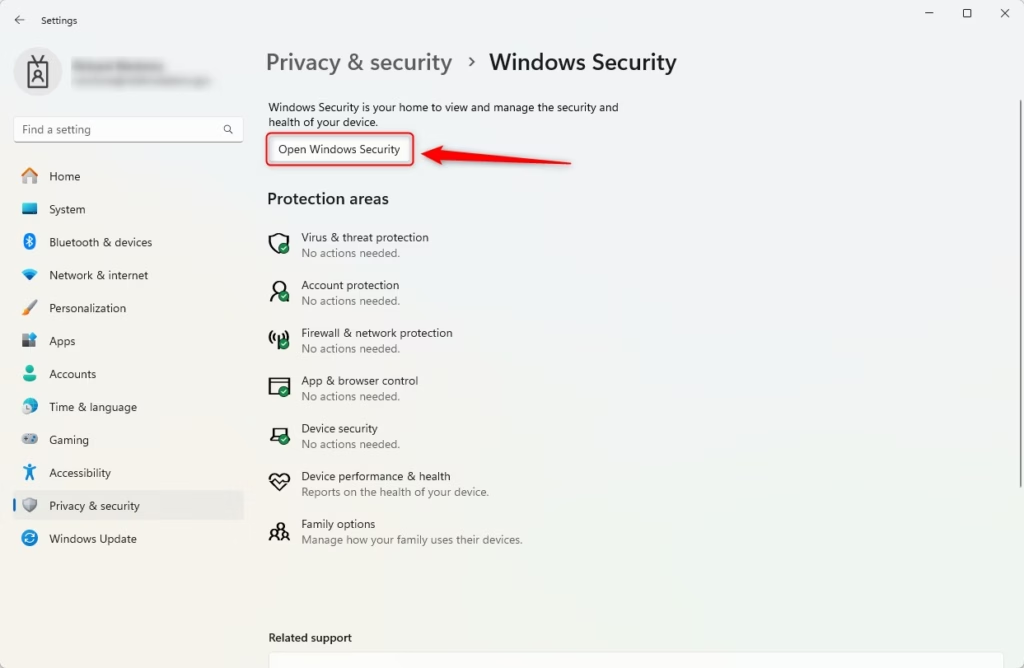
The Windows Security app should now open in its own window, showing a home page with tiles for each protection area.
- In the Windows Security app, click Firewall & network protection. You can also open it with this link: Firewall & network protection.
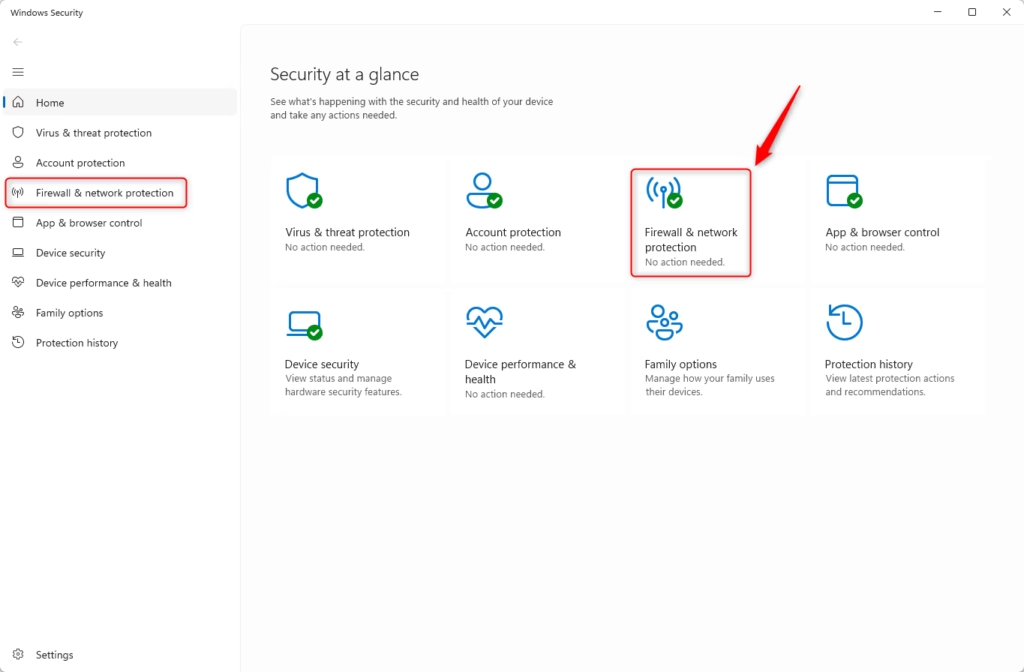
You should now see the firewall page, which lists the Domain, Private and Public network profiles and shows which one is active.
- Scroll down and click Advanced settings. If Windows shows a User Account Control prompt, click Yes. If you are signed in as a standard user, you will be asked for an administrator password.
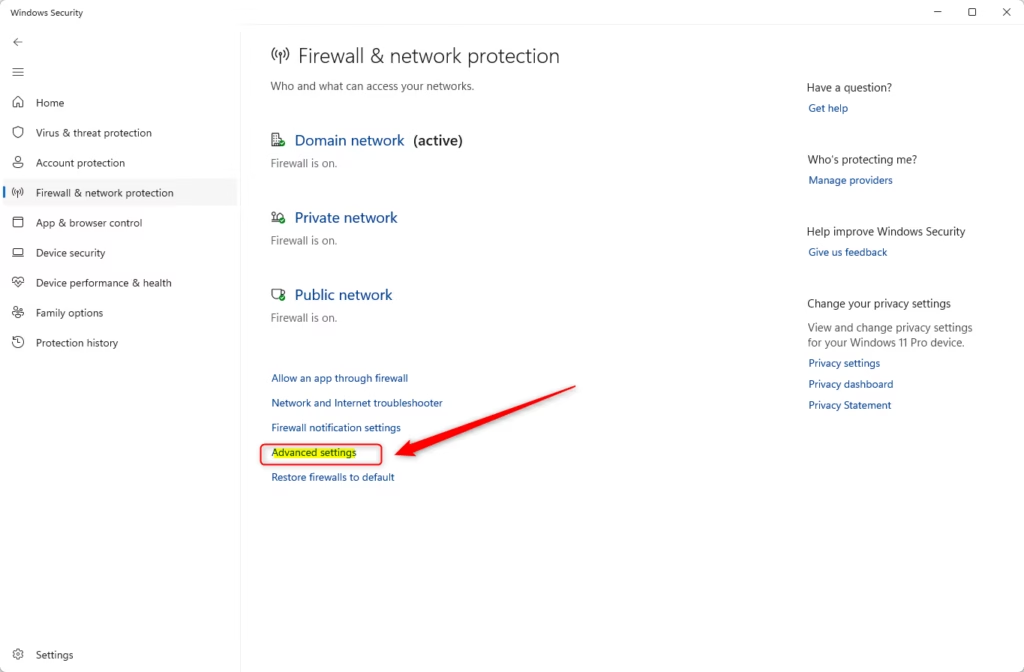
The advanced firewall console should now open as a separate window. It has a tree of items on the left, details in the middle and an Actions pane on the right.
- A new window called Windows Defender Firewall with Advanced Security will open. On the right side, click Export Policy to save your settings. If you do not see it, make sure the top item in the left tree, Windows Defender Firewall with Advanced Security on Local Computer, is selected. The Actions pane changes depending on what you have selected.
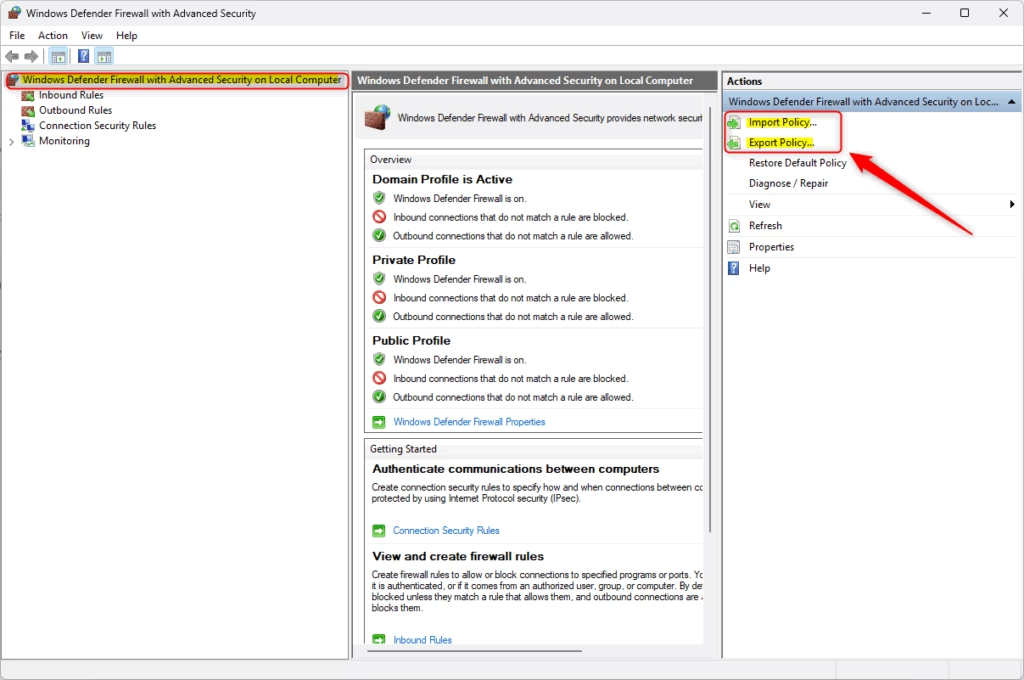
A Save As dialog should now appear, ready for you to pick a location and a file name.
- Choose where you want to save the file (like your Desktop). Type a name like
FirewallBackup.wfw. Click Save. Windows saves the file as a firewall policy file with the .wfw extension. A short message should confirm that the policy was exported successfully; click OK.
What Happens After You Export?
Your firewall settings are now saved in a file. Keep this file safe and copy it to a USB drive or cloud storage so you can use it later if you need to. The export does not change anything on your PC, so there is nothing to undo.
How to Restore Your Settings
To restore, use the same console you used for the backup. Follow these steps:
- Go back to the Windows Defender Firewall with Advanced Security window. If you closed it, repeat steps 1 to 5 above to open it again.
- Click Import Policy in the Actions pane on the right.
- Read the warning. Importing replaces all of your current firewall rules and settings with the ones in the file. Click Yes to continue.
- Browse to your saved backup file, select it and click Open.
You do not need to restart the PC. Because an import overwrites what is there now, export your current settings first if you might want to go back. If you end up with a result you do not want, you can click Restore Default Policy in the same Actions pane to return the firewall to its factory settings.
Method 2Using Command Prompt
If you like typing commands, you can use this method instead. It is also handy for scripts, remote sessions, or when the graphical console will not open. The commands need an elevated (administrator) window.
- [ADMIN REQUIRED] Open Windows Terminal as administrator. Click Start, type
Windows Terminal, right-click it, and choose Run as administrator. Click Yes if Windows asks for permission. The window title should include the word Administrator. - Make sure you are in the Command Prompt or PowerShell tab. Either one works for the commands below. If you opened a different tab type, open a new tab from the drop-down arrow at the top of the window.
To Backup Your Firewall Settings
To back up, type this command and press Enter:
netsh advfirewall export "%userprofile%\Desktop\FirewallBackup.wfw"This saves your backup file on your Desktop. The command should print Ok. when it finishes. If you get an access denied error, the window is not running as administrator, so close it and reopen it with Run as administrator. Check that the file is on your Desktop before you rely on it.
To Restore Your Firewall Settings
To restore, type this command and press Enter (change the path if your file is somewhere else). If the path contains spaces, keep it inside the quotation marks. As with the graphical method, this replaces your current rules with the ones in the file:
netsh advfirewall import "%userprofile%\Desktop\FirewallBackup.wfw"Your firewall settings are now restored. The command should print Ok. when it succeeds, and no restart is needed. To confirm, open the advanced firewall console and look through the inbound and outbound rules for the ones you expect.
Summary
Backing up your firewall settings is a smart move that protects your computer and saves you time if you ever need to fix issues or set up a new PC. Make a new backup whenever you change your rules, and keep a copy off the machine.
Have a question about this guide?
Answered by AI from this guide. Good questions may be added to this page — please don't include personal details.
Did this guide fix your problem?

About the Author
Richard
Tech Writer, IT Professional
Richard is a writer at Geek Rewind who turns complex IT tasks into clear, step-by-step guides. He draws on years of hands-on experience in system administration and enterprise IT operations, focusing on Windows, Linux and WordPress: the problems people actually run into, and the fixes that work. His server and WordPress guides come from systems he runs himself. Richard builds and maintains the platform behind Geek Rewind, from its Ubuntu servers and Nginx configuration to its custom WordPress plugins. Many new tutorials start with readers' questions, and he's always glad to answer them in the comments.
No comments yet — be the first to share your thoughts!