
Narrator featured image icon

How to Adjust Narrator Punctuation Pause in Windows 11

This article explains how to enable or disable Narrator pausing for punctuation in Windows 11.

Narrator is a screen-reading app built into Windows that reads the text on your screen aloud and describes events for users with low vision or blindness.

When you use the Narrator app, you can turn on or off its keyboard shortcutslaunch it automaticallyadjust the voice, speed, and volumemanage natural voiceslower other apps volume when Narrator is speakingchange Narrator audio output devicechange verbosity levelemphasize formatted text, enable or disable Narrators phonetic reading, and more.

Another setting one can configure with the Narrator is to adjust how or when to pause when reading punctuation.

Adjusting the Narrator’s settings when reading punctuation in Windows can help improve the user’s experience and comprehension. For some users, pausing at every punctuation mark can make the reading flow smoother or more cohesive. In contrast, for others, it may provide necessary cues for understanding the meaning of the text.

Pause the Narrator slightly when reading punctuation

As mentioned above, users can adjust the Narrator settings for reading punctuation to improve their experience and comprehension.

Here’s how to do it.

First, open the Windows Settings app.

You can do that by clicking on the Start menu and selecting Settings. Or press the keyboard shortcut (Windows key + I) to launch the Settings app.

When the Setting app opens, click the Accessibility button on the left and select the Narrator tile on the right to expand it.

Narrator tile in the Settings app

On the Narrator settings pane, under “Verbosity,” expand the “Verbosity level” tile, and toggle the box next to “Pause slightly when reading punctuation” On or Off to enable or disable it.
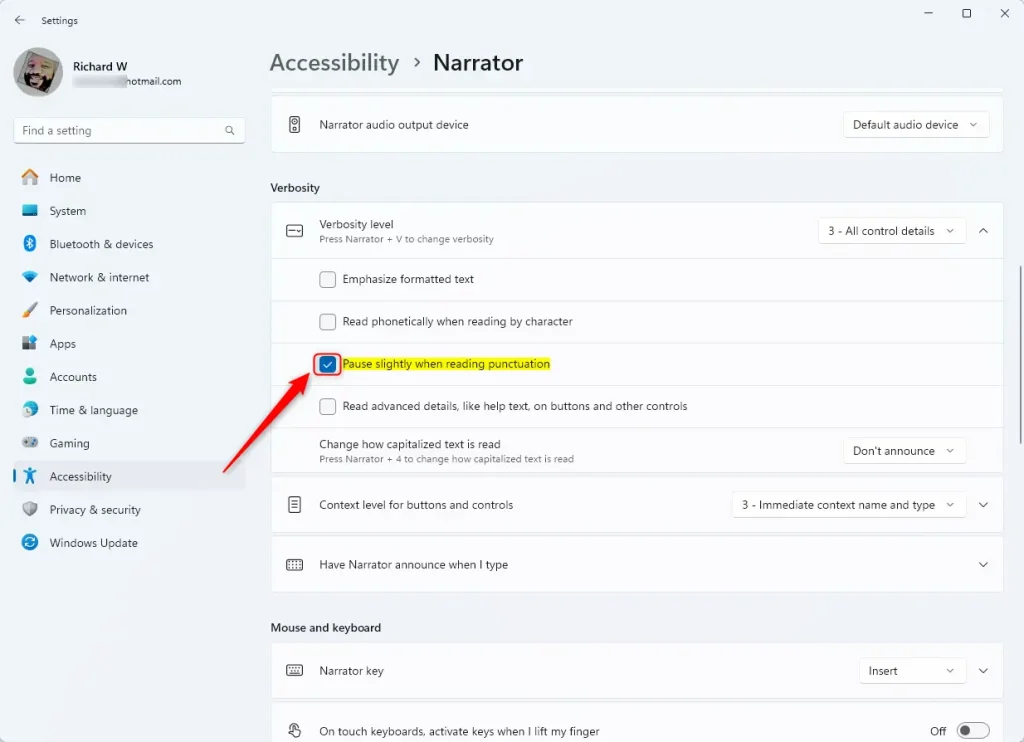
Pause slightly when reading punctuation in Narrator

Exit the settings app when you’re done.

That should do it!

Conclusion:

  • Adjusting the Narrator’s settings for reading punctuation can significantly improve the user’s experience and comprehension.
  • Users can customize the pause when reading punctuation to suit their preferences, helping to make the reading flow smoother or provide necessary cues for understanding the text.
  • Following the simple steps outlined in this article, users can easily enable or disable pausing slightly when reading punctuation with Narrator in Windows 11, enhancing the system’s overall accessibility.


Frequently Asked Questions

How do I enable punctuation pauses in Narrator on Windows 11?

To enable punctuation pauses in Narrator, open the Windows Settings app, go to Accessibility, select Narrator, and under the 'Verbosity' section, toggle the 'Pause slightly when reading punctuation' option to On.

What is the purpose of adjusting punctuation pauses in Narrator?

Adjusting punctuation pauses in Narrator can enhance the reading experience by providing necessary cues for understanding text or making the reading flow smoother, depending on user preferences.

Can I disable punctuation pauses in Narrator?

Yes, you can disable punctuation pauses in Narrator by accessing the same settings in the Windows Settings app and toggling the 'Pause slightly when reading punctuation' option to Off.

What are some other features of Narrator in Windows 11?

In addition to adjusting punctuation pauses, Narrator allows users to customize keyboard shortcuts, adjust voice speed and volume, manage natural voices, and change verbosity levels, among other accessibility features.

Is Narrator available for users with low vision or blindness?

Yes, Narrator is specifically designed as a screen-reading app for users with low vision or blindness, helping them to read text aloud and understand events on their screen.

Categories:

Tags:

6 responses to “How to Adjust Narrator Punctuation Pause in Windows 11”

  1. […] verbosity level, emphasize formatted text, enable or disable Narrators phonetic reading, pause for punctuation, adjust how the Narrator read advanced details, adjust the way capitalized text is read, and […]

  2. […] you use the Narrator app, you can enable or disable Narrator phonetic reading, pause for punctuation, adjust how the Narrator read advanced details, adjust the way capitalized text is read, add a […]

  3. […] you use the Narrator app, you can enable or disable Narrator phonetic reading, pause for punctuation, adjust how the Narrator read advanced details, adjust the way capitalized text is read, add a […]

  4. […] you use the Narrator app, you can enable or disable Narrator phonetic reading, pause for punctuation, adjust how the Narrator read advanced details, adjust the way capitalized text is read, add a […]

  5. […] you use the Narrator app, you can enable or disable Narrator phonetic reading, pause for punctuation, adjust how the Narrator reads advanced details, adjust the way capitalized text is read, add a […]

  6. […] you use the Narrator app, you can enable or disable Narrator phonetic reading, pause for punctuation, adjust how the Narrator read advanced details, adjust the way capitalized text is read, add a […]

Leave a Reply

Your email address will not be published. Required fields are marked *

Exit mobile version
