
The Copilot button in Microsoft Edge is a shortcut to the built-in AI assistant. It sits on the browser toolbar and helps you write text and summarize web pages. Microsoft turns it on by default near the address bar in Edge version 111 and newer.
Hiding or showing the button takes a few clicks in the browser settings. Do it when you want a cleaner toolbar, or when you want the tool one click away. Nothing is uninstalled either way. The change only affects the toolbar icon, and you can reverse it at any time.
Open Microsoft Edge, click the three dots menu, select Settings, find Copilot and AI settings, and toggle off Show Copilot button in toolbar. The icon disappears immediately from the toolbar.
How to Show or hide the Copilot Button
To hide Copilot in Edge, open the browser settings, find the Copilot toggle, and switch off the button. To bring the blue Copilot icon back, follow the same steps and switch it on. The steps below show the toggle being turned on. For hiding, turn it off instead.
- Open Microsoft Edge. Click the blue and green Edge icon on your desktop or taskbar. You should see a browser window with the address bar at the top.
- Open the Edge settings. Click the three stacked dots (
...) in the top-right corner of the window. This is the “Settings and more” menu. Choose Settings from the list. A Settings tab opens with a list of categories on the left.
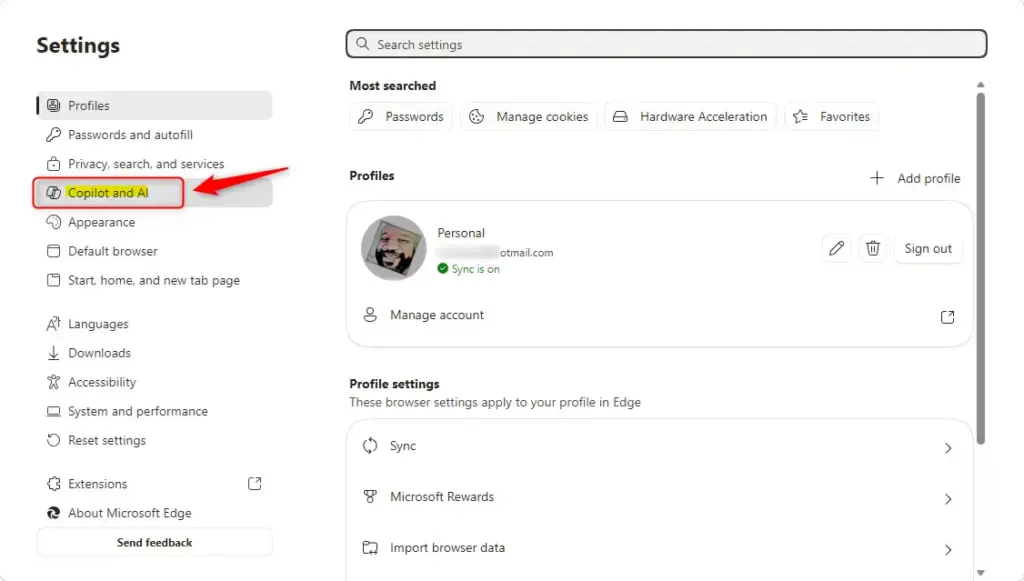
Tip: You can also typeedge://settings/aiedge://settings/into the address bar and press Enter. This takes you to the same place. - Find the Copilot and AI settings. In the menu on the left side of the Settings tab, look for the Copilot and AI settings. Click them. The options for Copilot appear on the right. Menu names change between Edge releases. If you do not see an entry with this name, check the Appearance tab as well, since some versions keep the toolbar toggles there.
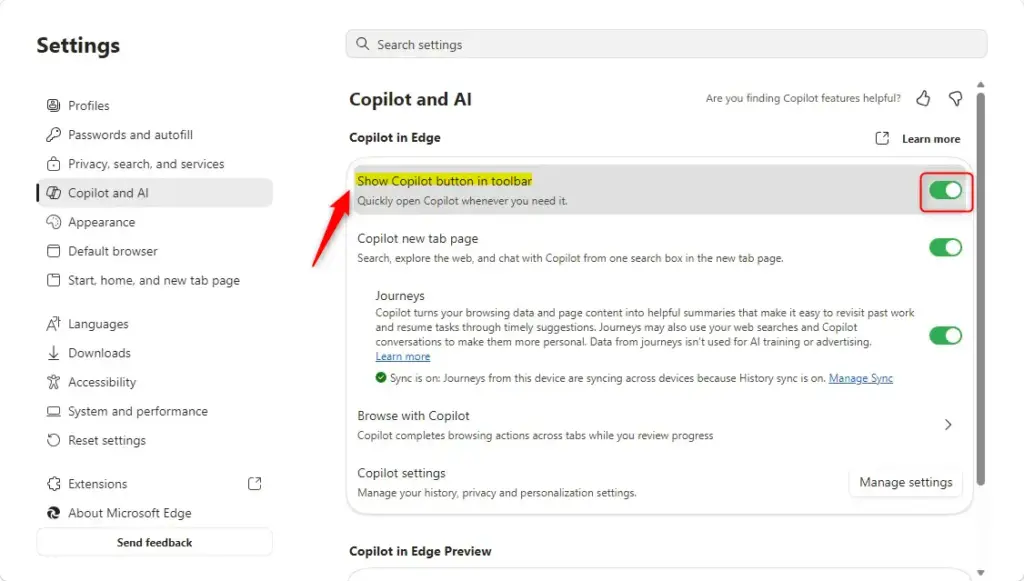
- Locate the Copilot toggle. Under Copilot in Edge, find the option called Show Copilot button in toolbar. A switch sits next to it.
If the option is missing, check that your Edge is version 114 or later. To check, open the “Settings and more” menu and go to Settings About Microsoft Edge. Edge will also look for updates on that page. Restart the browser if it asks you to. New features can roll out gradually, so an up-to-date browser may still need a little time before the option appears. - Turn the toggle on. Click the switch next to Show Copilot button in toolbar. The switch changes color, usually to blue or green, to show it is active. The Copilot icon, often a blue “C”, then shows on the toolbar. It is usually next to the profile icon and the “Settings and more” button. The change applies right away, and you do not need to restart Edge.
- Turn the toggle off to hide the button. To remove the icon, return to the same setting and click the switch again. It goes grey, and the Copilot icon disappears from the toolbar. If a work or school policy manages your browser, the switch may be greyed out or missing. In that case your administrator controls it, and you cannot change it yourself.

Once enabled, the shortcut stays on the toolbar. Click it to open the side panel, where you can ask questions or generate text.
Reference:
https://learn.microsoft.com/en-us/legal/microsoft-edge/privacy#copilot-in-microsoft-edge
Summary
In some versions of Edge, the browser settings keep it there.
Frequently asked questions
How to close Copilot sidebar?
Click the X in the top-right corner of the Copilot pane to close it. You can also click the Copilot button on the toolbar again. Either way, the pane closes and your web page returns to full width. Closing the pane doesn't turn off the button.
What button turns on Copilot?
Click the blue Copilot icon on the Edge toolbar, near the address bar, to open Copilot. If you don't see it, the button may be hidden. Open Edge settings, find the Copilot toggle, and switch it on to bring the button back. Edge version 111 or newer shows it by default.
How to close Copilot sidebar in edge?
In Microsoft Edge, close the Copilot sidebar by clicking the X at the top-right of the panel. Clicking the blue Copilot button on the toolbar works too. Your open tabs stay as they are. The sidebar only hides, so you can reopen it at any time from the same button.
Where is Copilot in edge?
Copilot sits on the right side of the Edge toolbar, close to the address bar. It's the blue icon. Clicking it opens the Copilot sidebar on the right edge of the window. If the icon is missing, it may be hidden in Edge settings, where you can turn it back on.
Where is my Copilot icon?
The Copilot icon is on the Edge toolbar, usually just to the right of the address bar. If you can't see it, it has probably been hidden. Open Edge settings, find the Copilot toggle, and switch it on. Edge version 111 or newer shows the icon by default, so check for updates if it's still missing.
I can’t find a Copilot button, a sign in, or out outlet on my Microsoft edge browser?
The Copilot button may be hidden, or your version of Edge may be out of date. Turn on the Copilot toggle in Edge settings first. If the sign-in option still doesn't appear, update Edge from the Settings and more menu under About Microsoft Edge. Sign-in happens inside the Copilot sidebar, usually with your Microsoft account.
Still have a question?
Answered by AI from this guide. Good questions may be added to this page — please don't include personal details.
Did this guide fix your problem?

About the Author
Richard
Tech Writer, IT Professional
Richard is a writer at Geek Rewind who turns complex IT tasks into clear, step-by-step guides. He draws on years of hands-on experience in system administration and enterprise IT operations, focusing on Windows, Linux and WordPress: the problems people actually run into, and the fixes that work. His server and WordPress guides come from systems he runs himself. Richard builds and maintains the platform behind Geek Rewind, from its Ubuntu servers and Nginx configuration to its custom WordPress plugins. Many new tutorials start with readers' questions, and he's always glad to answer them in the comments.
No comments yet — be the first to share your thoughts!