How to Change Internet Time Server in Windows 11

Your Windows 11 computer uses the Windows Time service (W32Time) to keep your system clock accurate. It connects to an NTP (Network Time Protocol) server over UDP port 123 to sync your time. This is vital for file timestamps, security certificates, and Active Directory Domain Services authentication.
Why do this? If your clock is drifting or showing the wrong time, your default server might be unresponsive. Manually selecting a reliable NTP server ensures your PC stays perfectly synced.
What happens when done? Your computer will immediately attempt to contact the new server. Once successful, your system clock will align with the precise atomic time provided by that source.
Prerequisites
To change these settings, you must be logged in with an account that has administrative privileges. Without these rights, Windows will block your attempts to modify time server configurations.
Change the Time Server via Control Panel
This is the easiest way to pick from a list of pre-configured servers.
- Open the Control Panel.
- Navigate to Clock and Region.
- Click on Set the time and date.

- Click the Internet Time tab.
- Click the Change settings button (Requires Admin).

- Select a server from the list or type a new one, then click Update now.

Force Time Sync via Command Line
If your time is wrong, you can force a sync instantly using the command line. This uses the w32tm.exe tool.
- Press the Windows key, type cmd, right-click it, and select Run as administrator.
- Type the following command and press Enter:
w32tm /resync
Advanced Configuration via Registry Editor
For power users, you can manually define custom servers in the registry.
- Open Registry Editor (Requires Admin).
- Navigate to:
HKEY_LOCAL_MACHINE\SOFTWARE\Microsoft\Windows\CurrentVersion\DateTime\Servers - Right-click in the right pane to create a new String Value, name it with a number, and enter your server address.
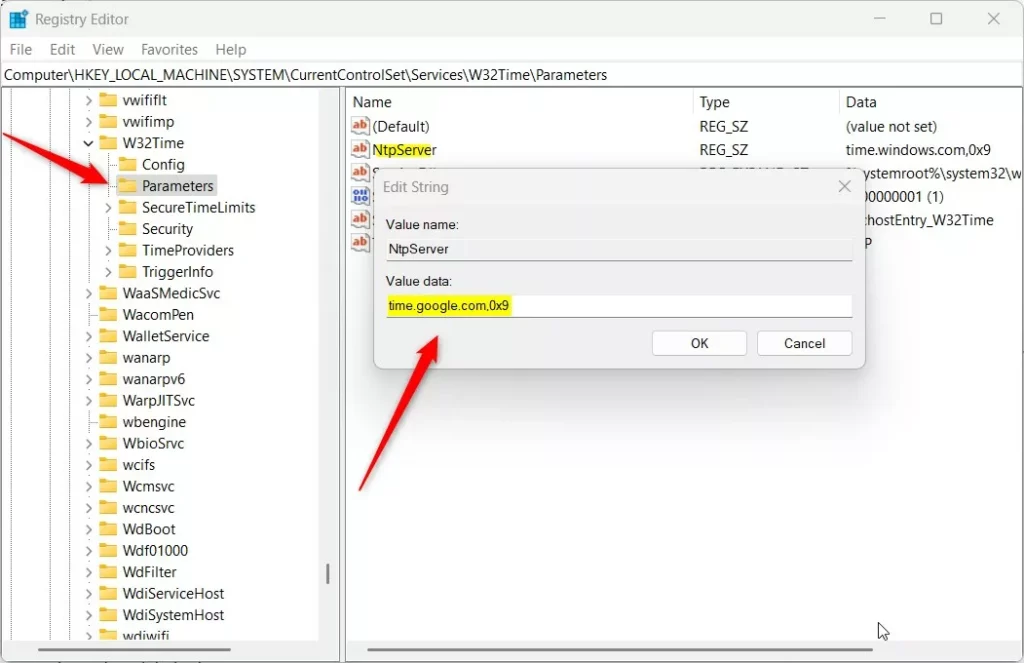
- Navigate to:
HKEY_LOCAL_MACHINE\SYSTEM\CurrentControlSet\Services\w32time\Parameters - Modify the NtpServer value to your server name followed by
,0x9.
Summary
Keeping your computer clock accurate is essential for system stability. Whether you use the Control Panel for simple changes or the command line to force a sync, you now have the tools to manage your time settings. Always remember that administrative privileges are required for these changes. By using reliable NTP servers, you ensure your PC remains perfectly synced with global time standards.
Why is my Windows time not syncing?
Time sync issues often occur if the Windows Time service is stopped, your firewall is blocking UDP port 123, or the selected NTP server is offline. You can check the service status in the Services app or use the w32tm /query /status command to see if your computer is communicating with the server.
What are the best public NTP servers to use?
Reliable public NTP servers include pool.ntp.org, time.google.com, and time.windows.com. Using a pool address like pool.ntp.org is often best because it automatically directs your request to a geographically close server, which reduces latency and ensures more accurate time synchronization for your local machine.
Was this guide helpful?





Leave a Reply Cancel reply