How to Add JPEG XL Support in Windows 11

JPEG XL support in Windows 11 lets you open .jxl image files directly in File Explorer and the Photos app, without installing a separate viewer. JPEG XL is a modern image format that gives higher picture quality at smaller file sizes than older formats like JPEG.
Windows 11 does not open these files by default. A free helper extension from Microsoft fills the gap, so you can double-click a .jxl picture and see it right away. This guide covers three ways to install it : the Microsoft Store, a standalone .EXE installer, and the command line. Pick one. You do not need all three.
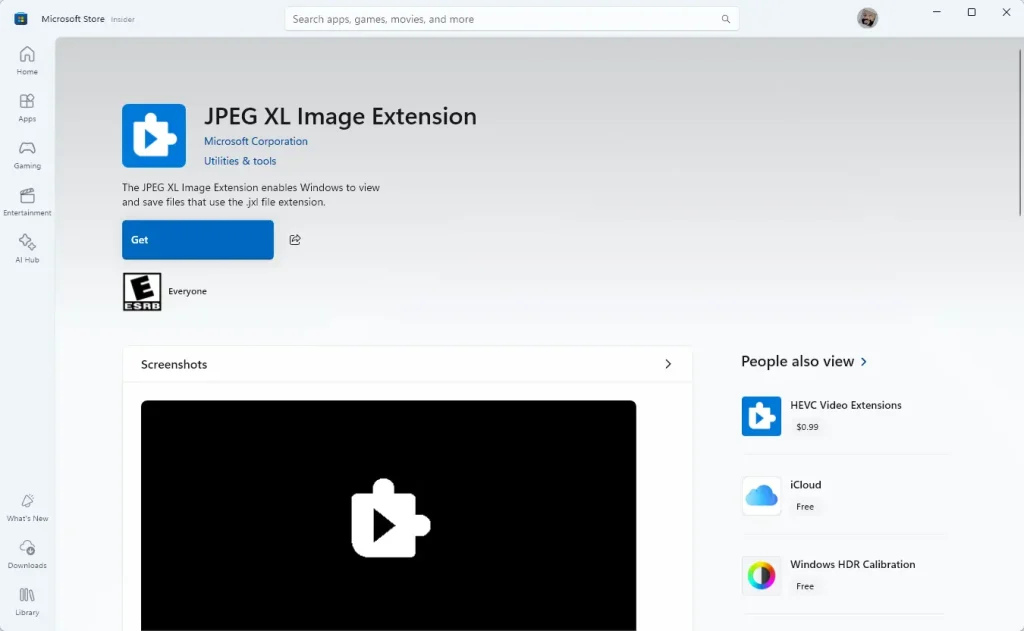
Install the free JPEG XL Image Extension from Microsoft to open.jxl files in File Explorer and the Photos app on Windows 11. Open the JPEG XL Image Extension page in the Microsoft Store, click Get, and confirm the publisher is Microsoft Corporation. Or run winget install 9mzprth5c0tb in Windows Terminal. No restart is needed.
Use the Microsoft Store
Windows installs the extension for you and updates it later with your other Store apps. There are no manual files and no command lines. It works on both Home and Pro, but you need to be signed in to Windows with internet access, and the Store must not be blocked by your organization.
- Open the JPEG XL Image Extension page in your browser.
- Click View in Store. If your browser asks to open the Microsoft Store app, confirm. The Store opens on the JPEG XL Image Extension page.
- Click Get. You should see a progress bar while the extension downloads and installs.
- Wait until the button changes to show the extension is installed. It is a small download and usually takes under a minute.
You can also open the Microsoft Store from the Start menu , search for JPEG XL Image Extension, and click Get there. Check that the publisher is Microsoft Corporation before you install.
The standalone .EXE installer is an alternative if you can’t use the Store, for example on a locked-down PC or one with the Store disabled. Use this link to get it: PEG XL Image Extension
- Download the .EXE file from the link above.
- Double-click the downloaded file to start the installer.
- If User Account Control asks for permission, click Yes. This needs an administrator account.
- Follow the prompts until the installer reports that it has finished.
Installers from unknown sites are a common way to pick up unwanted software.
Use the winget command
The command line route takes one command in Windows Terminal. It installs the same Microsoft Store extension, using the package ID 9mzprth5c0tb. It suits you if you set up several PCs or prefer to skip the Store window. It relies on the winget package manager, which comes with current Windows 11 builds.
- Right-click the Start button and choose Terminal. A normal, non-elevated window is fine for this package.
- Paste the command below into the Windows Terminal window. The command is winget install 9mzprth5c0tb.
- Press Enter. If winget asks you to accept source agreements, type Y and press Enter.
- Wait while winget downloads and installs the package. You should see progress text, then a message that the install succeeded.
winget install 9mzprth5c0tb
The installation finishes automatically, and you do not need to restart the PC.
To check that it worked, find a .jxl file in File Explorer and double-click it. It should open in the Photos app. If thumbnails still show a blank icon, close and reopen the File Explorer window. If that does not help, sign out and back in, or restart Windows, so the new image codec loads everywhere.
To undo the change, go to Settings Apps Installed apps, find JPEG XL Image Extension, click the three-dot menu next to it, and choose Uninstall. Your .jxl files stay on disk, but Windows can no longer display them.
Adding JPEG XL support gives your PC native tools to handle these high-quality image files. Either method enables the feature within a few moments. Key takeaways:
- JPEG XL offers superior compression and high-quality images compared to traditional JPEG formats.
- Windows 11 does not natively support JPEG XL; an extension is required for viewing.
- You can install the JPEG XL Image Extension through the Microsoft Store or the winget command in the Windows Terminal.
- Once installed, you can efficiently decode and view JPEG XL images directly in File Explorer.
Completing these steps gives you smaller files and better image quality on supported displays.
Have a question about this guide?
Answered by AI from this guide. Good questions may be added to this page — please don't include personal details.
Did this guide fix your problem?

About the Author
Richard
Tech Writer, IT Professional
Richard is a writer at Geek Rewind who turns complex IT tasks into clear, step-by-step guides. He draws on years of hands-on experience in system administration and enterprise IT operations, focusing on Windows, Linux and WordPress: the problems people actually run into, and the fixes that work. His server and WordPress guides come from systems he runs himself. Richard builds and maintains the platform behind Geek Rewind, from its Ubuntu servers and Nginx configuration to its custom WordPress plugins. Many new tutorials start with readers' questions, and he's always glad to answer them in the comments.
No comments yet — be the first to share your thoughts!