Fix the Windows Hypervisor Platform Is Not Enabled Error in Windows 11

The “Windows Hypervisor Platform is not enabled” error appears when an app that needs hardware virtualization starts on a PC where that support is switched off. Such apps include Android emulators and virtual machine tools. The Windows Hypervisor Platform is an optional Windows 11 feature that lets third-party software use the same virtualization layer (a hypervisor) that Hyper-V (Microsoft’s built-in virtual machine system) uses. The usual fix is to turn the feature on in Windows Features and restart.
That fix only works if virtualization is also enabled in your PC’s firmware (the low-level startup software on the motherboard, called BIOS or UEFI). This article checks that first, then turns on the feature, then covers the less common causes. The steps apply to Windows 11 Home and Pro.
To fix the “Windows Hypervisor Platform is not enabled” error in Windows 11, open Run with Win+R, type optionalfeatures, and tick Windows Hypervisor Platform in Windows Features. Then restart. If the error persists, check that Virtualization shows Enabled in Task Manager ’s Performance tab under CPU, since firmware virtualization must also be on.
Why Windows Says the Hypervisor Platform Is Not Enabled
A hypervisor is a software layer that lets one computer run several isolated virtual systems at once. Apps such as emulators and virtual machine managers ask Windows for access to it. If Windows can’t provide it, the app shows the error.
Three causes account for nearly every case:
- Virtualization is off in the firmware. Intel calls it Intel Virtualization Technology (VT-x). AMD calls it AMD-V or SVM Mode. Many PCs ship with it disabled.
- The Windows feature is off. Windows Hypervisor Platform is not turned on by default on a clean Windows 11 install.
- The hypervisor is set not to start at boot. A setting in the boot configuration can switch it off, even when the feature is installed. This usually happens after a change made by another tool or by hand.
Work through them in that order. If you only need the feature switched on, the companion article How to Enable or Disable Windows Hypervisor Platform in Windows 11 covers the toggle on its own. It is the short version.
Check Whether Virtualization Is Already Enabled
Task Manager shows whether the processor’s virtualization support is switched on. This takes under a minute and tells you whether you need to visit the firmware settings.
- Press Ctrl+Shift+Esc. Task Manager opens. If it shows a small window with only a list of apps, select More details.
- Select the Performance tab in the left pane.
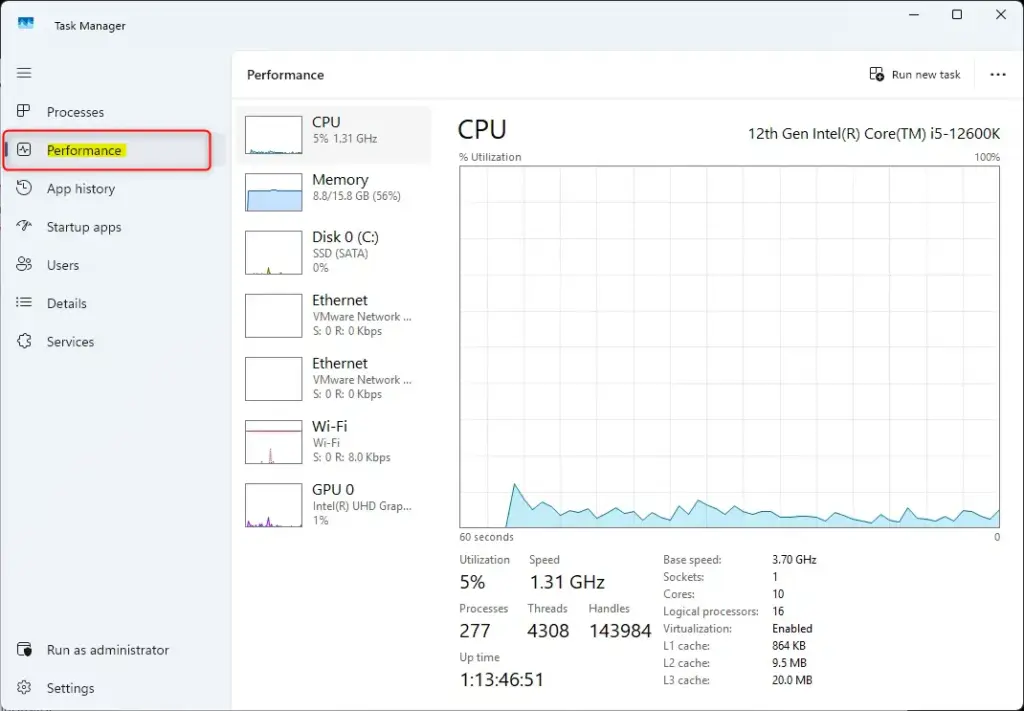
Performance tab selected in Windows 11 Task Manager. - Select CPU. A graph and a block of figures appear.
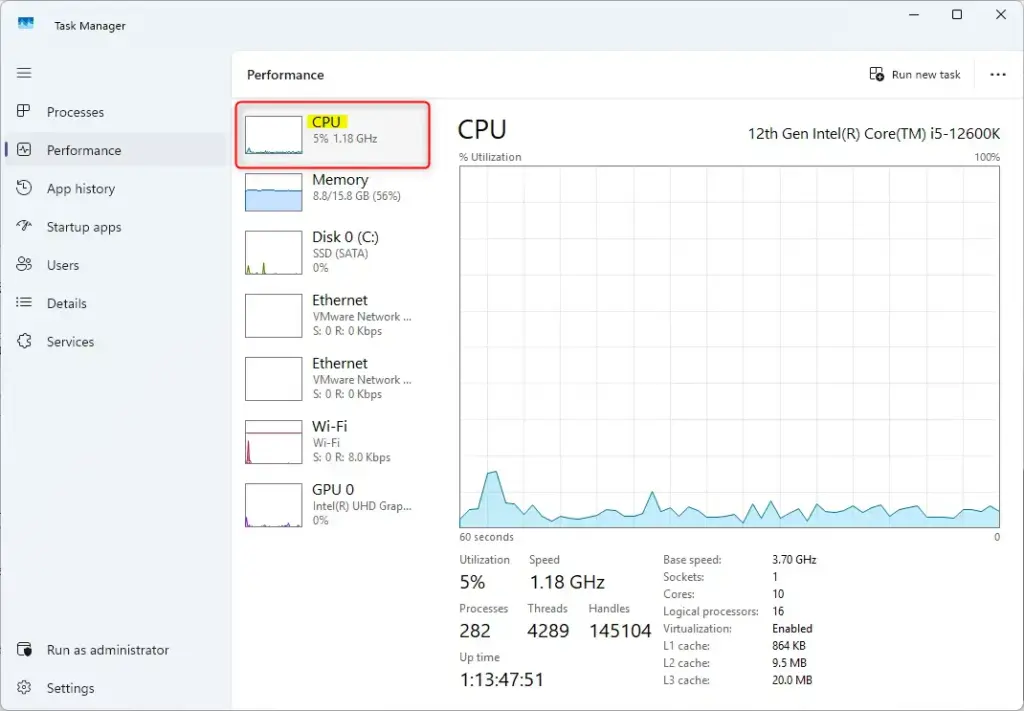
CPU performance graph displayed in Task Manager. - Read the Virtualization line at the bottom right of the figures. It reads either Enabled or Disabled.
If it reads Disabled, go to the section “Turn On Virtualization in UEFI or BIOS” below and come back here afterward. If it reads Enabled, continue to the next section.
If the Virtualization line is missing, your Windows install is probably running inside a virtual machine, or a hypervisor is already active and hides the line. Skip ahead to the section on nested virtualization.
Turn On Windows Hypervisor Platform in Windows Features
These steps fix the “Windows Hypervisor Platform is not enabled” error in most cases. The steps below switch on the feature, add the companion feature that many apps expect, and restart Windows so the change takes effect. They require an administrator account, and Windows may ask you to confirm with a User Account Control prompt.
- Press Win+R. The Run box opens.

Run dialog - Type
optionalfeaturesand press Enter. The Windows Features window opens, with a list of items and checkboxes. This step needs administrator rights, so approve the prompt if one appears. - Scroll down to Windows Hypervisor Platform. The list is in alphabetical order, so it sits near the bottom.
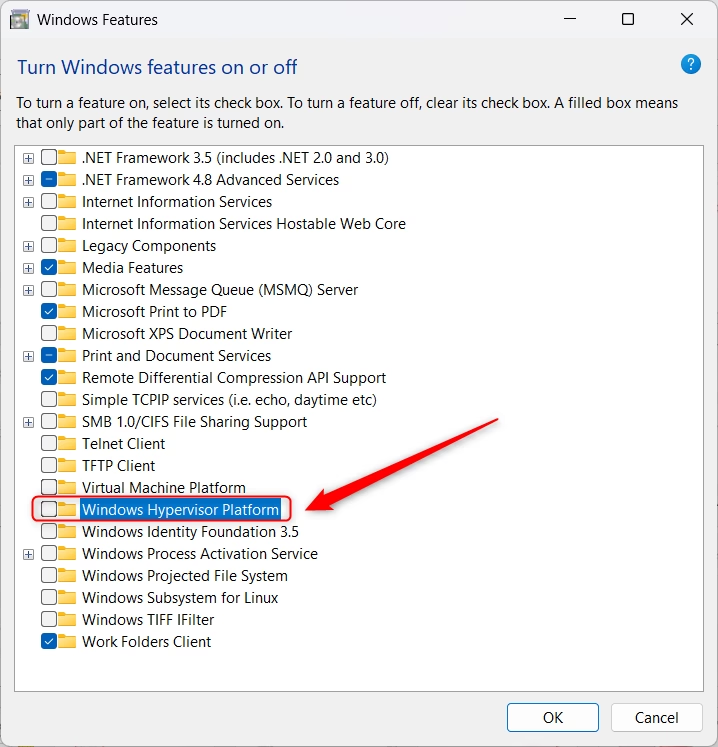
- Select the checkbox next to Windows Hypervisor Platform. A tick appears in the box.
- Select the checkbox next to Virtual Machine Platform if it is not already ticked. Many emulators and WSL 2 (Windows Subsystem for Linux, version 2) need it as well. The article How to Enable or Disable Virtual Machine Platform in Windows 11 explains what it does.
- Select OK. Windows applies the change. A progress window reads Searching for the required files, then Applying changes.
- Select Restart now when the window reads Windows completed the requested changes. Save open work first, because the PC restarts straight away.
- Open the app that showed the error after the PC restarts. The message should no longer appear.
If the Windows Features window never finishes and shows an error about missing files, connect to the internet and run Windows Update , then repeat the steps. Windows downloads some feature files on demand. On a work or school PC, an administrator may block that download.
If Windows Hypervisor Platform Is Missing From the List
The feature is available on Windows 11 Home, Pro, Enterprise and Education. This is a difference from Hyper-V itself, which is not offered on Home. If you run Home, you will see Windows Hypervisor Platform and Virtual Machine Platform but not Hyper-V. That is normal and does not cause this error.
If the entry is missing on any edition, open Settings System About and confirm you are on Windows 11 and not an unusual or stripped-down build. Custom or stripped-down Windows images sometimes remove optional features. If Windows Hypervisor Platform is missing from a custom or stripped-down image, reinstall Windows from official Microsoft media.
If the Checkbox Is Greyed Out
A greyed-out checkbox usually means one of two things. Your account is not an administrator, or your organisation manages the PC and locks optional features. Sign in with an administrator account and try again. On a managed device, ask your IT team to enable the feature.
Turn On Virtualization in UEFI or BIOS
If Task Manager reported Virtualization: Disabled, Windows cannot enable it for you. Changing firmware settings is low risk if you touch only the virtualization option, but leave every other setting alone, because a wrong change can stop the PC booting.
- Save your work and close all apps.
- Open Settings System Recovery The Recovery options section appears.
- Select Restart now next to Advanced startup. Confirm the prompt. The PC restarts to a blue menu.
- Select Troubleshoot, then Advanced options.
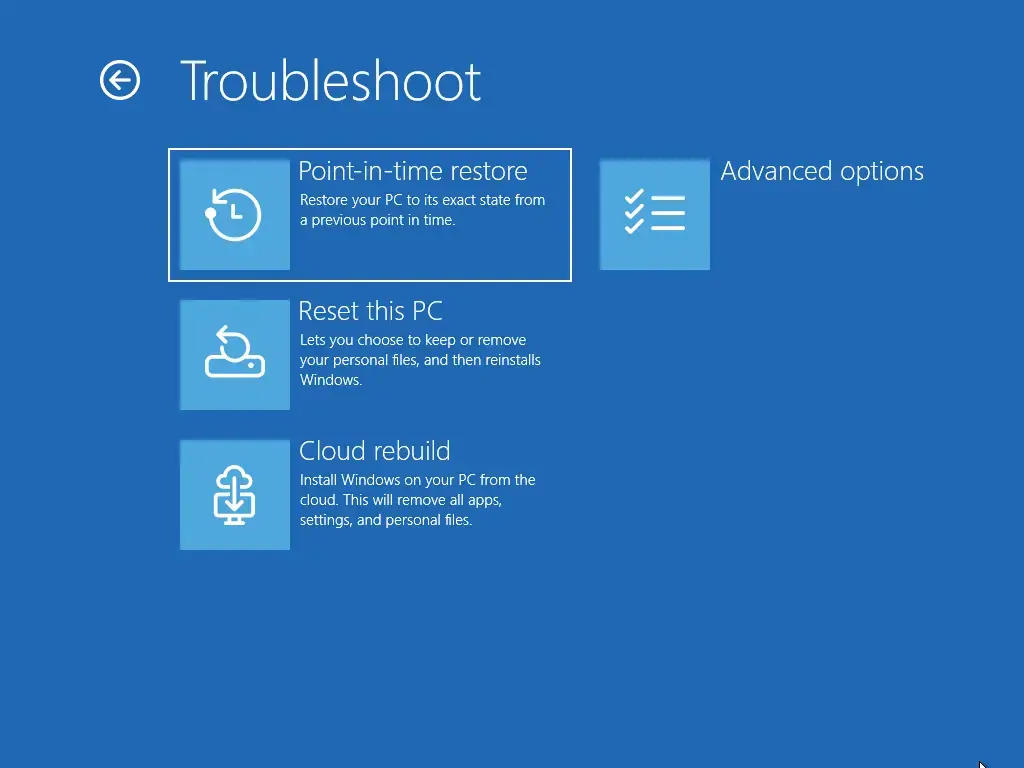
- Select UEFI Firmware Settings, then Restart. The PC restarts into the firmware screen. If you do not see this option, your PC may use legacy BIOS. Restart and press the firmware key shown at startup instead, often F2, F10, Del or Esc.
- Find the virtualization option. Menu names differ by manufacturer, so look under pages such as Advanced, CPU Configuration or Security. On Intel systems, look for Intel Virtualization Technology or VT-x. On AMD systems, look for SVM Mode or AMD-V.
- Change the option to Enabled.
- Save and exit. The key is usually F10, and the screen asks you to confirm. The PC restarts into Windows.
- Open Task Manager again and check the Virtualization line under Performance CPU It now reads Enabled.
To undo this, repeat the steps and set the option back to Disabled. If you cannot find any virtualization option, remember that menu names vary by manufacturer, so check your manufacturer’s support page for your exact PC or motherboard model.
Make Sure the Hypervisor Starts at Boot
If the feature is ticked and virtualization is enabled but the error remains, the hypervisor may be set not to launch. The command below changes the boot configuration (the data Windows reads at startup). These steps need an administrator Terminal.
- Right-click the Start button.
- Select Terminal (Admin). Approve the User Account Control prompt. A window opens with a command prompt or PowerShell tab. This step requires administrator privileges.
- Type
bcdedit /enumand press Enter. A list of boot entries appears. - Look for a line starting with
hypervisorlaunchtypein the Windows Boot Loader section. If it readsOff, the hypervisor is disabled. If the line does not appear, the default applies and you can skip to the next section. - Type
bcdedit /set hypervisorlaunchtype autoand press Enter. The window reads The operation completed successfully. - Restart the PC and open the app again.
To turn the hypervisor off again, run bcdedit /set hypervisorlaunchtype off in the same kind of Terminal and restart. Be aware that turning it off stops anything that depends on it, including WSL 2 and Hyper-V virtual machines.
Turn On the Feature With DISM Instead
DISM (Deployment Image Servicing and Management) is a Windows command-line tool that adds or removes optional features. Use it if the Windows Features window will not apply the change or you want to script the setup. This method also needs an administrator Terminal.
- Open Terminal (Admin) as described in the previous section.
- Type
dism.exe /online /enable-feature /featurename:HypervisorPlatform /alland press Enter. DISM shows a progress bar and then The operation completed successfully. - Restart the PC when prompted, or restart it yourself if DISM does not ask.
If DISM reports an error instead, run Windows Update and try again, because DISM needs to fetch files in the same way as the Windows Features window.
Check That the Hypervisor Is Running
After a restart, you can confirm Windows loaded the hypervisor before you start the app again. This saves a round of guessing if the error returns.
- Open Terminal from the Start button. Administrator rights are not needed here.
- Type
systeminfoand press Enter. Windows collects details for a few seconds and then prints a long list. - Read the last section, Hyper-V Requirements. If it says
A hypervisor has been detected. Features required for Hyper-V will not be displayed., the hypervisor is running.
If that line does not appear, work back through the firmware, Windows Features and boot configuration sections, in that order.
When You Run 🪟 Windows 11 Inside a Virtual Machine
If Windows 11 itself runs in a virtual machine, the outer host has to pass virtualization support through to it. This is called nested virtualization. The setting lives on the host, not inside your Windows 11 guest, so changing options inside the guest does nothing. Check your host software's documentation for a "nested virtualization" or "expose hardware virtualization" option, turn it on, and restart the guest.
Conflicts With Other Virtualization Software
Some older versions of virtual machine tools expect to control the hardware virtualization features themselves. When the Windows Hypervisor Platform is on, they may run slowly or show their own warning. Updating the tool to its latest release usually resolves this, because current versions are built to share the hypervisor with Windows.
If an older tool still misbehaves, you can turn the Windows feature off again and restart. That brings back the original error in any app that needs the platform, so you need to decide which tool matters more.
What to Do Next
Start the app that showed the error. It should now open without asking for the Windows Hypervisor Platform. To reverse the change, clear the checkbox next to Windows Hypervisor Platform in Windows Features, select OK, and restart.
If your app also asks for Virtual Machine Platform, the article How to Enable or Disable Virtual Machine Platform in Windows 11 is the next task. For a shorter walkthrough of the same toggle, see how to turn on Windows Hypervisor Platform in Windows 11.
Have a question about this guide?
Answered by AI from this guide. Good questions may be added to this page — please don't include personal details.
Did this guide fix your problem?

About the Author
Richard
Tech Writer, IT Professional
Richard is a writer at Geek Rewind who turns complex IT tasks into clear, step-by-step guides. He draws on years of hands-on experience in system administration and enterprise IT operations, focusing on Windows, Linux and WordPress: the problems people actually run into, and the fixes that work. His server and WordPress guides come from systems he runs himself. Richard builds and maintains the platform behind Geek Rewind, from its Ubuntu servers and Nginx configuration to its custom WordPress plugins. Many new tutorials start with readers' questions, and he's always glad to answer them in the comments.
No comments yet — be the first to share your thoughts!