How to Change What the Power Button Does in Windows 11

The power button setting in Windows 11 controls what your desktop PC or laptop does when you press the physical power button. On a laptop it can also cover what happens when you close the lid. You can make the button put the PC to sleep, hibernate it, shut it down completely, turn off the screen, or do nothing at all.
The change takes less than a minute and applies right away. You do not need to restart, and it works the same on Windows 11 Home and Pro. On a laptop or tablet you can pick one action for when the PC is plugged in and a different one for when it runs on battery. A desktop PC has no battery, so it shows only one setting.
Open Settings System Power & battery, scroll down and expand Lid, power & sleep button controls, then click the dropdown under Pressing the power button and choose Sleep, Hibernate, Shut down, Turn off the display, or Do nothing. The change applies immediately with no restart needed.
What is Power Button Behavior?
Power button behavior is what happens when you press the power button on your computer case or laptop body. Windows lets you set it to shut down, sleep, hibernate, turn off the screen, or do nothing. If you set it once, you no longer have to go through the Start menu every time you step away.
Setting the button to Do nothing is also useful if you tend to press it by accident, or if a child or pet can reach it. The Windows 11 options cover all of these cases.
How to Change the Power Button Action in 🪟 Windows 11
You can change the power button action in the Settings app, which the steps below cover, or in the classic Control Panel. Both change the same setting, so use whichever you prefer. If you would rather use the Control Panel, do this:
- Click the Start menu and type Control Panel, then open it from the results.
- Click Hardware and Sound. If your Control Panel is set to icon view, you will not see this category. Go straight to the next step and pick Power Options from the icons.
- Click Power Options. In the left pane you will find Choose what the power buttons do, which opens the button and lid controls.
Follow these easy steps:
- Open the Settings app. Click the Start button and select Settings, or press
Windows key + Ion your keyboard. The Settings window should open. - Click System in the left-hand menu. The System pages will appear on the right.
- Select Power & battery on the right side. This page shows your battery level, screen and sleep timers, and the button controls.
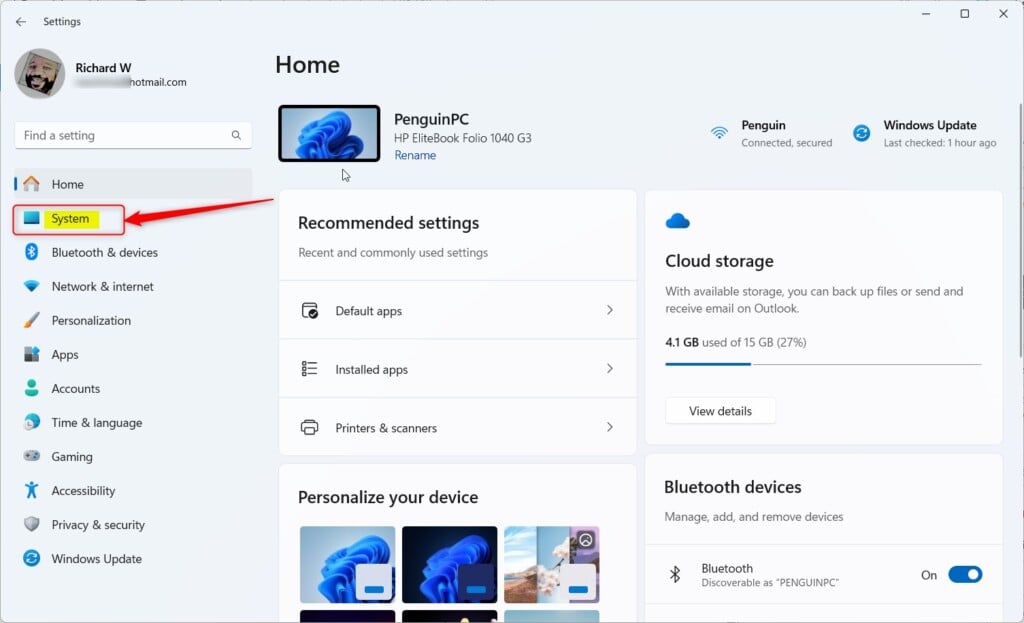
Windows 11 System button in Settings - Scroll down and expand the Lid, power & sleep button controls section by clicking it. On a desktop PC, the lid options will not appear because there is no lid.
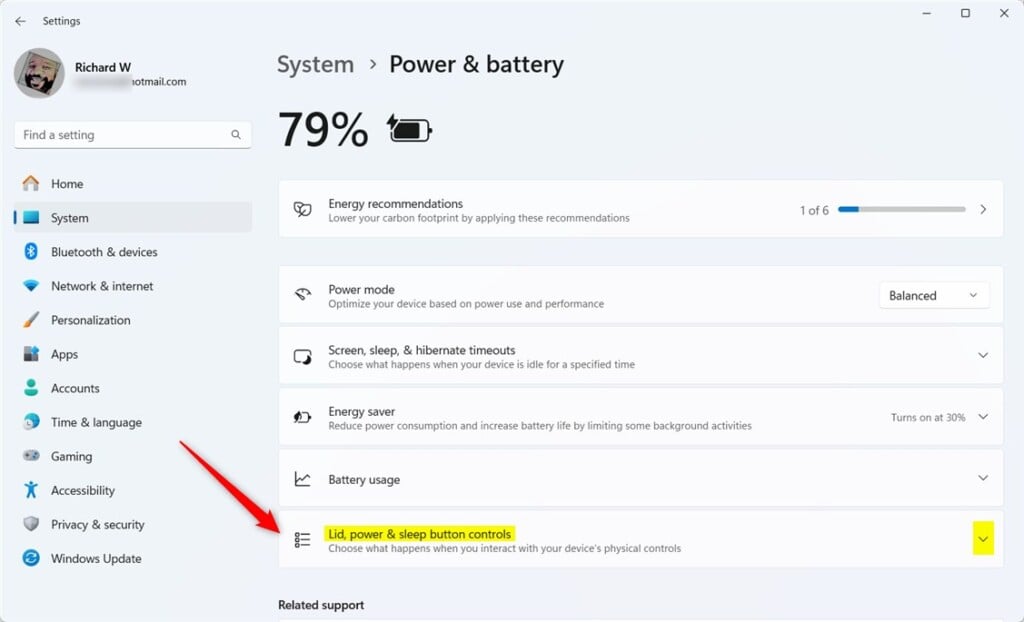
Windows 11 lid close settings - Find Pressing the power button will make my PC. On a laptop or tablet you will see two dropdowns, one under Plugged in and one under On battery. A desktop shows only one.
- Click the dropdown menu and choose what you want the power button to do:
- Do nothing – Pressing the power button won’t do anything.
- Sleep – Puts your PC to sleep. This is the usual default on laptops. Many desktops default to shutting down instead.
- Hibernate – Saves your work to disk and turns off your PC. If you do not see this option, hibernate is switched off on your PC. You can turn it back on in the Control Panel under Choose what the power buttons do. Click Change settings that are currently unavailable, then tick Hibernate under Shutdown settings.
- Shut down – Turns off your PC completely.
- Turn off the display – Turns off the screen only. The PC keeps running.
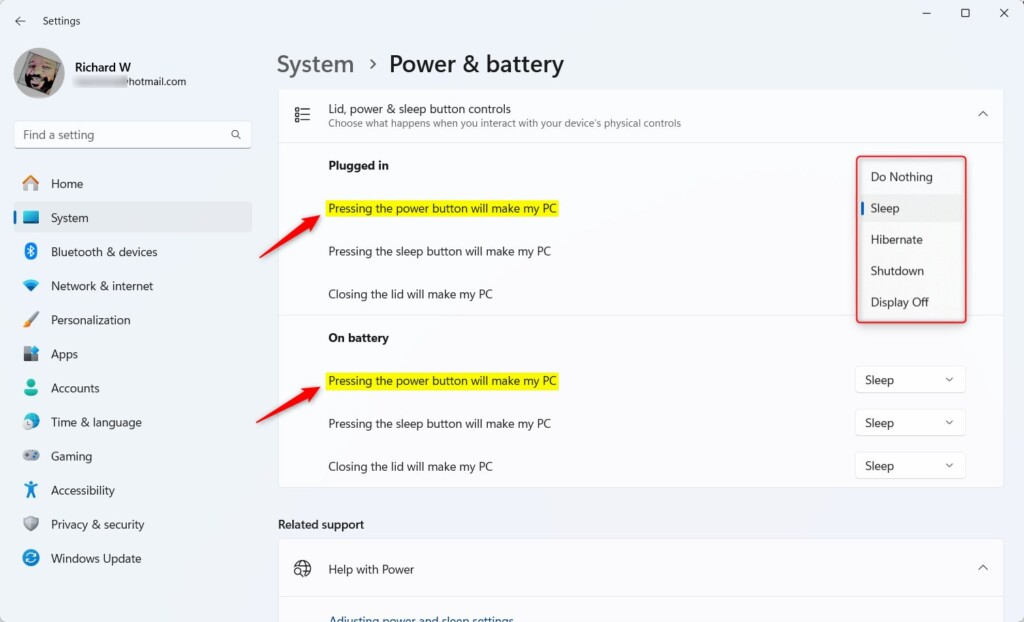
Power button behavior options in Windows 11 - Close the Settings app. Your choice is saved automatically, so there is no Apply or OK button and no restart. To test it, press the power button once. Save your work first if you chose Shut down. To undo the change, come back to the same dropdown and pick the option you had before.
Why Change This Setting?
- Save timeMake your PC sleep quickly instead of shutting down. You are back at your open apps in seconds.
- Save powerShut down immediately when you press the button, so the PC is fully off and not drawing power in sleep.
- Prevent accidental shutdownsSet the button to do nothing if you often press it by mistake. You can still shut down from the Start menu.
Summary
You now know how to change the Windows 11 power button action in the Settings app. You can make it sleep, hibernate, shut down, turn off the display, or do nothing, and set a different action for battery and plugged-in use on a laptop. The change takes effect immediately and needs no restart. If you change your mind, go back to Power & battery and pick a different option.
More details on changing power button action How to change sleep button action How to use hibernate mode
Have a question about this guide?
Answered by AI from this guide. Good questions may be added to this page — please don't include personal details.
Did this guide fix your problem?

About the Author
Richard
Tech Writer, IT Professional
Richard is a writer at Geek Rewind who turns complex IT tasks into clear, step-by-step guides. He draws on years of hands-on experience in system administration and enterprise IT operations, focusing on Windows, Linux and WordPress: the problems people actually run into, and the fixes that work. His server and WordPress guides come from systems he runs himself. Richard builds and maintains the platform behind Geek Rewind, from its Ubuntu servers and Nginx configuration to its custom WordPress plugins. Many new tutorials start with readers' questions, and he's always glad to answer them in the comments.
No comments yet — be the first to share your thoughts!