How to Enable the Download Menu in Microsoft Edge

You enable the download menu in Microsoft Edge by toggling a specific setting within the browser’s flags.
The Edge download menu, often referred to as the “Downloads flyout,” is a convenient overlay that appears when a download begins, showing its progress and offering quick access once complete. Enabling it ensures you can easily track and manage your downloaded files without them disappearing after the download finishes.
While Microsoft Edge is the default browser for Windows 11 and Windows 12, it’s built on Chromium, the same open-source project as Google Chrome. This makes Edge a fast and modern browsing experience.
To ensure this helpful menu is active, you’ll need to access Edge’s experimental features (flags) and turn on the “Show downloads flyout” option.
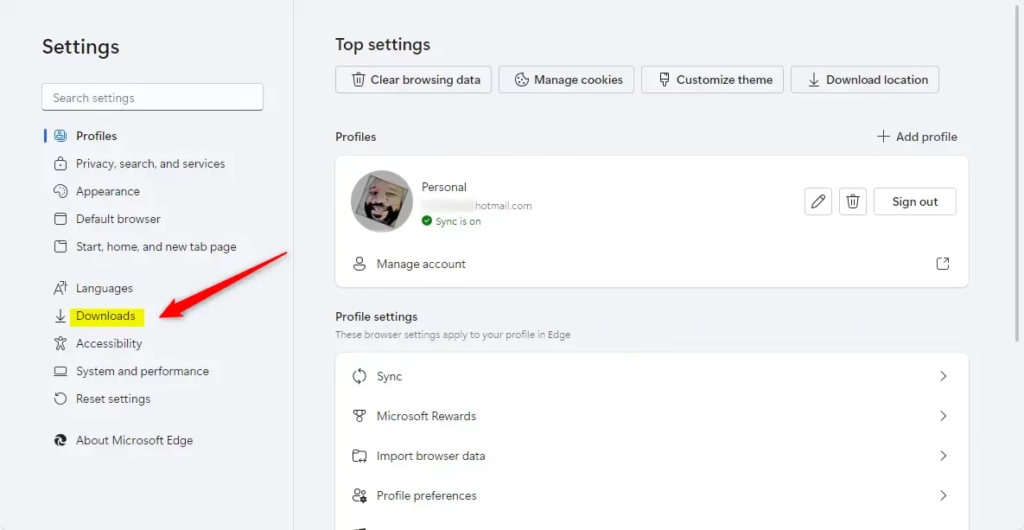
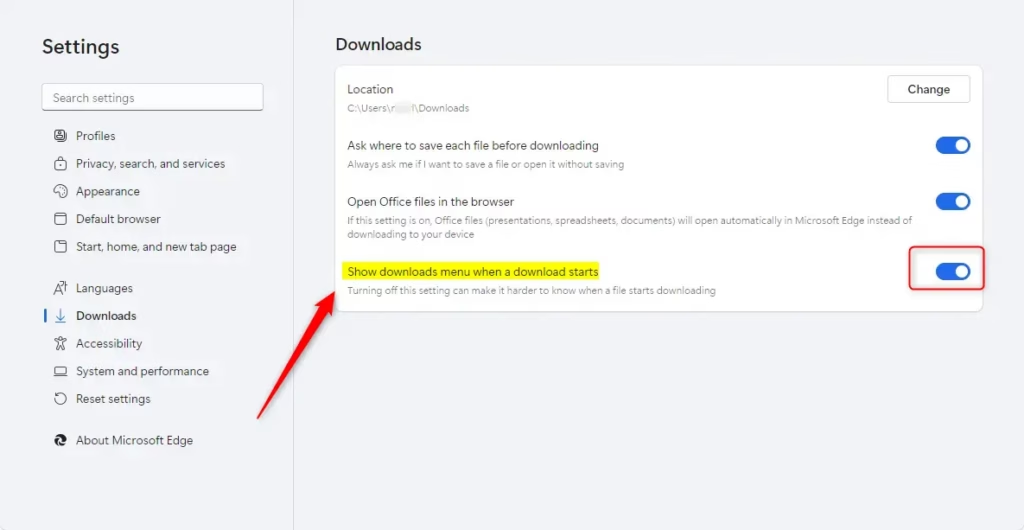
To enable the download menu in Microsoft Edge, navigate to edge://settings/downloads and toggle the switch next to “Show downloads menu when a download starts” to On. You can also pin the Downloads button to your toolbar for quick access via the three-dot menu.
Turn on the download menu in Edge
If your Microsoft Edge browser isn’t showing the download menu, you can easily turn it back on by visiting the downloads settings page and toggling the correct switch.

On this page, click the switch next to “Show downloads menu when a download starts.” Toggle it to the On position.
Pin the Downloads button to your toolbar
You can add the Downloads button right to your Edge toolbar to quickly see your downloaded files without needing to go into settings.
- Click the three dots in the top right corner of Edge.
- Right-click on the “Downloads” icon.
- Select “Show in toolbar.”
Now, a download icon will always stay at the top of your screen. You can click it anytime to see your recent files.
Conclusion
Keeping the download menu visible in Edge makes managing your files much simpler, as you can see download progress or open the menu with just one click.
Note: Keep in mind that enabling the download menu isn’t the same as the “Ask where to save each file” setting. The download menu shows you the status of your files. The “Ask where to save” setting makes a window appear each time you download, letting you pick a specific folder.
Once you’re done, close your settings tab. Your browser is now set up to suit your needs.
How do I show the download button on Edge?
The Downloads button won’t appear on your toolbar by default if certain settings aren’t enabled. You can toggle the Downloads button in edge://settings/appearance.
Was this guide helpful?

About the Author
Richard
Tech Writer, IT Professional
Richard, a writer for Geek Rewind, is a tech enthusiast who loves breaking down complex IT topics into simple, easy-to-understand ideas. With years of hands-on experience in system administration and enterprise IT operations, he’s developed a knack for offering practical tips and solutions. Richard aims to make technology more accessible and actionable. He's deeply committed to the Geek Rewind community, always ready to answer questions and engage in discussions.


No comments yet — be the first to share your thoughts!