How to Add or Remove Index Locations in Windows 11

Windows 11 uses a feature called the Search Index to help you find your files, apps, and settings quickly. By telling Windows exactly where to look, you can make your search results more accurate and faster. The index acts like a digital library catalog, allowing the Search Indexer service to locate files instantly instead of scanning your entire hard drive every time you type a query.
What happens when done?
Once you add a folder to the index, Windows will scan it in the background. If your computer is busy, it will index slowly so your work isn’t interrupted. When your computer is idle, it will finish the job quickly. The data is stored in a file called Windows.edb, usually located in C:\ProgramData\Microsoft\Search\Data\Applications\Windows. Note that Windows will not index drives assigned to the A or B drive letters, as those are reserved for legacy floppy drives.
How to add folder locations
Note: You must be logged in as an Administrator to change these settings.
- Open your Settings app by pressing the Windows key + I or by clicking Start and then Settings.

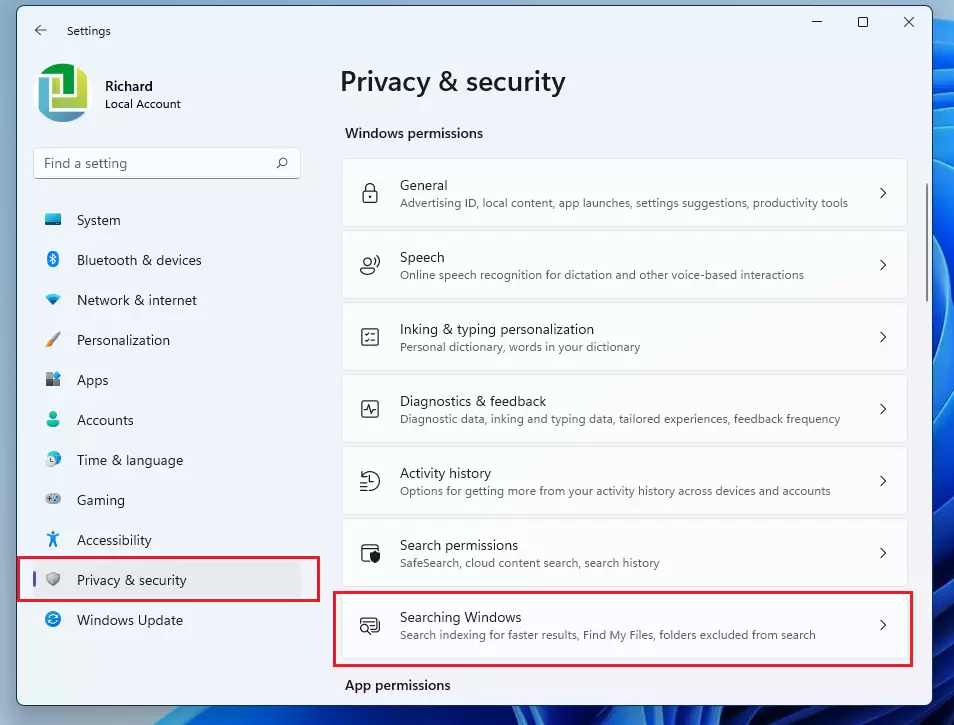
- Click on Privacy & security on the left side.
- Select the Searching Windows tile on the right.
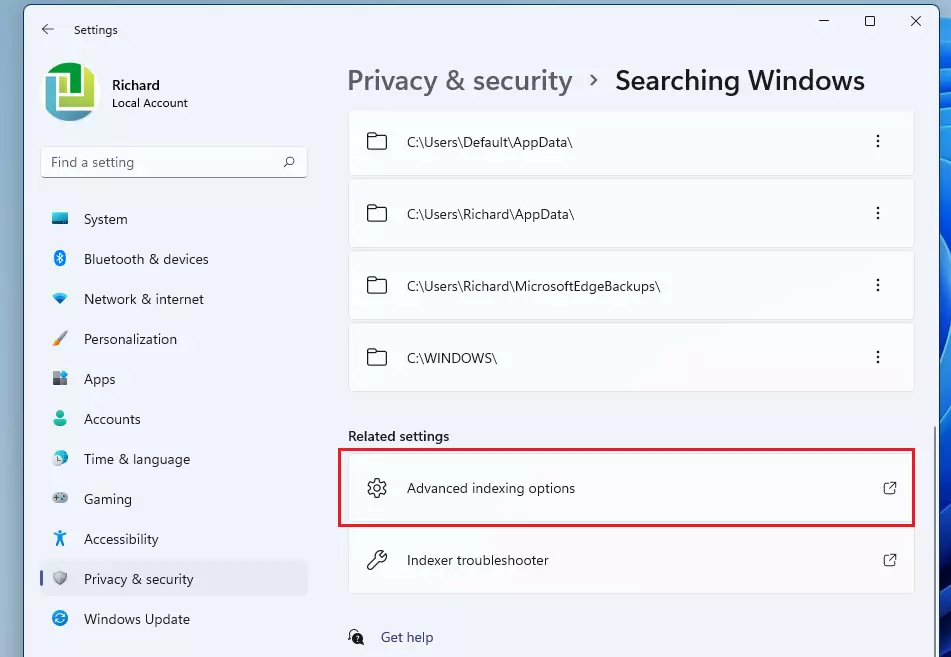
- Scroll down and click on Advanced indexing options.
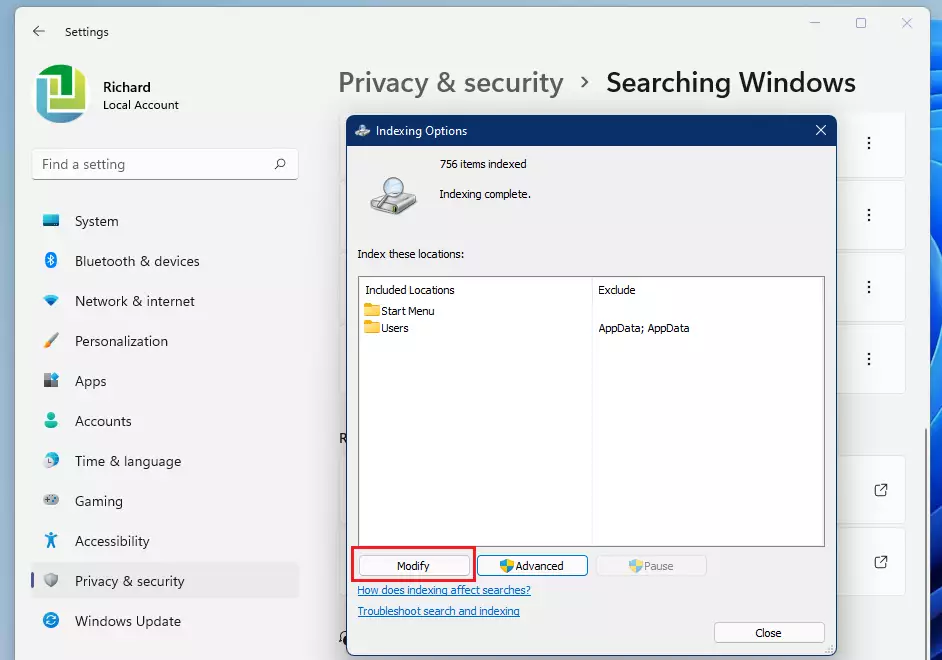
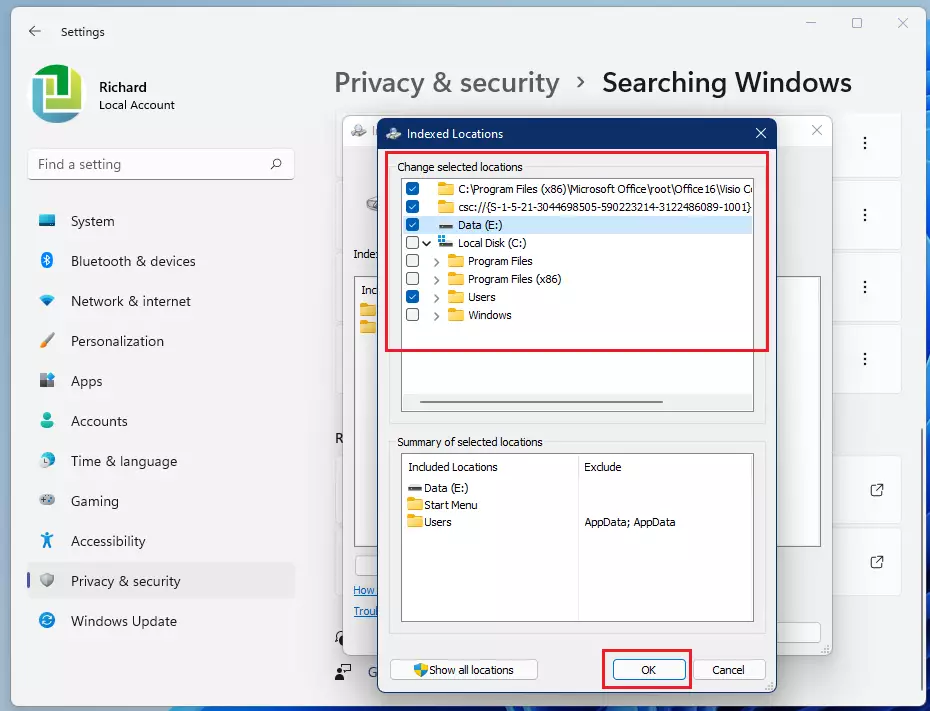
- In the new window that appears, click the Modify button.
- Check the boxes next to the folders you want Windows to search. Click OK when you are finished.
Understanding Indexing Modes
When configuring locations, you can choose how deep the index goes. Use this table to decide your settings:
| Mode | Description |
|---|---|
| Properties Only | Indexes file names, dates, and sizes. Faster and uses less space. |
| Properties and File Contents | Indexes text inside documents. Slower and uses more disk space. |
How to Rebuild the Search Index
Note: This requires Administrator privileges. If your search results are missing items or seem corrupted, rebuilding the index forces Windows to start the catalog from scratch.
- Open Advanced indexing options as shown above.
- Click the Advanced button.
- Under the Troubleshooting section, click Rebuild. %%PRE0%%
- Click OK to confirm. This may take time depending on your file count.
Summary
Customizing your Windows 11 index locations helps you find exactly what you need without waiting for slow results. By adding important folders or removing unnecessary ones, you keep your search tool clean and efficient. If you encounter issues, rebuilding the index is a reliable way to fix search errors and restore performance.
How much disk space does the Windows index use?
The size of the Windows.edb file depends on how many files you index. For most users, it occupies between 500MB and 2GB. If you index contents of thousands of documents, it can grow significantly larger. You can check the file size in C:\ProgramData\Microsoft\Search\Data\Applications\Windows.
Does indexing affect system performance?
Windows Search is designed to be low-priority. It monitors system activity and pauses indexing when you are actively using the computer. While it may cause minor disk usage during initial setup, it should not impact your daily performance or gaming experience on modern hardware.
Was this guide helpful?

About the Author
Richard
Tech Writer, IT Professional
Richard, a writer for Geek Rewind, is a tech enthusiast who loves breaking down complex IT topics into simple, easy-to-understand ideas. With years of hands-on experience in system administration and enterprise IT operations, he’s developed a knack for offering practical tips and solutions. Richard aims to make technology more accessible and actionable. He's deeply committed to the Geek Rewind community, always ready to answer questions and engage in discussions.



No comments yet — be the first to share your thoughts!