How to Restore Missing Recycle Bin Icon in Windows 11


Why? The Recycle Bin is a special system icon that manages your deleted files. If it disappears, you may find it difficult to empty your trash or recover files you accidentally deleted.
What happens when done? Once you complete these steps, the Recycle Bin icon will reappear on your desktop, giving you quick access to your deleted items.
Before you begin, make sure your desktop icons are not hidden. You can learn how to manage those settings in our previous post here: How to show or hide desktop shortcut icons.
- Open your computer’s Settings. You can do this by pressing the Windows key + I on your keyboard, or by clicking the Start button and selecting the Settings gear icon.

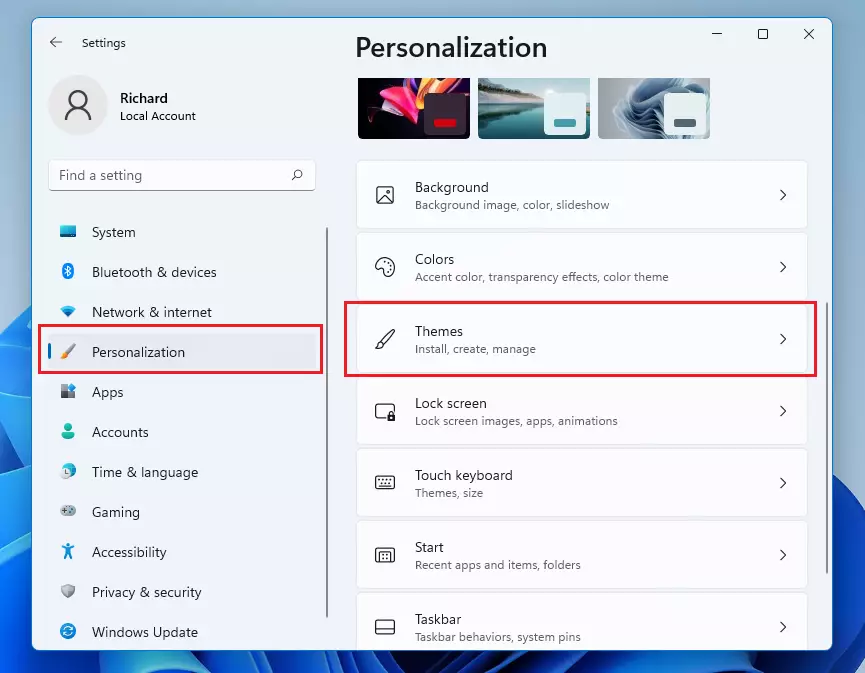
- Once the Settings window opens, click on Personalization in the left-hand menu.
- On the right side of the screen, click on the Themes tile.
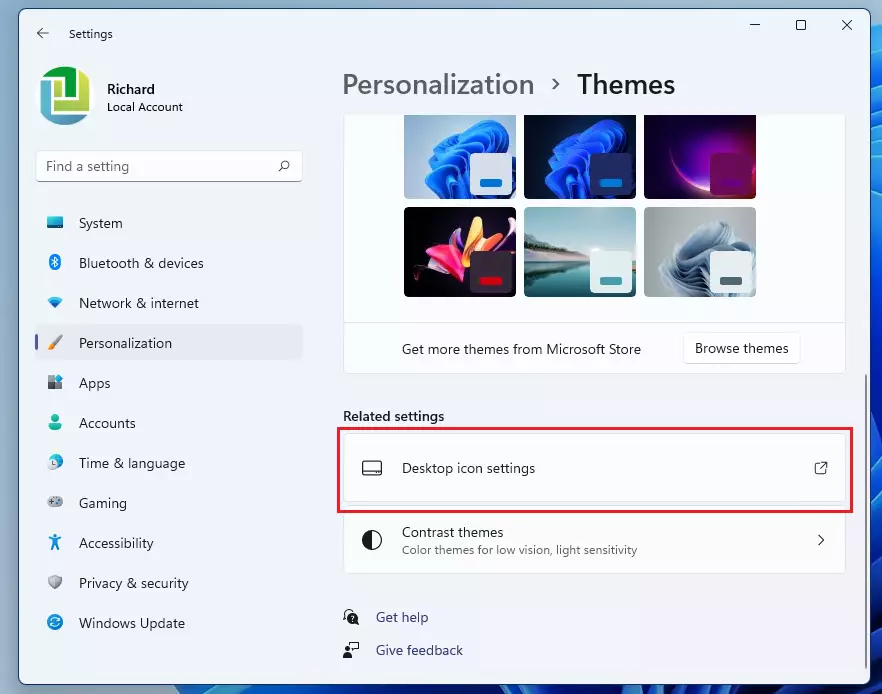
- Scroll down until you see the Related settings section. Click on the link labeled Desktop icon settings.
- A small window will pop up. Find the box labeled Recycle Bin and click it to put a checkmark inside.
- Click Apply and then OK to save your changes.
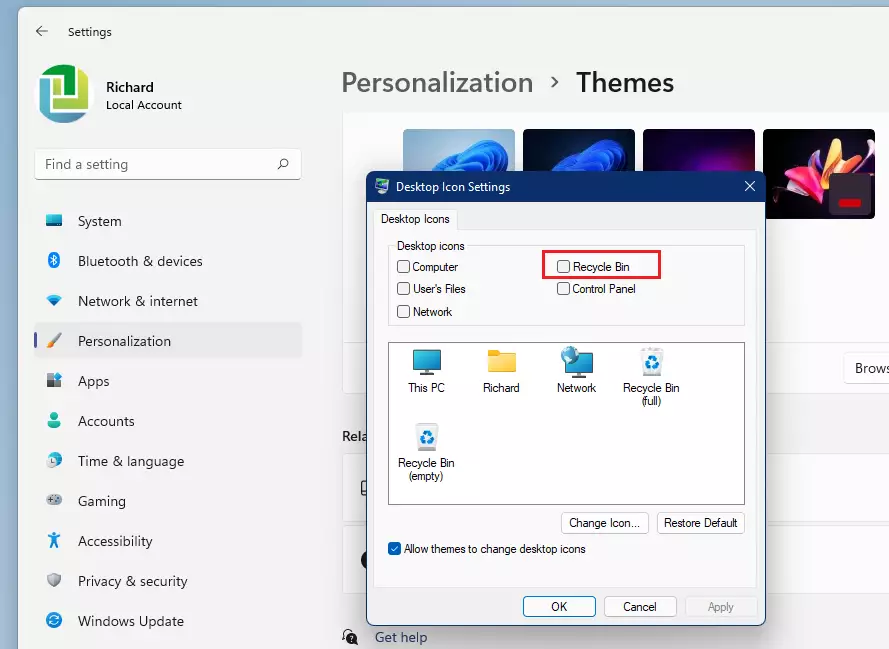
Your Recycle Bin icon should now be visible on your desktop again. This process does not require admin privileges.
Can I Recover Files After Emptying the Recycle Bin?
Yes, you can often recover files even after emptying the bin. When you delete a file, Windows marks the space as available but does not immediately erase the data. You must act quickly to avoid overwriting the files.
Method 1: Check OneDrive
If you use OneDrive, your files might be in the cloud. Go to the OneDrive website, sign in, and check the Recycle Bin folder in the sidebar. Deleted files stay there for 30 days.
Method 2: Use Windows File History
If you have File History enabled, you can restore older versions of your folders. Search for ‘Restore your files with File History’ in the Start menu. Select the folder where your file was located and click the green restore button.
Method 3: Data Recovery Software
If the above methods fail, you may need third-party data recovery software. These tools scan your drive for remnants of deleted files. Note: Installing software requires admin privileges. Always install recovery tools on a different drive than the one you are scanning to prevent data overwriting.
Method 4: Command Prompt (attrib command)
Sometimes files are hidden, not deleted. Open Command Prompt as an administrator. Type the following command and press Enter:
attrib -h -r -s /s /d G:\*.*
Replace G: with your actual drive letter. This command removes hidden, read-only, and system attributes from your files.
Summary
Restoring your Recycle Bin icon is a simple task found in your Personalization settings. If you have lost important data, start by checking OneDrive or your File History backups. For more advanced recovery, consider using data recovery software or checking for hidden files via Command Prompt. For more help, see our guide on how to recover permanently deleted files.
How do I restore the Recycle Bin to the taskbar?
Windows does not allow you to pin the Recycle Bin directly to the taskbar. However, you can create a shortcut on your desktop, right-click it, select ‘Show more options,’ and then create a folder on your taskbar that links to the Recycle Bin location.
Does Windows 11 automatically back up deleted files?
Windows 11 does not automatically back up every deleted file. However, if you have OneDrive enabled, it syncs your Desktop, Documents, and Pictures folders to the cloud. You can also use System Restore points or Shadow Copies to recover previous versions of specific files if those features were configured beforehand.
Was this guide helpful?

About the Author
Richard
Tech Writer, IT Professional
Richard, a writer for Geek Rewind, is a tech enthusiast who loves breaking down complex IT topics into simple, easy-to-understand ideas. With years of hands-on experience in system administration and enterprise IT operations, he’s developed a knack for offering practical tips and solutions. Richard aims to make technology more accessible and actionable. He's deeply committed to the Geek Rewind community, always ready to answer questions and engage in discussions.



No comments yet — be the first to share your thoughts!