How to Partition a Hard Drive in Windows 11

You partition a hard drive in Windows 11 to divide a single physical drive into multiple logical sections, each functioning as a separate storage device.
This process is essential for better data organization, allowing you to separate your operating system and applications from personal files. For example, a separate partition protects your documents and media if your Windows 11 installation experiences problems.
Once partitioned, each new section appears as a distinct drive with its own drive letter in File Explorer, simplifying file management and potentially improving performance.
Open Disk Management by typing diskmgmt.msc into the Start menu search. Right-click unallocated space on your drive, select “New Simple Volume,” and follow the wizard to set size, drive letter, and format.
Understanding Disk Management Concepts
Before you partition a hard drive in Windows 11, it helps to know what unallocated space, primary partitions, and logical partitions mean, and whether to choose GPT or MBR for your disk.
How to create a partition in 🪟 Windows 11
You can easily create a partition in Windows 11 using the Disk Management tool. Just open your Start menu and search for ‘diskmgmt.msc’ or ‘Create and format hard disk partitions’ to find it.
- Click the Start menu and type
diskmgmt.mscorCreate and format hard disk partitions. - Select the result that matches to open the tool.
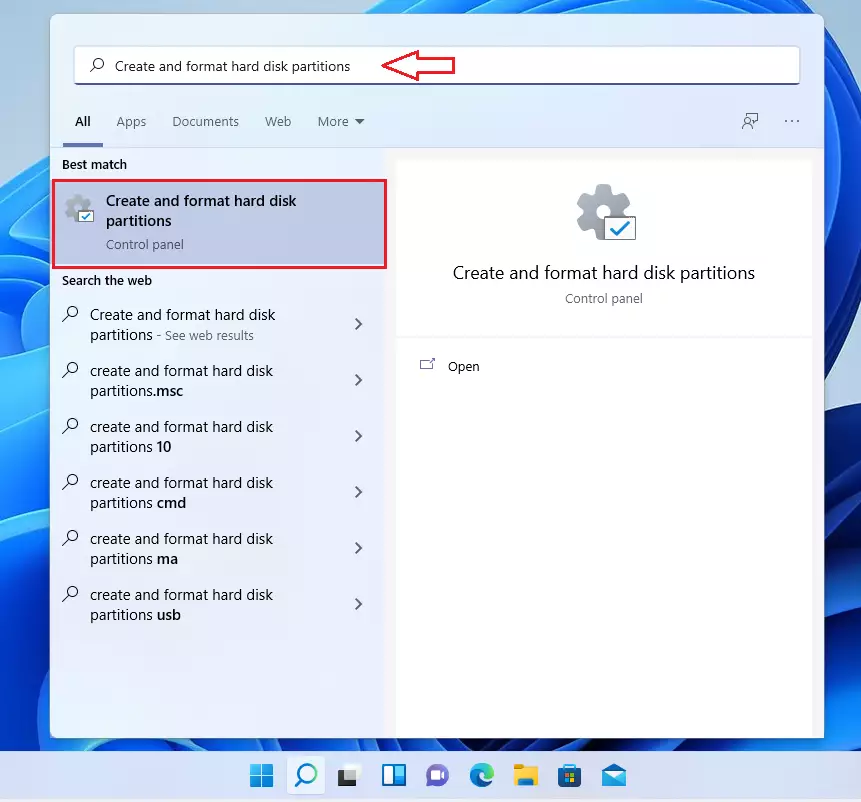
The tool will show your current drives. If a drive is new, Windows will label it Unallocated or Not Initialized.
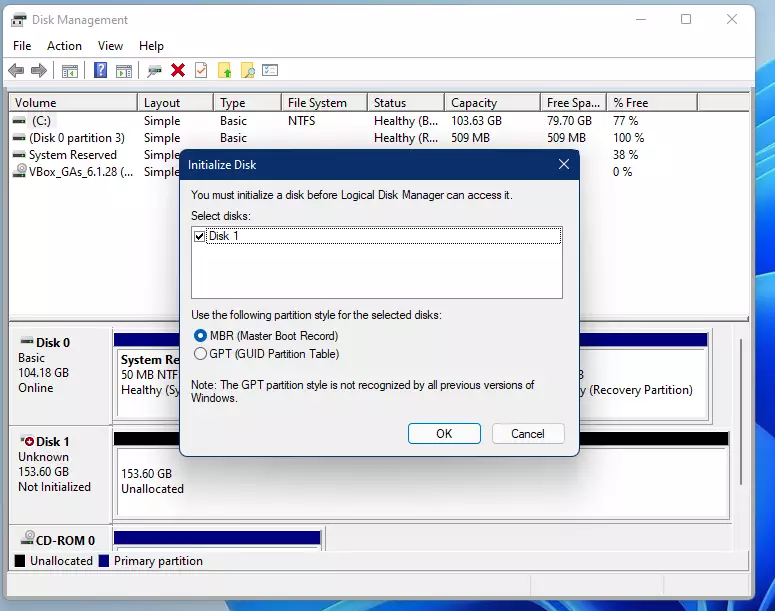
If prompted to initialize a new disk, click OK. You can choose the GPT style if your drive is larger than 2TB. It’s the modern standard. Stick with the default MBR for older systems or standard use.
How to create a new simple partition
- Right-click the area labeled
Unallocatedon your drive. - Select New Simple Volume from the menu. Official Microsoft Documentation
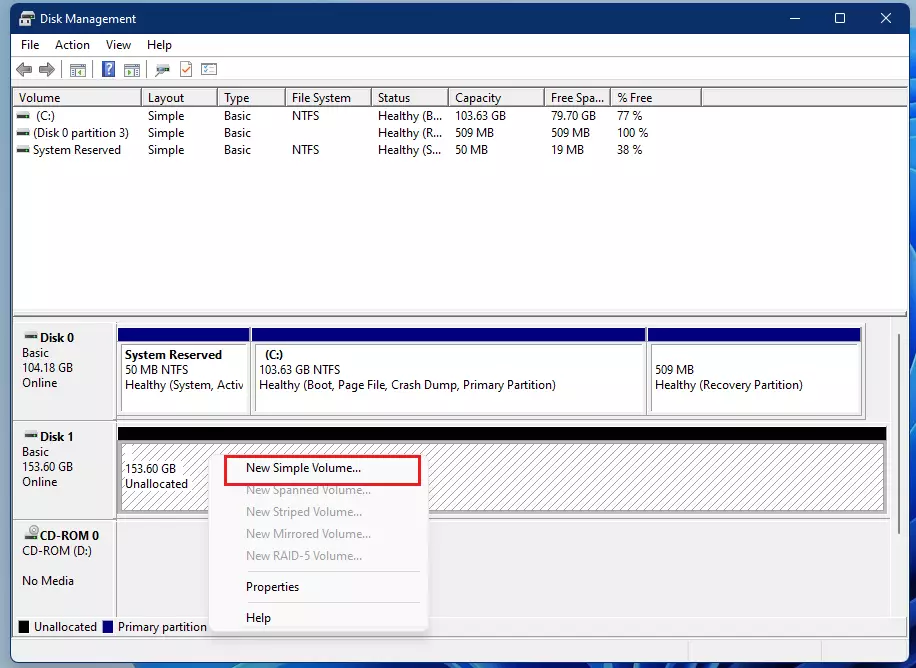
- A wizard will appear. Click Next to start.
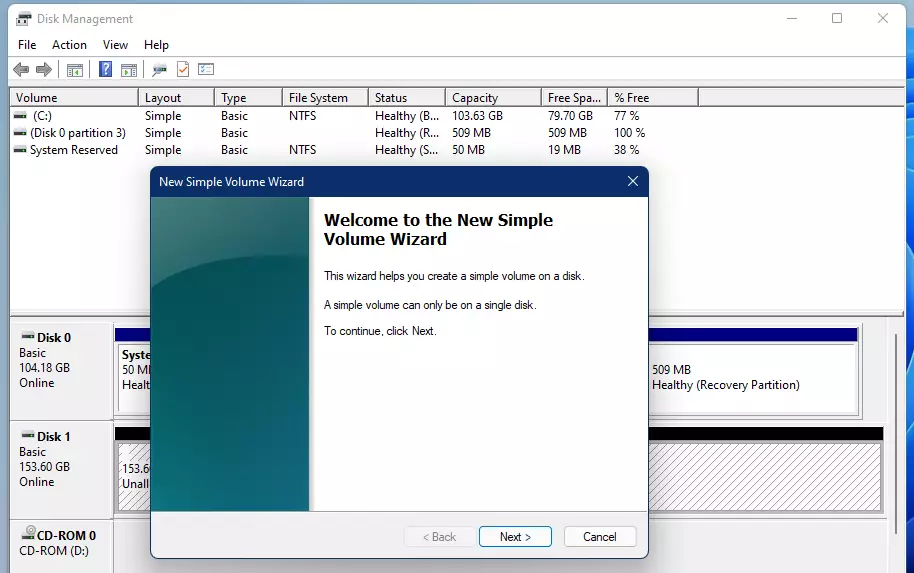
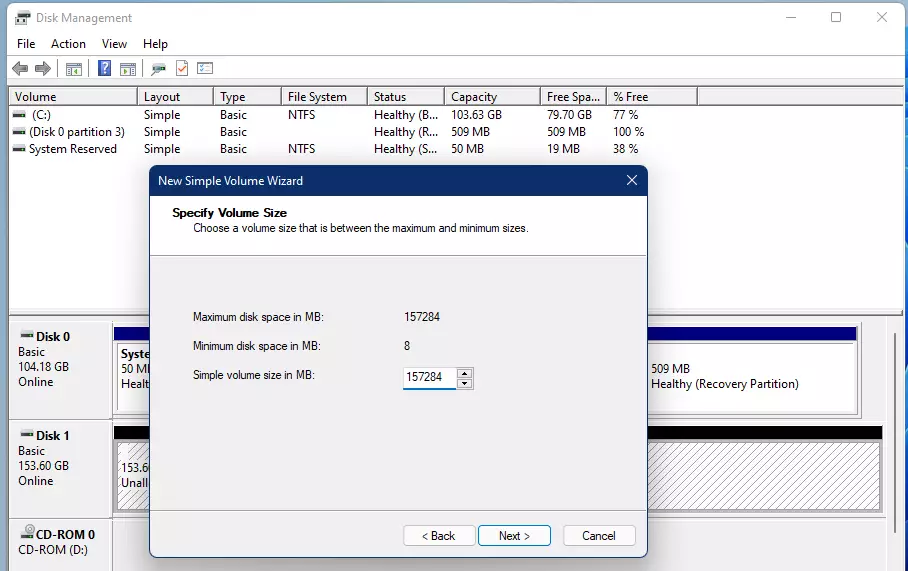
- Choose how big you want the partition to be. The default uses all available space. If you want multiple sections, type a smaller number in MB.
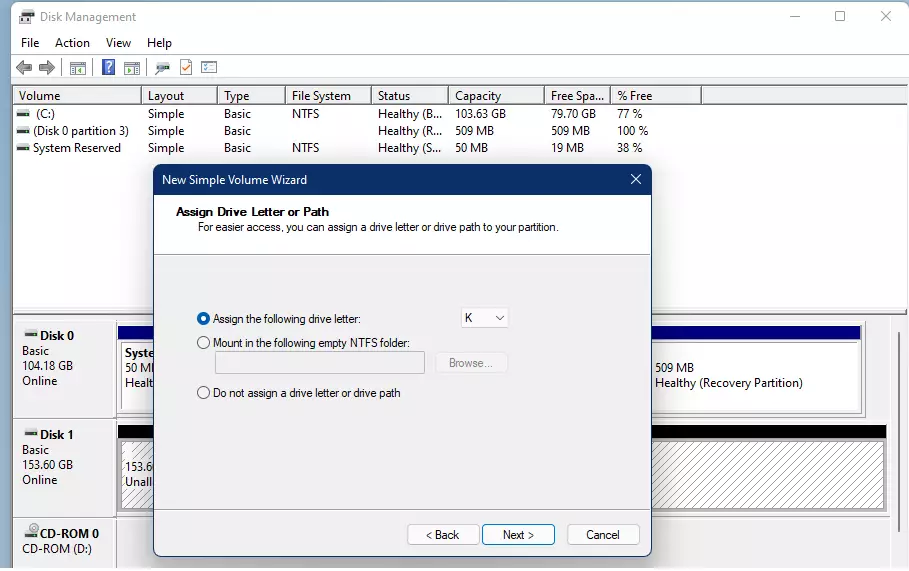
- Pick a drive letter for your new section and click Next.
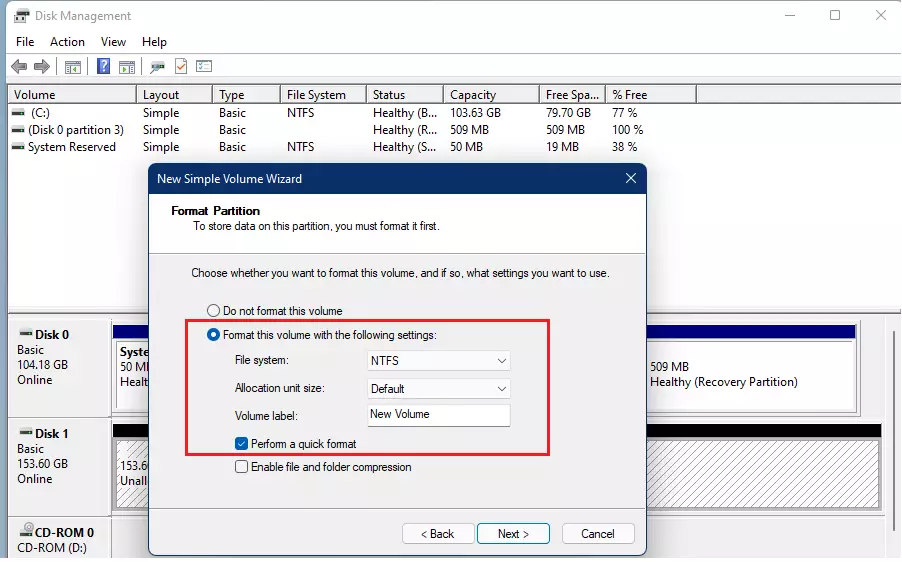
- Make sure the format is set to NTFS for Windows compatibility. You can give the partition a name here if you like. Click Next.
- Click Finish.
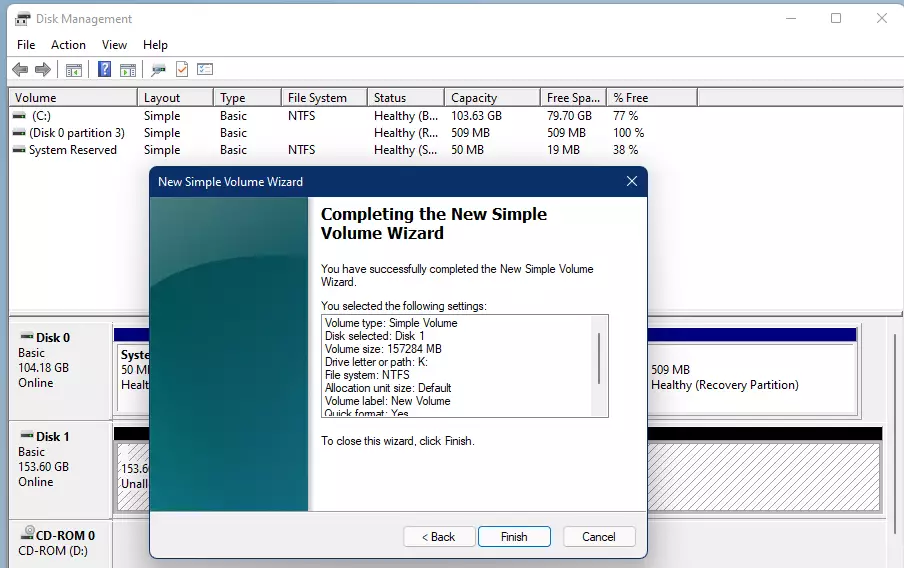
Creating a new simple partition in Windows 11 is straightforward once you’ve opened Disk Management. Right-click on the ‘Unallocated’ space on your drive where you want to add the new section.
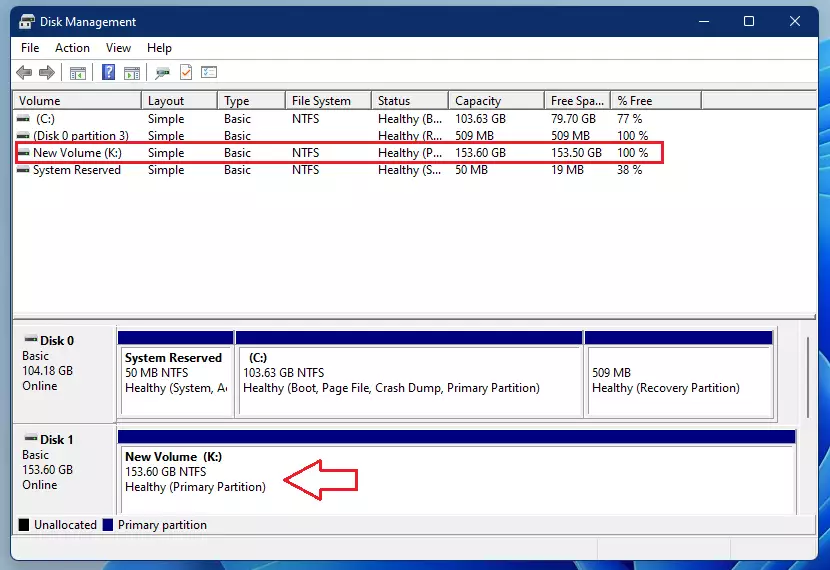
Advanced Disk Management and Troubleshooting
For advanced disk management in Windows 11, the diskpart command-line tool offers more control, and troubleshooting issues like a greyed-out ‘Extend Volume’ option often relates to adjacent unallocated space.
Summary
Partitioning your hard drive in Windows 11 helps organize storage, keeping data safe and systems running efficiently by creating separate areas for files using the Disk Management tool.
Can I partition a drive without formatting?
Yes, you can shrink an existing partition to create unallocated space without formatting the original data. However, creating a new partition from that space requires formatting the new section with a file system like NTFS or exFAT so Windows can store files on it.
What is the difference between shrinking a volume and creating a new one?
Shrinking a volume reduces the size of an existing partition to free up space. Creating a new volume uses that freed-up unallocated space to build a separate, usable drive letter. You must shrink a drive first if you do not have any empty, unallocated space available.
Is it safe to partition my C: drive while Windows is running?
Windows allows you to shrink the C: drive while the system is running. However, you cannot delete or format the partition currently running your operating system. Always ensure you have a full system backup before modifying the system partition to prevent potential boot issues or data loss.
Was this guide helpful?

About the Author
Richard
Tech Writer, IT Professional
Richard, a writer for Geek Rewind, is a tech enthusiast who loves breaking down complex IT topics into simple, easy-to-understand ideas. With years of hands-on experience in system administration and enterprise IT operations, he’s developed a knack for offering practical tips and solutions. Richard aims to make technology more accessible and actionable. He's deeply committed to the Geek Rewind community, always ready to answer questions and engage in discussions.


No comments yet — be the first to share your thoughts!