How to Backup and Restore Device Drivers on Windows 11

Backing up and restoring drivers-in-windows-11/" class="sal-link" rel="noopener" target="_blank" data-sal-id="10774">device drivers on Windows 11 saves you from hardware issues and simplifies system migrations.
Device drivers are the critical software pieces that let Windows 11 interact with your PC’s hardware, like your sound card or network adapter.
Creating a driver backup means you’ll have essential files ready if your current ones get corrupted or when you move to a new PC. This is particularly useful for older hardware where official driver downloads might be scarce.
For instance, you can often export your drivers directly from Device Manager on Windows 11.
What happens when you are done?
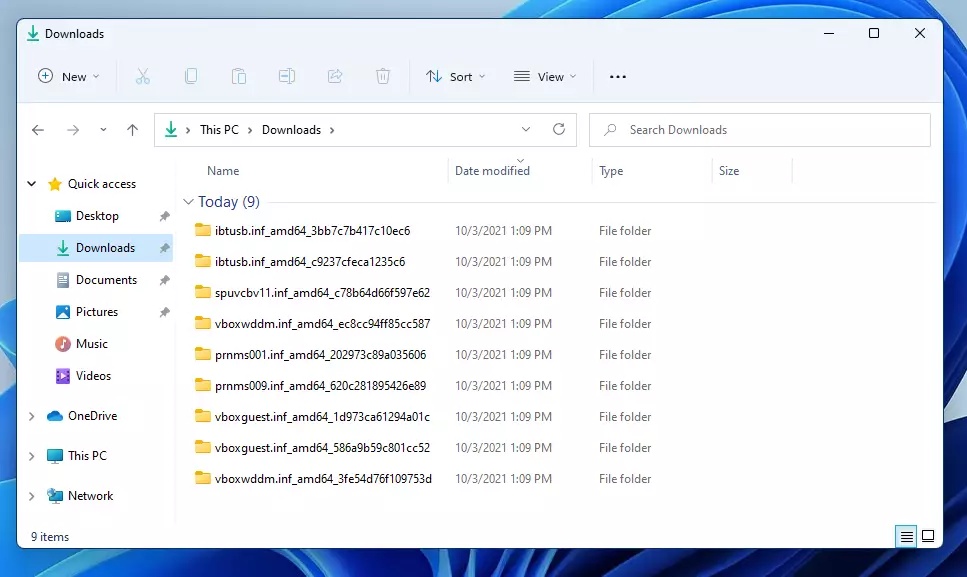
Once you finish these steps, you will have a folder containing all the .inf files and driver packages from your system’s Driver Store. You can store this folder on an external USB drive. When you need to reinstall hardware, you can point Windows to this folder to quickly restore functionality without needing an internet connection.
How to export (backup) your drivers using Pnputil
You can use the built-in Pnputil.exe tool to copy your drivers to a folder. Note: You must have administrator privileges to perform these steps.
1. Click the Start menu and type Command Prompt.
2. Right-click it and choose Run as administrator.
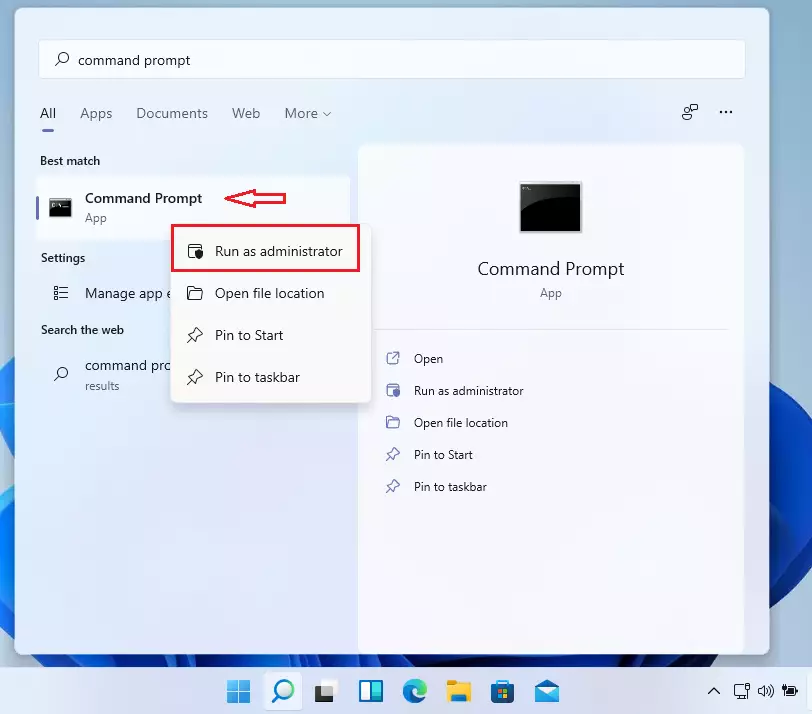
3. Once the window is open, type the following command to save your drivers:
pnputil /export-driver * C:\Drivers\Export
Make sure to replace C:\Drivers\Export with the location where you want your files to go. If you are moving to a new PC, save this to a flash drive.
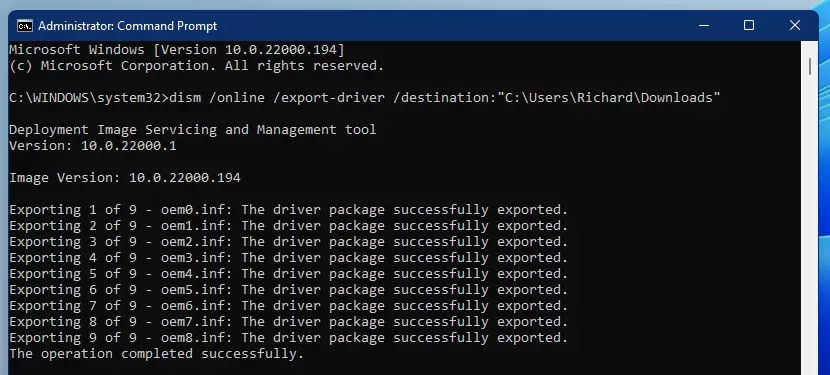
Exporting drivers with PowerShell
If you prefer using PowerShell, run it as an administrator and use the Export-WindowsDriver cmdlet. This is a powerful way to pull drivers from your current system.
Export-WindowsDriver -Online -Destination C:\Drivers\Export
How to restore drivers
When you are ready to put the drivers on a computer, open the Command Prompt as an administrator again. Run this command to install them from your backup folder:
pnputil /add-driver C:\Drivers\Export\*.inf /subdirs /install
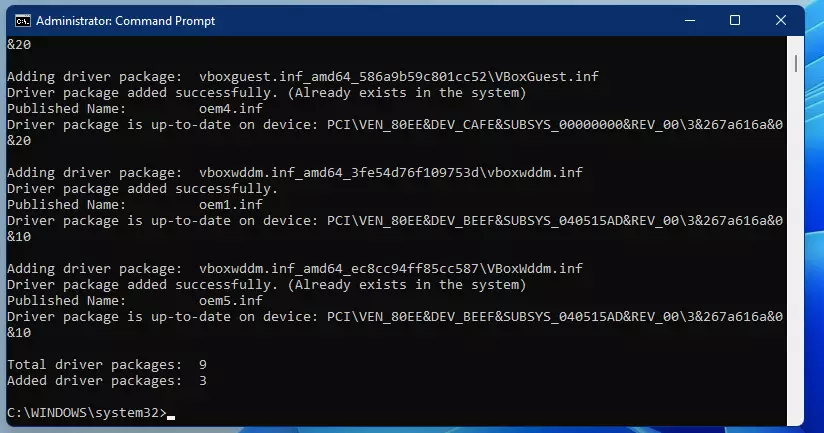
If you only want to install one specific driver instead of all of them, you can use the Windows Device Manager. Learn how to do that here: How to install device drivers on Windows 11
Third-party tools for driver management
If you find command-line tools difficult, you can use third-party software like Driver Store Explorer (RAPR). This tool provides a graphical interface to view, back up, and remove drivers from the Windows Driver Store. It makes managing large numbers of drivers much easier for everyday users.
Summary
Backing up your drivers is a smart way to prepare for a new computer or fix broken hardware. By using the Command Prompt or PowerShell, you can copy all your driver files to a safe location. When you need them, a simple command will put them back onto your system. For more tips on managing your hardware, check out this guide: How to install device drivers on Windows 11
Does 🪟 Windows 11 have a built-in driver backup tool?
Yes, Windows 11 includes built-in tools like Pnputil and PowerShell cmdlets. These allow you to export drivers directly from the Driver Store to a folder of your choice. While there is no simple “one-click” button in the Settings menu, these command-line tools are reliable and require no extra software.
Is it necessary to back up drivers before a Windows update?
It is not strictly necessary, but it is a good safety measure. If a Windows update causes a driver conflict or hardware failure, having a backup allows you to quickly roll back or reinstall the specific version of the driver that you know works correctly with your hardware.
How do I restore drivers if Windows won’t boot?
If Windows will not boot, you can use the Command Prompt from the Advanced Startup Options menu. By accessing the recovery environment, you can use the Pnputil command to point to your backup folder on an external drive and attempt to inject the necessary drivers into the system.
Are driver backups compatible between different hardware?
No, driver backups are hardware-specific. Drivers are designed for specific chipsets and components. If you restore a driver backup from one computer to a machine with different hardware, the drivers will likely fail to install or cause system instability. Always ensure the drivers match your specific hardware configuration.
Was this guide helpful?

About the Author
Richard
Tech Writer, IT Professional
Richard, a writer for Geek Rewind, is a tech enthusiast who loves breaking down complex IT topics into simple, easy-to-understand ideas. With years of hands-on experience in system administration and enterprise IT operations, he’s developed a knack for offering practical tips and solutions. Richard aims to make technology more accessible and actionable. He's deeply committed to the Geek Rewind community, always ready to answer questions and engage in discussions.


No comments yet — be the first to share your thoughts!