How to Restore Default Icons on Windows 11 Desktop

Written by
Richard
Sep 9, 2021
Updated Apr 14, 2026
1 min read
In older versions of Windows, essential icons like Computer, User, and the Control Panel were always on the desktop. In Windows 11, these icons are hidden by default. This guide shows you how to bring them back.
Why do this?
These icons act as shortcuts. They let you reach your files, system settings, and storage drives instantly without digging through menus.
What happens when done?
Once you finish these steps, your chosen icons will appear on your desktop. You can click “This PC” to open your File Explorer system drive(s) or open the Control Panel with one double-click.
To restore these icons, follow these steps:
- Open Settings by pressing the Windows key + I on your keyboard, or click Start and select the Settings gear icon.

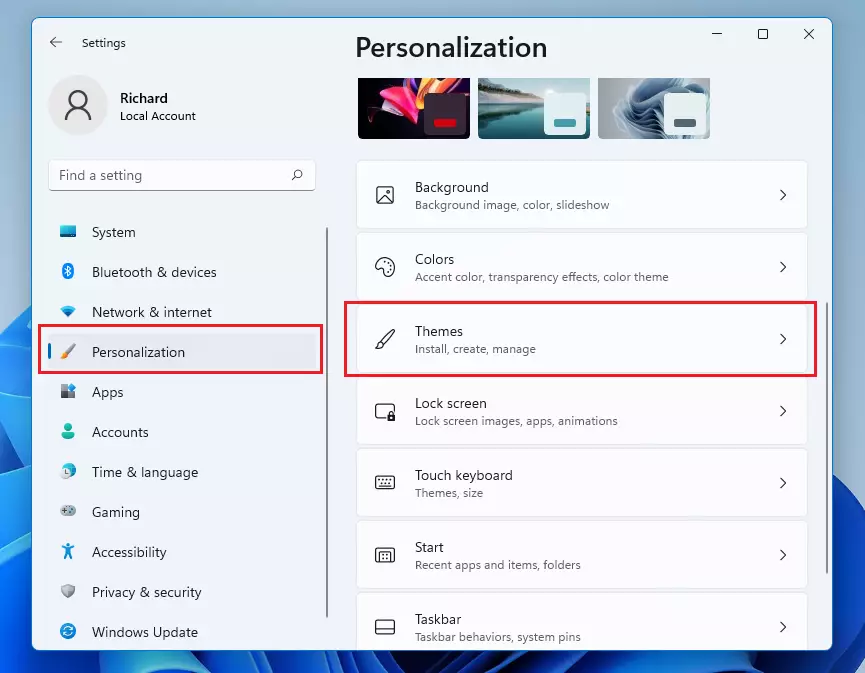
- In the Settings menu, click on Personalization on the left side.
- Select Themes on the right side of your screen.
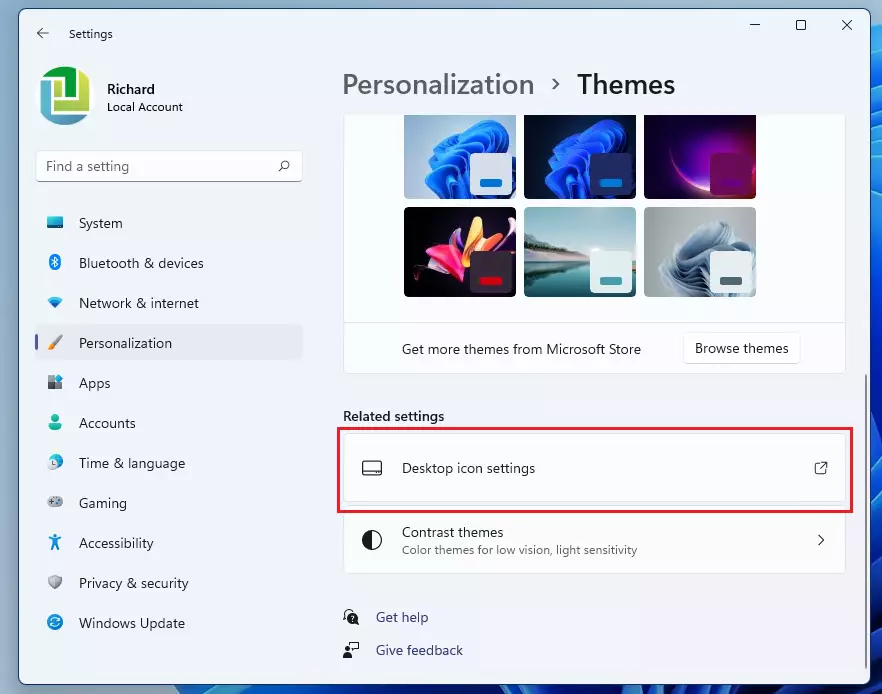
- Scroll down to the Related settings section and click on Desktop icon settings.
- A new window will pop up. Check the boxes for the icons you want to see, such as Computer, User’s Files, Network, Recycle Bin, and Control Panel.
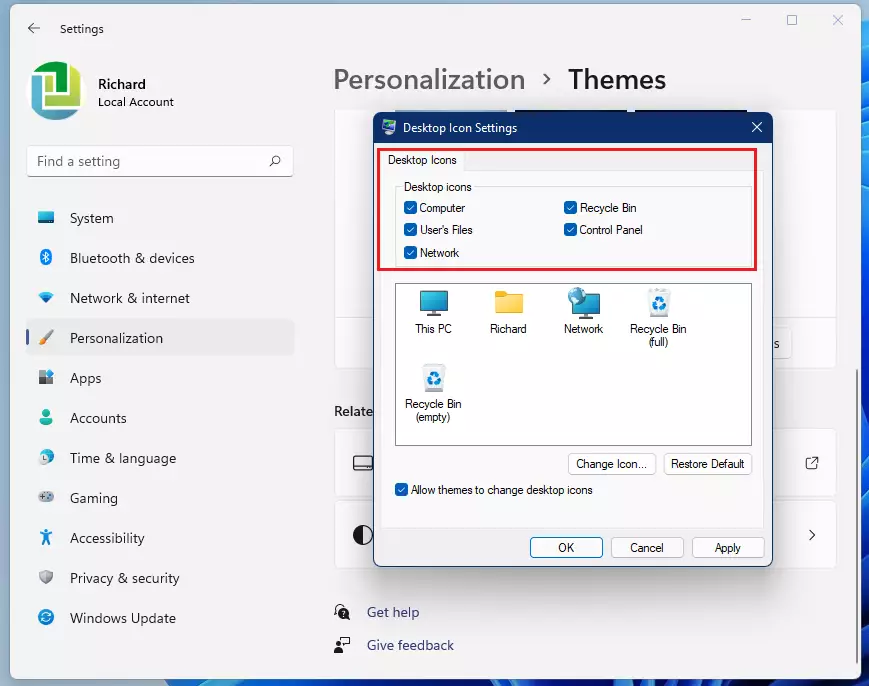
- Click Apply and then OK to save your changes.

You will now see your selected icons on your desktop. If you ever want to hide them again, simply repeat these steps and uncheck the boxes.
Summary
- Quick Access: These icons provide a shortcut to your most-used system tools.
- Better Navigation: You can manage your files and settings much faster.
- Easy Setup: You can turn these icons on or off at any time using the Personalization menu.
Was this guide helpful?





Great article, thank you!
Do you know of a way to clone a desktop for all users on Windows 11? With Windows 10, we could use Export-startLayout -path c:\temp\LayoutModification.xml and the copy that .xml to the c:\users\default\AppData\Local\Microsoft\Windows\Shell. This does not seem to work with Windows 11.
Thank you.