How to Use Periods in Windows 11 Date Formats

Windows 11 usually shows dates with slashes, like 9/8/21. You can change this to use periods if you prefer. This guide shows you how to make your dates look exactly how you want them.
Why Change Your Date Format?
Many users prefer using periods instead of slashes for their Windows 11 date format. It often aligns better with regional standards or personal readability preferences. Changing this setting allows you to customize your system clock and date display to match your specific workflow.
What happens when you are done?
Once you finish these steps, your taskbar clock and system applications will update to show your new date format. This change is global for your user profile, meaning most apps that pull system time will adopt the new style immediately.
Method 1: Using Windows Settings
To start, open your System Settings. Press the Windows key + I on your keyboard, or click Start > Settings.

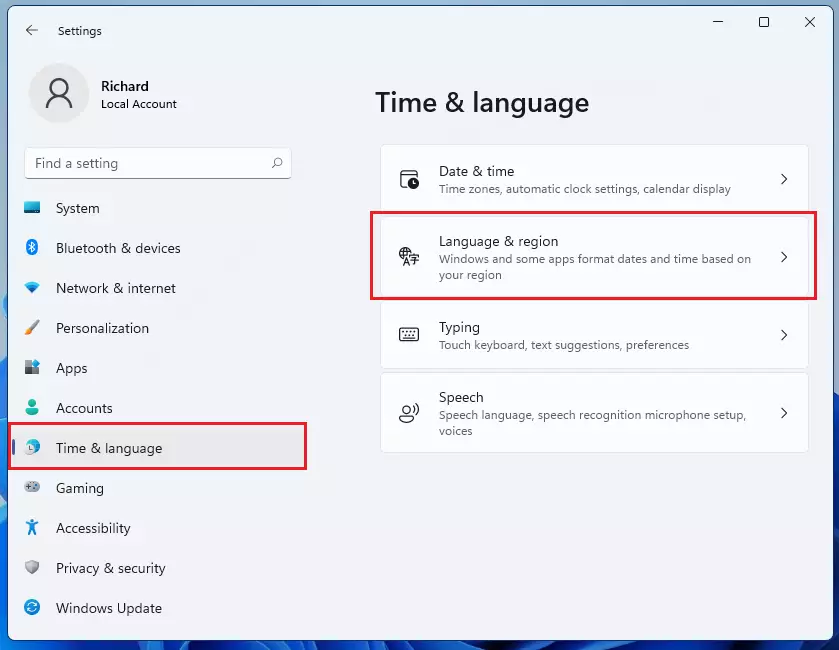
Inside the Settings menu, click Time & Language on the left. Then, select Language & Region on the right side of your screen.
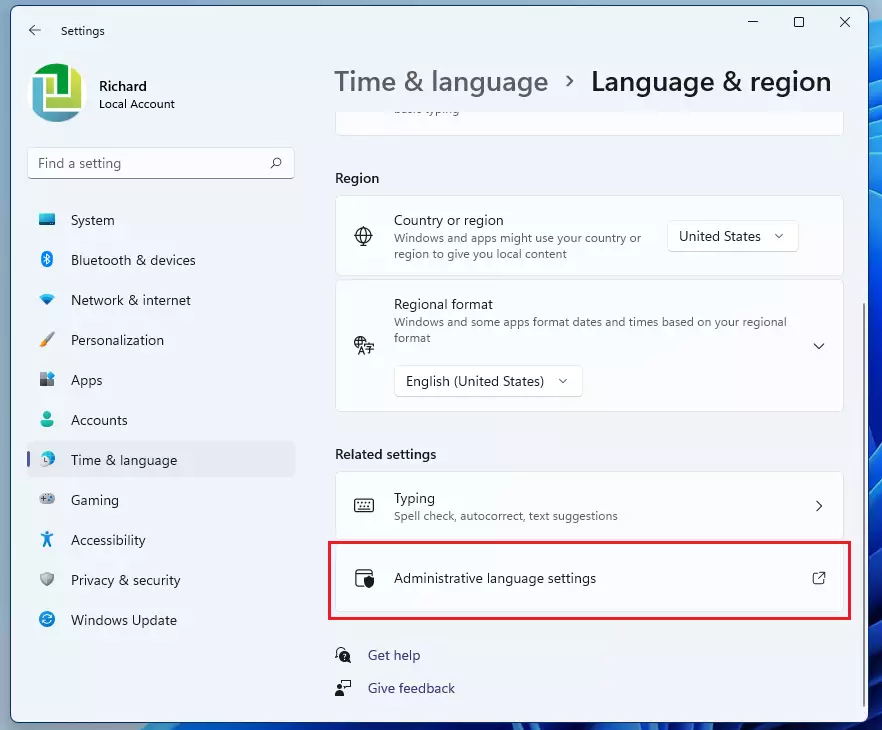
Scroll down to the “Related settings” section and click Administrative language settings. Note: This step may require administrator privileges.
A new box called Region will pop up. Click the Formats tab. Because the default options do not include periods, we will need to type the format in manually.
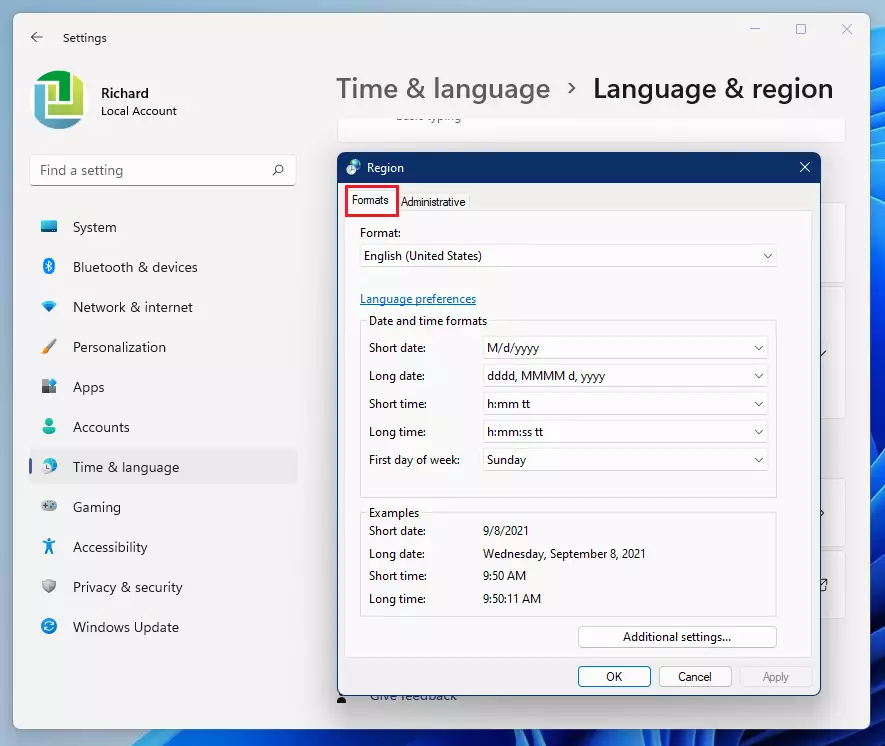
Click the Additional settings button at the bottom of the window.
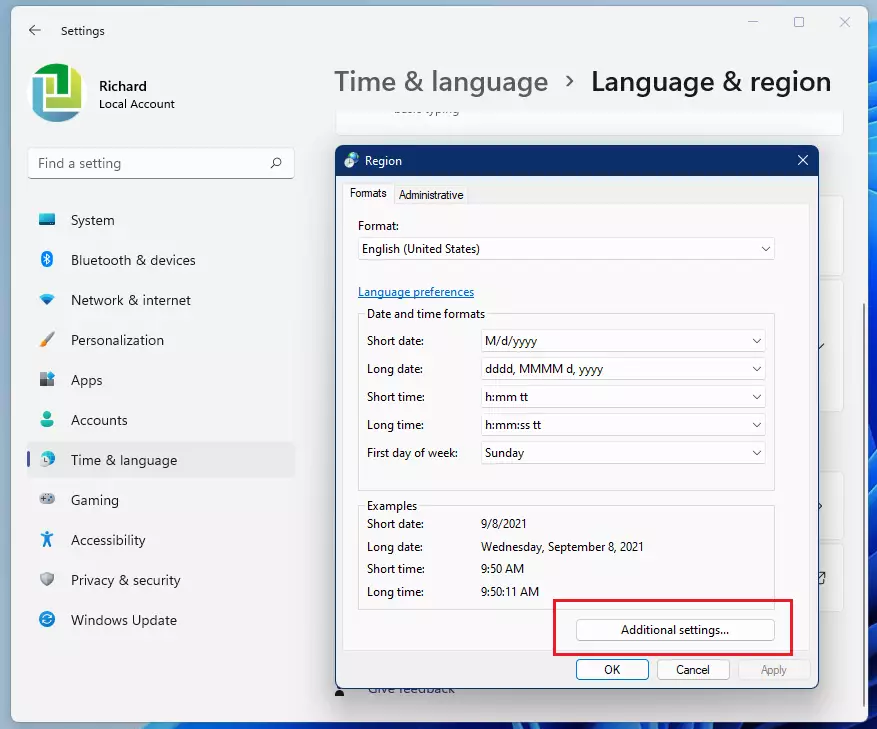
A new box named Customize Format will appear. Click the Date tab at the top.
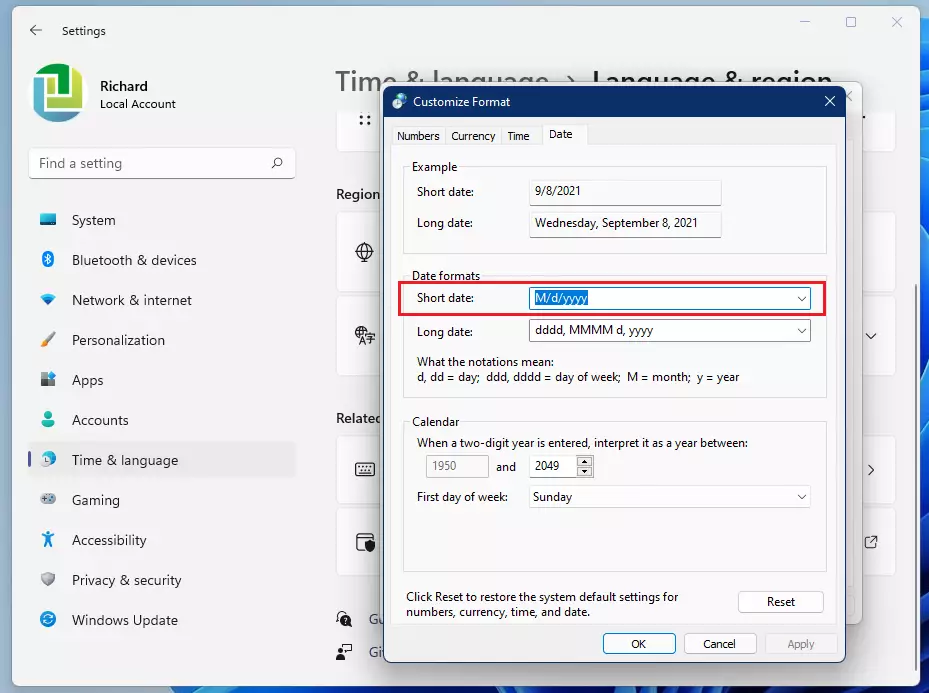
Look for the Short date box. Change the slashes to periods, for example: dd.MM.yyyy. Click Apply to see a preview.
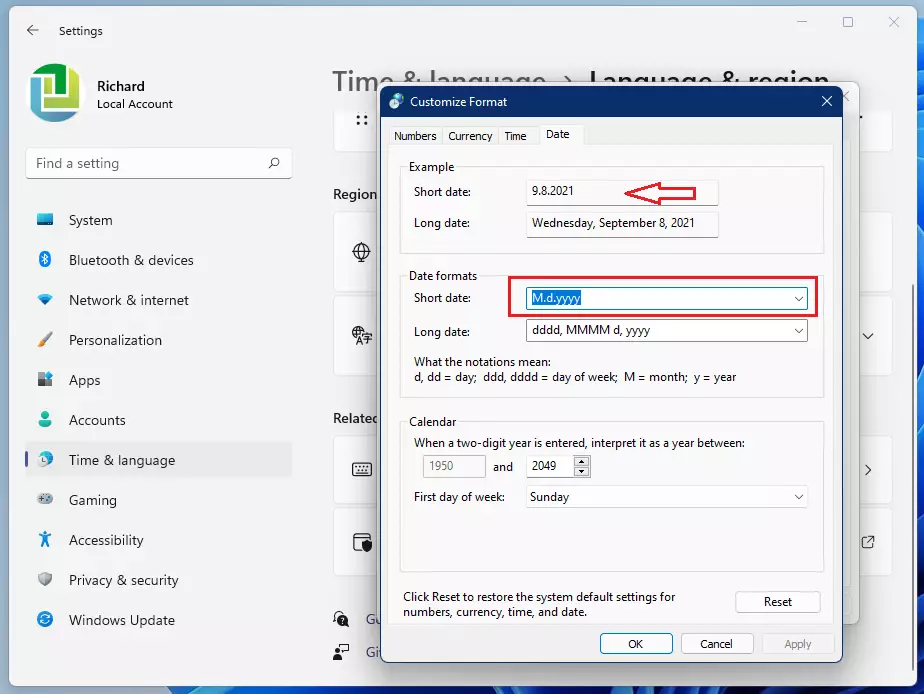
You can also change the Short time format if you wish. Once you are happy with the changes, click OK to save your settings and close the windows.

Method 2: Using Control Panel
You can also access these settings via the classic Control Panel. Press the Windows key, type Control Panel, and press Enter. Navigate to Clock and Region > Region. This opens the same Region dialog box used in Method 1, allowing you to modify the Short date format directly.
Method 3: Using Registry Editor
Warning: This step requires administrator privileges and should be done carefully. Press Windows + R, type regedit, and press Enter. Navigate to HKEY_CURRENT_USER\Control Panel\International. Locate the sShortDate string value. Double-click it and change the value to dd.MM.yyyy. Restart your computer for changes to take effect.
Method 4: Using PowerShell
This step requires administrator privileges. Open PowerShell as an administrator. Run the following command to update your date format:
Set-ItemProperty -Path "HKCU:\Control Panel\International" -Name "sShortDate" -Value "dd.MM.yyyy"
This updates the registry key directly and is a quick way for IT admins to apply changes across multiple machines.
How to Revert to Default Settings
If you want to go back to the original format, return to the Region > Additional settings > Date tab. Click the Reset button at the bottom of the window. This will restore the default Windows date format for your region.
Summary
Customizing your Windows 11 date format is a simple way to make your computer feel more personal. Whether you use the Settings menu, Control Panel, or advanced tools like Registry Editor and PowerShell, you can easily swap slashes for periods. Always remember that system-wide changes may require administrator privileges and could be overridden by enterprise policies.
Why does my date format keep reverting to default?
This usually happens if your computer is managed by an organization using Group Policy. If your IT department enforces specific regional settings, those policies will override your manual changes every time you sign in or restart your computer. Contact your system administrator to request a change.
Does changing the date format affect system logs or file timestamps?
No. Changing the display format only changes how the date appears to you on your screen. The underlying system logs, file creation dates, and database timestamps remain stored in a standard machine-readable format. Your data remains safe and accurate regardless of how you choose to view it.
Was this guide helpful?




[…] How to change dates and times in Windows 11 […]
[…] post describes the steps to change the date format in Windows […]
[…] How to change the date format in Windows 11 […]