How to Turn Contrast Themes On or Off in Windows 11

High contrast themes in Windows 11 make your screen easier to see by changing text and background colors.
These themes provide increased visual distinction, which is incredibly helpful for reducing eye strain and accommodating users with vision impairments or certain types of color blindness.
For example, the “High Contrast Black” theme uses white text on a black background, a popular choice for many users. You can easily enable, disable, and customize these themes directly within Windows 11’s Accessibility settings.
Ready to make your screen easier on your eyes? Windows 11 makes this possible. Here’s how to turn these helpful themes on and off.
Step 1Open the Settings App
First, you need to open Windows 11’s settings. Click the Start button, which looks like the Windows logo, usually in the middle of your taskbar. When the Start menu opens, find and click the Settings icon. It looks like a gear.
Pro Tip: You can also press the Windows key + I keys on your keyboard at the same time. This opens the Settings app right away.
Step 2Go to Accessibility Settings
In the Settings app, look at the list on the left side. Click on Accessibility. This section contains tools designed to make Windows easier for everyone to use.
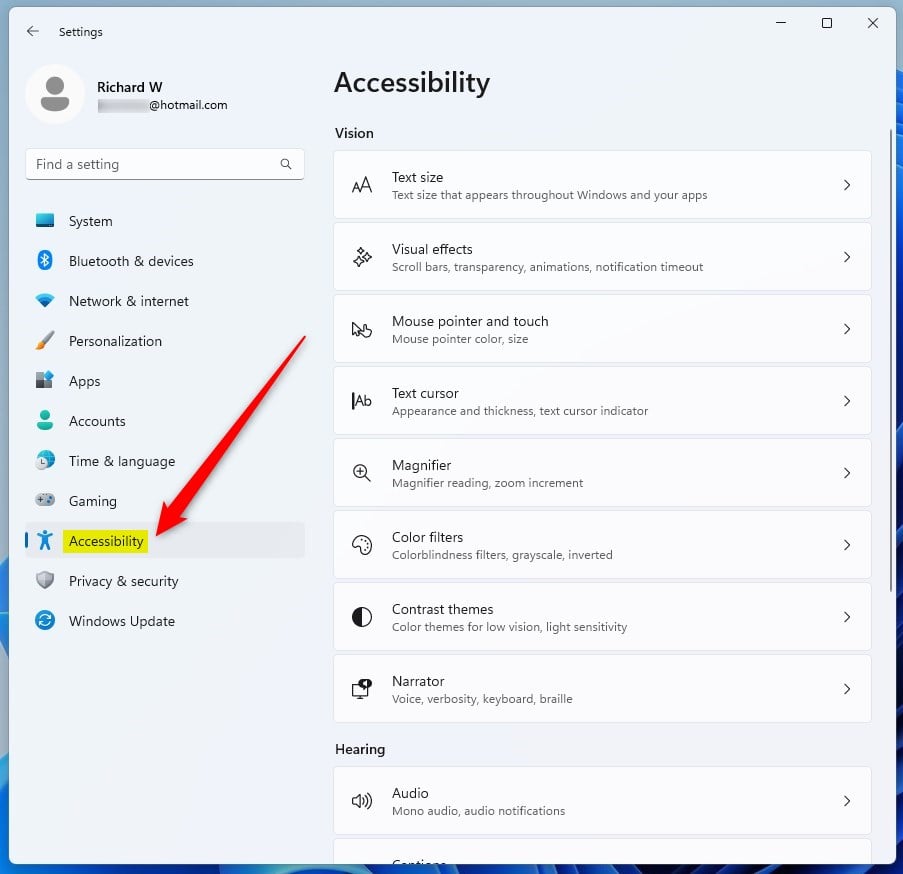
Note: In older Windows versions, this was called “Ease of Access.” Windows 11 just calls it “Accessibility.”
Step 3Find Contrast Themes
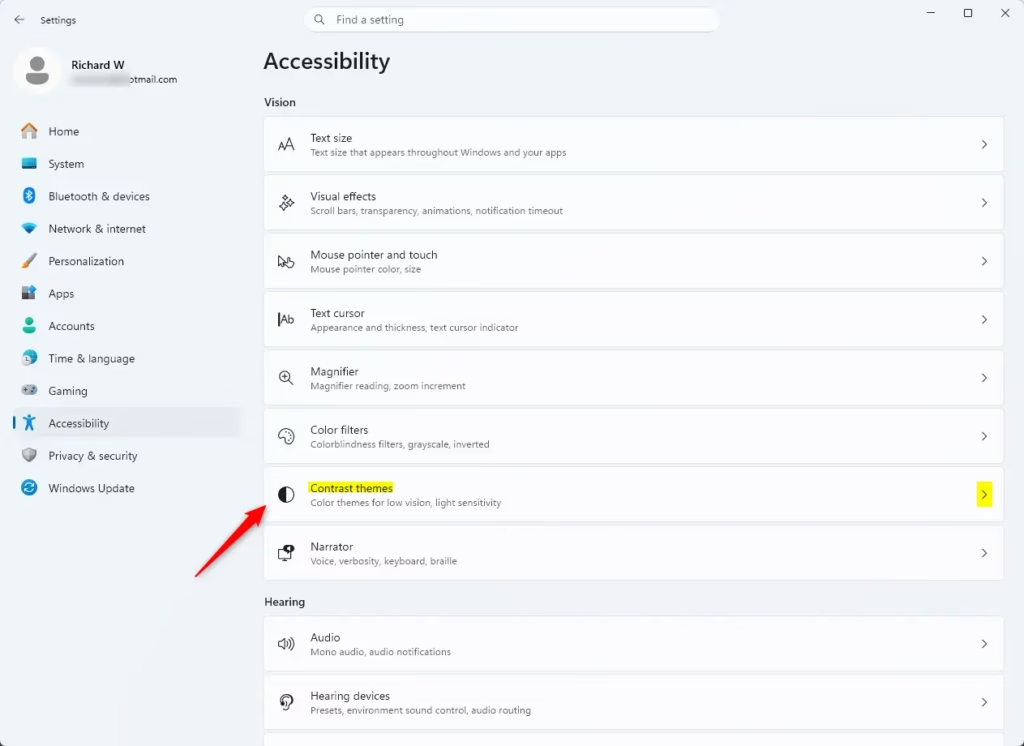
Now, on the right side of the Accessibility settings, scroll down. Look for a section about how things look. Find and click on Contrast themes.
Step 4Choose and Apply a Contrast Theme
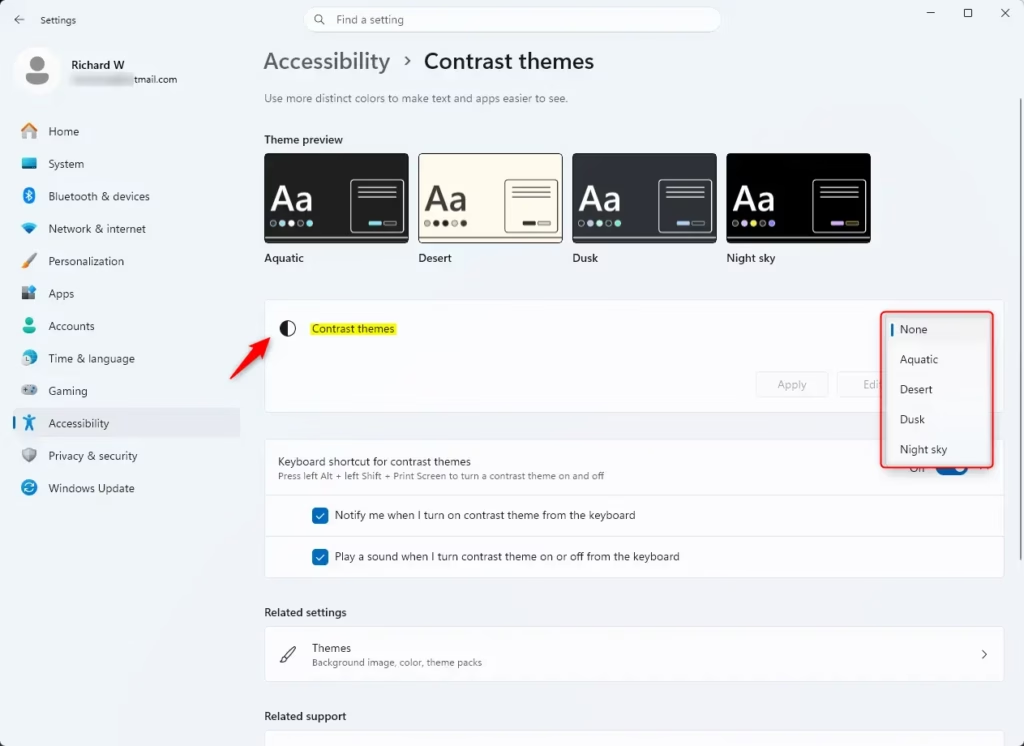
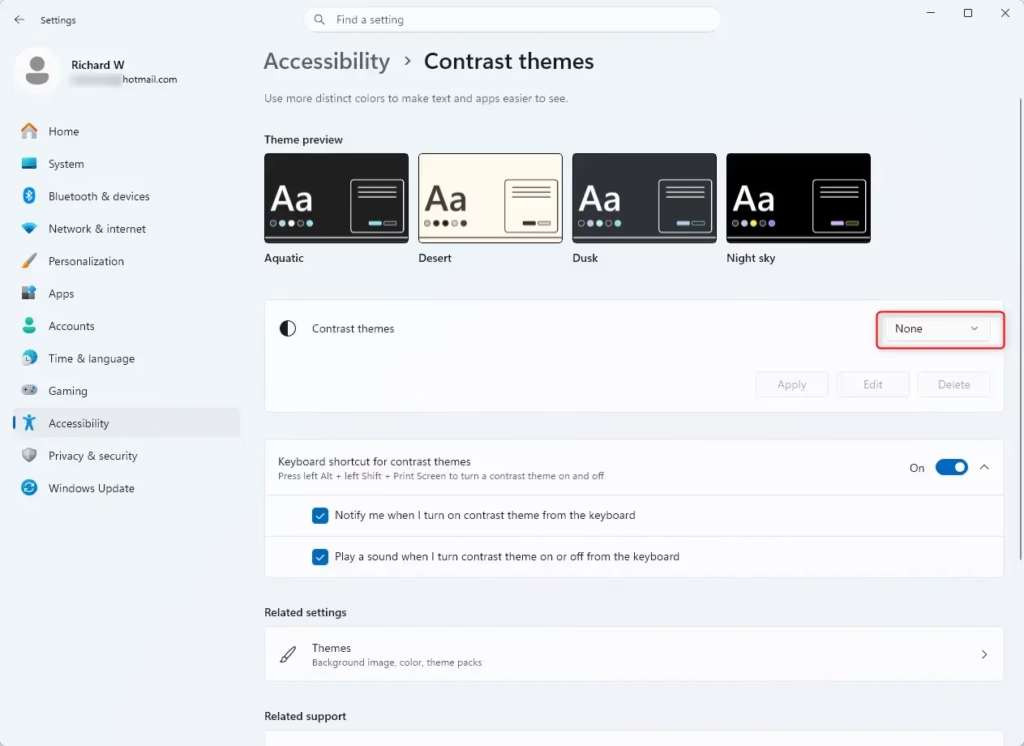
This is where you make the change! You’ll see a dropdown menu called Contrast themes. Click it. You’ll see a few options like “Aquatic,” “Dusk,” “High Contrast Black,” and “High Contrast White.”
Pick the theme that looks best to you, then click the Apply button. It’s usually right below the dropdown menu.
What Happens: After you click Apply, you might see a “Please wait” message for a few seconds. This is normal. Windows is just changing the colors. Your screen might flicker a bit; that’s okay. It’s just applying the new look.
Try This: Play around with the different themes! “High Contrast Black” is popular. It uses white text on a black background. “High Contrast White” is the opposite. “Aquatic” and “Dusk” have colors but still offer high contrast. See which one feels best for your eyes.
How to Turn Contrast Themes Off
To go back to your normal colors, it’s just as simple. Follow steps 1 through 3 again to reach the Contrast themes settings.
This time, click the Contrast themes dropdown menu. Select the first option, which is None. This tells Windows to use its normal colors again.
Click the Apply button. Like before, you might see the “Please wait” screen. Once it’s gone, your screen will be back to its original colors.
The Super-Fast Shortcut
Here’s a really useful trick that saves you a lot of clicking! If you switch between high contrast and normal colors often, this shortcut is a lifesaver.
Press and hold the left Alt key. Then, press and hold the left Shift key. Finally, tap the Print screen key (it might say PrtScn, Print Scr, or something similar on your keyboard).
Release all the keys.
What Happens: If high contrast is off, this shortcut will turn it on and use the last theme you picked. If high contrast is already on, this shortcut will turn it off and go back to your normal colors.
Important: This shortcut just turns high contrast on or off. It switches between your normal look and the last high contrast theme you used. It doesn’t go through all the different high contrast options. For that, you still need to use the Settings app.
Summary
You’ve learned how to turn Windows 11’s high contrast themes on and off. These themes can make your screen much easier to read and reduce eye strain. You can pick from different pre-set themes or turn them off to go back to your normal colors. There’s even a quick keyboard shortcut to toggle them on and off.
Was this guide helpful?

About the Author
Richard
Tech Writer, IT Professional
Richard, a writer for Geek Rewind, is a tech enthusiast who loves breaking down complex IT topics into simple, easy-to-understand ideas. With years of hands-on experience in system administration and enterprise IT operations, he’s developed a knack for offering practical tips and solutions. Richard aims to make technology more accessible and actionable. He's deeply committed to the Geek Rewind community, always ready to answer questions and engage in discussions.



[…] default, Page colors are applied to web pages only when you also use a Windows High Contrast theme. However, if you want to apply Page colors on all web pages, disable the “Only apply […]
[…] on a theme under My Themes, Windows Default Themes, or High Contrast Themes to apply […]