How to Move User Folders in Windows 11

You can move your user folders like Documents, Pictures, and Videos to another drive in Windows 11.
Relocating these important libraries prevents your primary C: drive from filling up, which directly impacts your PC’s performance and ability to install updates or new applications.
By default, Windows 11 saves your user profile data within 📁C:\Users\YourUsername. When this C: drive space dwindles, your system can significantly slow down.
Moving these folders, especially large ones, to a secondary drive with more capacity is a smart way to maintain your C: drive’s efficiency. After the move, Windows seamlessly redirects all new files to your chosen location.
Right-click a user folder in File Explorer, select Properties, go to the Location tab, and click Move. Choose a new destination folder on another drive and confirm the file transfer to relocate your user data.
How to move user folders in 🪟 Windows 11
You can move common folders like Documents, Downloads, Pictures, Music, Videos, and Desktop in Windows 11 using File Explorer to save space on your main drive, which is a common task when you need to move user folders in Windows 11.
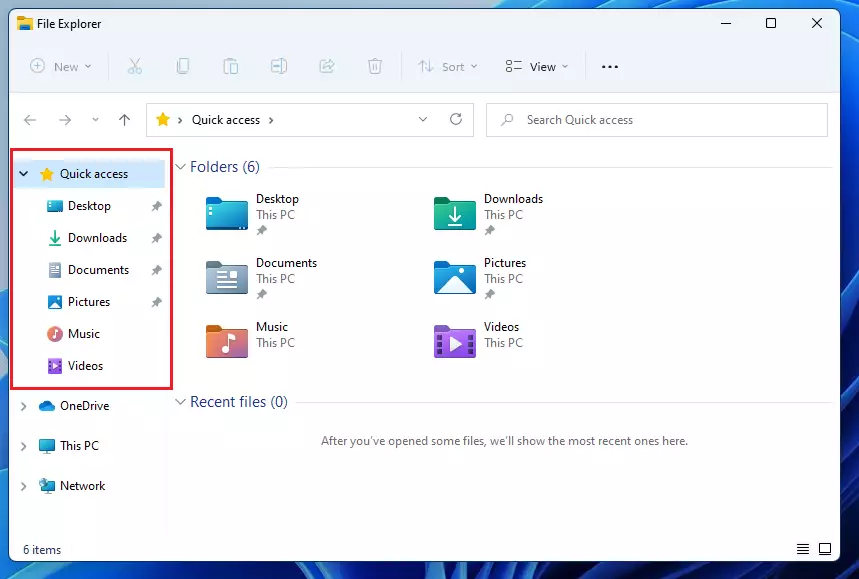
1. Open File Explorer and look at the folders under “This PC” or “Quick Access.”
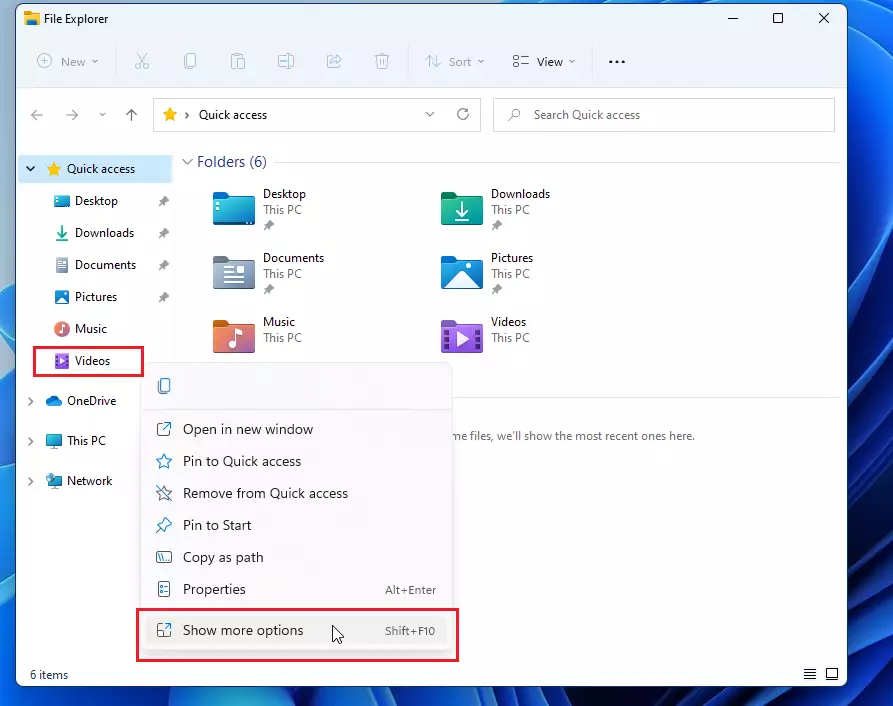
2. Right-click the folder you want to move, like your Videos folder, and then select ‘Show more options.’
3. Click Properties from the menu.
4. Go to the Location tab. You’ll see the current location, like 📁C:\Users\Username\Videos.
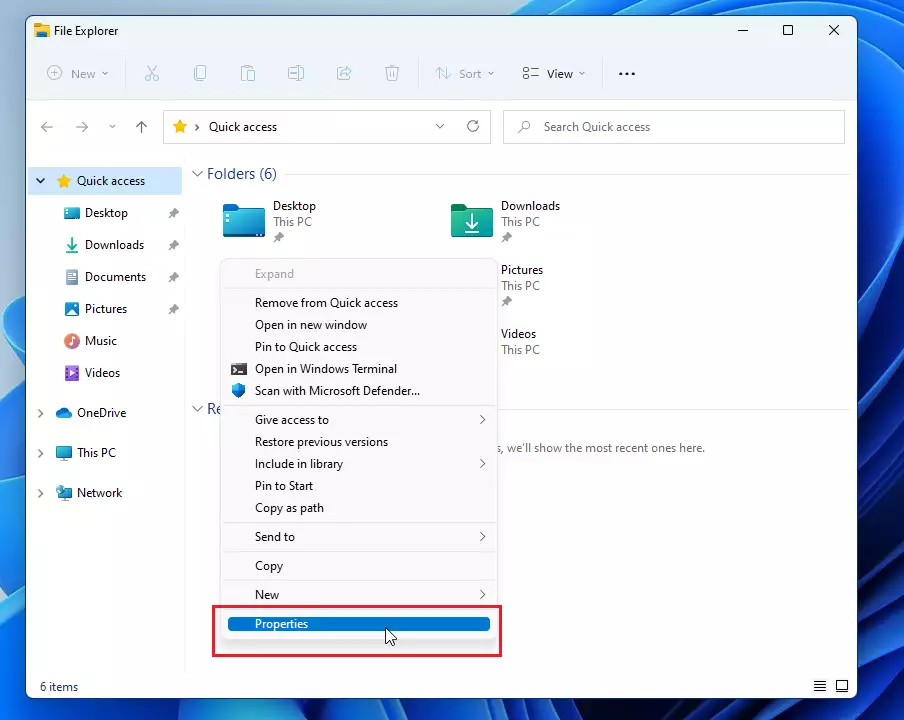
5. Click the Move… button.
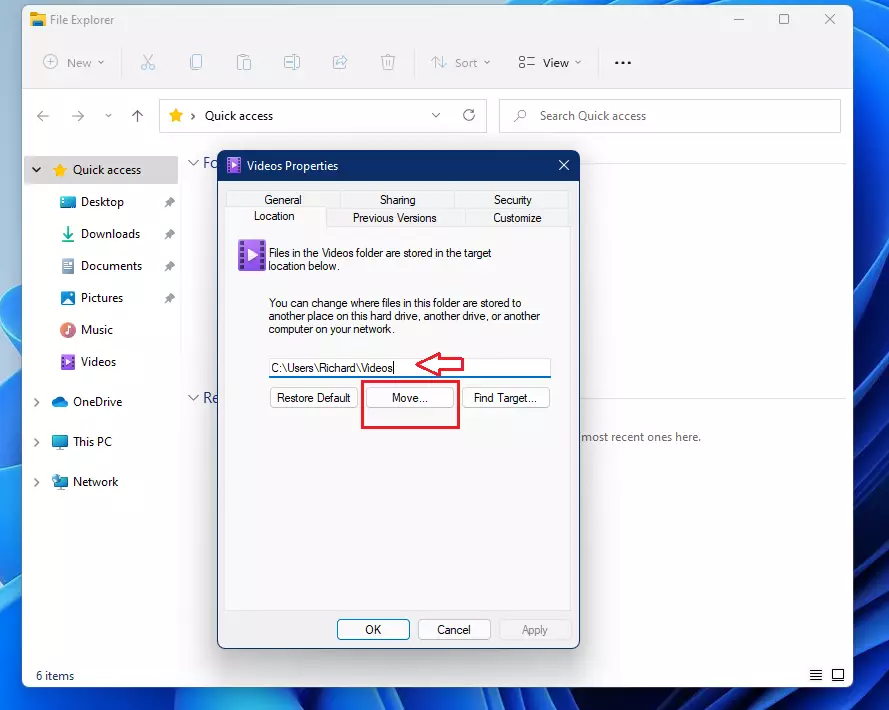
6. Find and select the new folder on your other drive where you want to store your files (e.g., 📁E:\NewFolder\Videos).
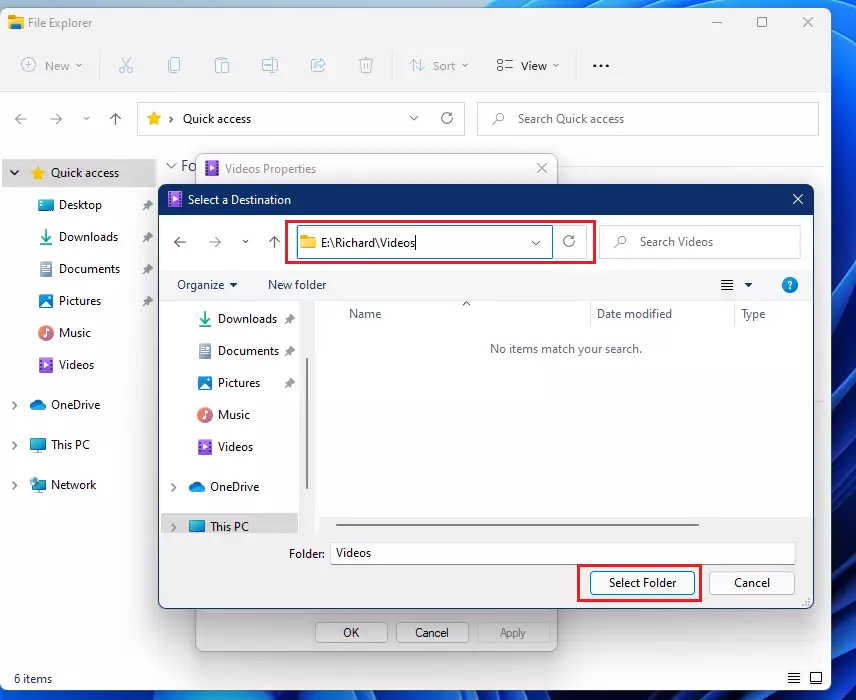
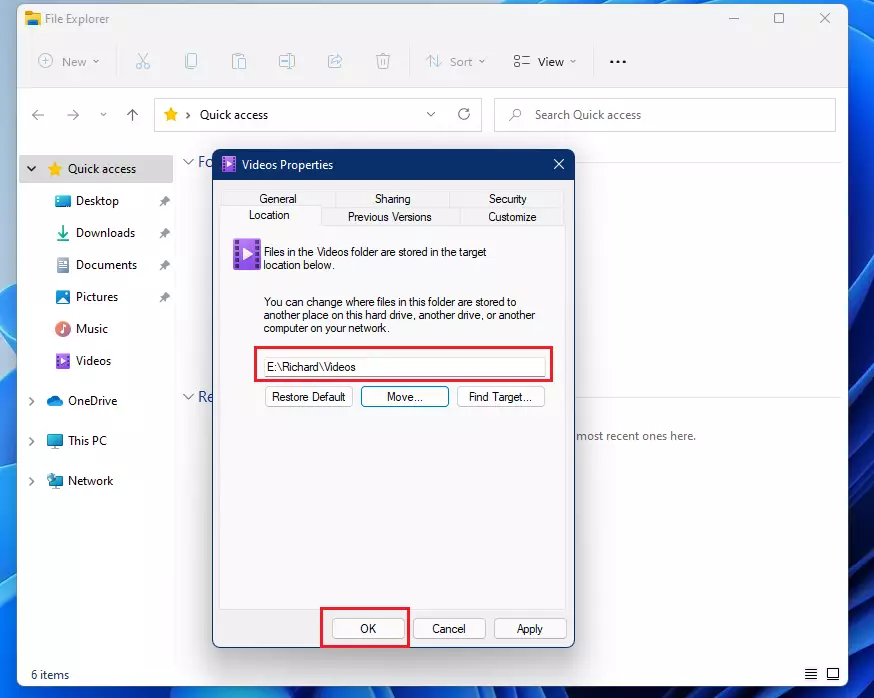
7. Click Select Folder, then click OK.
8. Windows will ask if you want to move all files to the new location. Click Yes to confirm.
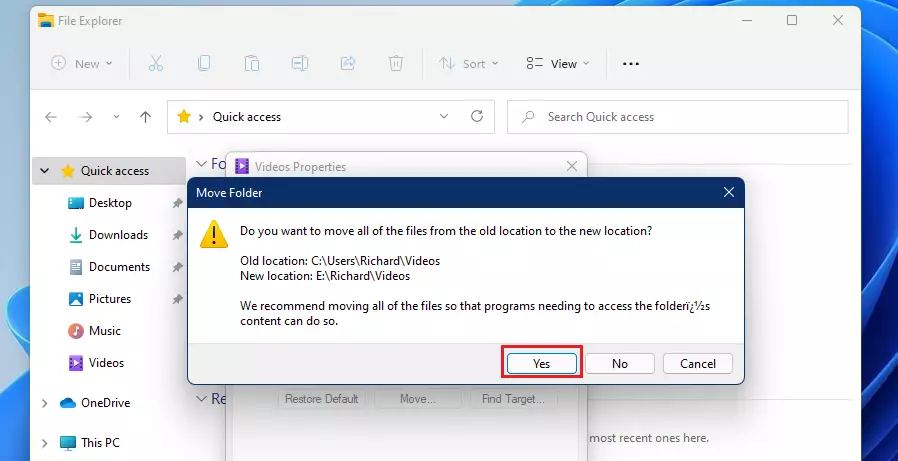
Windows will now transfer your files. Depending on how many files you have, this might take a few minutes. Once finished, your computer will automatically use the new location for that folder.
Summary
- Moving folders helps free up space on your main C: drive.
- Use the Properties menu in File Explorer to change a folder’s Location.
- This process is safe and keeps your files organized while improving system performance.
Moving your user folders in Windows 11 is a smart way to free up space on your C: drive, keeping your system running smoothly and your files organized.
Was this guide helpful?

About the Author
Richard
Tech Writer, IT Professional
Richard, a writer for Geek Rewind, is a tech enthusiast who loves breaking down complex IT topics into simple, easy-to-understand ideas. With years of hands-on experience in system administration and enterprise IT operations, he’s developed a knack for offering practical tips and solutions. Richard aims to make technology more accessible and actionable. He's deeply committed to the Geek Rewind community, always ready to answer questions and engage in discussions.




I think it wouilde be better to move this text;
“To move the Video folder, right click on the Videos folder and select Properties”
from above the first screenshot, to under this screenshot.
*would*
BTW: I just select all iconed folders and use Ctrl+x (cut) & Ctrl+v (paste).
This way Windows remembers the permanent move of these locations.
doesn’t. work.
System complains about system folders not being able to be moved.
I get this response: Can’t move the folder because there is a folder in the same location that can’t be redirected. Access is denied.
Though the drive is empty and has been partitioned, formatted, and all that by windows.
Try a full RESTART. Shutdown no longer does a complete and proper shutdown, writing all the system changes and reinitializing everything.
It’s because “quick start” or “fast startup,” or whatever it’s called, is active. You can turn it off, but expect the first bootup from scratch to be a bit slower because it actually cleans up and restarts everything. A bit slower startup is well worth it to me to avoid taking the chance of a muddled-up, confused system.
Whenever you make system changes, especially something major, like relocating system folders, a restart is a good idea. Otherwise, I can see how the OS can become quite muddled after awhile.