How to Enable or Disable Suggested People in Outlook

This article explains how to enable or disable suggested people in the new Outlook app for Windows 11.
The new Outlook app for Windows 11 is a redesigned and updated version of the popular email and calendar management software. It features a modern user interface and includes new functionalities that make managing your emails and appointments easier.
When you start typing someone’s name in Outlook, two types of suggestions will appear: Basic suggestions and Expanded suggestions.
Basic suggestions include individuals within our organization and personal contacts. Expanded suggestions consist of those with whom you have interacted.
The new Outlook allows users to enable or disable suggested contacts—those you have reached out to or encountered when typing a name.
When this feature is disabled, you’ll still see suggestions for people, but these will exclude anyone you’ve interacted with previously.
Enable or disable suggested people in Outlook
As mentioned, users can turn the “Suggested people” feature on or off in the new Outlook app.
Here’s how to do it.
First, open the Outlook app by clicking on its icon in the Start menu or searching for it in the taskbar search box.

Once Outlook is open, click on the Settings gear icon at the top right of the menu bar.

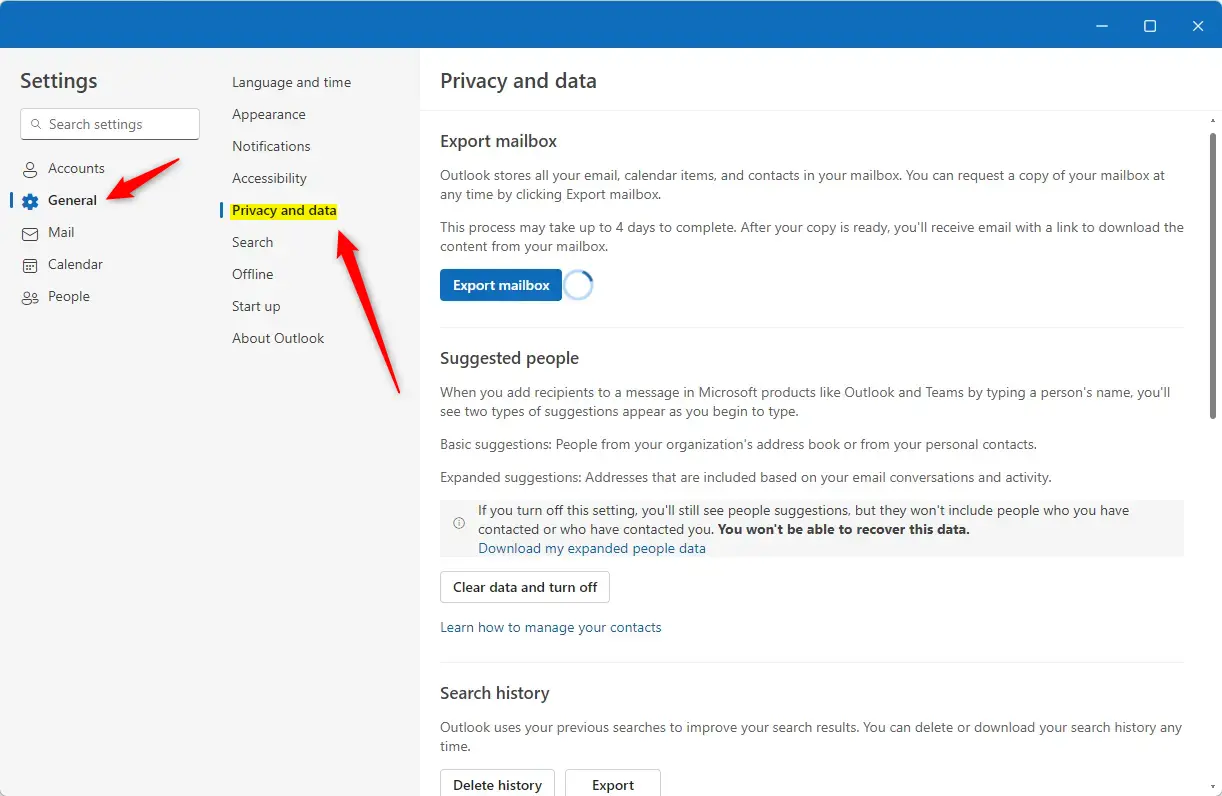
In the Settings sidebar, click “General” to open a sub-menu, then select “Privacy and data” to open the settings.
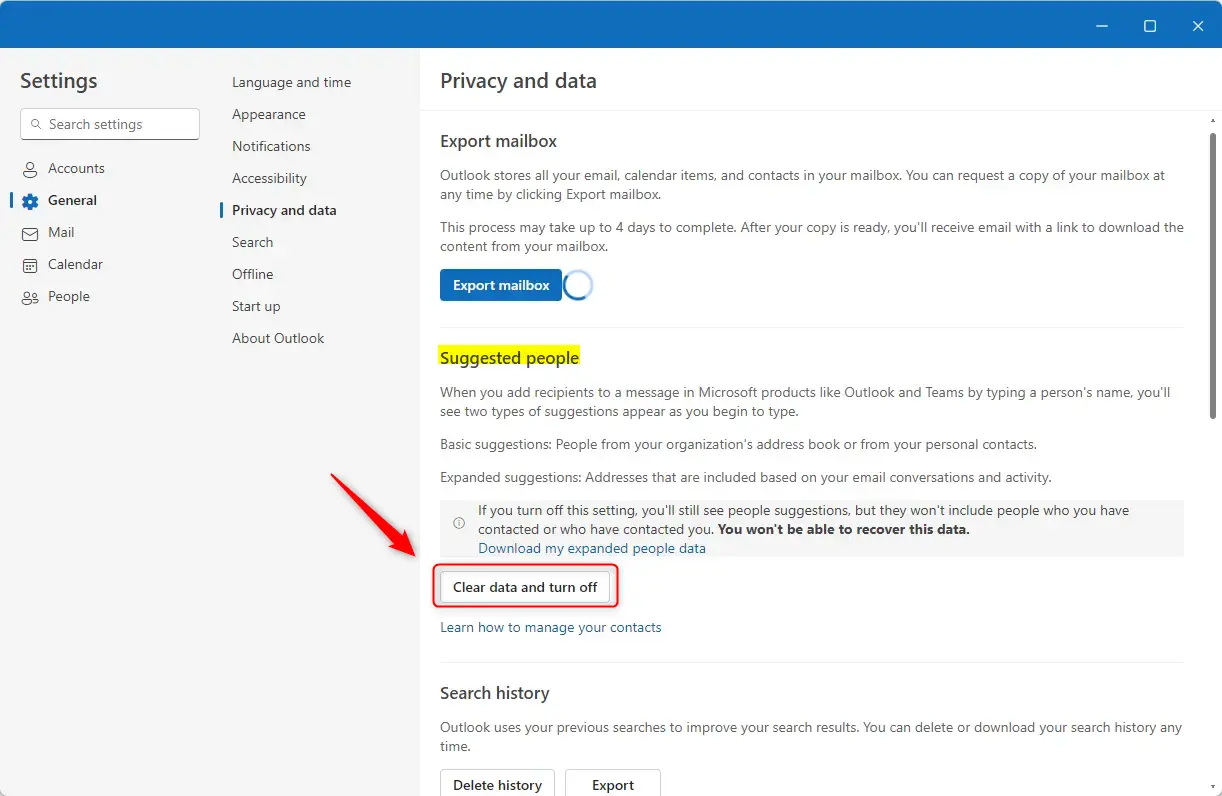
Under the “Suggested people” section, click the “Clear data and turn off” button to disable this feature.
Click the Save button after making your changes and exit.
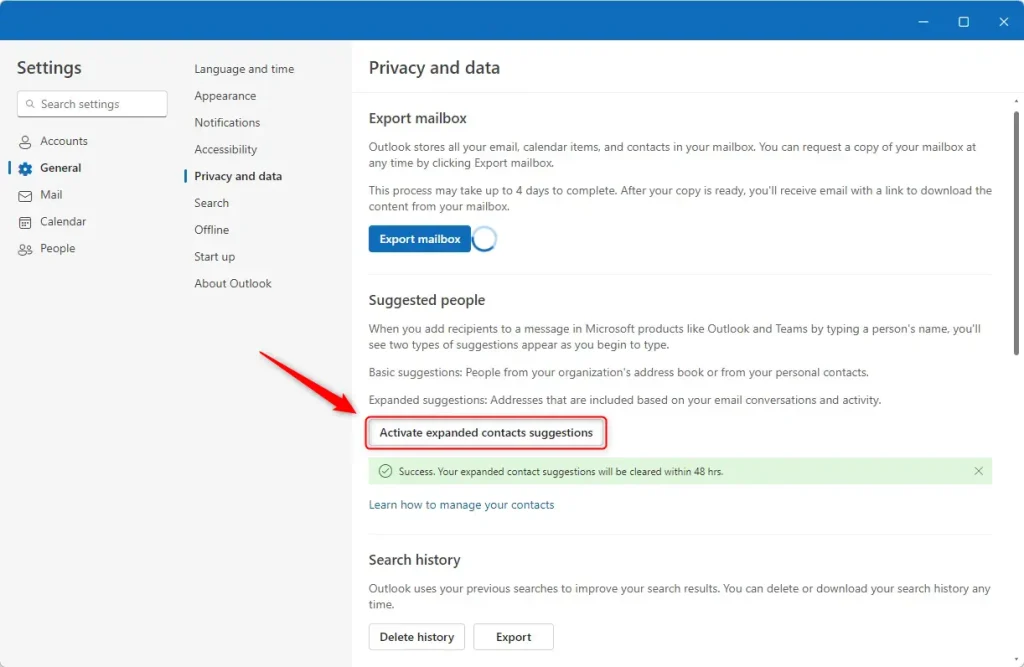
If this feature is off, click the “Activate expanded contacts suggestions” to enable it.
That should do it!
Conclusion:
- The new Outlook app for Windows 11 enhances user experience with features like suggested people.
- Users can easily enable or disable the suggested people feature to customize their interaction.
- Accessing the settings is straightforward, ensuring a user-friendly approach to managing privacy.
- The ability to clear data and activate suggestions provides flexibility in how users handle their contacts.
- The Outlook app offers robust functionalities for efficient email and calendar management.
Frequently Asked Questions
How do I enable suggested people in Outlook?
What are the types of suggestions in Outlook?
Can I disable suggested people in Outlook?
What happens when I disable suggested people in Outlook?
Is it easy to access the settings for suggested people in Outlook?
Was this guide helpful?
0% of readers found this helpful (1 votes)




Leave a Reply