

This article explains how to enable or disable a Narrator feature that announces when you type SHIFT, ALT, and other modifier keys in Windows 11.
Narrator is a screen-reading app built into Windows that reads the text on your screen aloud and describes events for users with low vision or blindness.
When you use the Narrator app, you can enable or disable Narrator phonetic reading, pause for punctuation, adjust how the Narrator read advanced details, adjust the way capitalized text is read, add a braille display with Narrator, change input and output language for braille with Narrator, enable the Narrator announcing function keys, and more.
Another feature you can change is having the Narrator announce when you type the SHIFT, ALT, and other modifier keys. This feature can be turned on and off anytime.
Having the Narrator announce shift, alt, and modifier keys in Windows is instrumental for users who rely on audio cues to navigate and interact with their computers. These keys, essential for using keyboard shortcuts and performing various tasks within Windows, are particularly beneficial for users with visual impairments or other disabilities that affect their ability to see the keyboard.
Turn on or off the Narrator announcing SHIFT, ALT, and other modifier keys
As mentioned above, you can enable or disable a Narrator feature that announces when you type Shift, Alt, and other modifier keys.
Here’s how to do it.
First, open the Windows Settings app.
You can do that by clicking on the Start menu and selecting Settings. Or press the keyboard shortcut (Windows key + I) to launch the Settings app.
When the Setting app opens, click the Accessibility button on the left and select the Narrator tile on the right to expand it.

On the Narrator settings pane, under “Verbosity,” expand the “Have Narrator announce when I type” tile to access additional settings.
You can toggle the [Shift, Alt, and other modifier keys] option to Hear these modifier keys as you type.
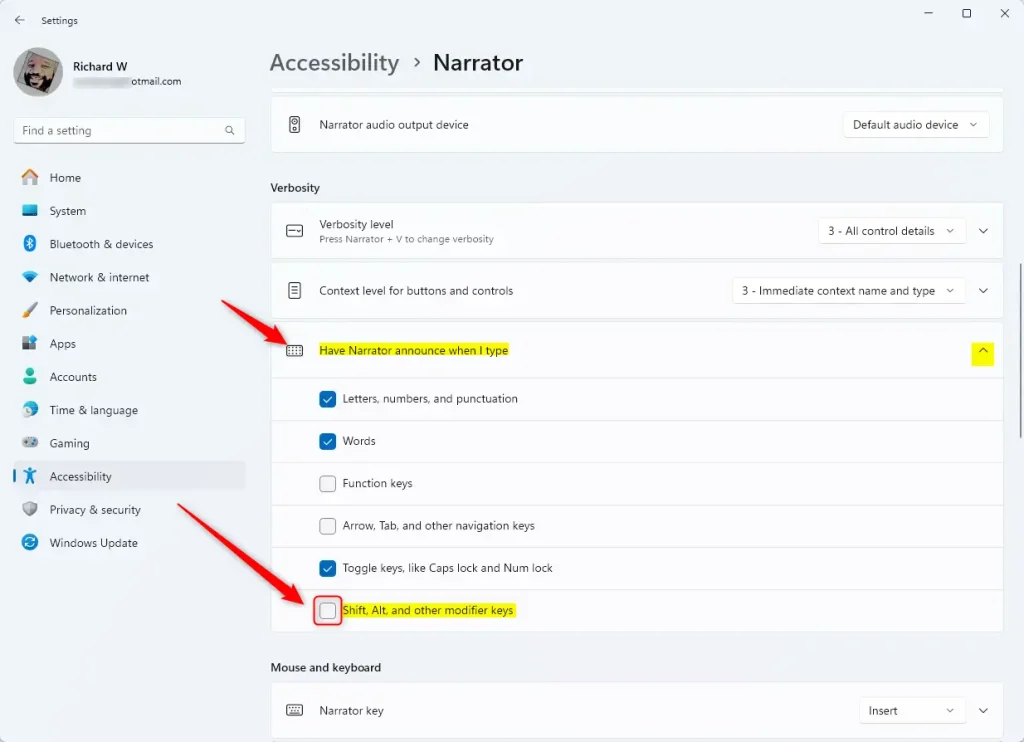
That should do it!
Conclusion:
- Enabling the Narrator feature to announce when you type modifier keys in Windows 11 can greatly benefit users with visual impairments or other disabilities.
- The ability to toggle this feature on or off provides a customizable experience for individuals who rely on audio cues for navigation and interaction.
- Accessing the Narrator settings through the Windows Settings app allows seamless adjustment of the “Have Narrator announce when I type” feature.
- Please utilize the comments section below the post for additional assistance or contributions.


Leave a Reply