How to Manage Bing Chat Toolbar in Microsoft Edge


You can manage the Bing Chat toolbar, now known as Copilot, directly within Microsoft Edge’s settings.
Copilot in Edge provides instant AI assistance, acting as a powerful tool for quick answers, content creation, and on-page information retrieval without leaving your current browsing tab.
This AI feature typically appears as an icon in the upper right corner of your Microsoft Edge window, opening a convenient side panel for seamless interaction. For instance, you can ask Copilot to summarize a webpage you are viewing or generate email drafts directly within the browser.
Manage the Bing Chat (Copilot) toolbar in Microsoft Edge by going to Settings > Sidebar > Copilot and toggling “Show Copilot” on or off. This option controls the visibility of the AI assistant icon in your browser toolbar.
Add or remove the Microsoft Copilot toolbar in Edge
You can easily hide or show the Microsoft Copilot toolbar in your Edge browser if you want a cleaner look.
- Open the Microsoft Edge browser.
- Click the Settings and more button (the three dots) in the top right corner.
- Select Settings from the menu.
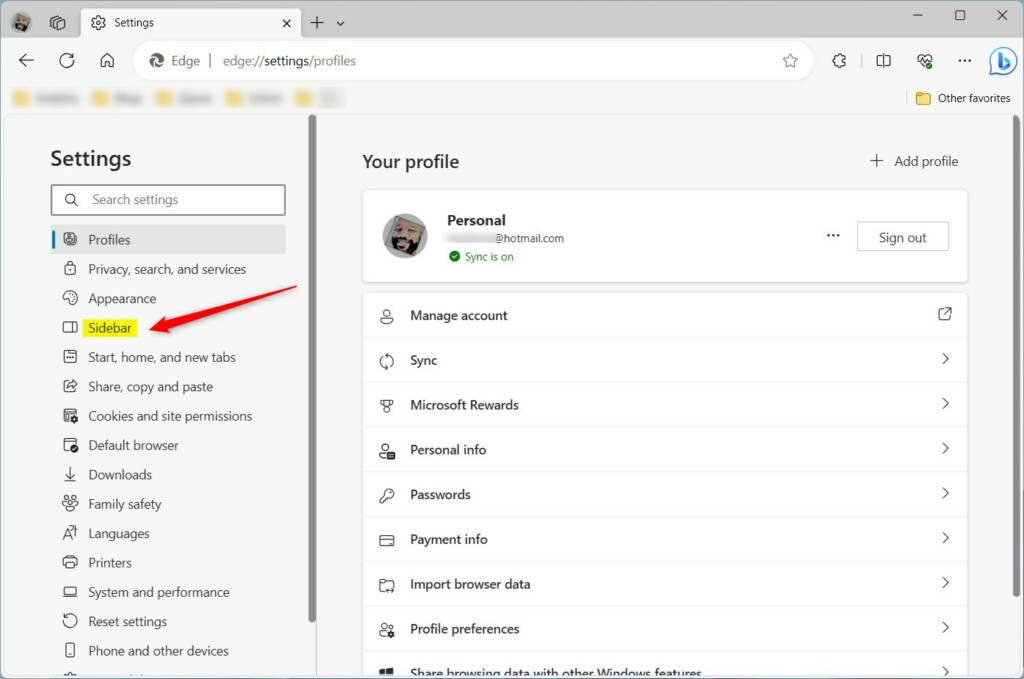
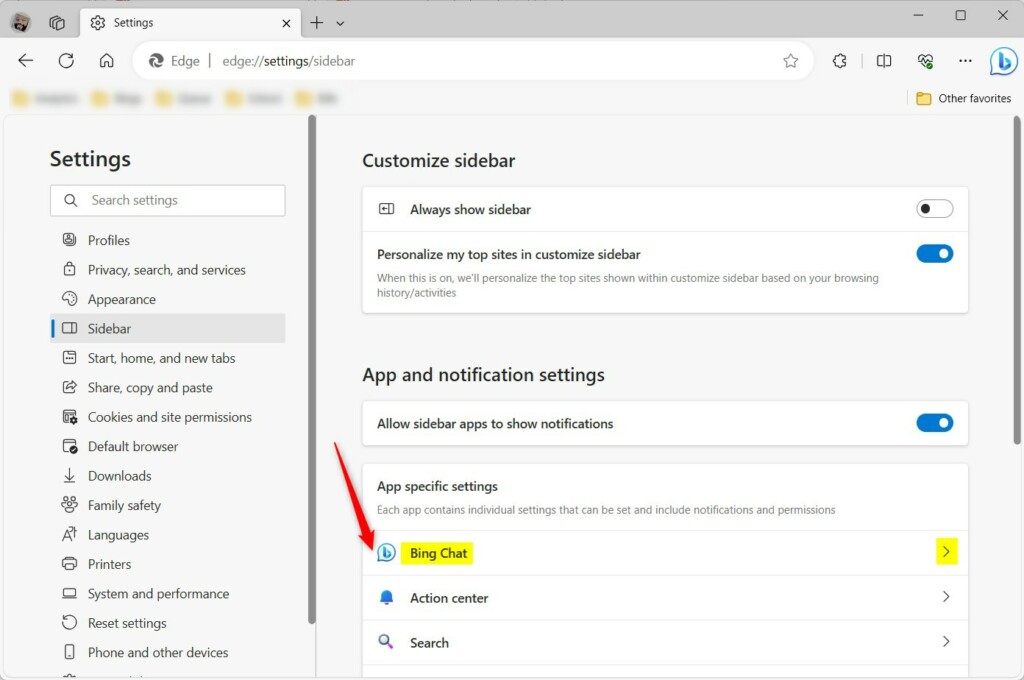
Click the ‘Settings and more’ button (the three dots) in the top right corner and select ‘Settings’ from the menu. On the left side of the screen, click ‘Sidebar.’ Then, look under ‘App and notification settings’ and click ‘Copilot.’

- On the left side of the screen, click on Sidebar.
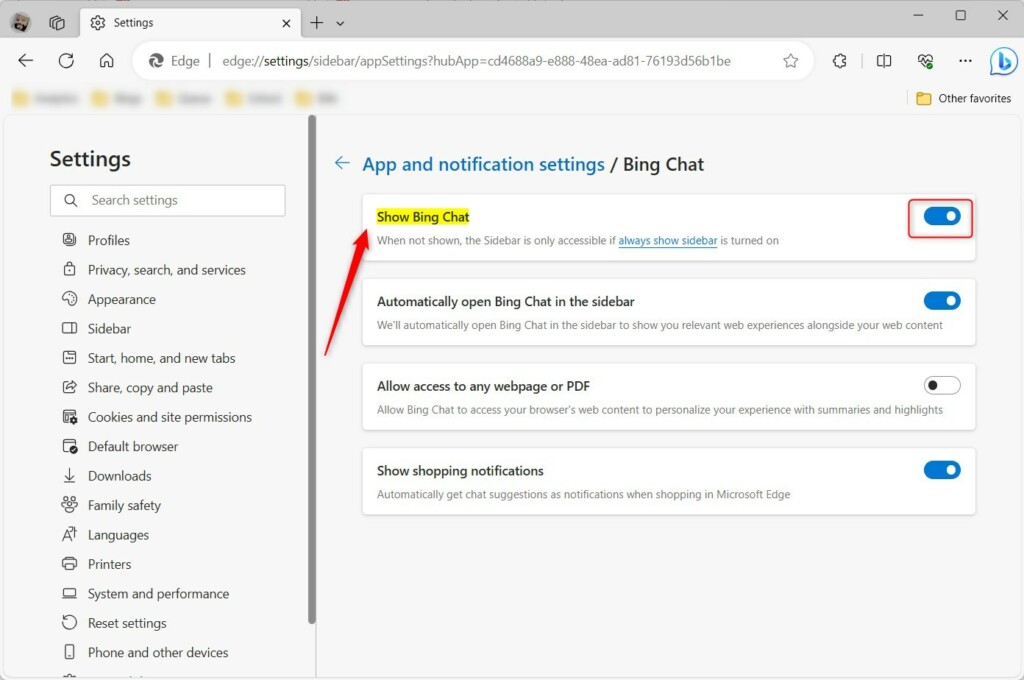
On the ‘Copilot’ settings page, you can toggle the switch to turn the Copilot icon on or off in your browser toolbar.
- Look under App and notification settings. Click on Copilot.
Once you’ve made your selection, the change will take effect immediately.
- Find the switch labeled Show Copilot. Toggle this switch to On to see it or Off to hide it.
This will either add or remove the Copilot icon from your toolbar, depending on your choice.
And that’s it!
Conclusion
The Copilot icon in Microsoft Edge lets you access AI tools quickly. You can add or remove this icon by visiting your settings. This helps keep your browser tidy and set up just the way you want it.
Do you need Microsoft Edge to use Bing Chat?
You don’t need Microsoft Edge to use Bing Chat; you can access it directly through Bing.com on any browser.
Was this guide helpful?

About the Author
Richard
Tech Writer, IT Professional
Richard, a writer for Geek Rewind, is a tech enthusiast who loves breaking down complex IT topics into simple, easy-to-understand ideas. With years of hands-on experience in system administration and enterprise IT operations, he’s developed a knack for offering practical tips and solutions. Richard aims to make technology more accessible and actionable. He's deeply committed to the Geek Rewind community, always ready to answer questions and engage in discussions.



No comments yet — be the first to share your thoughts!