Optimize Google Chrome Ad Privacy Settings


You optimize Google Chrome ad privacy settings to control how advertisers track your online activity and limit personalized ads.
Google Chrome uses your browsing history to tailor ads and content. Adjusting its ad privacy settings lets you reclaim a significant portion of your digital footprint.
For instance, you can block third-party cookies, which are small data files used to track your behavior across different websites. This action immediately reduces the data advertisers collect on your personal habits.
Start by navigating to Chrome’s settings. Then, find “Privacy and security” and access “Tracking Protection” to select your preferred privacy level and start taking control.
Open Chrome Settings, go to “Privacy and security,” then “Ad privacy.” Toggle off “Ad topics,” “Site-suggested ads,” and “Ad measurement” to limit ad tracking and personalize your online privacy. You can also type chrome://settings/adPrivacy into your address bar.
Enhance online privacy with Google Chrome
You can easily control the ads you see in Google Chrome by adjusting its ad privacy settings.
- Open the Google Chrome browser.
- Click the three vertical dots in the top right corner and select Settings.
- In the search box at the top of the Settings page, type “Ad privacy” for a direct path to the right menu.
- Click on the Ad privacy tile to expand your options.
You can also type chrome://settings/adPrivacy directly into your address bar.

Ad privacy settings page
The Ad privacy settings page lets you manage how Chrome handles ads, using Google’s Privacy Sandbox tools.
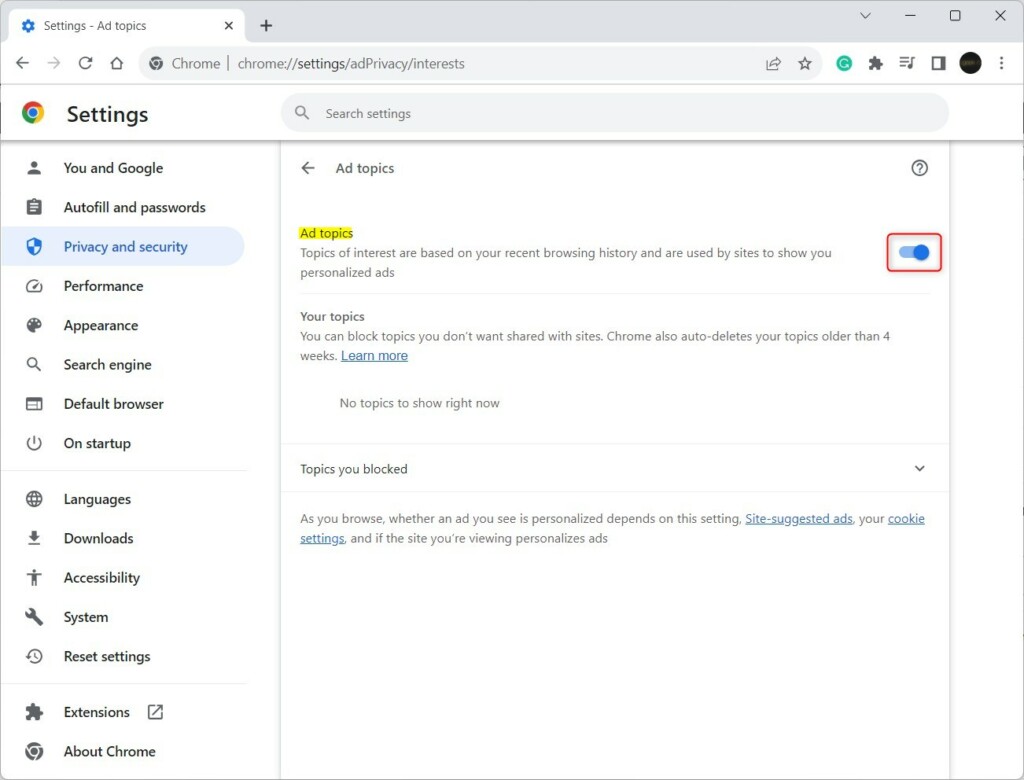
- Ad topics: This tracks the topics you are interested in based on the sites you visit.
- Site-suggested ads: This allows sites to suggest ads based on your recent visits.
- Ad measurement: This lets advertisers see how well their ads are performing.
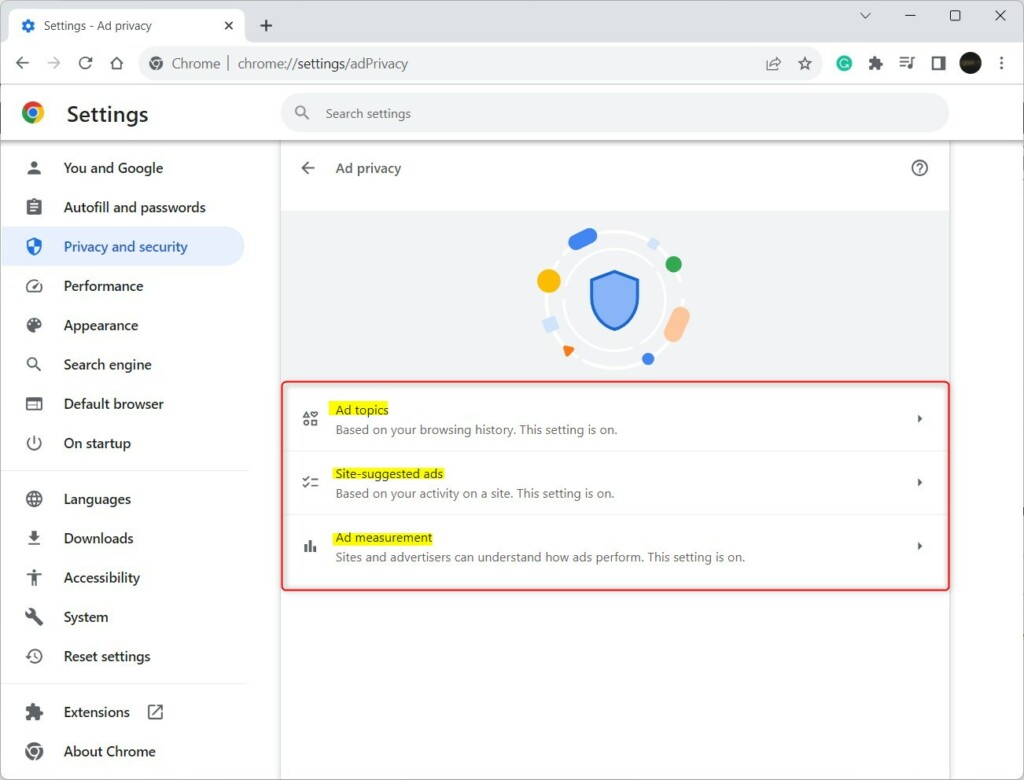
Click each tile to expand it. You can toggle the switch to Off if you want to stop Chrome from sharing this data with advertisers. Why do this? It prevents companies from building a profile on your interests. The result? You will still see ads, but they will be less targeted to your specific browsing history.
Conclusion
Using these settings gives you better control over your data. By turning off these features, you limit what advertisers know about you. This makes your time online safer and more private. If you have questions or feedback, please share them in the comments section below.
Was this guide helpful?

About the Author
Richard
Tech Writer, IT Professional
Richard, a writer for Geek Rewind, is a tech enthusiast who loves breaking down complex IT topics into simple, easy-to-understand ideas. With years of hands-on experience in system administration and enterprise IT operations, he’s developed a knack for offering practical tips and solutions. Richard aims to make technology more accessible and actionable. He's deeply committed to the Geek Rewind community, always ready to answer questions and engage in discussions.



No comments yet — be the first to share your thoughts!