How to Hide or Unhide Restart in Windows 11


This guide explains how to hide or show the Restart button in your Windows 11 power menu.
Why hide the Restart button?
Sometimes you might want to stop others from accidentally restarting your computer. This helps prevent the loss of unsaved work. It is also useful in shared settings, like an office, where you want to control when a computer reboots.
What happens when you are done?
Once you finish these steps, the Restart option will either disappear from your power menu or reappear, depending on the setting you chose. This gives you more control over your computer’s power options.
To change this setting, you will need to use the Registry Editor. Note: This process requires admin privileges.
First, open the Windows Registry editor Registry Editor. Navigate to the following folder path:
HKEY_LOCAL_MACHINE\SOFTWARE\Microsoft\PolicyManager\default\Start\HideRestart
If you cannot find the HideRestart folder, right-click on the Start folder, select New, and create a new key named HideRestart.
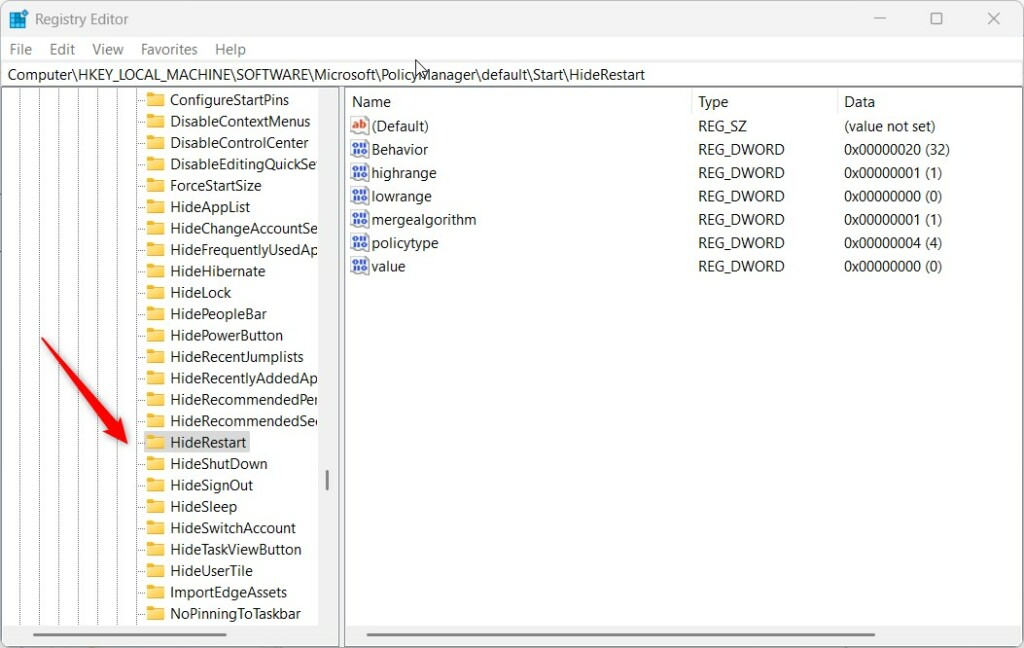
Next, follow these steps:
- Right-click in the empty space on the right side of the HideRestart folder.
- Select New and then DWORD (32-bit) Value.
- Name this new item
value. - Double-click on
valueto open it. - In the Value data box, type
0to show the Restart button, or type1to hide the Restart button. - Click OK.
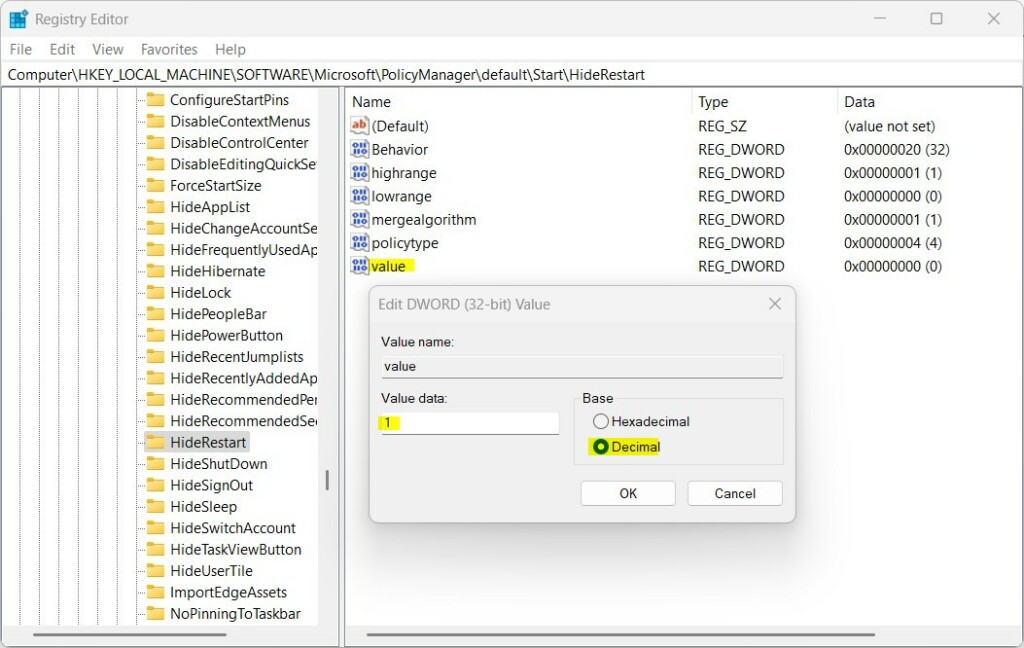
Finally, restart your computer to see the changes take effect.
Summary
You can easily manage the Restart button on your Windows 11 computer using the Registry Editor. By changing the value to 0 or 1, you can choose whether to display or hide the restart option. This is a great way to protect your work or manage user access. For more technical information, you can view the Microsoft.com Microsoft documentation.
Was this guide helpful?




Leave a Reply