How to Share OneDrive Files in Windows 11


You can share OneDrive files in Windows 11 by generating a sharing link directly from File Explorer.
OneDrive is Microsoft’s cloud storage service that integrates seamlessly with Windows 11, allowing you to sync files and access them across devices.
Sharing a file in Windows 11 with OneDrive lets you collaborate with others by giving them view or edit access through a simple link.
The OneDrive application comes pre-installed on Windows 11, making it easy to manage your shared files directly within File Explorer, even when you’re offline.
Sharing your files
You can share photos, documents, and folders with anyone using Windows File Explorer. Before you start, make sure you set up OneDrive on Windows and confirm that you can access your OneDrive files and folders via File Explorer.
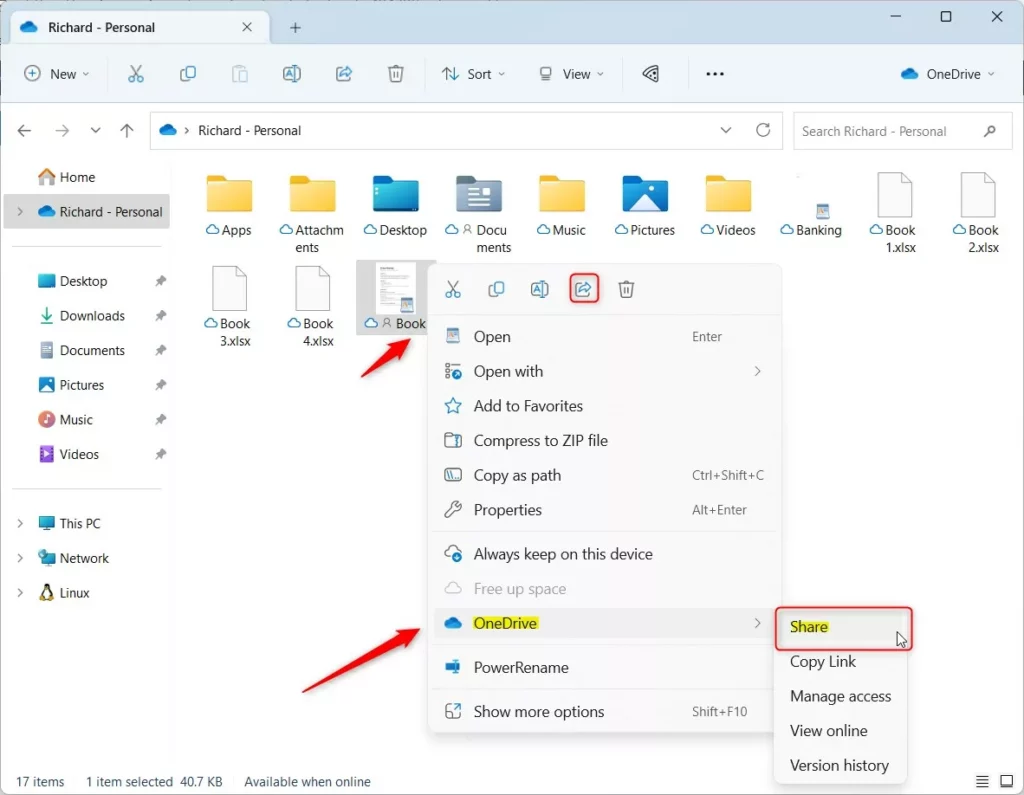
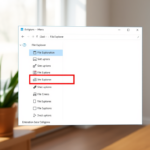
1. Open File Explorer and find the file or folder you want to share.
2. Select the item and click the Share button at the top of the window.

Alternatively, you can right-click any file or folder and select OneDrive > Share.
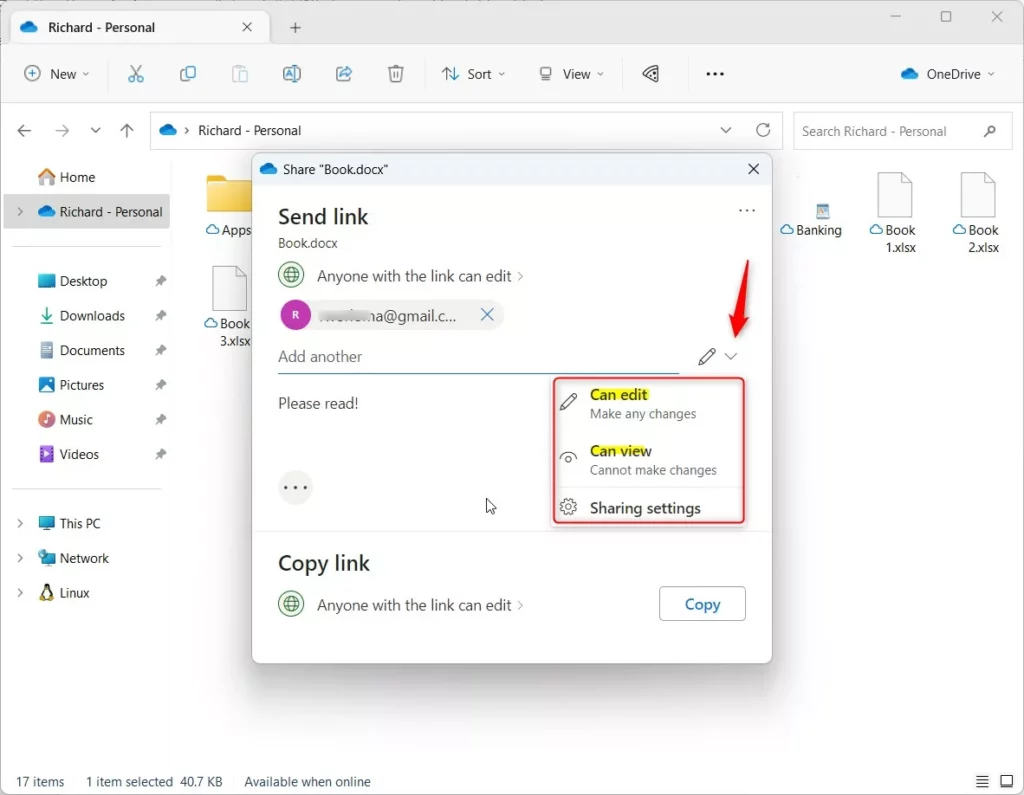
A window will pop up. Here is how to fill it out:
- Name/Email: Type the name or email address of the person you want to invite.
- Access Level: Choose if they Can edit (make changes) or Can view (read-only).
- Message: Add a short note to explain the file.
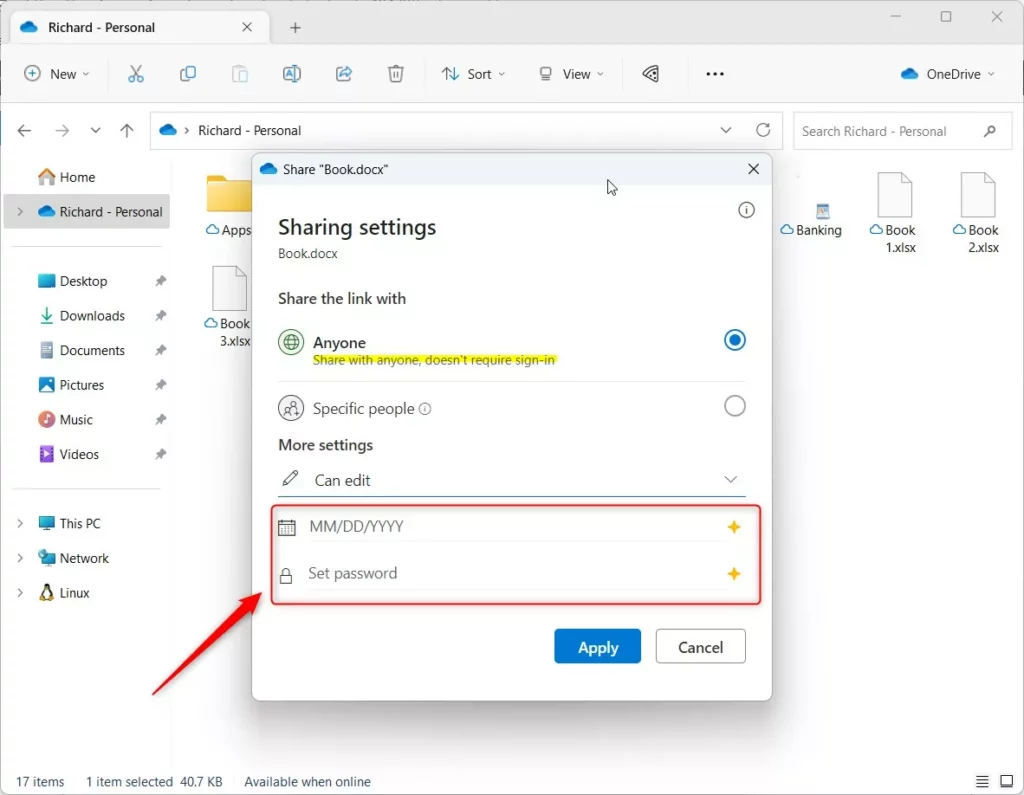
If you click on the Anyone with a link can edit text, you can change who can access the file:
- Anyone: People do not need to sign in to see the file.
- Specific people: Only the people you invite can open it.
If you have a premium account, you can also set an expiration date for the link or add a password for extra security.
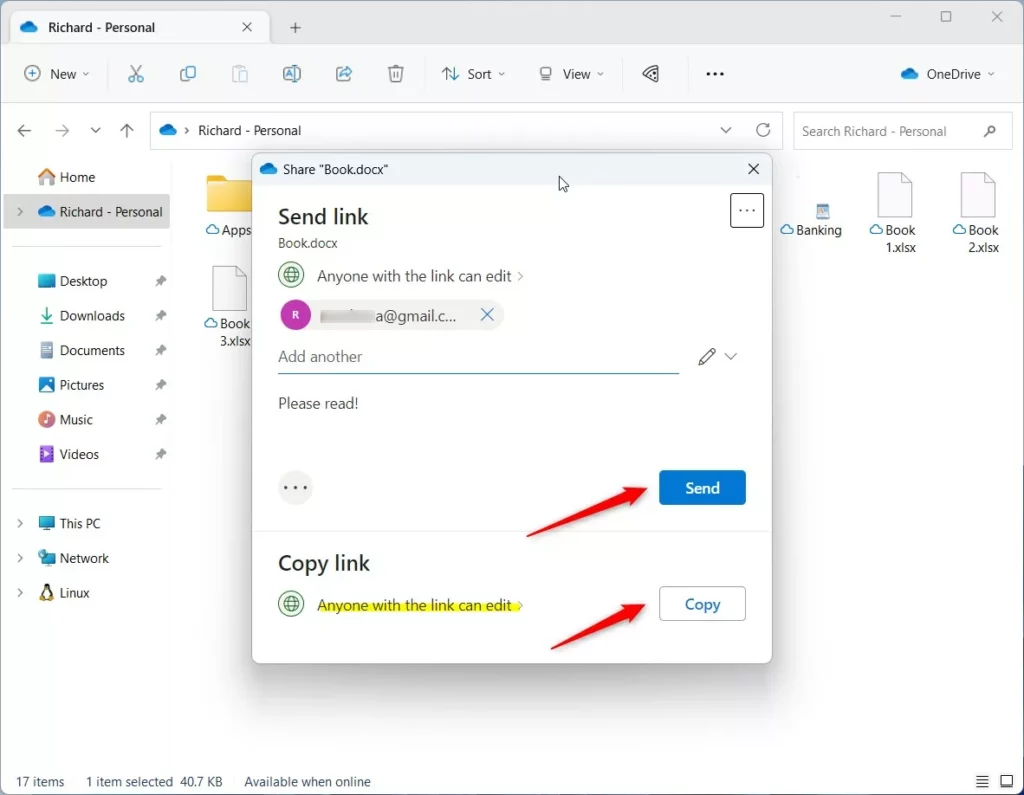
Once you are happy with your settings, click the Share button or Copy to get the link to send to others.
Understanding Permission Management
Managing permissions is vital for cloud collaboration. You can choose between ‘View’ or ‘Edit’ access. ‘View’ allows users to read the file, while ‘Edit’ allows them to modify it. You can check who has access by right-clicking the file, selecting ‘Share’, and clicking the three-dot menu to view ‘Manage Access’.
External and Guest Sharing
You can share files with people outside your organization. If you select ‘Anyone with the link’, users do not need a Microsoft account to view the file. However, for security, it is best to use ‘Specific people’ when sharing sensitive data. This ensures only invited users can open the link.
Troubleshooting Common Sharing Issues
If you cannot share a file, check your internet connection or ensure your OneDrive is signed in. If you see a ‘Sync Pending’ icon, wait for the file to upload to the cloud. If you are in a corporate environment, your IT administrator may have disabled external sharing via Group Policy settings located in 📁C:\Windows\System32\GroupPolicy.
Pro-tip: Always set an expiration date on your shared links if you are using a premium OneDrive account. This automatically revokes access after a set time, keeping your data secure even if you forget to stop sharing manually.
Summary
Using OneDrive in Windows 11 makes it simple to share your work. You can control exactly who sees your files and whether they can make changes. By using the built-in File Explorer tools, you keep your data organized and accessible from any device.
Note: Administrative privileges are not required to share your own personal OneDrive files.
Can I share OneDrive files with people who don’t have a Microsoft account?
Yes. You can share files with anyone by selecting the ‘Anyone with the link’ option. This generates a public link that does not require the recipient to sign in or have a Microsoft account to view or download the file. Use this carefully to maintain your file security.
How do I stop sharing a file in OneDrive?
To stop sharing, right-click the file in File Explorer, select ‘Share’, and then click the three-dot menu or ‘Manage Access’. From there, you can remove specific people or delete the sharing link entirely. Once removed, those users will no longer be able to access your file.
Was this guide helpful?

About the Author
Richard
Tech Writer, IT Professional
Richard, a writer for Geek Rewind, is a tech enthusiast who loves breaking down complex IT topics into simple, easy-to-understand ideas. With years of hands-on experience in system administration and enterprise IT operations, he’s developed a knack for offering practical tips and solutions. Richard aims to make technology more accessible and actionable. He's deeply committed to the Geek Rewind community, always ready to answer questions and engage in discussions.


[…] can use OneDrive to share your files and folders with anyone, anywhere, and control what users see and what they can change. Once you share your files, users […]
[…] offline OneDrive files are also included in the File History backup process. In cases where the original files are lost or […]