How to Find Wi-Fi Security Key in Windows 11


This guide shows you how to find your Wi-Fi password on a Windows 11 computer.
Why You Might Need Your Wi-Fi Password
When you connect to a Wi-Fi network, Windows 11 saves your password. This is called a network security key. It uses encryption standards like WPA2-Personal or WPA3-Enterprise to keep your data safe. Windows asks for a security key instead of a simple password to ensure only authorized devices can access your router. What happens when you find your Wi-Fi password? You can connect new devices, share access with guests, or update your security settings.
Is the Wi-Fi Security Key the Same as the Router Admin Password?
No. The Wi-Fi security key is for connecting devices to the internet. The router admin password is for changing settings inside your router’s dashboard. They are usually different unless you manually set them to be the same.
Check Your Modem First
Most routers have a sticker on the back or bottom. Look for the SSID (your network name) and the security key printed there. This is the default password provided by your internet company. If you changed it, the sticker will not show the current password.
Method 1: Use the Settings App
Step 1: Open the Settings app by clicking the Start menu and selecting Settings. Step 2: Select Network & internet on the left. Then select the Wi-Fi section.
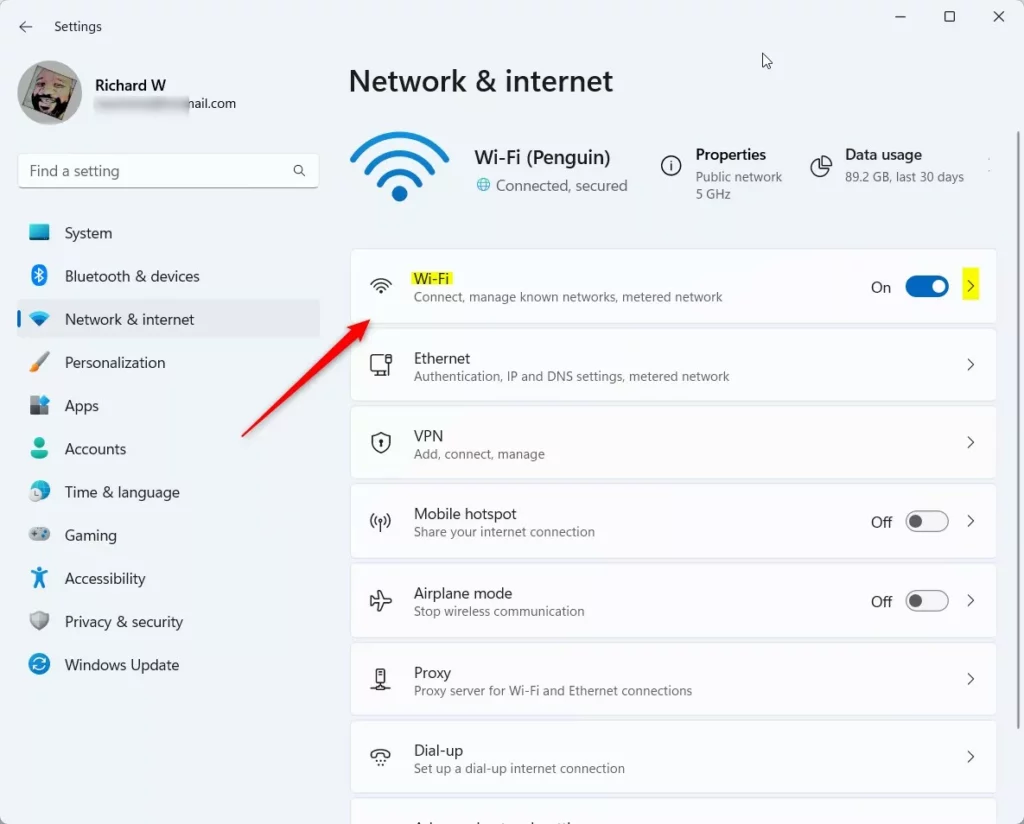
Step 3: Click on Properties for your current network.
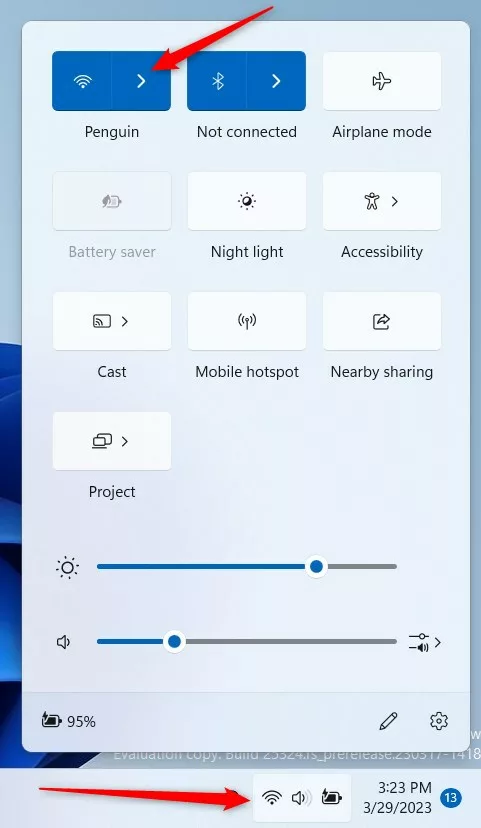
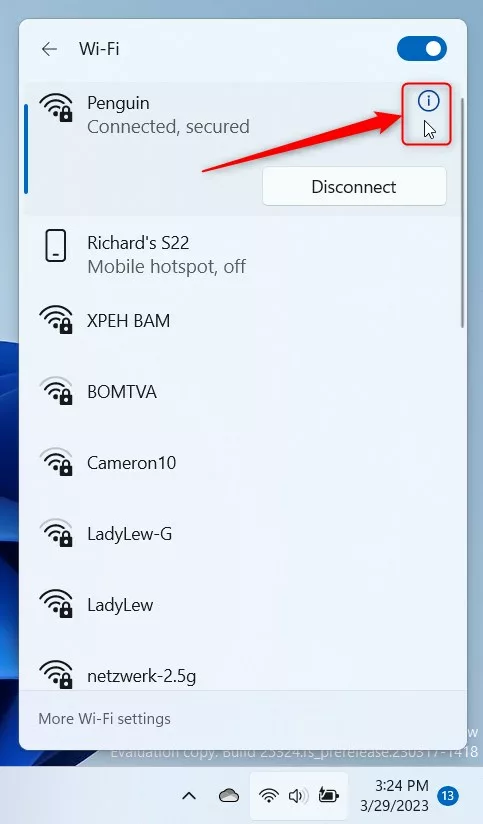
Step 4: Scroll down to View Wi-Fi security key and click the View button.
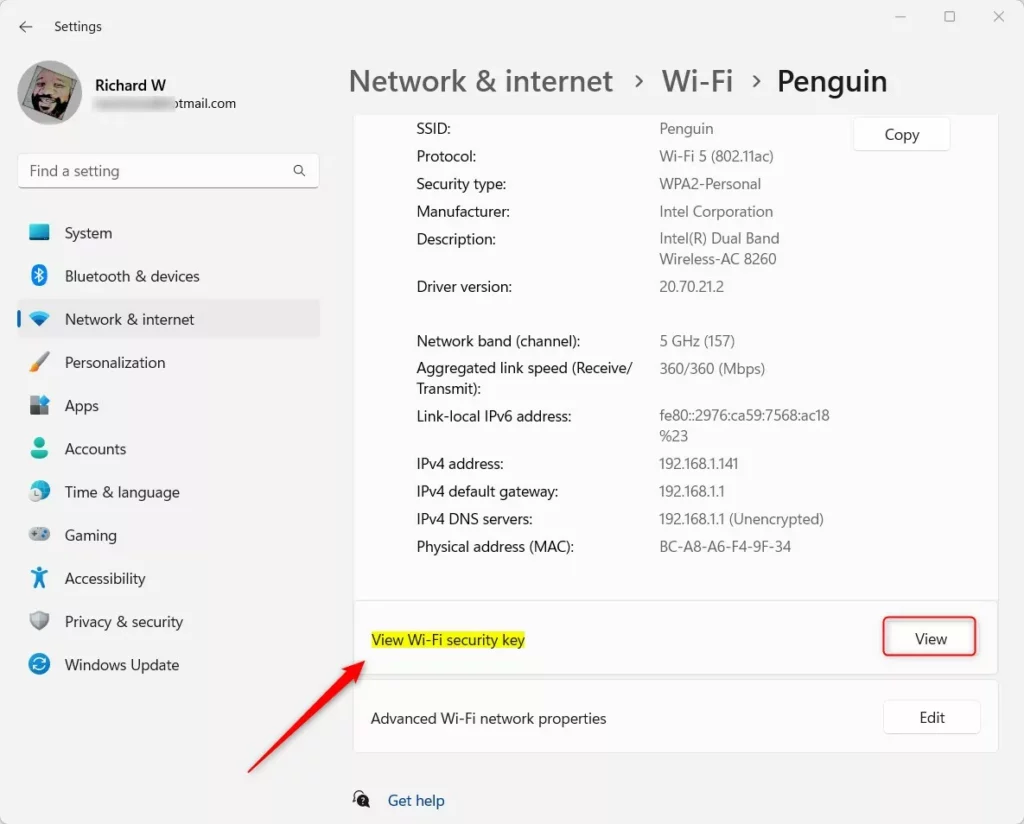
Step 5: A window will pop up showing your password.
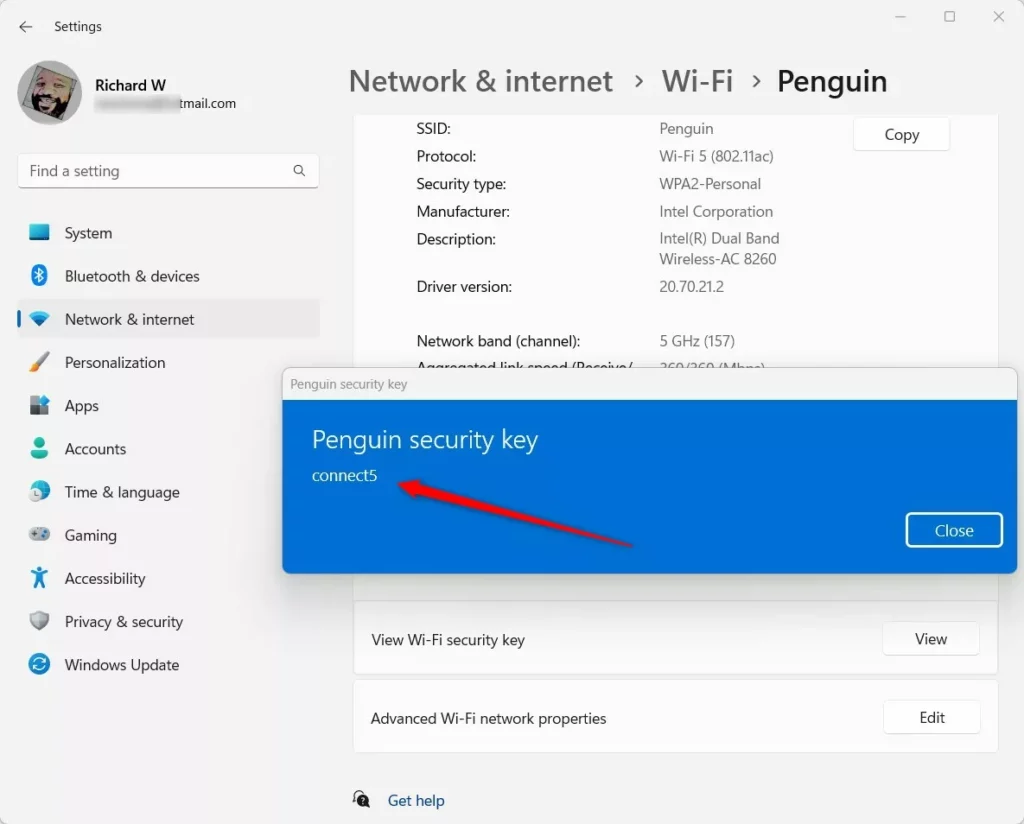
Step 6: Close the app when finished.
Method 2: Use the Command Prompt
This method works even if you are not currently connected to the network, provided you have connected to it before.
Step 1 (Admin Required): Click Start, type cmd, right-click it, and select Run as administrator.
Step 2: Type the following command and press Enter:
netsh wlan show profile name="YourNetworkName" key=clear
Replace YourNetworkName with your actual network name. Step 3: Look for the Key Content line in the output to see your password.
Troubleshooting and Advanced Tips
If you cannot find the password, try using the Network and Sharing Center. Press Win + R, type ncpa.cpl, and press Enter. Right-click your Wi-Fi adapter, select Status, then Wireless Properties, and go to the Security tab. Check the Show characters box.
Warning: Never share your security key with unknown third parties. This allows them to use your internet and potentially access your private files.
Exporting Your Network Profile
You can save your network settings to a file. (Admin Required) Open Command Prompt as administrator and type:
netsh wlan export profile name="YourNetworkName" folder=C:\Users\Public
This creates an XML file in your Public folder containing your network security details.
Summary
Finding your Wi-Fi security key in Windows 11 is easy using the Settings app or Command Prompt. We covered how to locate your password, why it is important to keep it safe, and how to troubleshoot if it is missing. Always check your router label first, and remember that sharing your key with strangers can put your network security at risk.
Can I see the password for a network I am not currently connected to?
Yes, you can. Windows 11 stores profiles for every network you have previously joined. By using the Command Prompt method with the specific profile name, you can retrieve the security key for any saved network, even if you are currently disconnected from it.
Was this guide helpful?

About the Author
Richard
Tech Writer, IT Professional
Richard, a writer for Geek Rewind, is a tech enthusiast who loves breaking down complex IT topics into simple, easy-to-understand ideas. With years of hands-on experience in system administration and enterprise IT operations, he’s developed a knack for offering practical tips and solutions. Richard aims to make technology more accessible and actionable. He's deeply committed to the Geek Rewind community, always ready to answer questions and engage in discussions.

[…] network profile includes the security key, SSID, and other information, which can be used to reconnect to the Wi-Fi […]
[…] you want to learn how to connect to Wi-Fi networks or find your Wi-Fi password, check out these helpful […]