Enable or Disable ‘Switch User’ in Ubuntu Linux


You enable or disable the ‘Switch User’ option in Ubuntu Linux by modifying a configuration file, allowing you to control whether multiple user accounts appear in your system menu. This feature lets you quickly change between different user sessions on your computer, keeping each user’s applications and data separate.
This tutorial focuses on Ubuntu 22.04 LTS and newer versions. By default, Ubuntu allows you to quickly switch between logged-in users without closing your running applications. You can hide this option if you are the sole user for a cleaner interface.
To enable or disable the ‘Switch User’ option in Ubuntu, use the Terminal. Type “gsettings set org.gnome.desktop.lockdown disable-user-switching true” to hide it, or “gsettings reset org.gnome.desktop.lockdown disable-user-switching” to show it. Changes may require logging out and back in.
Enable or disable the ‘Switch User’ command on the system menu
You can easily turn the ‘Switch User’ option on or off in Ubuntu’s system menu, located in the top-right corner of your screen, using a simple command in the Terminal.
You can force this option to show or hide using the Terminal. Open the Terminal first. You can do this by pressing the Super (Windows) key, typing ‘Terminal,’ and then hitting Enter. Alternatively, press Ctrl+Alt+T.
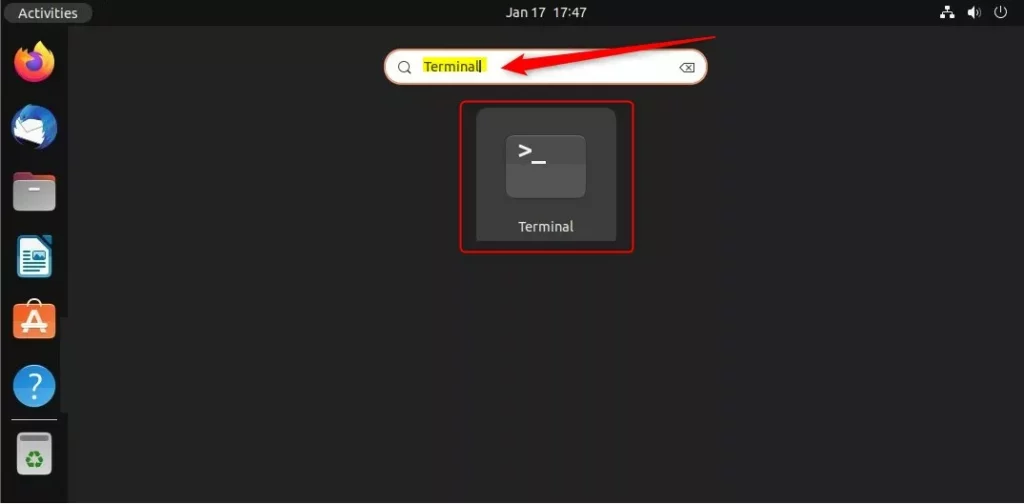
To hide the “Switch User” button, type this command and press Enter:
gsettings set org.gnome.desktop.lockdown disable-user-switching true
To show the button again, run this command:
gsettings reset org.gnome.desktop.lockdown disable-user-switching
Enable or Disable fast switching using the Dconf Editor
The Dconf Editor provides a visual way to turn the ‘Switch User’ option on or off in Ubuntu, working like a control panel for system settings.
First, install the app. You can find it in the Ubuntu App Center by searching for “Dconf Editor,” or run this command in your Terminal:
sudo apt install dconf-editor
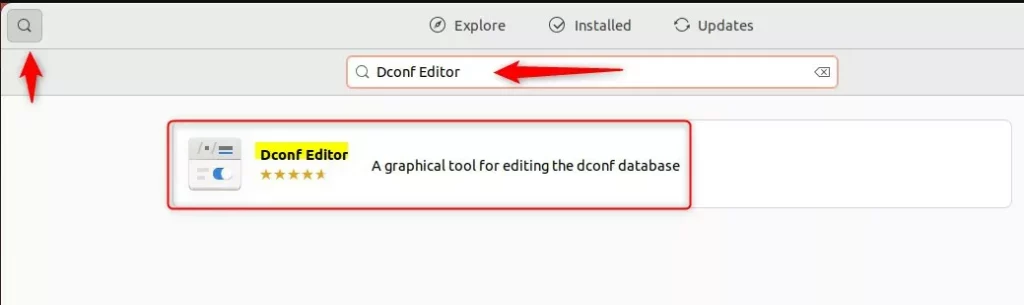
Once installed, open Dconf Editor and follow this path:
org -> gnome -> desktop -> lockdown
Find the entry called disable-user-switching. Toggle the switch to “On” to hide the feature, or “Off” to enable it.
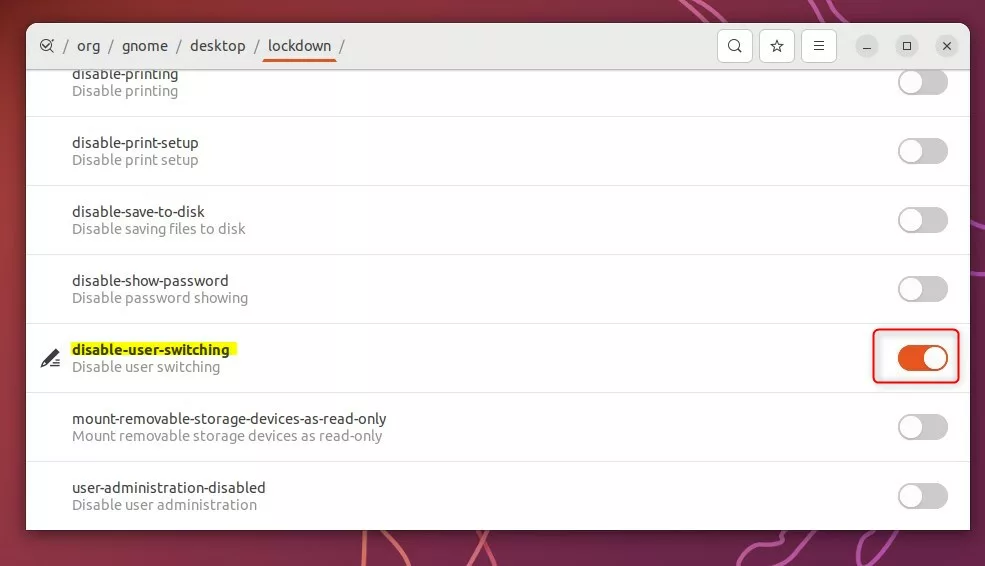
Note: Changes made through Dconf Editor or gsettings may not appear immediately. You might need to log out of your session and log back in to see the changes in your system menu.
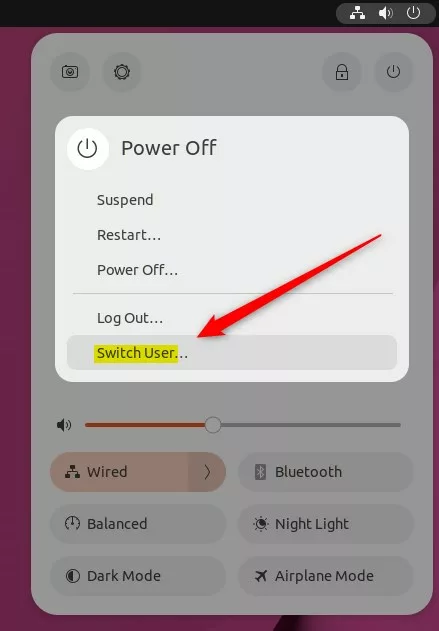
How do I switch users in sudo?
Using Sudo sudo -u root command Same as sudo command. sudo -u user command Run command as user. sudo su Switch to the superuser account. sudo su – Switch to the superuser account with an environment you would expect to see had you logged in as that user.
Was this guide helpful?

About the Author
Richard
Tech Writer, IT Professional
Richard, a writer for Geek Rewind, is a tech enthusiast who loves breaking down complex IT topics into simple, easy-to-understand ideas. With years of hands-on experience in system administration and enterprise IT operations, he’s developed a knack for offering practical tips and solutions. Richard aims to make technology more accessible and actionable. He's deeply committed to the Geek Rewind community, always ready to answer questions and engage in discussions.



No comments yet — be the first to share your thoughts!