How to Change Date and Time in Ubuntu Linux


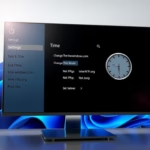
This post describes the steps to manually change the date and time in Ubuntu Linux.
By default, Ubuntu Linux automatically sets the date and time based on your time zone, country, and region. In addition, daylight saving time (DST) is also set automatically based on the country and region you are in.
Allowing Ubuntu Linux to manage your system’s date and time automatically will ensure that your PC date and time are accurate as long as you have an internet connection to time servers online.
That said, Ubuntu Linux allows you to manage your system’s data and time manually. When you manually change and update your system’s date and time, you must do it every time there’s a change.
Below is how to do that in Ubuntu Linux.
How to manually change system date and time in Ubuntu Linux
As mentioned above, Ubuntu Linux allows users to manage their system data manually. You can do it independently if you don’t want Ubuntu Linux to automatically set the date and time.
Below is how to do that.
Ubuntu Linux has a centralized location for the majority of its settings. From system configurations to creating new users and updating, all can be done from the System Settings panel.

Alternatively, click on the System menu at the top-right corner of the top bar on your desktop.
On the System menu, select Settings, as highlighted below.

Click on the Date & Time tile in the Settings app to open the panel.
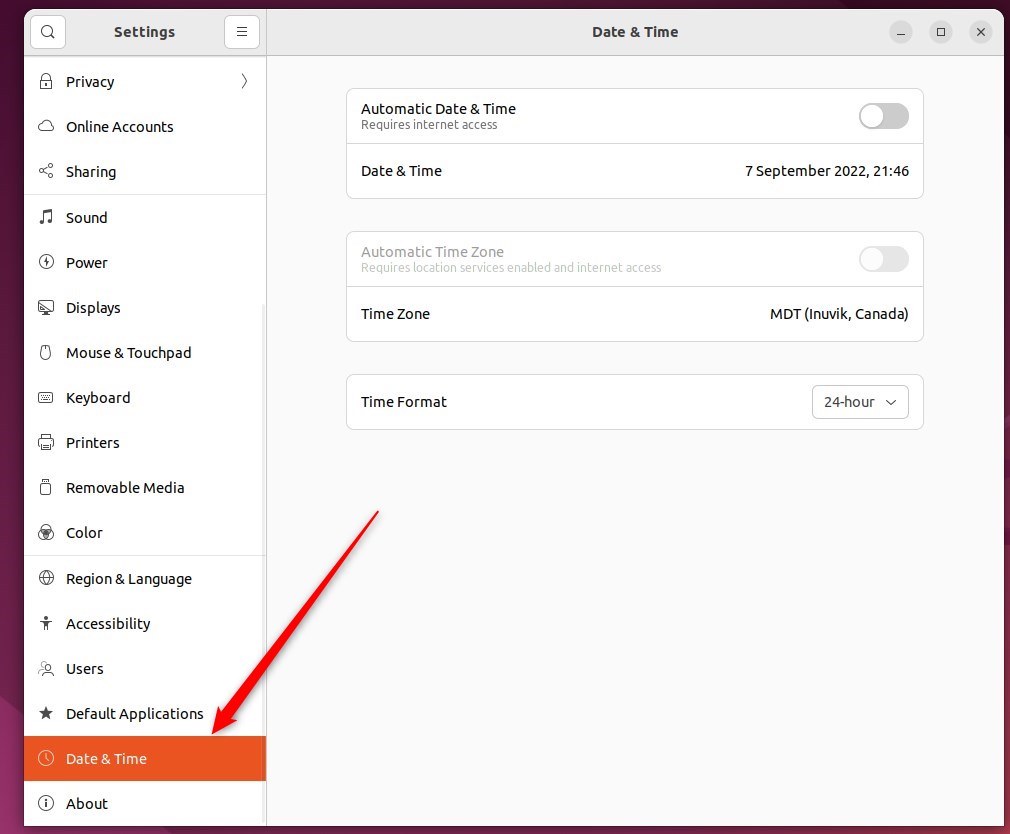
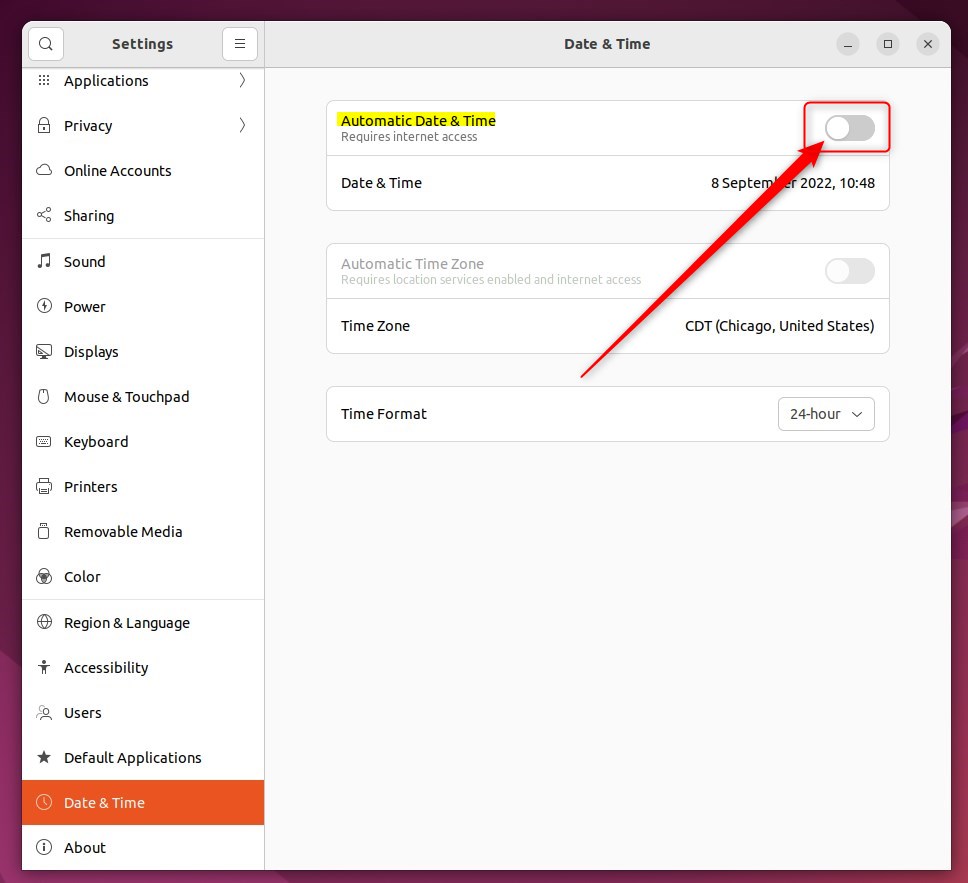
In the System Settings -> Date & Time panel, toggle the Automatic Date & Time switch to the Off position.
You cannot manually set the date and time when Automatic Date & Time is set to On. Turn off Automatic Date & Time to manually set your system’s date and time.
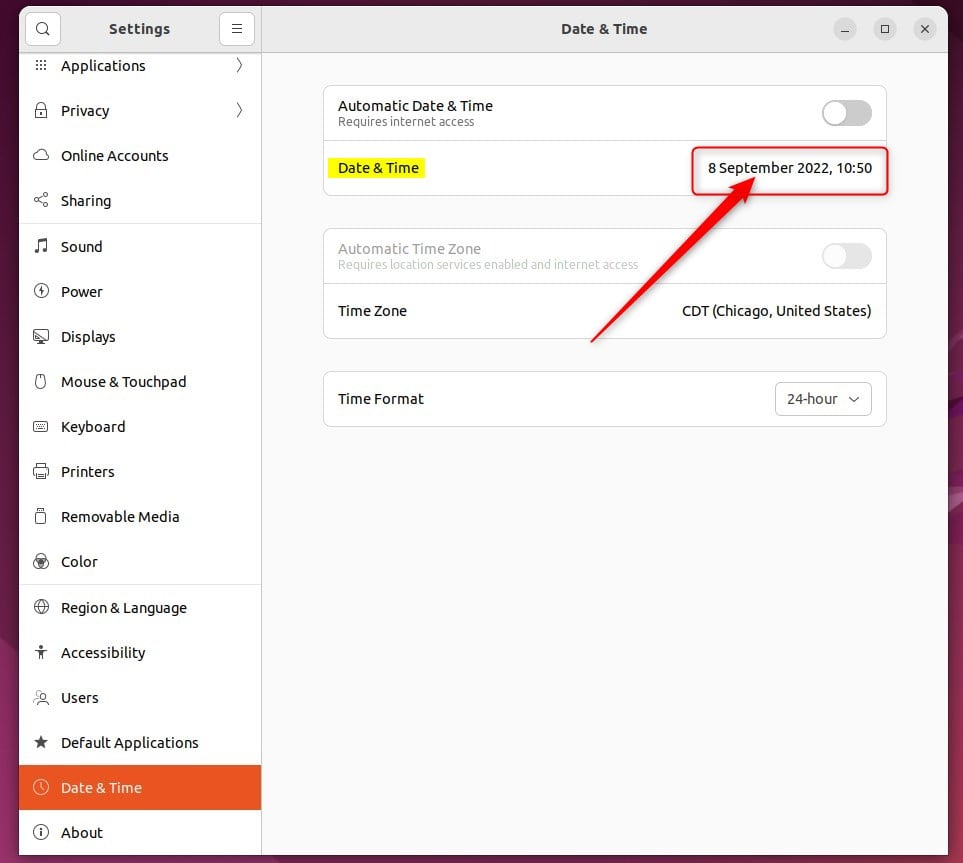
Once the Automatic Date & Time setting is turned Off, click the Date & Time to set it manually.
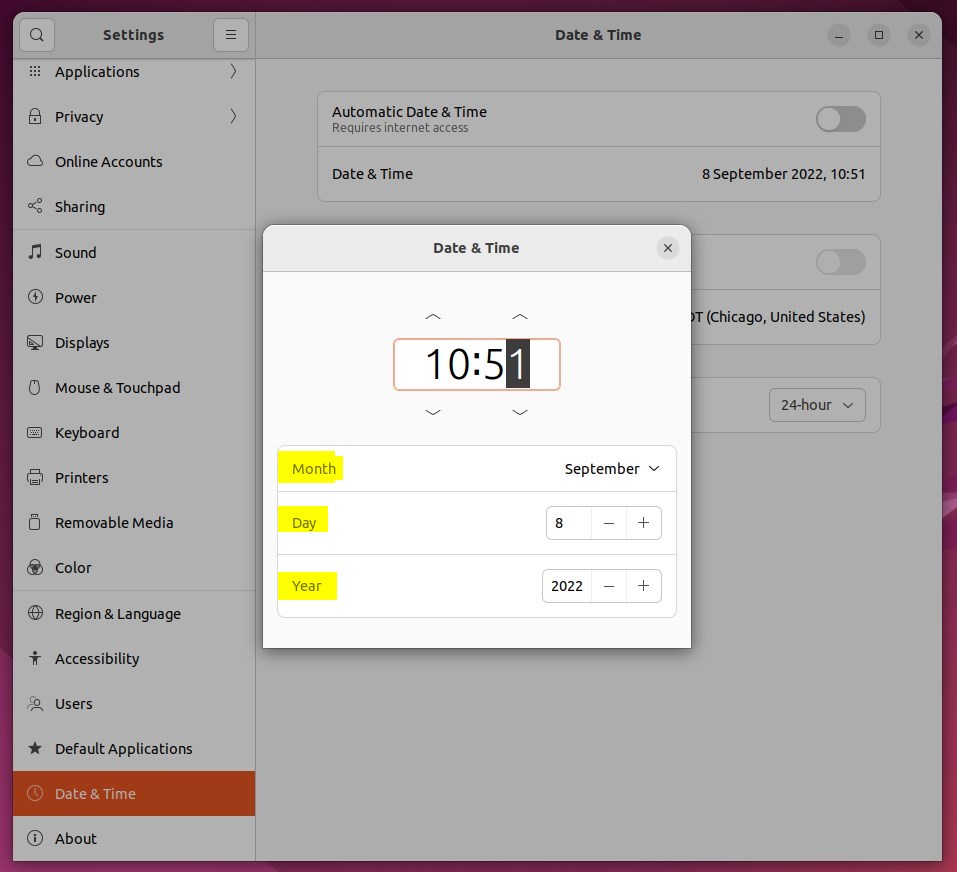
You should be able to set the Time, Month, Day, and Year on the pop-up window. Whatever settings you choose here will be applied system-wide.
That should do it! You can now close the Settings app.
Conclusion:
- Changing the date and time in Ubuntu Linux is feasible through the System Settings panel.
- Toggling the Automatic Date & Time switch to the off position allows users to set the date and time manually.
- By selecting the Date & Time tile, users can easily set the date and time according to their preferences.
Frequently Asked Questions
How do I change the date and time in Ubuntu Linux?
Why is my Ubuntu Linux date and time incorrect?
Can I set the time zone in Ubuntu Linux?
What happens if I leave Automatic Date & Time on in Ubuntu Linux?
How can I revert to automatic date and time settings in Ubuntu Linux?
Was this guide helpful?




Leave a Reply