How to Enable Narrator Keyboard Shortcuts in Windows 11

You can enable Narrator keyboard shortcuts in Windows 11 to navigate your PC hands-free.
Narrator is Windows 11’s built-in screen reader that announces text on your screen aloud. It’s a powerful accessibility tool, particularly for users with visual impairments.
Mastering these shortcuts lets you control your computer entirely with your keyboard. This significantly speeds up your workflow, eliminating the need for a mouse.
For example, pressing Narrator + Spacebar opens the Narrator command menu. Once you learn these essential key combinations, you’ll navigate Windows 11 with remarkable speed and confidence.
How to Change the Narrator Key
The Narrator key is the main button used to trigger commands. By default, it is set to Caps Lock or Insert. You can change this in settings.
1. Press Windows key + I to open Settings.

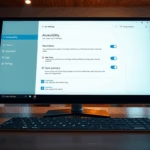
2. Select Accessibility on the left.
3. Click Narrator on the right.
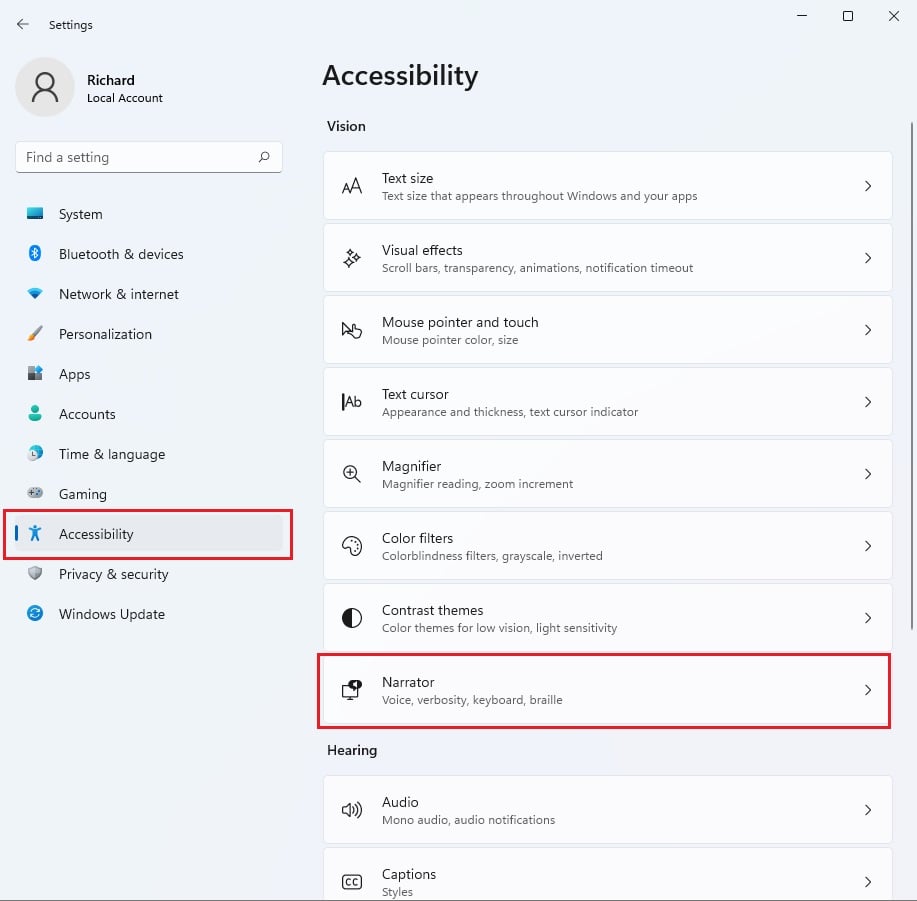
4. Find Narrator key and choose your preferred key from the dropdown menu.
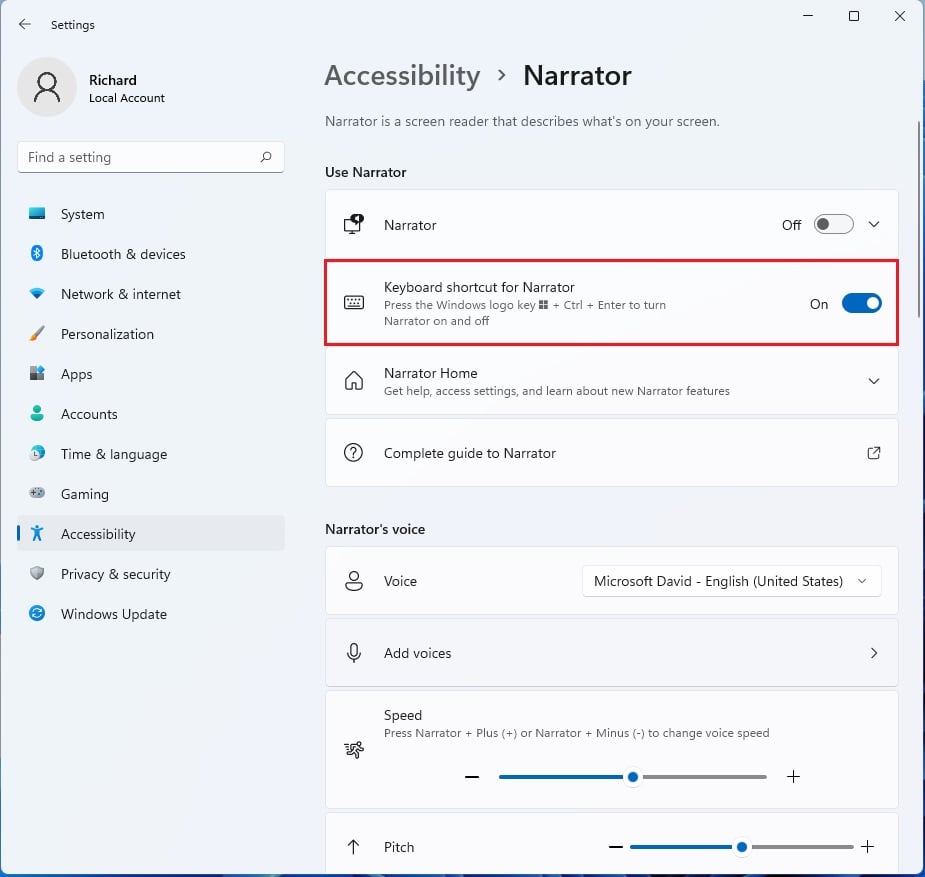
Note: No admin privileges are required for this task.
Standard vs. Legacy Keyboard Layouts
Narrator offers two layouts. The Standard layout is modern and easier to learn. The Legacy layout mimics older screen readers. Most users should stick with the Standard layout for the best experience.
Essential Narrator Keyboard Shortcuts
Here is your cheat sheet for everyday tasks. You can copy these commands to your clipboard.
| Action | Shortcut |
|---|---|
| Start/Stop Narrator | ⊞ Win+Ctrl+Enter |
| Read Next Item | Narrator + Right Arrow |
| Read Previous Item | Narrator + Left Arrow |
| Read Current Item | Narrator + Tab |
| Stop Reading | Ctrl |
Scan Mode and Navigation
Scan mode lets you read web pages easily. Press Narrator + Spacebar to turn it on. Use the Up and Down arrows to move through headings, links, and paragraphs.
Using Narrator with Microsoft Edge
Narrator works perfectly with Microsoft Edge. Use Narrator + / to search for text on a page. Use Narrator + Ctrl+D to read the current web address.
Customizing and Resetting Shortcuts
You can customize keys in the Narrator settings menu. If you make a mistake, look for the Reset button at the bottom of the Narrator settings page to return to default settings.
Summary
Narrator is a powerful tool for Windows 11 accessibility. By learning these keyboard shortcuts, you can navigate your computer faster and more efficiently. Whether you use the Standard or Legacy layout, mastering these commands will improve your daily experience. Remember to use the Settings menu to adjust your Narrator key and reset your preferences if needed.
Related posts:
How to turn on or off Narrator in Windows 11
How to automatically start Narrator in Windows 11”
Can I customize Narrator keyboard shortcuts?
Yes, you can customize shortcuts. Go to Settings, then Accessibility, and select Narrator. From there, you can view the full list of commands and assign new keys to specific actions to better suit your personal workflow and accessibility needs.
Was this guide helpful?

About the Author
Richard
Tech Writer, IT Professional
Richard, a writer for Geek Rewind, is a tech enthusiast who loves breaking down complex IT topics into simple, easy-to-understand ideas. With years of hands-on experience in system administration and enterprise IT operations, he’s developed a knack for offering practical tips and solutions. Richard aims to make technology more accessible and actionable. He's deeply committed to the Geek Rewind community, always ready to answer questions and engage in discussions.


No comments yet — be the first to share your thoughts!