How to Automatically Start Magnifier Before Signing in Windows 11

Windows has a built-in tool called Magnifier. It acts like a digital magnifying glass to zoom in on your screen. This helps you see text and images more clearly.
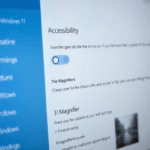
To automatically start Magnifier before signing in to Windows 11, open Settings, navigate to Accessibility, then Magnifier. Check the box labeled “Start Magnifier before sign-in.” This ensures Magnifier is active as soon as your PC boots up.
Why automatically start Magnifier?
Automatically starting Magnifier makes your screen easier to see right away, which is helpful if small text is hard to read.
What happens when done?
After you set it up, Windows will automatically open Magnifier when you turn on your computer or sign in, so your view is ready instantly.
How to enable automatic Magnifier
You can automatically start Magnifier on Windows 11 by changing a setting in the Accessibility section of the Settings app.

Once the Settings window is open, follow these steps:
- Select Accessibility from the menu on the left.
- Click on Magnifier in the right pane.
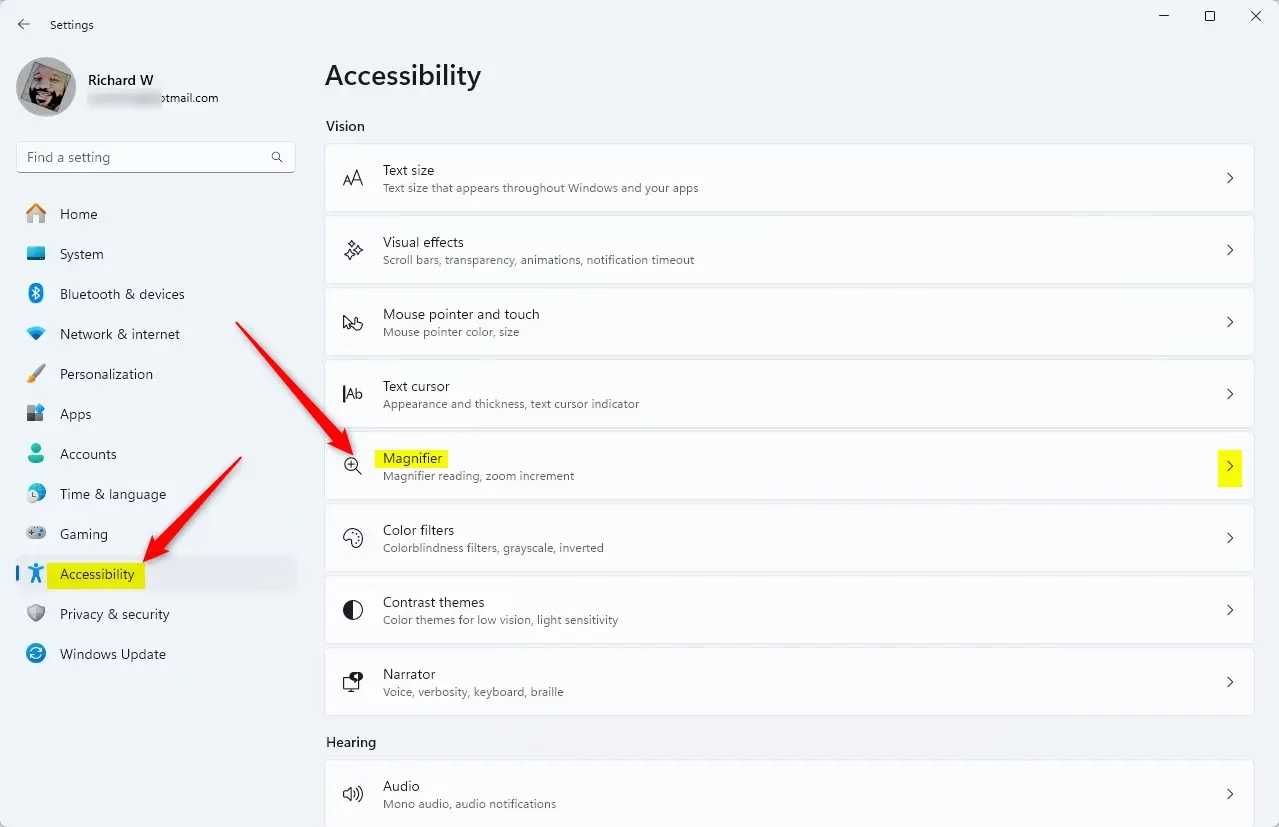
On the Magnifier settings page, you will see a toggle switch. Turn this to On to enable the tool. Next, click the small arrow next to the Magnifier tile to expand the additional options. You will see two checkboxes:
- Start Magnifier before sign-in
- Start Magnifier after sign-in
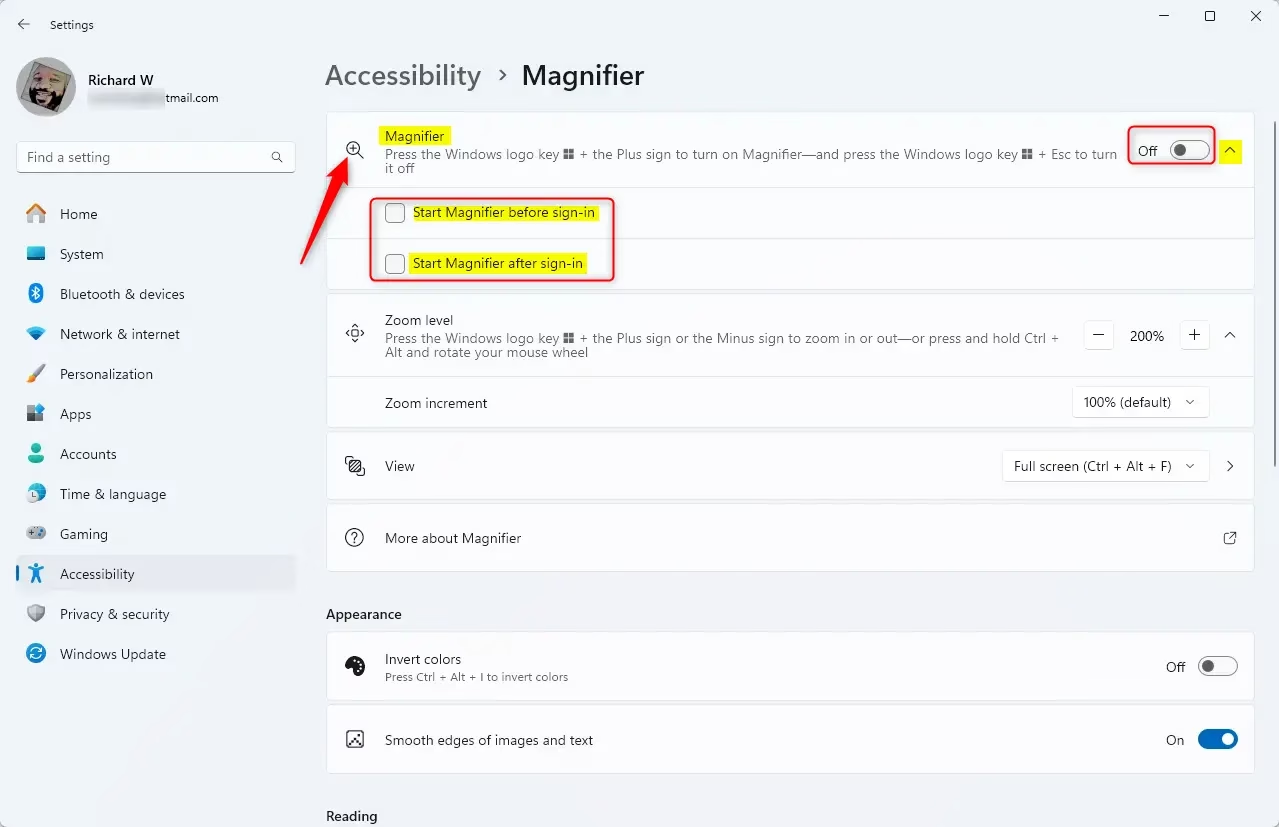
Check the boxes for whichever option you prefer. You can select both if you want the tool to be active at all times. Once you have made your selections, you can close the Settings window. Your changes are saved automatically.
Advanced Configuration: Registry Editor
Advanced users can automatically start Magnifier by changing a setting in the Registry Editor, but this requires administrator access.
🪟 Windows 10 vs 🪟 Windows 11 Nuances
Both operating systems use the same basic accessibility system, but Windows 11 has a cleaner look. In Windows 10, these settings are often found under Ease of Access rather than Accessibility. The functionality remains identical, but the menu paths differ slightly.
Summary
You can automatically start Magnifier in Windows 11 through the Accessibility settings to make your screen easier to view right when you need it.
Why does my Windows login screen stay zoomed in?
This occurs if the ‘Start Magnifier before sign-in’ option is enabled. To fix this, log into your user account, navigate to Settings > Accessibility > Magnifier, and uncheck the box for starting before sign-in. This will return your login screen to the default zoom level upon the next restart.
Does disabling automatic Magnifier affect other accessibility features?
No, disabling automatic Magnifier is an independent setting. It will not interfere with other accessibility tools like Narrator, High Contrast mode, or Color Filters. You can manage each of these features separately within the Accessibility menu to ensure your computer remains configured exactly to your personal requirements.
Was this guide helpful?

About the Author
Richard
Tech Writer, IT Professional
Richard, a writer for Geek Rewind, is a tech enthusiast who loves breaking down complex IT topics into simple, easy-to-understand ideas. With years of hands-on experience in system administration and enterprise IT operations, he’s developed a knack for offering practical tips and solutions. Richard aims to make technology more accessible and actionable. He's deeply committed to the Geek Rewind community, always ready to answer questions and engage in discussions.


Doesn’t work as you stated. I’ve tried checking either box or both and if I shut down the computer fully I still have to hit windows logo and the plus sign…..Never starts automatically.