How to Enable or Disable SmartScreen for Microsoft Store Apps on Windows 11

You can enable or disable Microsoft Defender SmartScreen for Microsoft Store apps on Windows 11 to control its security checks.
SmartScreen is a security feature that checks apps and files downloaded from the Microsoft Store for malicious threats, acting as a reputation-based filter against known dangers.
This feature helps protect your PC by verifying the safety of apps before you run them, preventing potential malware from executing.
On Windows 11, SmartScreen scans downloaded apps, comparing them against a vast database of security risks to ensure their authenticity.
How SmartScreen Works
SmartScreen uses threat intelligence to analyze software. It looks at the history of the file, the developer’s reputation, and how many other users have downloaded it. If a file is rare or suspicious, it triggers a warning. This process is different from Microsoft Defender Antivirus, which scans files for known virus patterns. SmartScreen focuses on the reputation of the source and the behavior of the file.
Managing SmartScreen for Microsoft Store Apps
Note: You must have administrator privileges to change these security settings.
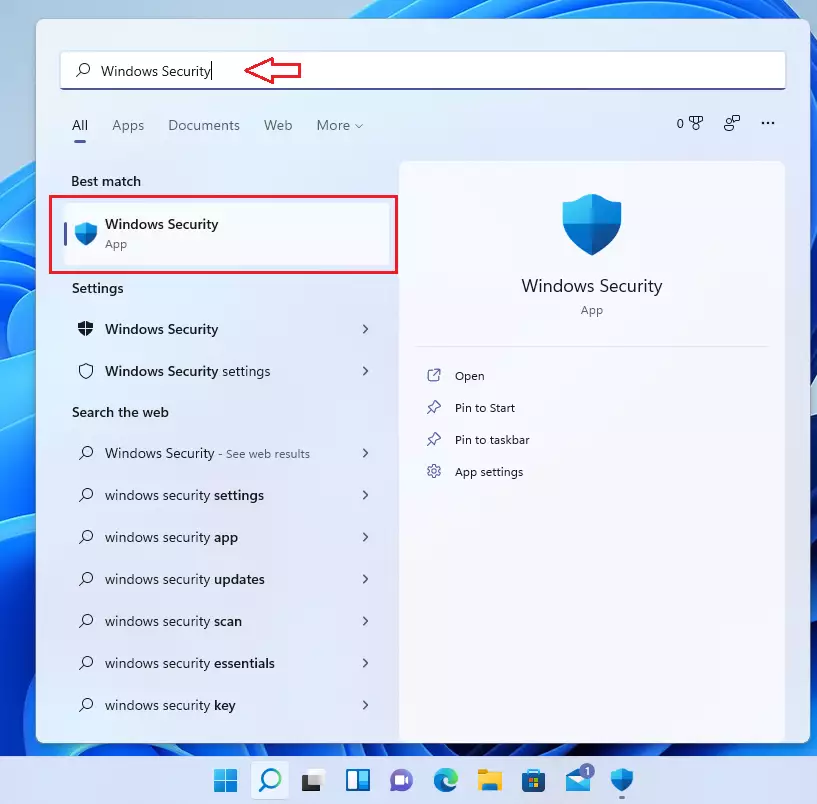
- In the search box on your taskbar, type Windows Security and click on Windows Security.
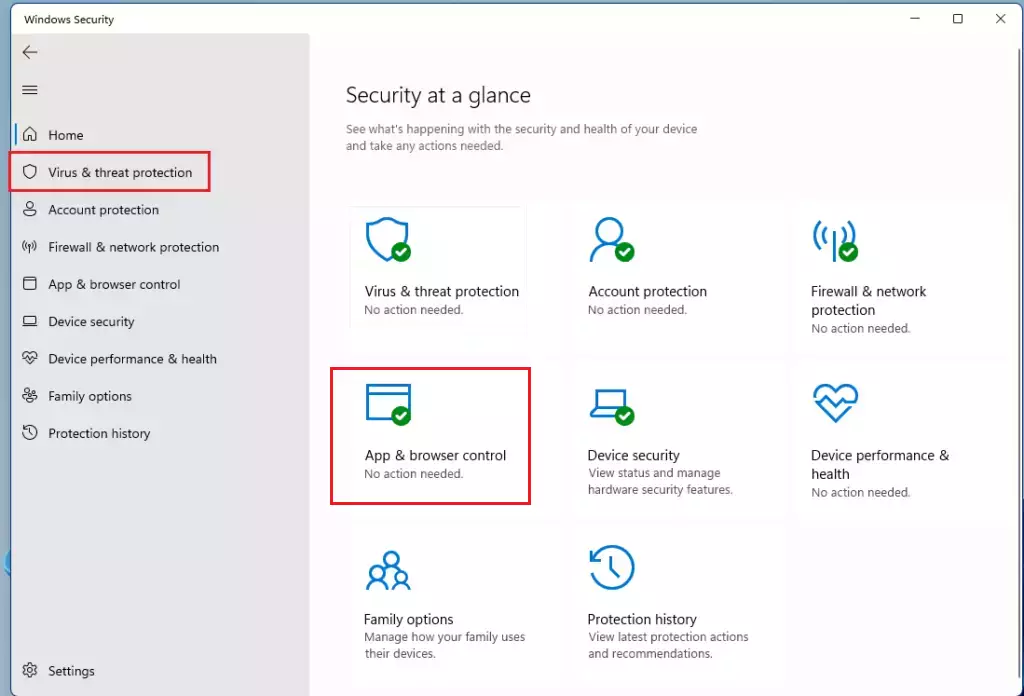
- Click on the App & browser control tile.
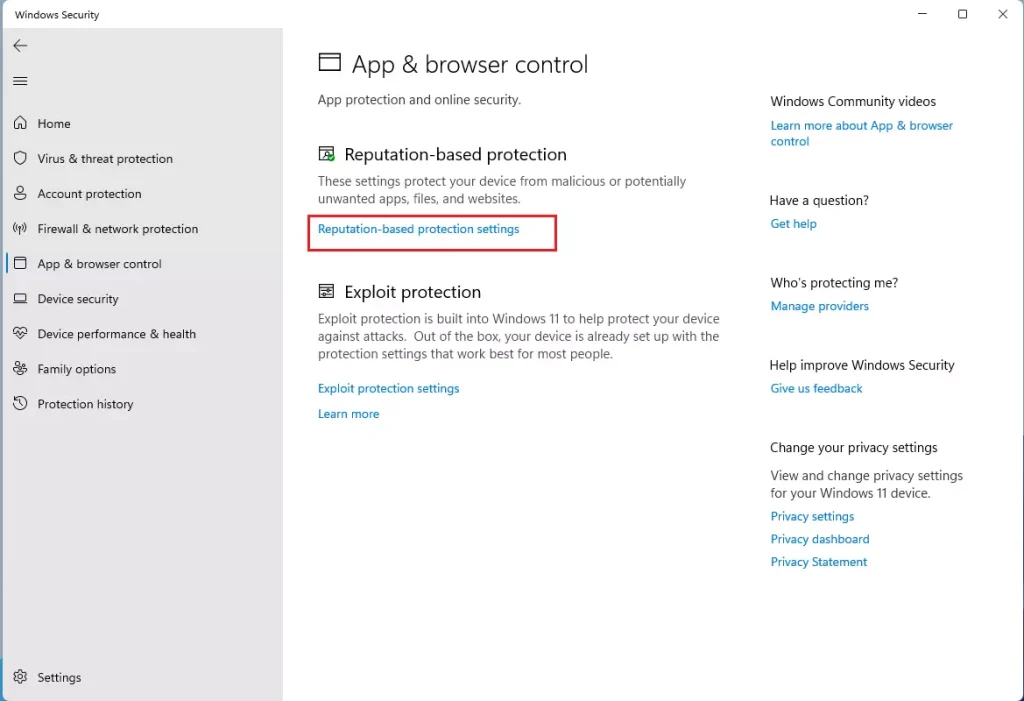
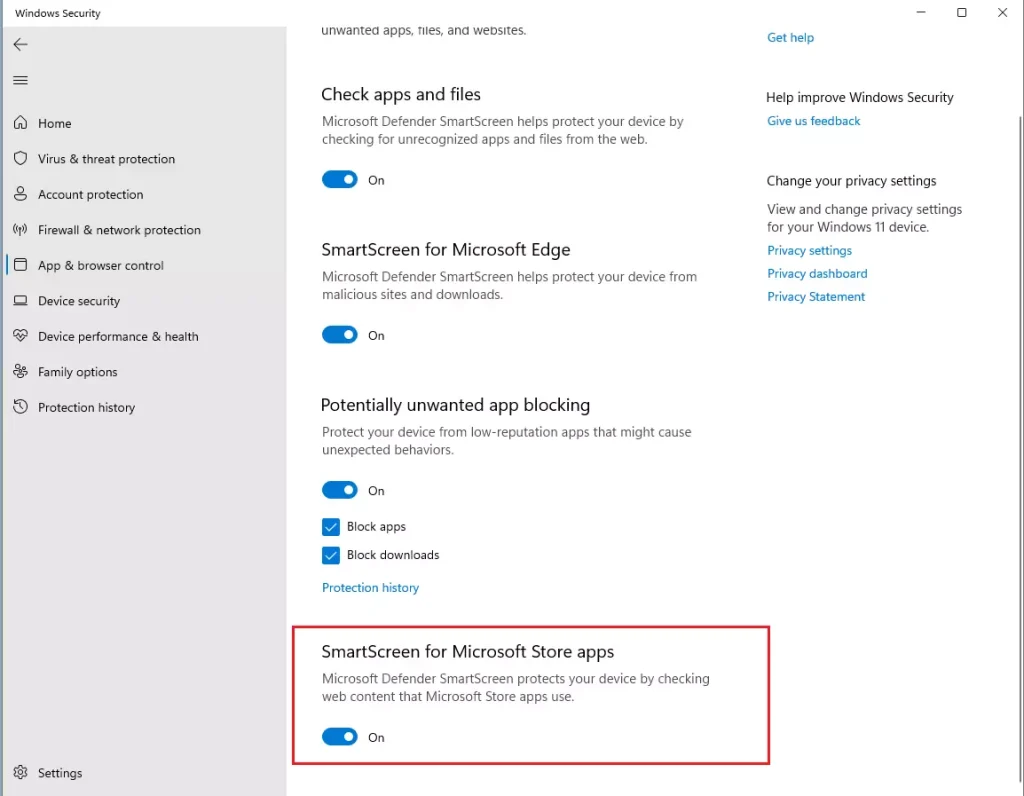
- On the next page, look for Reputation-based protection and click the Reputation-based protection settings link.
- Find the section labeled SmartScreen for Microsoft Store apps. Toggle the switch to On or Off based on your preference.
Enterprise Management via Group Policy
For IT administrators managing multiple computers, you can control SmartScreen using the Group Policy Editor. This ensures consistent security across an organization.
HKEY_LOCAL_MACHINE\SOFTWARE\Policies\Microsoft\Windows\System
You can set the EnableSmartScreen value to 1 to enable or 0 to disable it.
Troubleshooting and False Positives
Sometimes, safe apps are flagged as dangerous. This is called a false positive. If you know an app is safe, you can report it to Microsoft. Visit the official Microsoft Security Intelligence submission page to upload the file for analysis. This helps improve the accuracy of the threat intelligence database.
Summary
Microsoft Defender SmartScreen is a critical component of Windows security. It provides reputation-based filtering to protect you from malicious apps and websites. By keeping it enabled, you ensure that your system benefits from real-time threat intelligence. Always use caution when bypassing security warnings, and report any false positives to Microsoft to help keep the ecosystem safe for everyone. For more details, visit the official Microsoft documentation.
What does it mean when I see the ‘site reported as unsafe’ warning?
This warning means Microsoft Defender SmartScreen has identified the website as a potential source of phishing or malware. It is highly recommended that you do not proceed to the site, as it may attempt to steal your personal information or install harmful software on your computer.
Does SmartScreen affect system performance?
SmartScreen has a minimal impact on system performance. It performs checks in the background using cloud-based threat intelligence. Most users will not notice any slowdowns while browsing or downloading apps, as the security benefits far outweigh the negligible resource usage required for these safety checks.
Was this guide helpful?

About the Author
Richard
Tech Writer, IT Professional
Richard, a writer for Geek Rewind, is a tech enthusiast who loves breaking down complex IT topics into simple, easy-to-understand ideas. With years of hands-on experience in system administration and enterprise IT operations, he’s developed a knack for offering practical tips and solutions. Richard aims to make technology more accessible and actionable. He's deeply committed to the Geek Rewind community, always ready to answer questions and engage in discussions.


No comments yet — be the first to share your thoughts!