How to Enable or Disable Microsoft SmartScreen in Windows 11

This article explains how to turn Microsoft Defender SmartScreen on or off for Microsoft Edge in Windows 11.
Why Use Microsoft Defender SmartScreen?
When you use the Microsoft Edge browser, Microsoft Defender SmartScreen helps check websites and downloads. It looks for known dangerous sites like phishing scams or fake tech support pages.
By default, SmartScreen is turned on. It protects your device by checking for unknown apps and files from the web. If you try to visit a dangerous website, SmartScreen shows you a warning. This gives you a chance to close the tab before anything bad happens.
These protections are built into Windows. They work with Microsoft Defender Endpoint on your device and in the cloud. Microsoft Security also includes other protections like controlled folder access, real-time protection, Tamper protection, and ransomware protection.
How to Turn SmartScreen On or Off
phishing protection can help check if websites or downloads are dangerous, such as phishing sites or tech support scams.
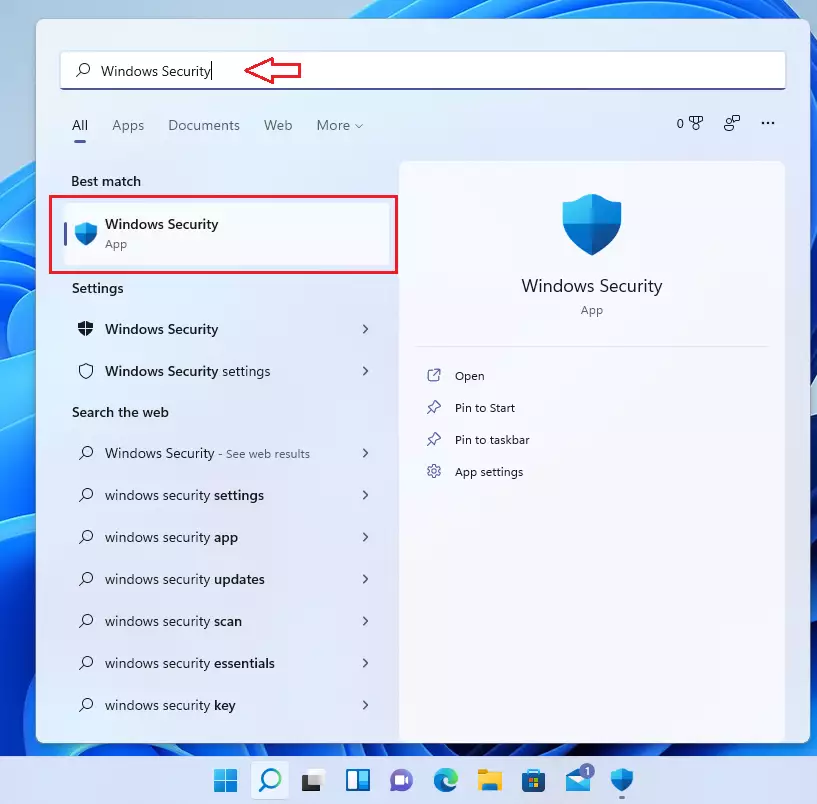
Step 1: Open Windows Security
In the search box on your taskbar, type Microsoft Defender SmartScreen and select Windows Security from the results.
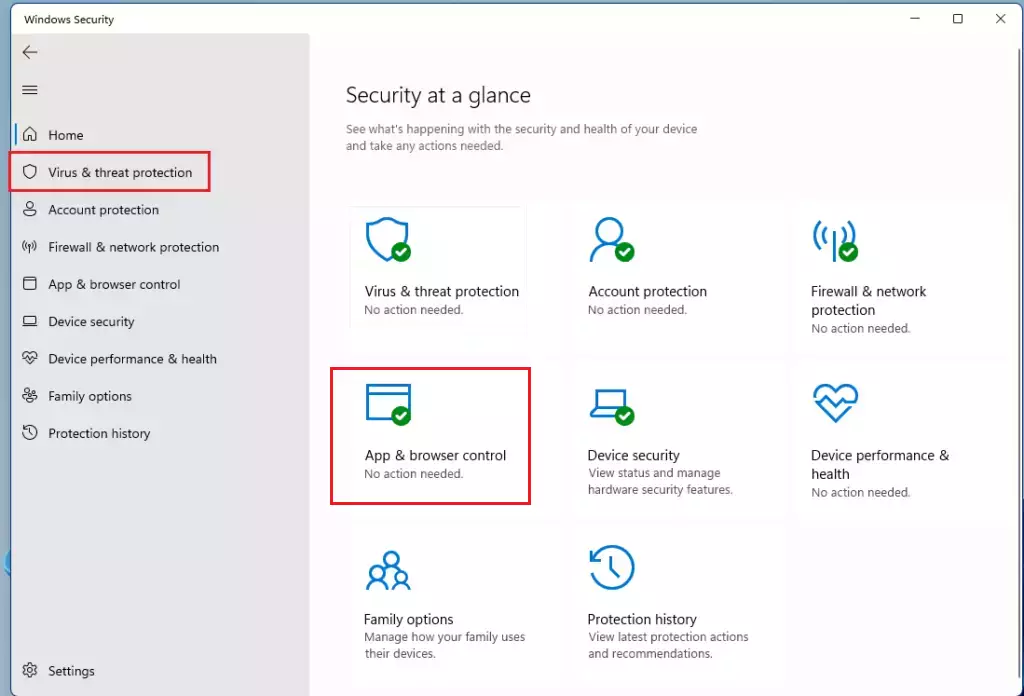
Step 2: Select App & Browser Control
Select the App & Browser control tile in Windows Security, as shown in the image below.
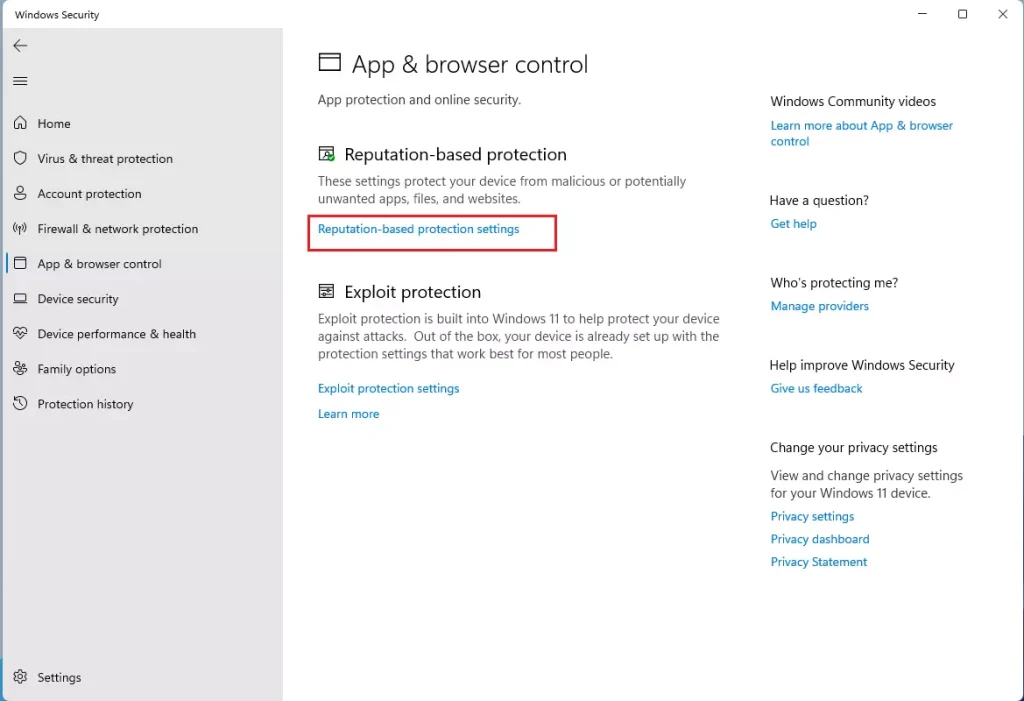
Step 3: Click Reputation-based Protection Settings
On the App & browser control settings page, look for Reputation-based protection. Click the Reputation-based protection settings link.
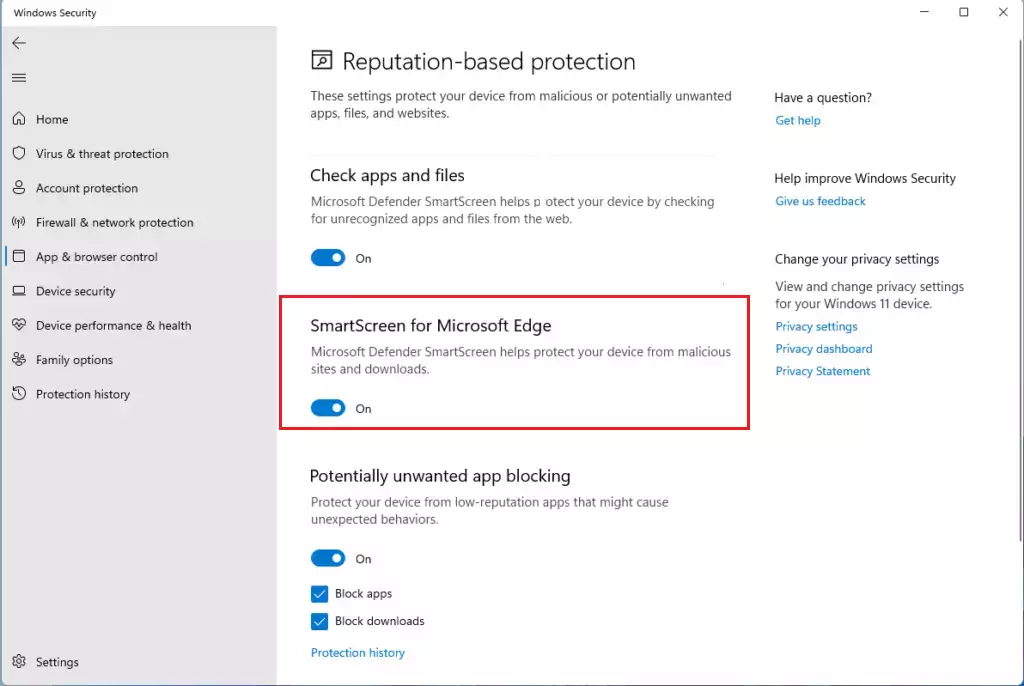
Step 4: Toggle SmartScreen On or Off
On the Reputation-based protection settings page, find SmartScreen for Microsoft Edge. Toggle the button to turn it On or Off.
You have two choices:
- On = SmartScreen warns you about potentially dangerous apps and files from the web. You can still download them if you choose to.
- Off = SmartScreen is disabled. You won’t get alerts about potentially dangerous downloads.
Step 5: Turn On SmartScreen in Edge
After you finish in Windows Security, go to your Microsoft Edge browser. You should also turn on SmartScreen inside Edge for full protection.
That’s it! You’re done.
Summary
Microsoft Defender SmartScreen for Microsoft Edge in Windows 11 protects you by checking websites and downloads for threats. You can easily turn SmartScreen on or off by going to Windows Security and using the reputation-based protection settings. Toggle the SmartScreen button based on what you need. For best protection, also turn on SmartScreen inside the Edge browser itself. This gives you extra defense against dangerous websites and malicious downloads.
Frequently Asked Questions
Why Use Microsoft Defender SmartScreen?
Was this guide helpful?


Leave a Reply